Introduction to OMNIXYNC Create Discount
A Discount lowers the price of the items you choose for a set period. Each discount is created on one channel, because the same item has a different Item ID on every platform. Shopee, Shopify and WooCommerce are available for now.
How to Create a Discount?
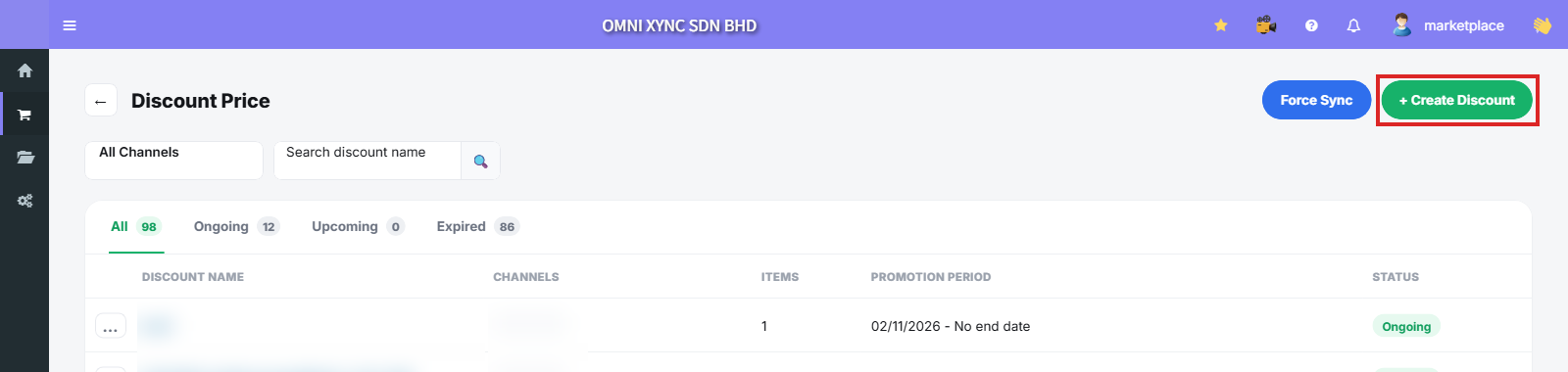
Step 1: On the Discount Price page, click + Create Discount
Step 2: Fill in the Basic Information and choose the Channel:
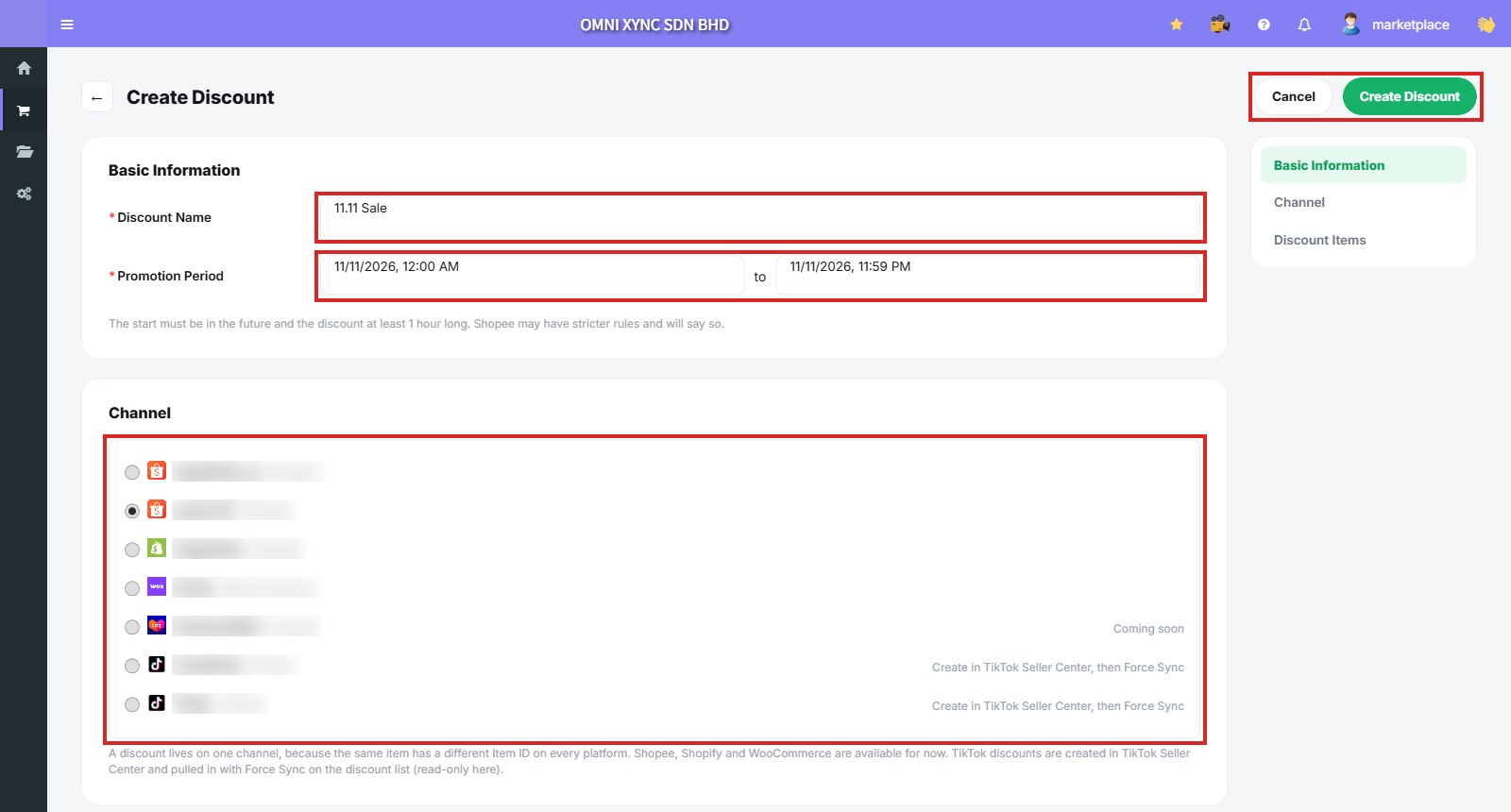
- Discount Name = The name of the discount.
- Promotion Period = Start must be later than now. The discount must be at least 1 hour long.
- Channel = Choose one shop. Lazada is coming soon. TikTok discounts are created in TikTok Seller Center, then pulled in with Force Sync.
- Cancel = Leaves the form without saving.
Step 3: For a Shopify channel, set the Discount Value:

- Percentage off (%) or Amount off each item (RM) = Every item gets the same discount. Shopify applies it in the cart and at checkout.
Step 4: Click + Add Items, tick the items and click Add Selected
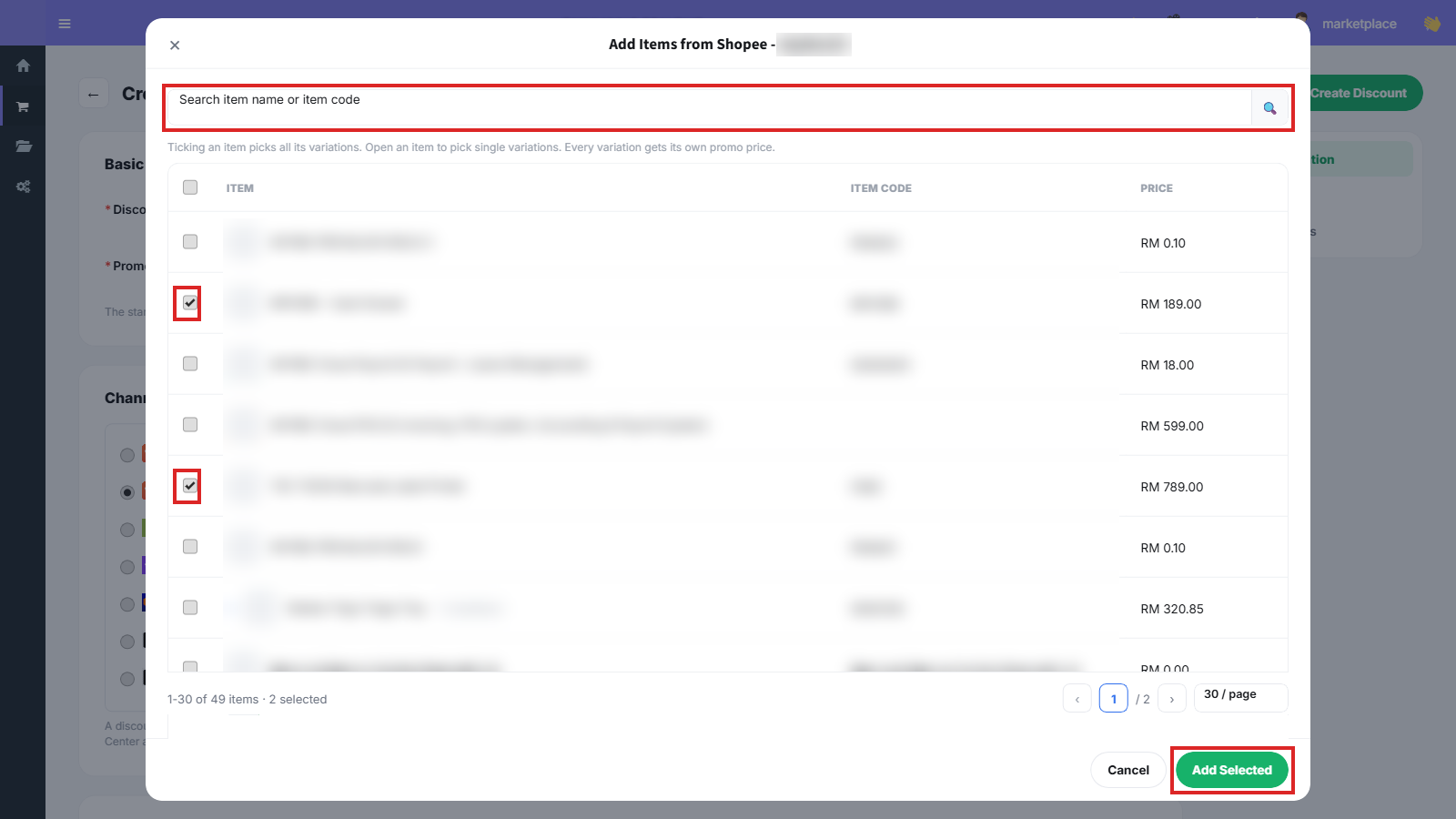
- Search = Type the item name or item code.
- Tick an item = Picks all its variations. Click ▸ to pick single variations.
Step 5: Set the price for each item, then click Create Discount
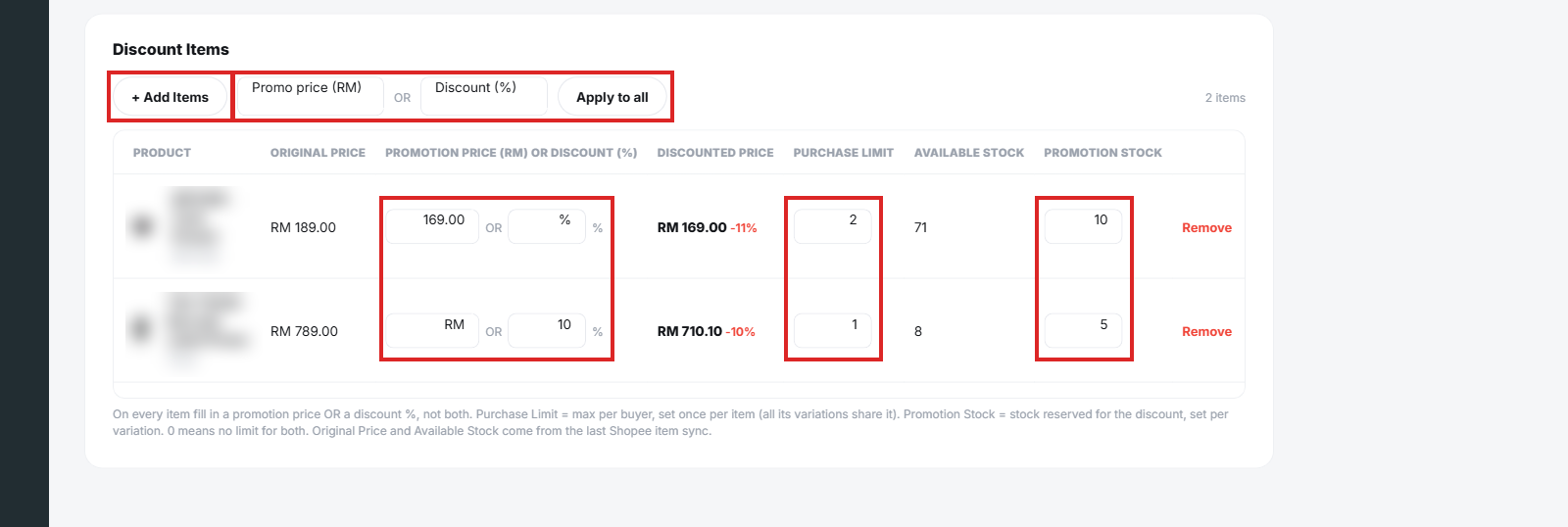
- Promotion Price (RM) OR Discount (%) = Fill in one only, not both. Discounted Price shows the new price.
- Promo price / Discount + Apply to all = Sets the same price or % for every item at once.
- Purchase Limit = Max quantity per buyer. 0 means no limit.
- Promotion Stock = Stock reserved for the discount. 0 means no limit.
- Remove = Removes the item from the discount.
Note: WooCommerce has no Purchase Limit or Promotion Stock, and each WooCommerce discount is for one item only.
Conclusion
In conclusion, Create Discount lets you set a sale price for your items on a shop from one form in SKYBIZ.
Powered By: SKYBIZ ®