SECTION B : SKYBIZ Malaysia E-Invoicing User Guide (Offline)
Step 1: Company E-Invoice Registration
Log in to the MyInvois Portal as a director, add us as your intermediary.
https://skybizglobal.com/tutorial/einvoice/addintermediary.mp4
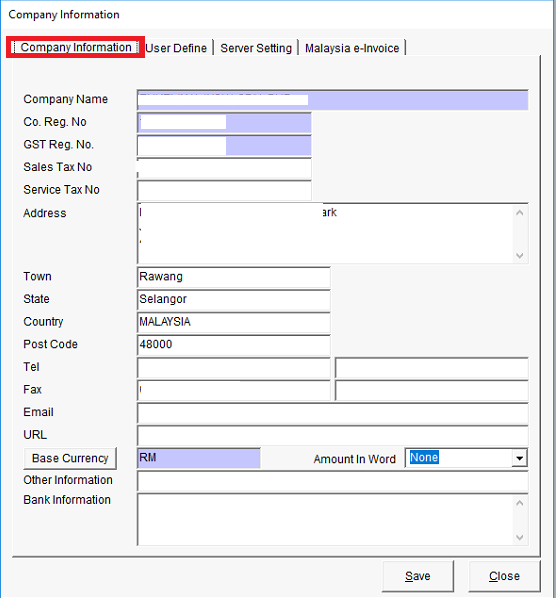
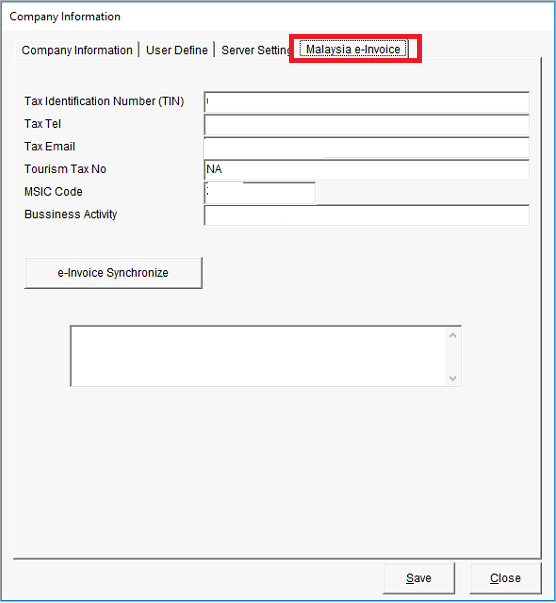
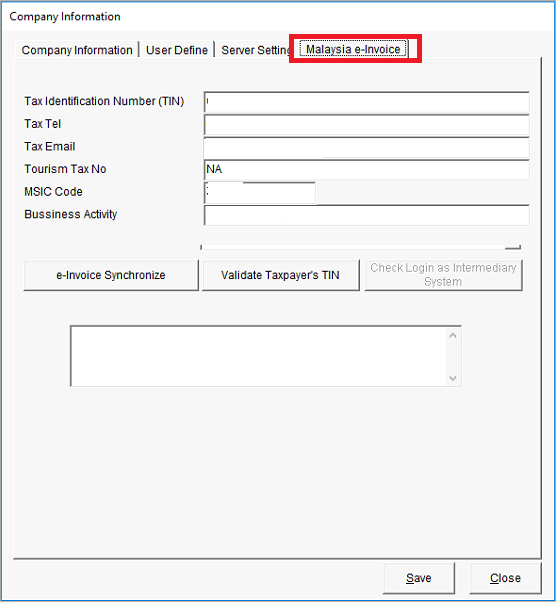
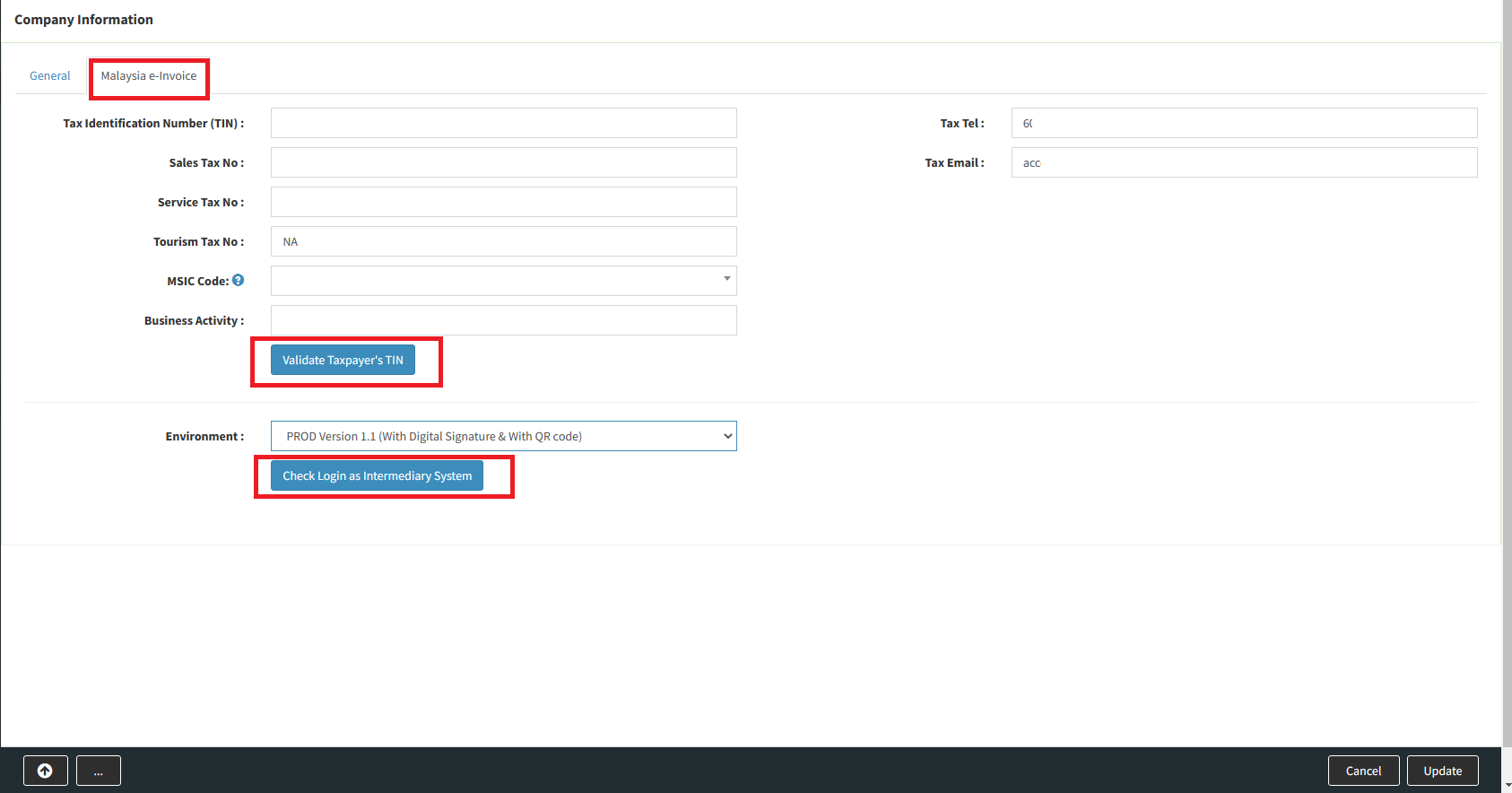
Step 2 : Upon successful registration with LHDN, you will receive LHDN reply. Please fill up those information into SKYBIZ system as per below picture,
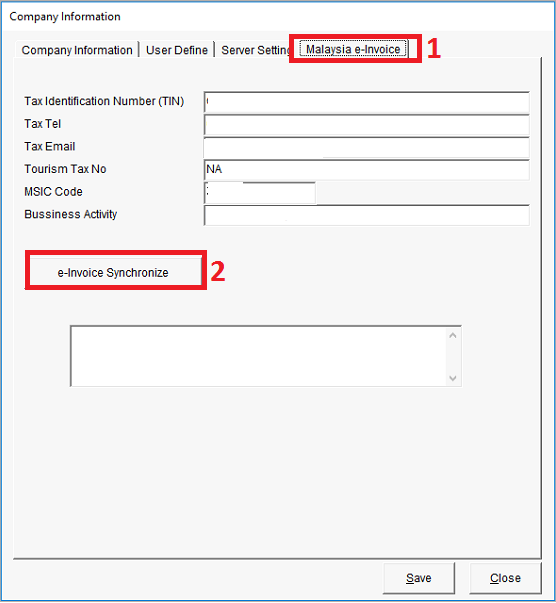
(Company Information update) : You require to update some additional important information into Offline company module. Below are some important information you have to request from your existing or new customer. Please refer below additional information company template :
a. Company Name
b1. Business Registration No (Current) :
b2.Business Registration No (New) :
c. Company Business Address : (compulsory fill up Town, Country, State, Postcode)
d. Tax Identification Number (TIN) : https://www.hasil.gov.my/media/1iblexbc/malaysia-tin.pdf
e. SST Registration No. : (compulsory if customer is SST registered, else put N/A if Not Available)
f. E-Invoice Contact Tel. No. :
g. E-Invoice Contact Email Address :
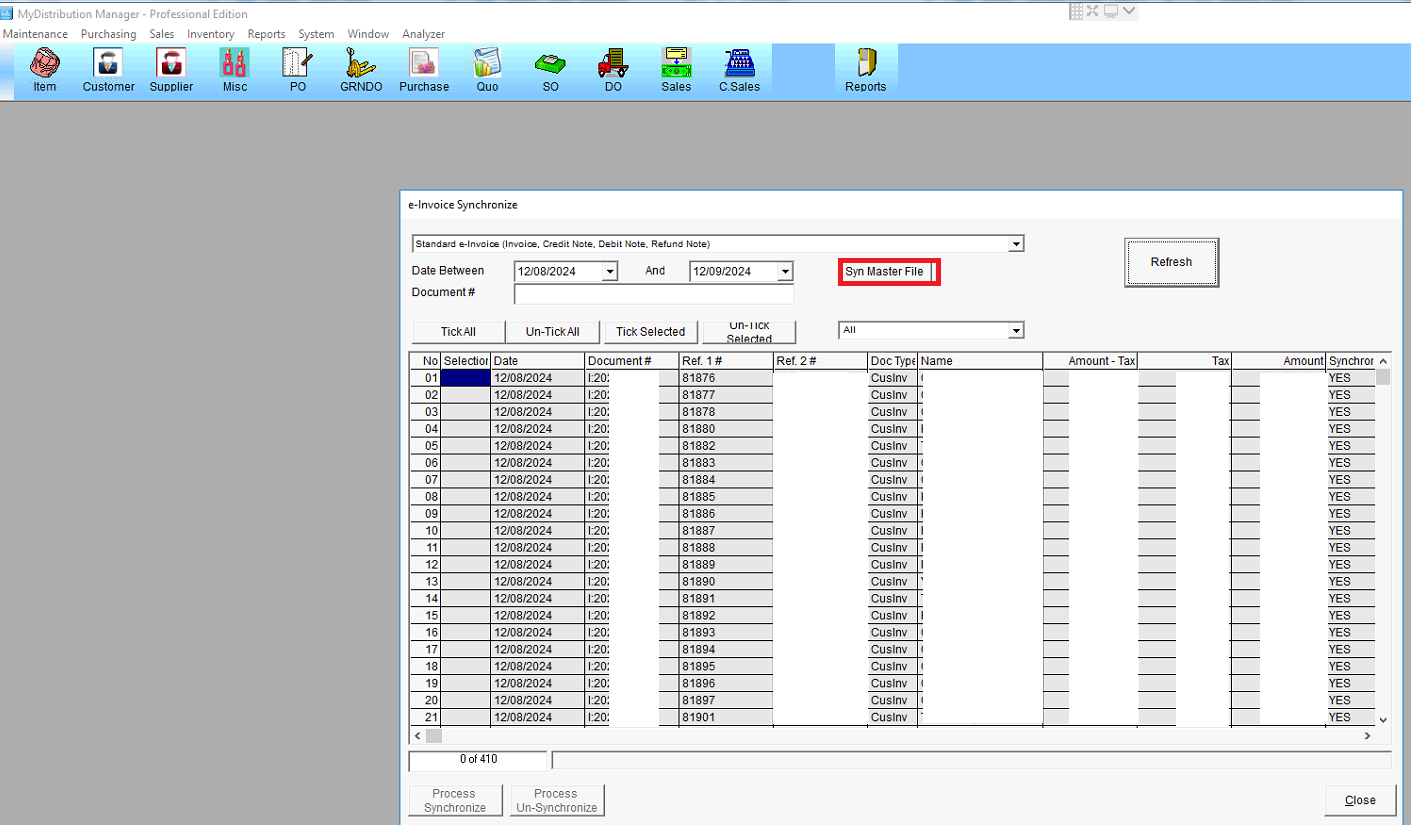
After fill up all the company information, please click [Syn Master File] to the clould , at cloud system click [Check Login as Taxpayer System] and [Validate Taxpayer’s TIN].
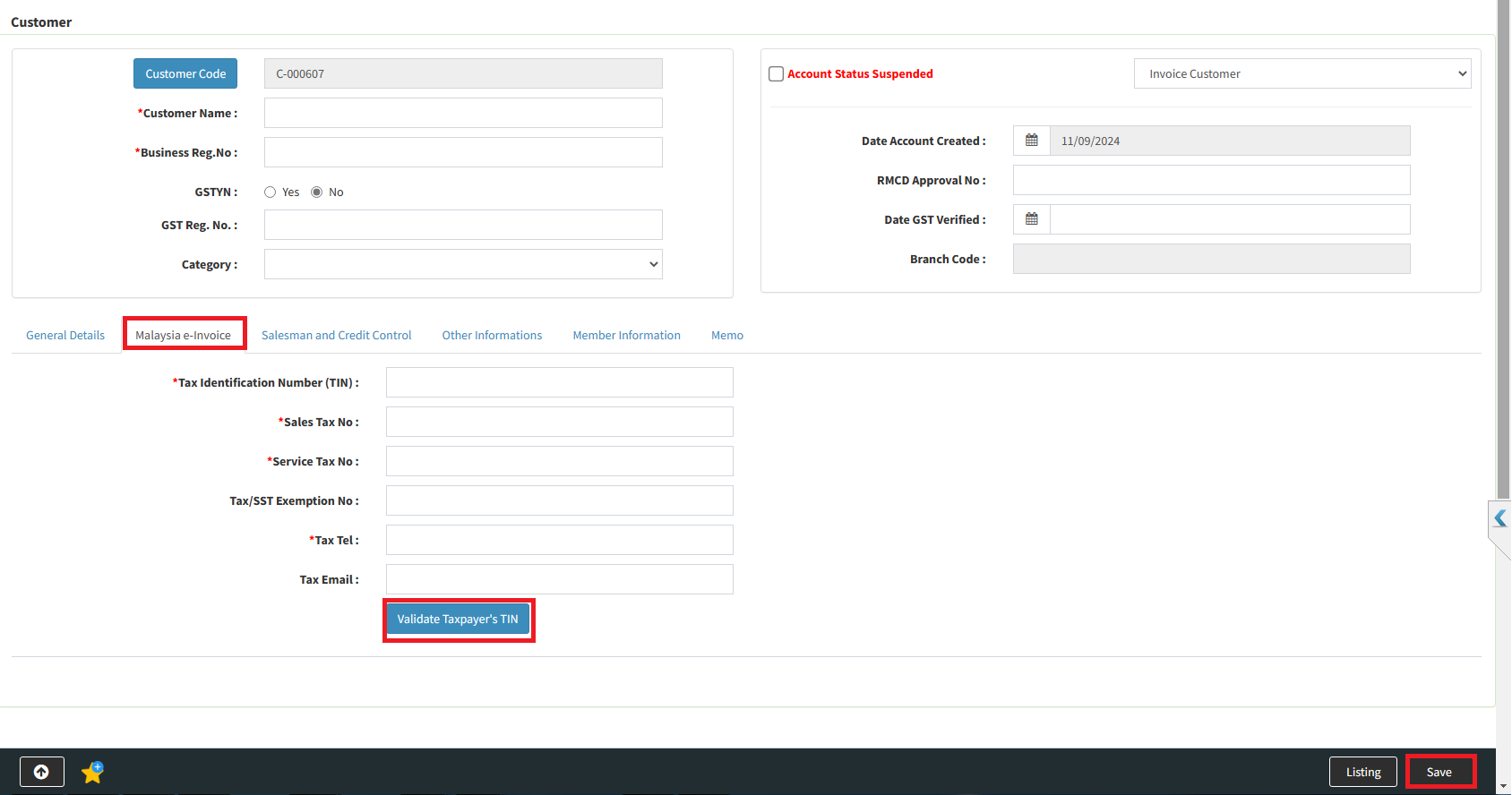
Step 3 (Customer Information update) : You require to update some additional important information into offlinecustomer module. Below are some important information you have to request from your existing or new customer. Please refer below additional information customer template :
a. Customer Name
b1. Business Registration No (Current) :
b2.Business Registration No (New) :
c. Customer Business Address : (compulsory fill up Town, Country, State, Postcode)
d. Tax Identification Number (TIN) : https://www.hasil.gov.my/media/1iblexbc/malaysia-tin.pdf
e. SST Registration No. : (compulsory if customer is SST registered, else put N/A if Not Available)
f. E-Invoice Contact Tel. No. :
g. E-Invoice Contact Email Address :
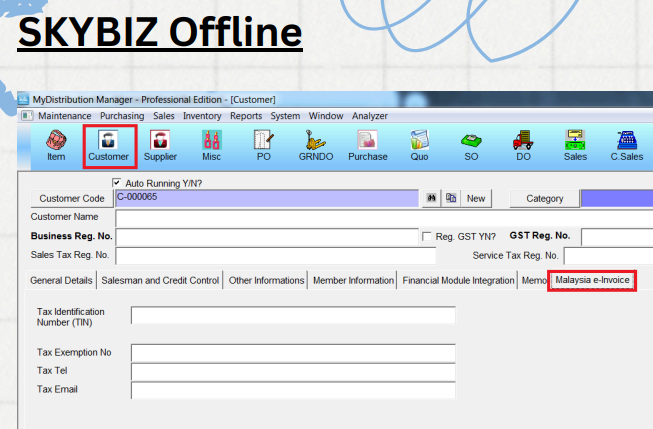
Upon receiving additional customer information, please update those information into offline customer module, and click [Validate Taxpayer’s TIN], and save it will validated update into SKYBIZ system.
Step 4 (Supplier Information update) : You require to update some additional important information into offline supplier module. Below are some important information you have to request from your existing or new supplier. Please refer below additional information supplier template :
a. Supplier Name
b1. Business Registration No (Current) :
b2.Business Registration No (New) :
c. Supplier Business Address : (compulsory fill up Town, Country, State, Postcode)
d. Tax Identification Number (TIN) : https://www.hasil.gov.my/media/1iblexbc/malaysia-tin.pdf
e. SST Registration No. : (compulsory if supplier is SST registered, else put N/A if Not Available)
f. Tourism Tax No : (compulsory if supplier is Tourism Tax registered, else put N/A if Not Available)
g. MSIC Code: https://sdk.myinvois.hasil.gov.my/codes/msic-codes/
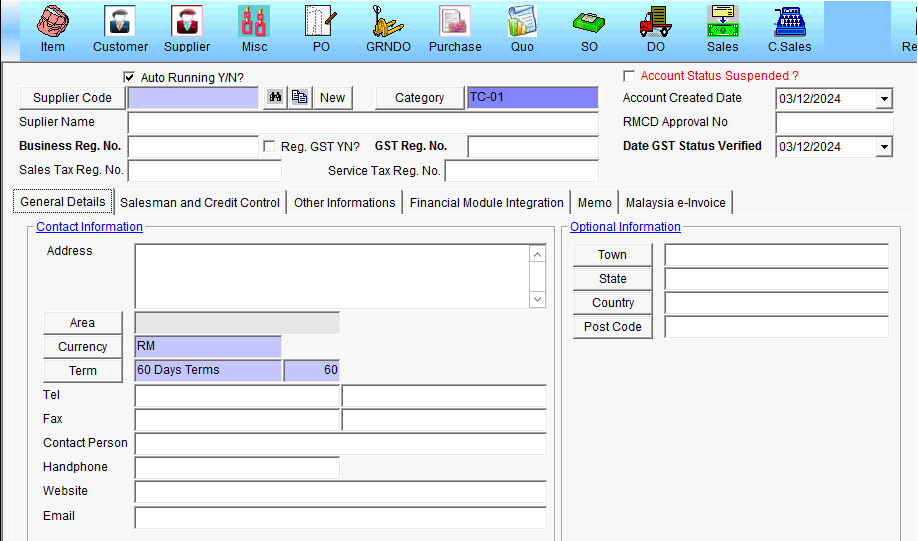
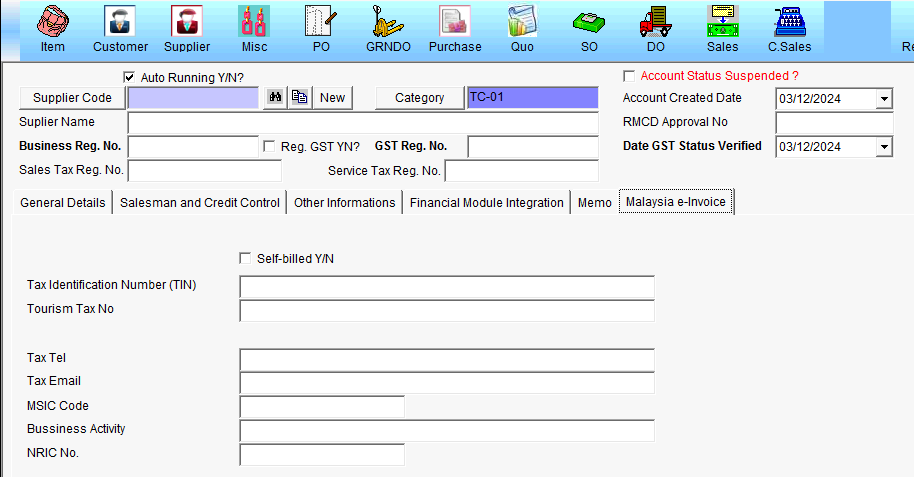
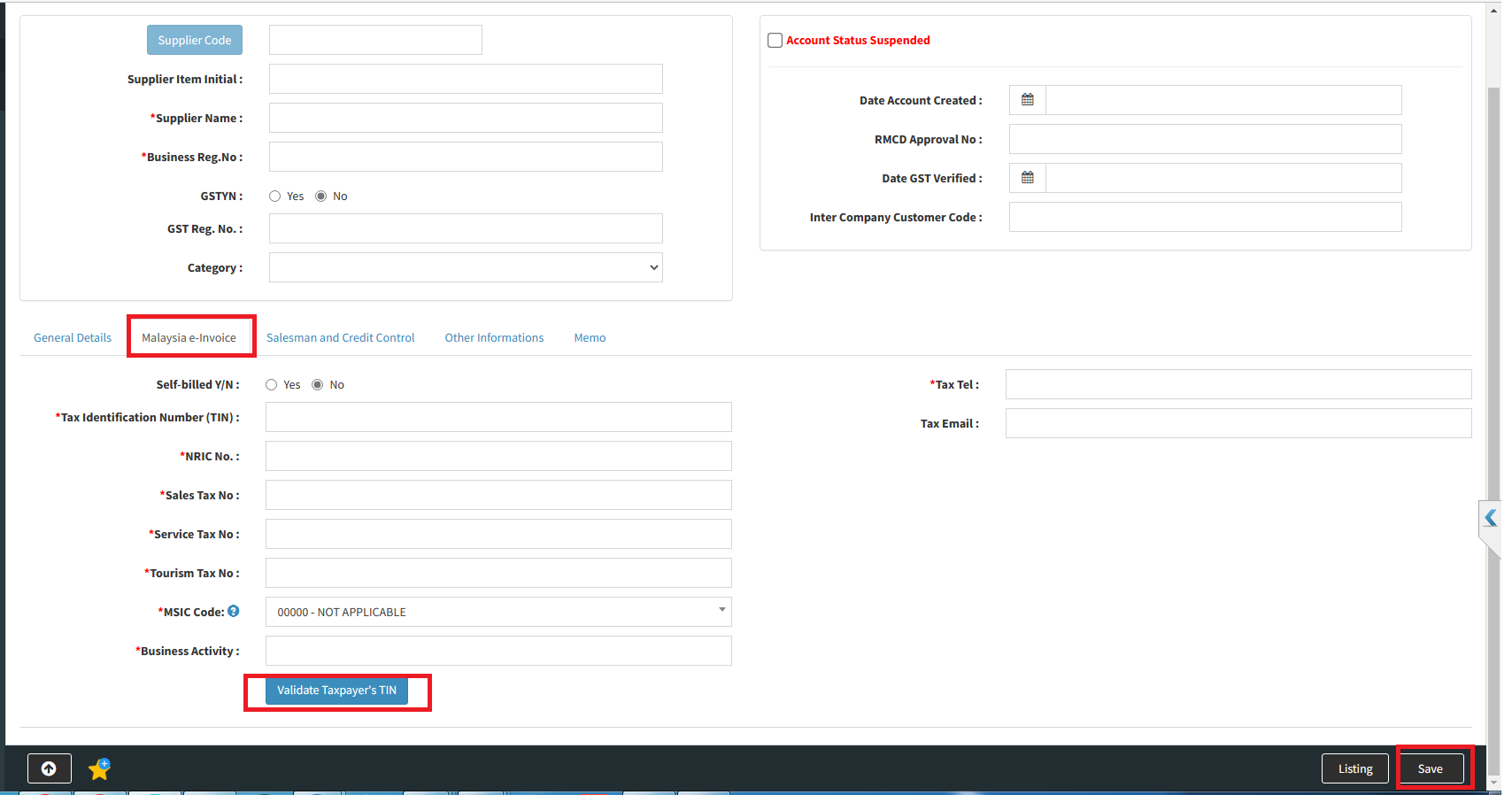
Upon receiving additional supplier information, please update those information into offline supplier module, and click [Validate Taxpayer’s TIN], and save it will validated update into SKYBIZ system.
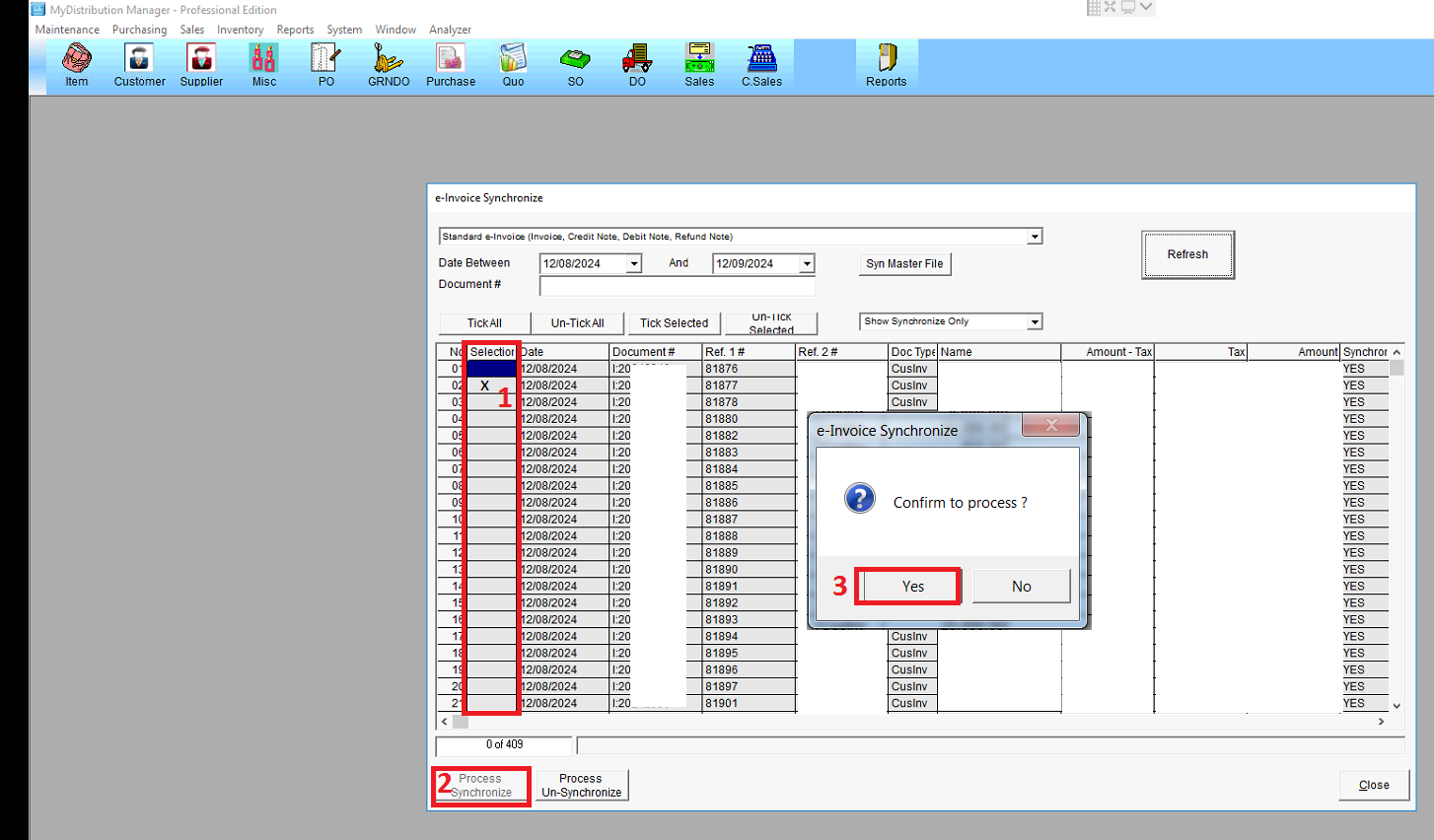
Step 6 :After fill up all the detail (Company Information,Customer Information and Supplier Information), please click [Process Synchronize] to synchronize the document to SKYBIZ cloud, purpose of e-Invoice submission.
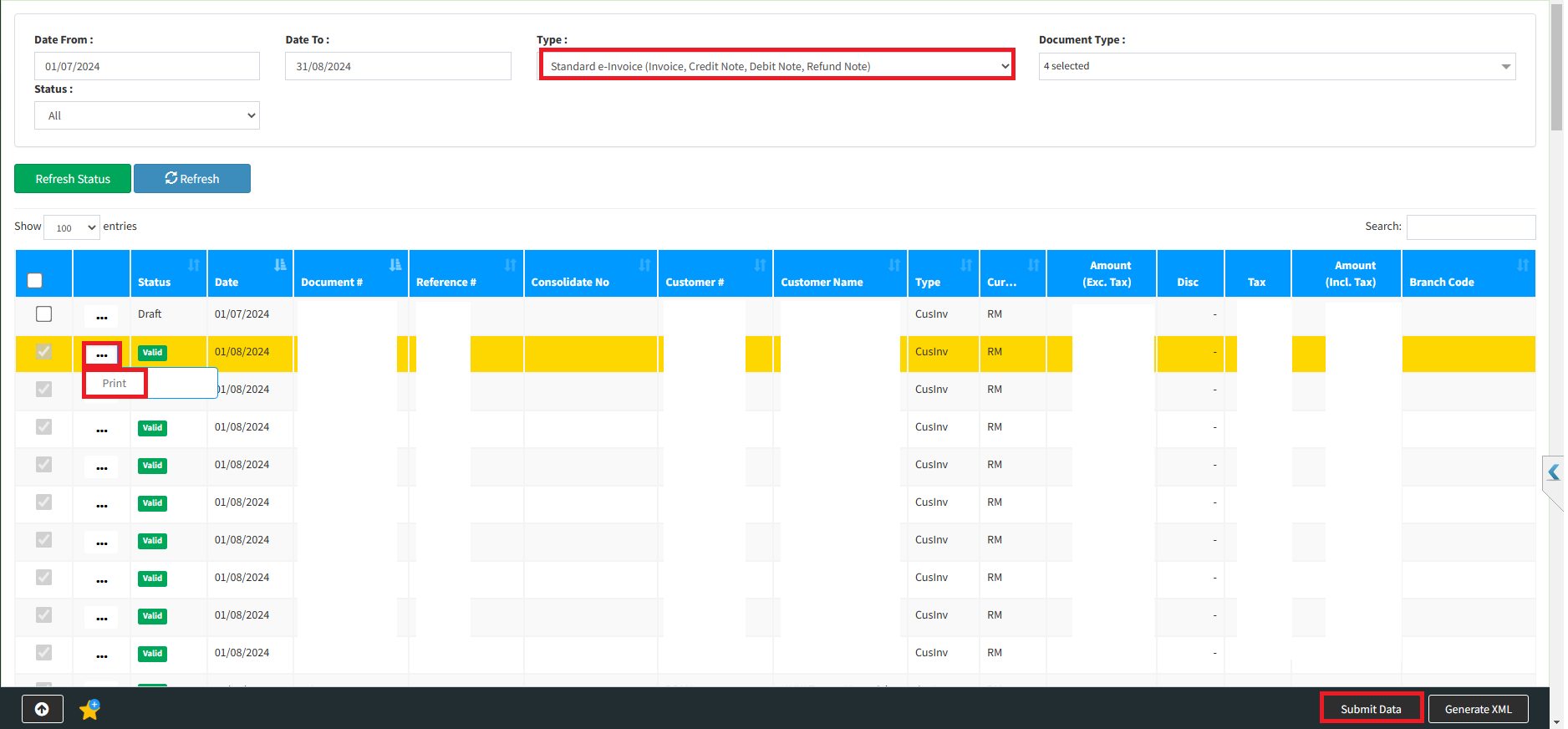
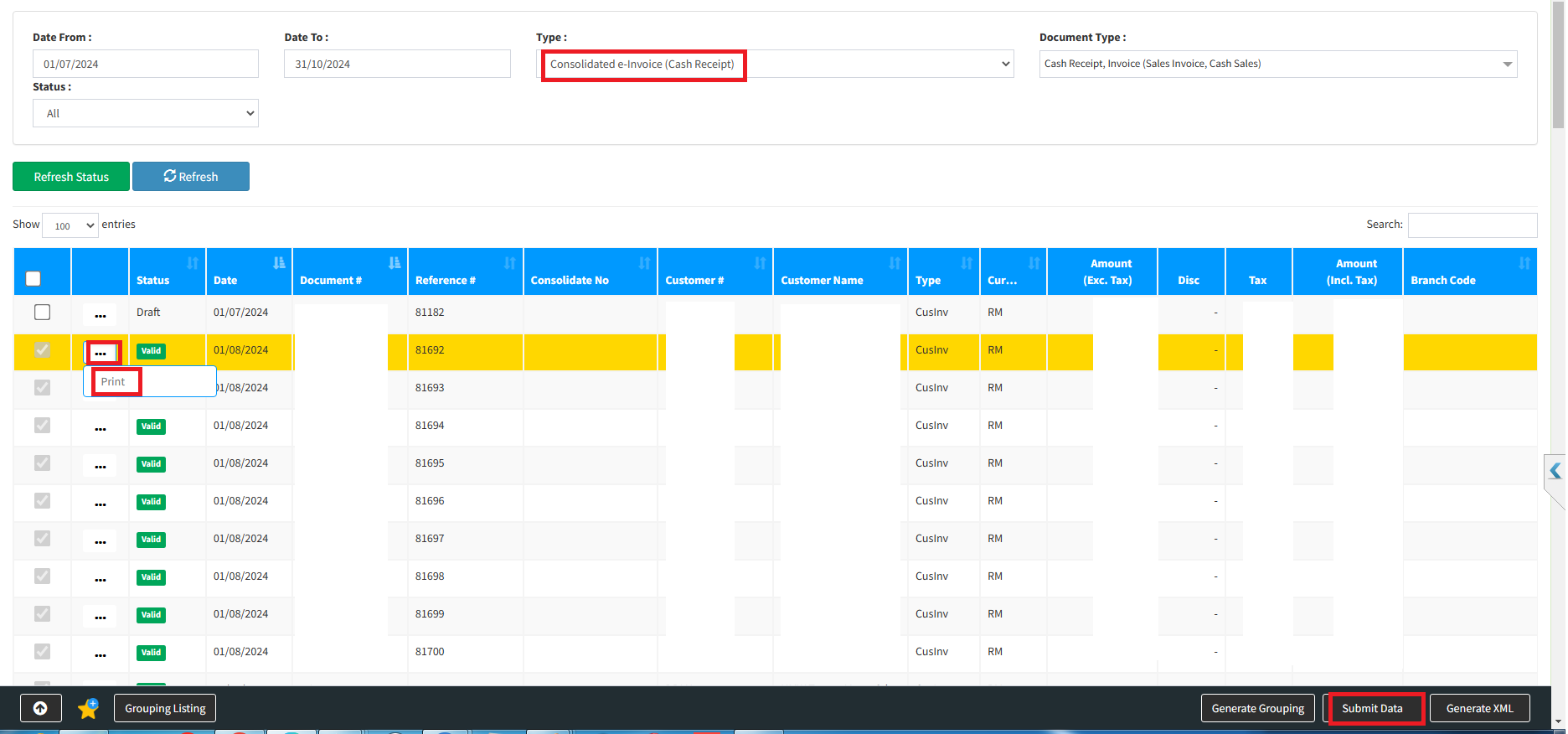
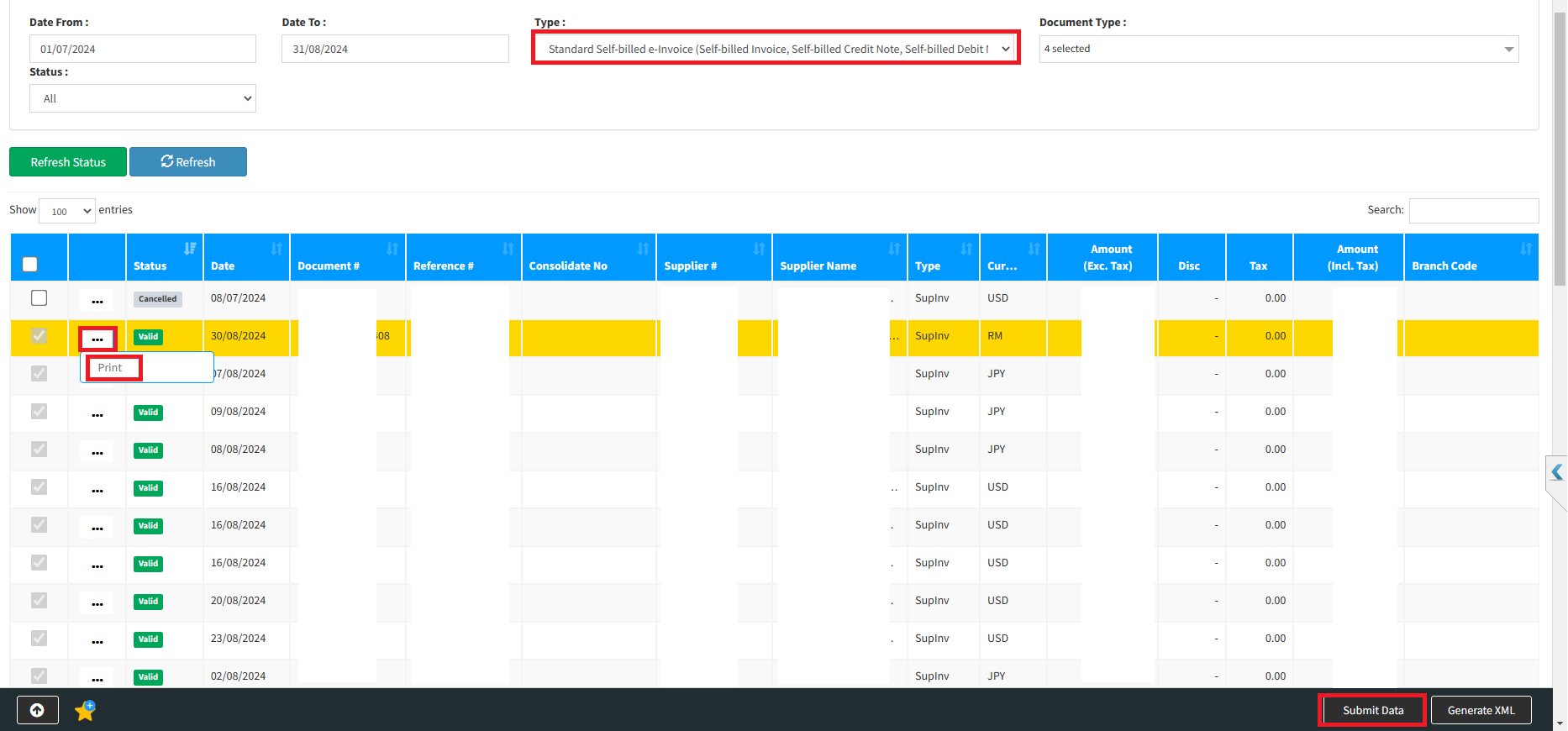
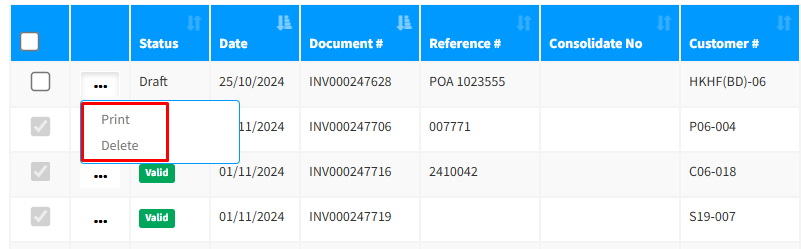
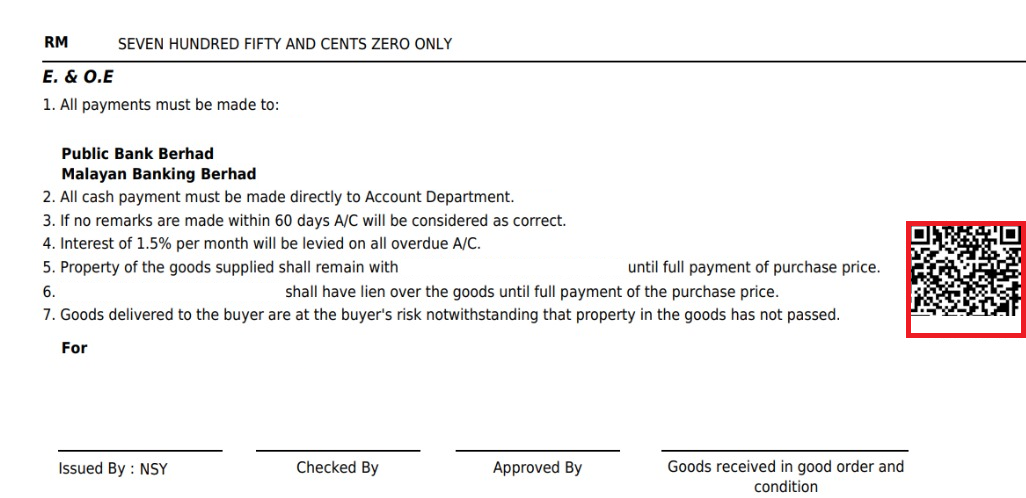
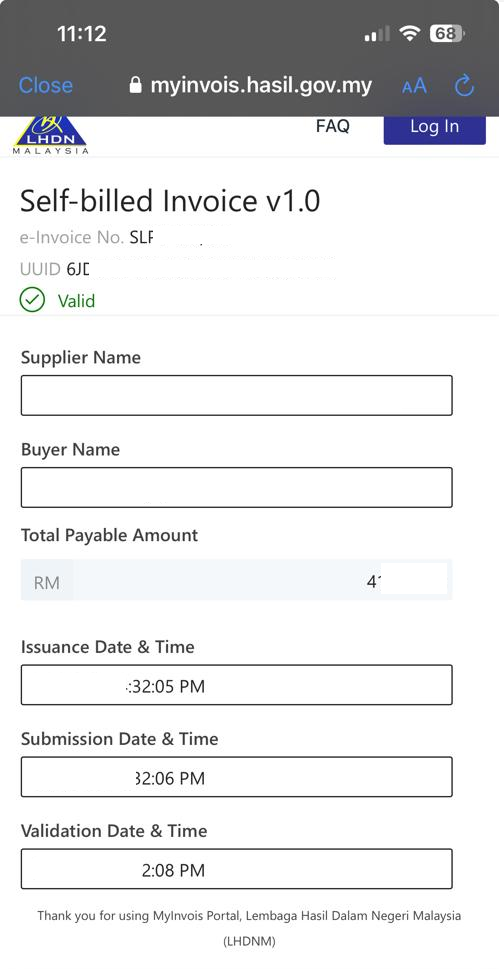
Step 7 : Submission e-invoice at cloud system

Powered By : SKYBIZ ®