Below are Guideline(s) to Register Android Device in Cloud: Go to browser “Google Chrome“, type “https://www.skypos.com.my/“, click “Client Login“. Key in “registerdevice” >> NEXT Login with your email address and password. Fill up all information (Follow screen shot steps) Select preset “Store Address“ Fill up your “Device ID“, Branch Code, Location Code, Department Code, Sales Person ..
Category : Android T series
Below are Guideline(s) to Install and Upgrade Pos System in Android Device: On your devive, go to browser “https://www.skybiz.my/” and then click “Support Login“ Type your “Email Address” and “Password“ Click menu “Other Download“ If your android devices is T series, click an icon “android_pos_tf.apk” to download and run If your android devices is V ..
Below are Guideline(s) to activate Auto Update in Mobile Order (V1) and Tablet Order (T1) Device Go to “apps store” >> your profile >> turn on “Auto Update” https://www.support.skybizglobal.com/wp-content/uploads/2019/01/kb_sunmi_autoinsta..
Below are Guideline(s) to boost android apps performance to read data from MySQL server: Go to your server and edit “my.ini“, at last script add “skip_name_resolve“ Save amended “my.ini” and restart MyS..
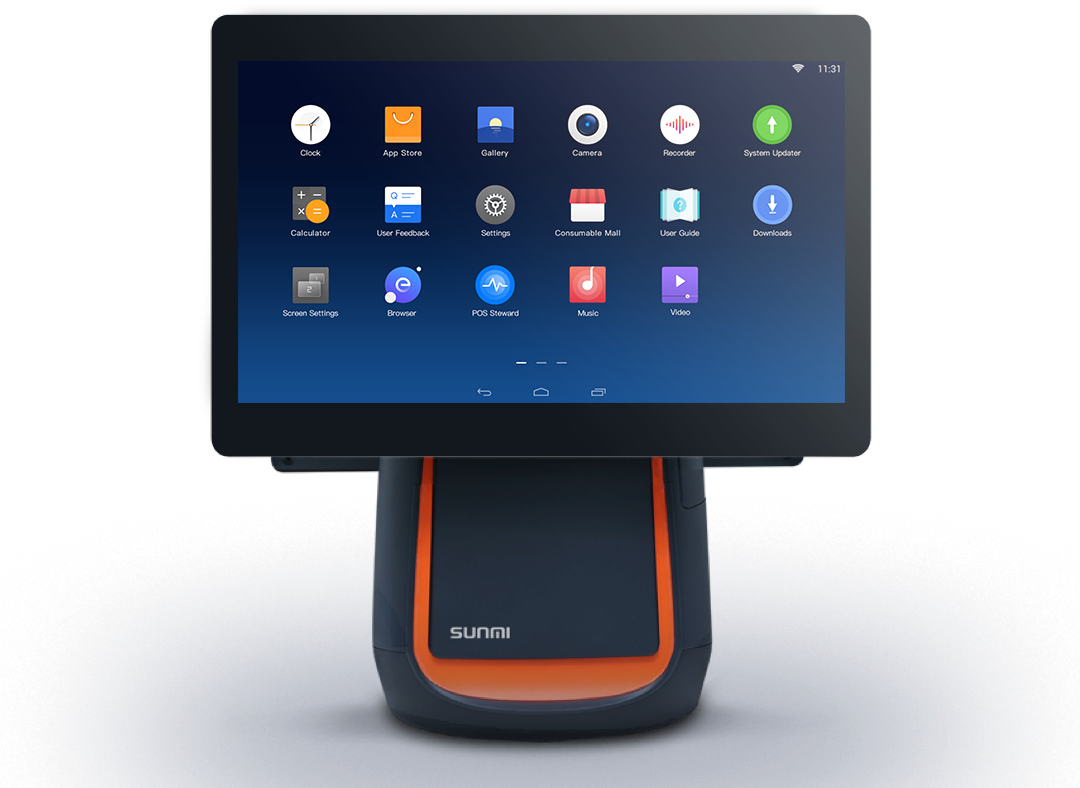
Below are Guideline(s) on How to use Counter Tablet (T1) Step 1: Take Order Take order and select item from the menu (right side) 2. To edit ordered item, click the item and edit changes. Step 2: Finalise Your Order You may choose to pay now or pay later Pay now: click “CHECK OUT” ..