Below are guidelines on how to Print/Export Report:
Daily Checkout
- Go to Report>>Daily Checkout
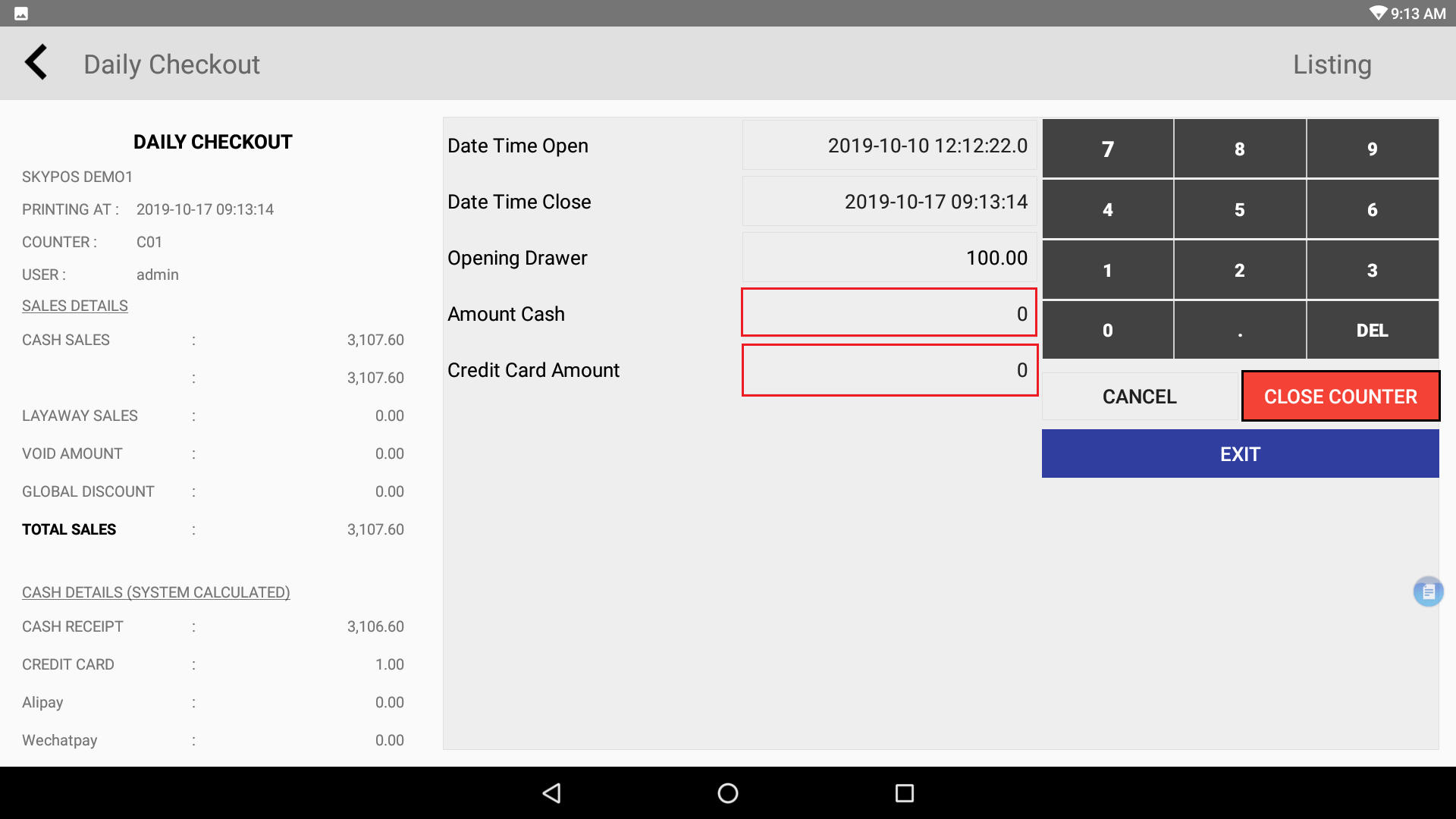
Daily Checkout Report
2. Fill the “Amount Cash Column” and “Credit Card Amount Column”
3. Click Close Counter
Sales Analysis – By Day
1. Click on the Report>>Sales Analysis – By Day
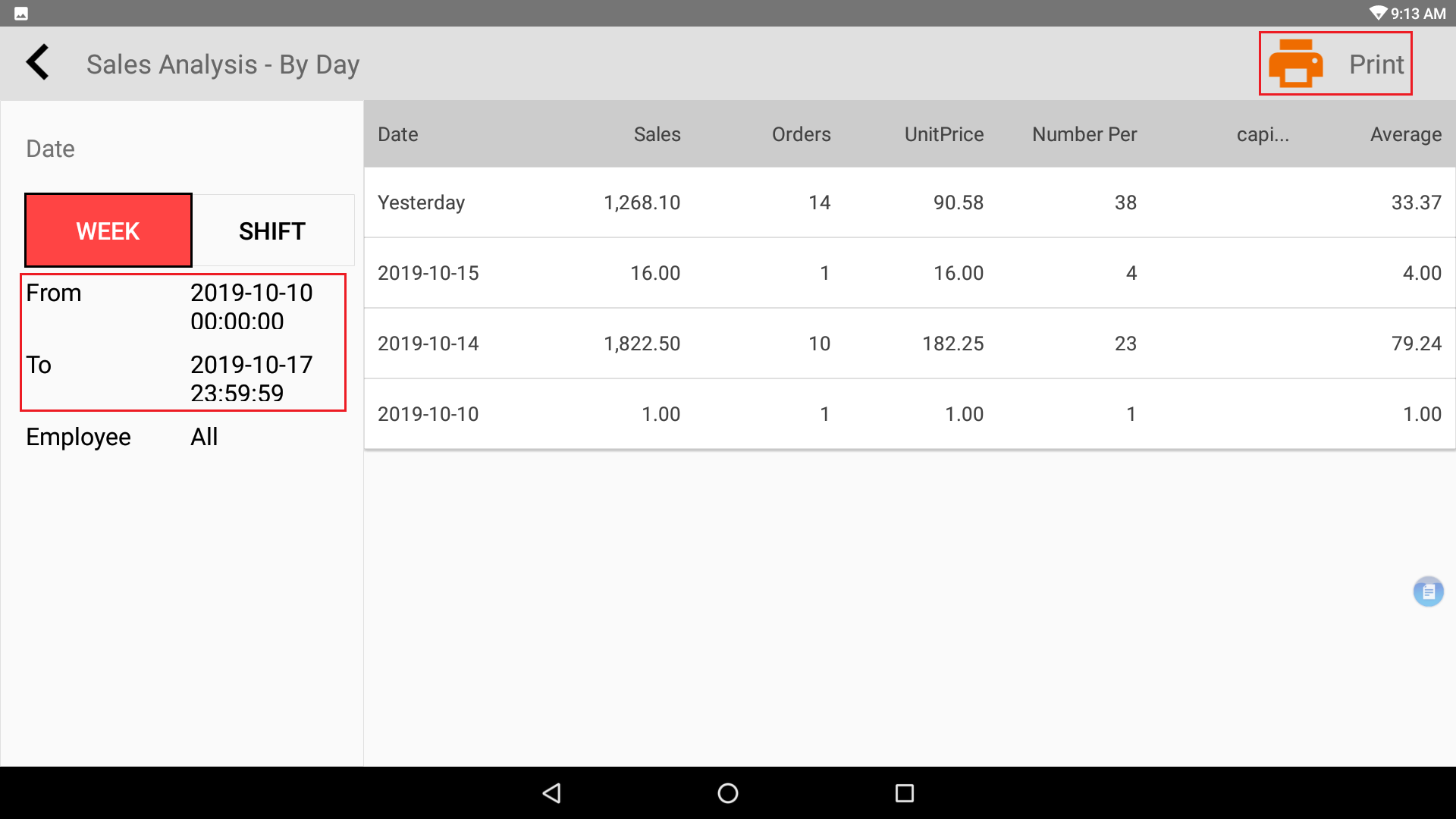
Sales Analysis – By Day
2. Click on the RED BOX to Date Modified or below can modify the particular Date and Time
3. Click>>Print (Optional)
Sales Analysis – By Product
1. Click on the Report>>Sales Analysis – By Product
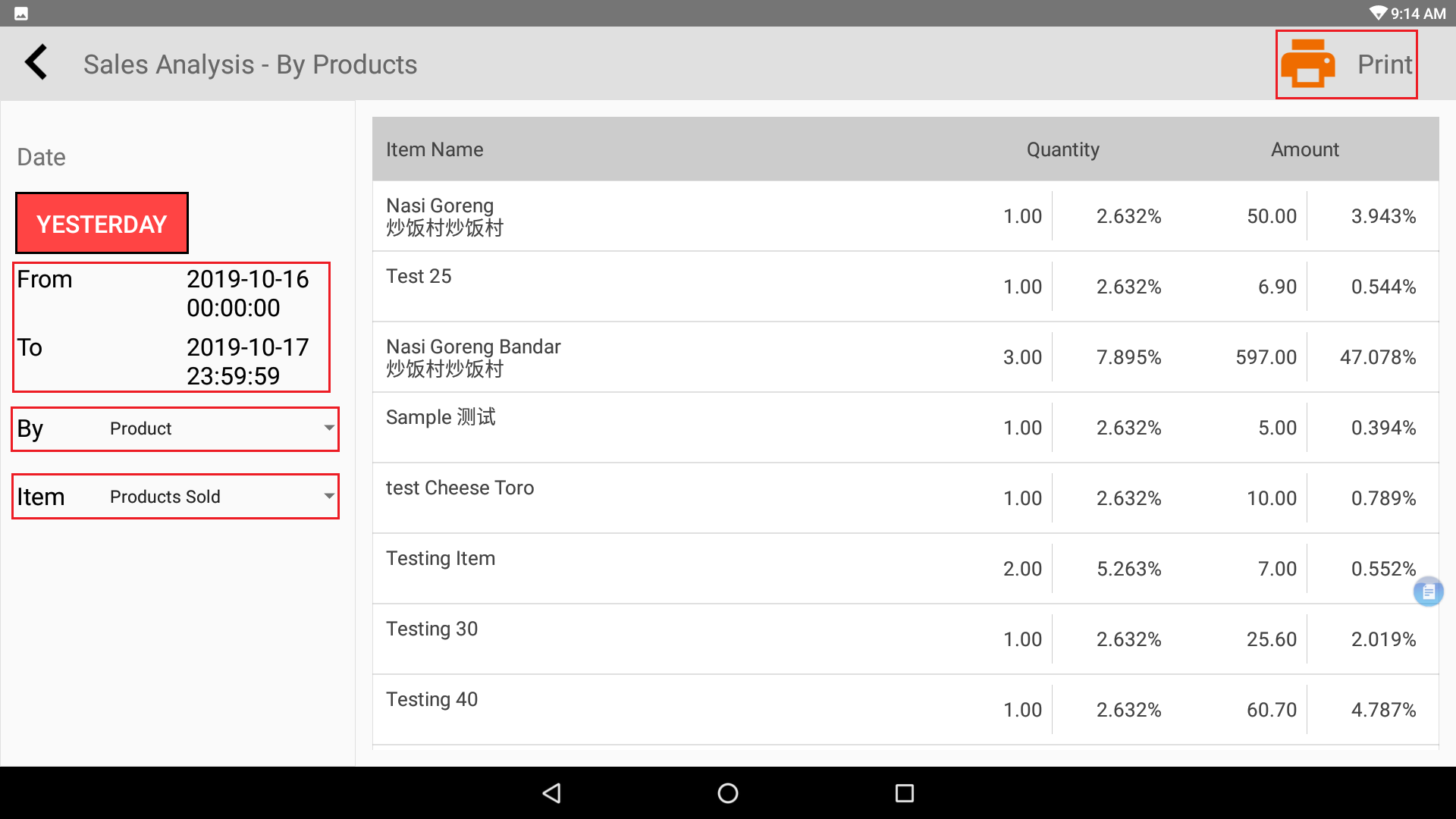
Sales Analysis – By Products
2. Click on the RED BOX to Date Modified or below can modify the particular Date and Time
3. You may By Product or Product Group
4. You may Item Product Sold or Void Items Only
5. Click>>Print (Optional)
Sales Per Hours Report
1. Click on the Report>>Sales Per Hours Report
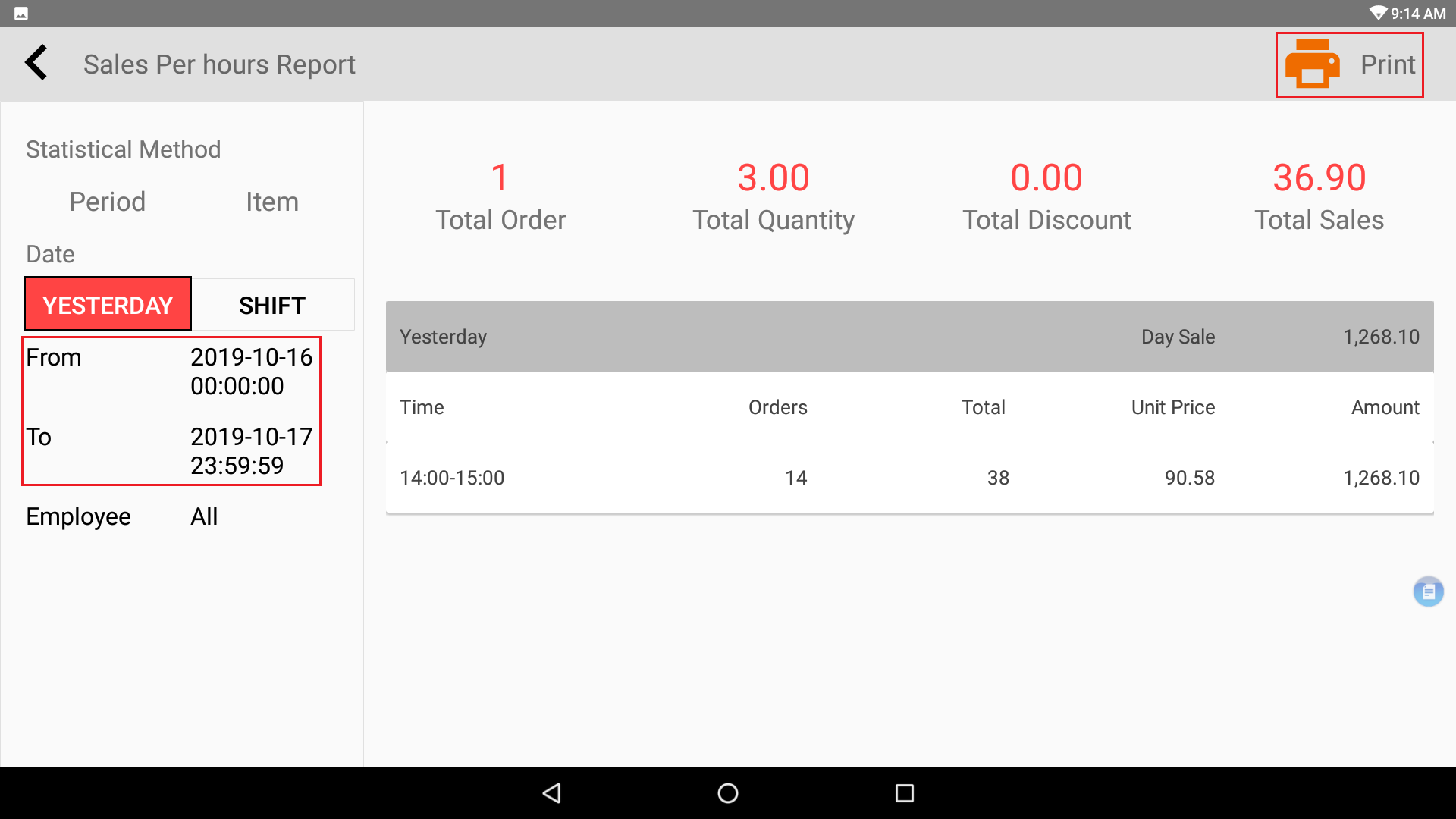
Sales Per Hours Report
2. Click on the RED BOX to Date Modified or below can modify the particular Date and Time
3. Click>>Print (Optional)
Sales Summary
1. Click on the Report>>Sales Summary
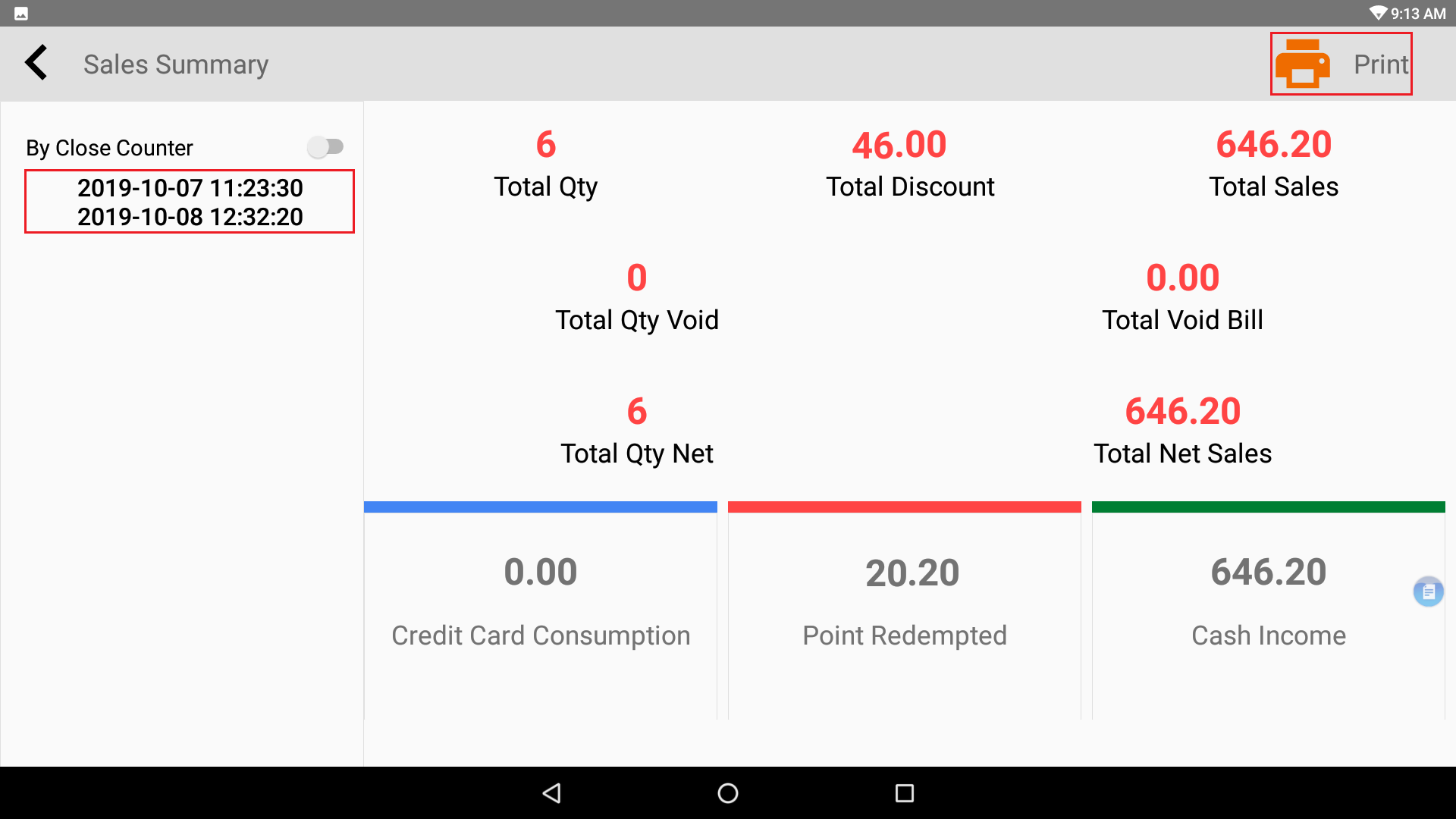
Sales Summary
2. Click on the Date to modify the particular Date and Time
3. Click>>Print (Optional)
Tax Report
1. Click on the Report>>Tax Report
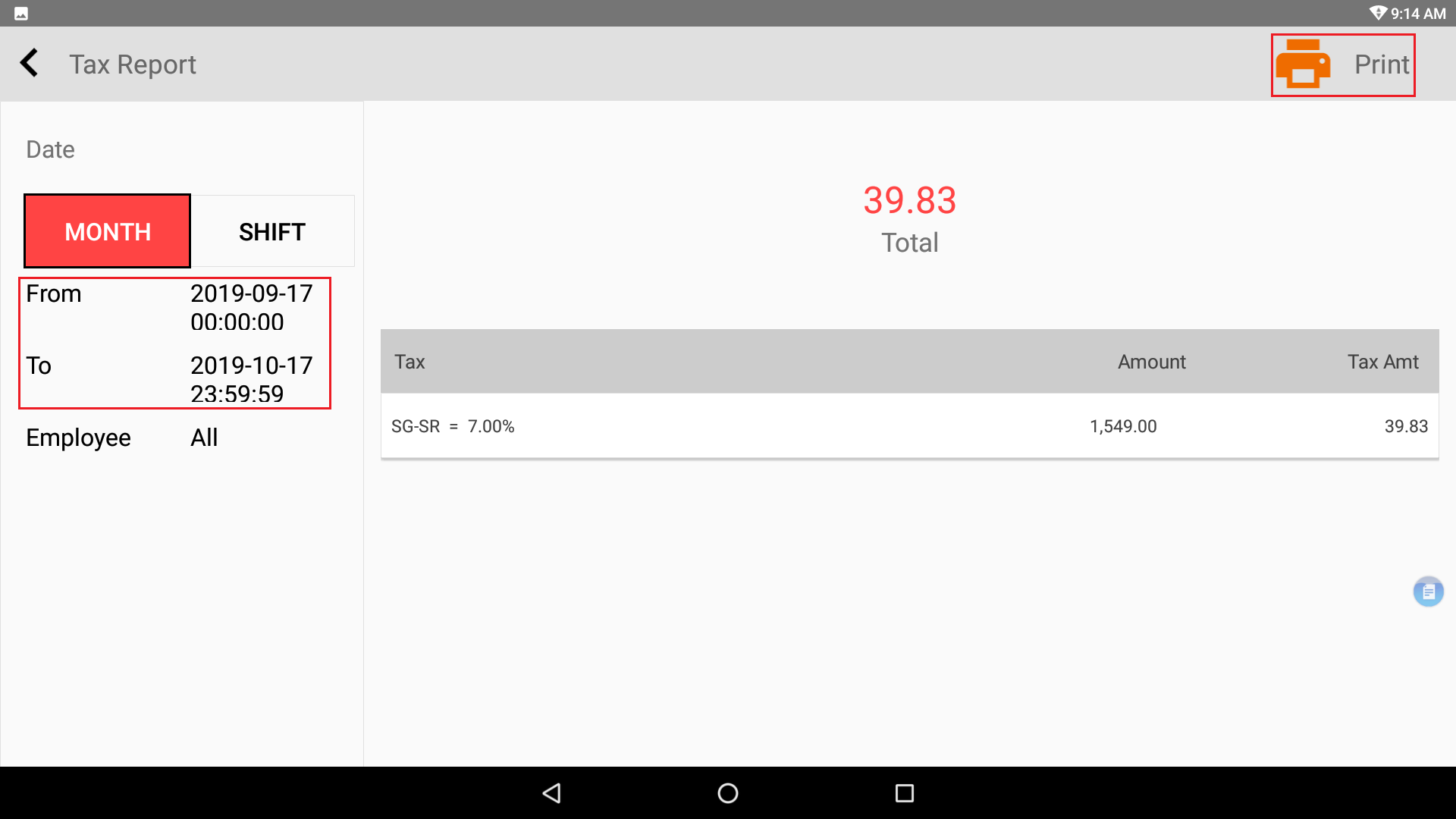
Tax Report
2. Click on the RED BOX to Date Modified or below can modify the particular Date and Time
3. Click>>Print (Optional)
Powered By : SKYBIZ ® Beyond Cloud ™