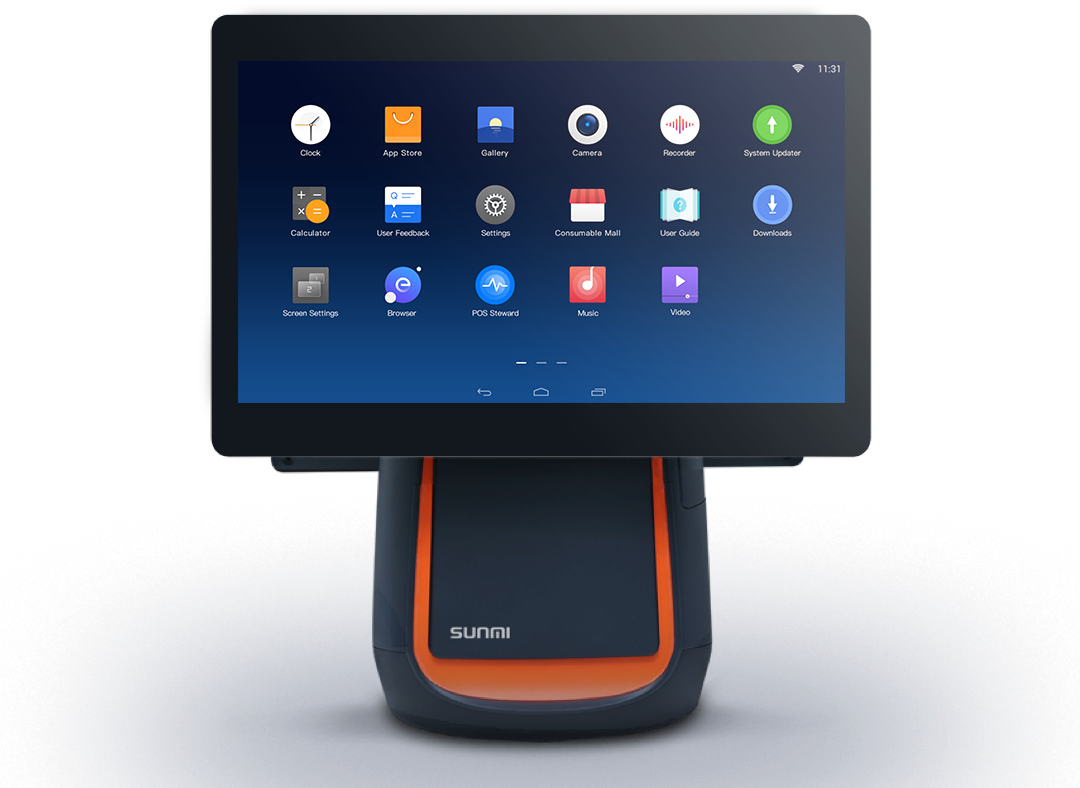
Below are Guideline(s) on How to use Counter Tablet (T1)
Step 1: Take Order
- Take order and select item from the menu (right side)

2. To edit ordered item, click the item and edit changes.

Step 2: Finalise Your Order
- You may choose to pay now or pay later
- Pay now: click “CHECK OUT” and proceed to Step 5
- Pay later: click “HOLD” and proceed to Step 3

Step 3: Hold bill

- Enter Table number of customer to hold bill.
- Once confirm, order slip will automatically print out from Kitchen Printer
- Finalized order will be printed separated according to their item group (eg: food and beverage) as shown below.
- Printer setting according to item group can be done in SkyBiz Cloud system

Step 4: Check hold list
- At the bottom of the screen, click “HOLD LIST“

2. Select the table number to reprint “GUEST CHECK”, “ORDER SLIP”, “ADD DISH”, or “SETTLE” to finalise bill (proceed to Step 5)

3. Guest check and order slip will be print out from printer under the tablet, as shown below.

Step 5: Finalise bill
- Enter amount given by customer and click “PAY NOW“
- Click “FINALISED BILL” if customer pay the exact amount.

Step 6: Membership
- Under the screen, click “MEMBER” to add or select member.


Step 7 : Reports
- Go to Quick Menu >> REPORT