Step 1 : After successfully sign up the account, you may proceed to login.
https://cloudpayroll.biz.my/
a-For HR Login tick [Management Login]
b-For Employee Login untick [Management Login
c-Package Subscribed : Active Employee allow for process payroll
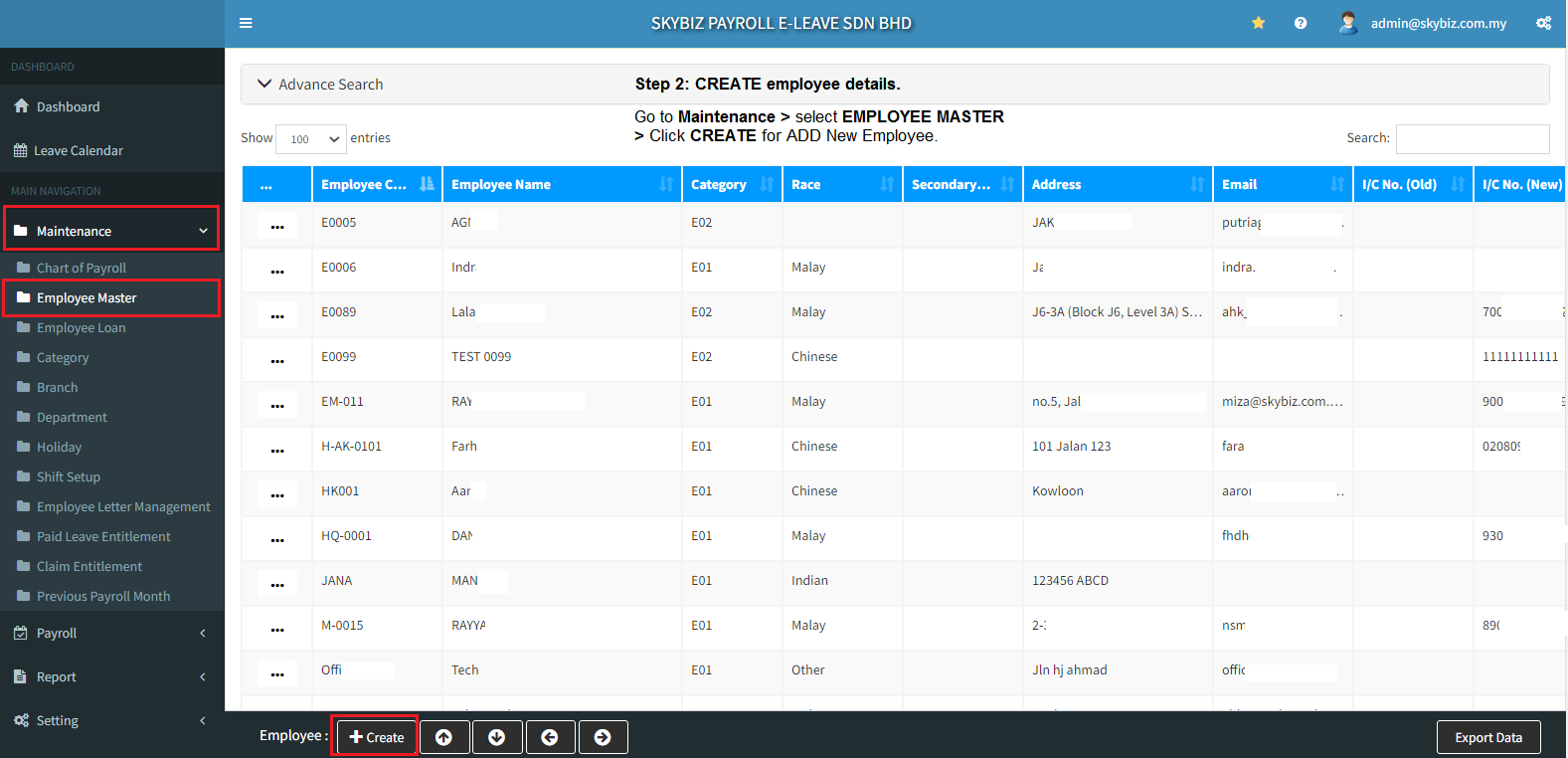
Step 2 : Add New Employee
a. Go to Maintenance and select Employee Master.
b. Click [Create]
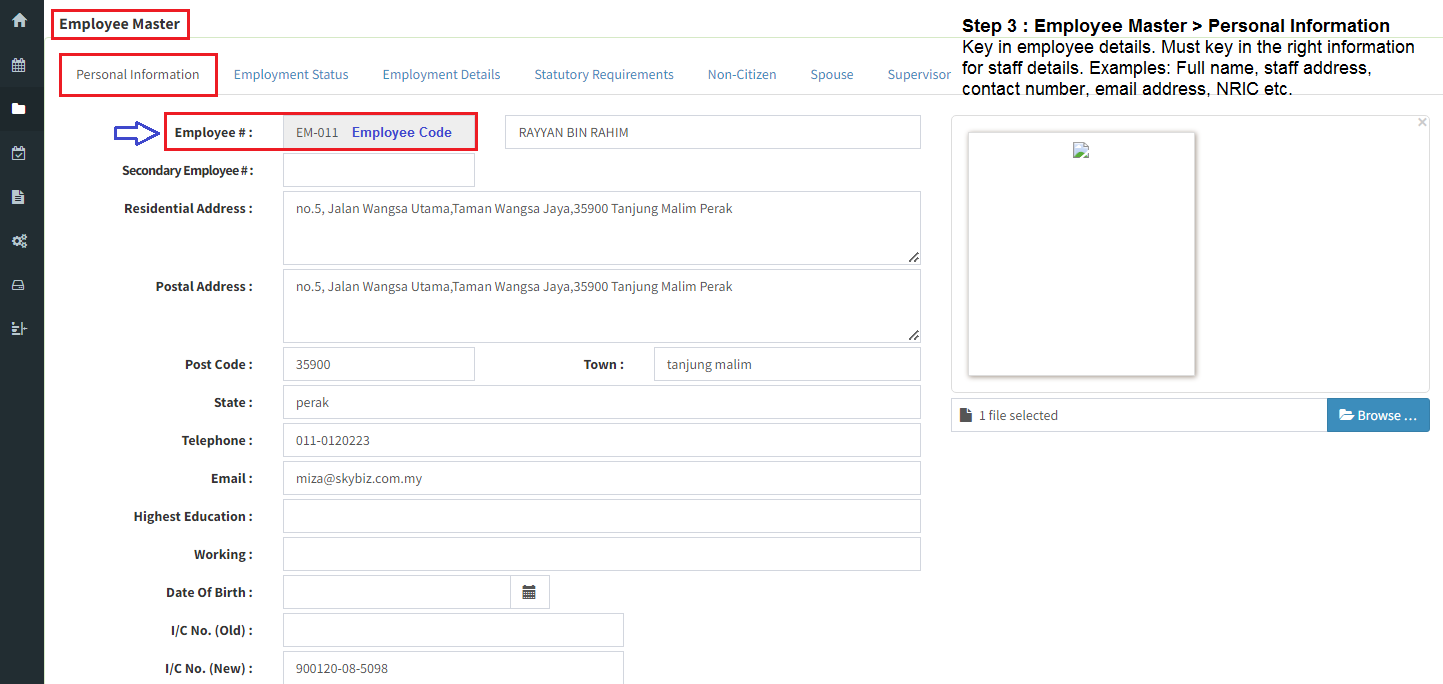
Step 3a : Employee Master >>> Personal Information
a. Go to Personal Information and key in employee details.
(Must key in the right information for staff details.)
b-Compulsory fill up Employee Code, Full name as per NRIC, Address, Contact Number, Email Address, Date of Birth and NRIC/ passport No.
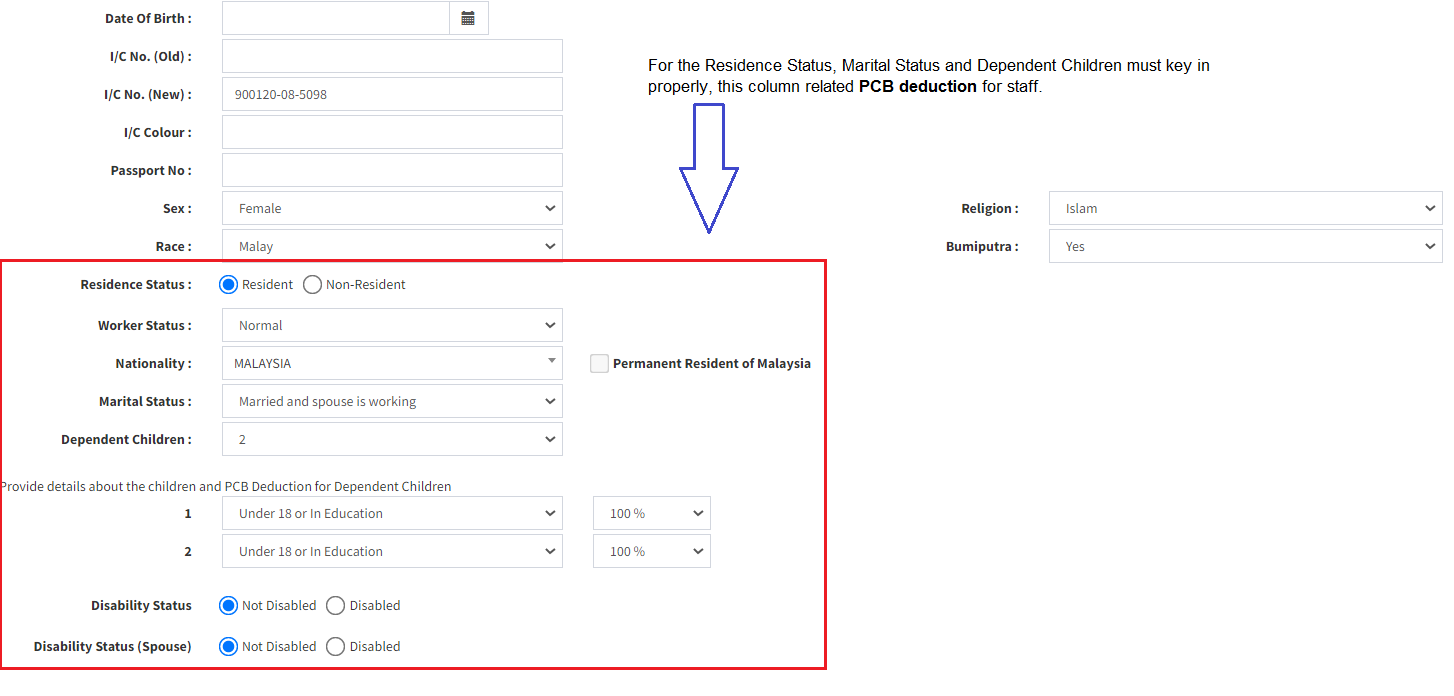
Step 3b : For the Residence Status, Marital Status and Dependent Children must key in properly, this column related PCB deduction for staff.
a-Compulsory data to fill up for PCB deduction.
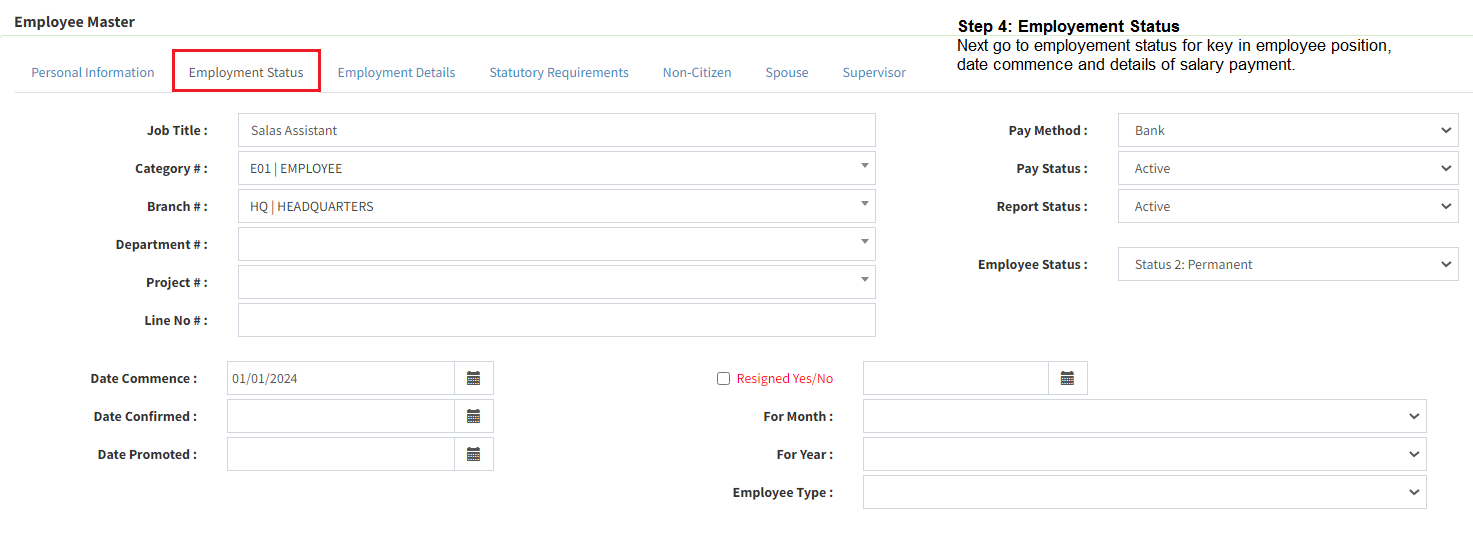
Step 4 : Employment Status
a-Compulsory fill up employee position, category, branch, department, date commence/ date confirmed and details of salary payment.
b-For staff resigned please tick and fill in date of resigned.
Step 5 : Employment Details
a-For Contribution EPF, SOCSO, EIS, PCB and HRDF (Tick YES is for Contribution, if tick NO is for no Contribution ) * link attached for compulsory deduction*
i-Link KWSP : https://www.kwsp.gov.my/en/employer/responsibilities/mandatory-contribution
(Please click link above > scrol down, find Frequently Asked Questions > View > Click “What are the Components of Wage?”)
For upload contribution link :https://secure.kwsp.gov.my/employer/employer/login
ii-Link Perkeso : http://www.perkeso.gov.my/
For upload contribution link :https://assist.perkeso.gov.my/employer/login
iii-Link PCB (Potongan Caruman Bulanan) : https://www.hasil.gov.my/en/employers/responsibility-of-employer/
For upload contribution link :https://ekls.hasil.gov.my/index.php?&lang=eng
iv-Link HRDF : https://hrdcorp.gov.my/
For upload contribution link :https://etris.hrdcorp.gov.my/DigiGov/login.jsp
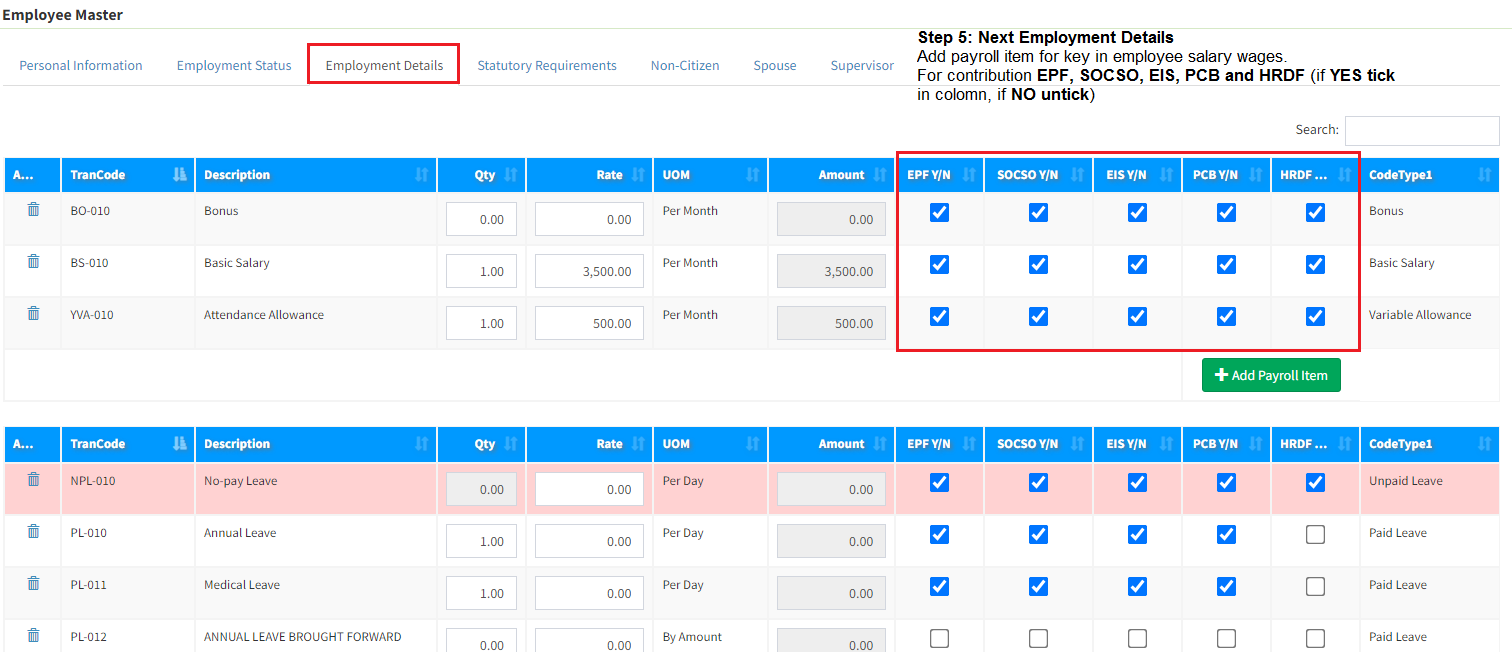
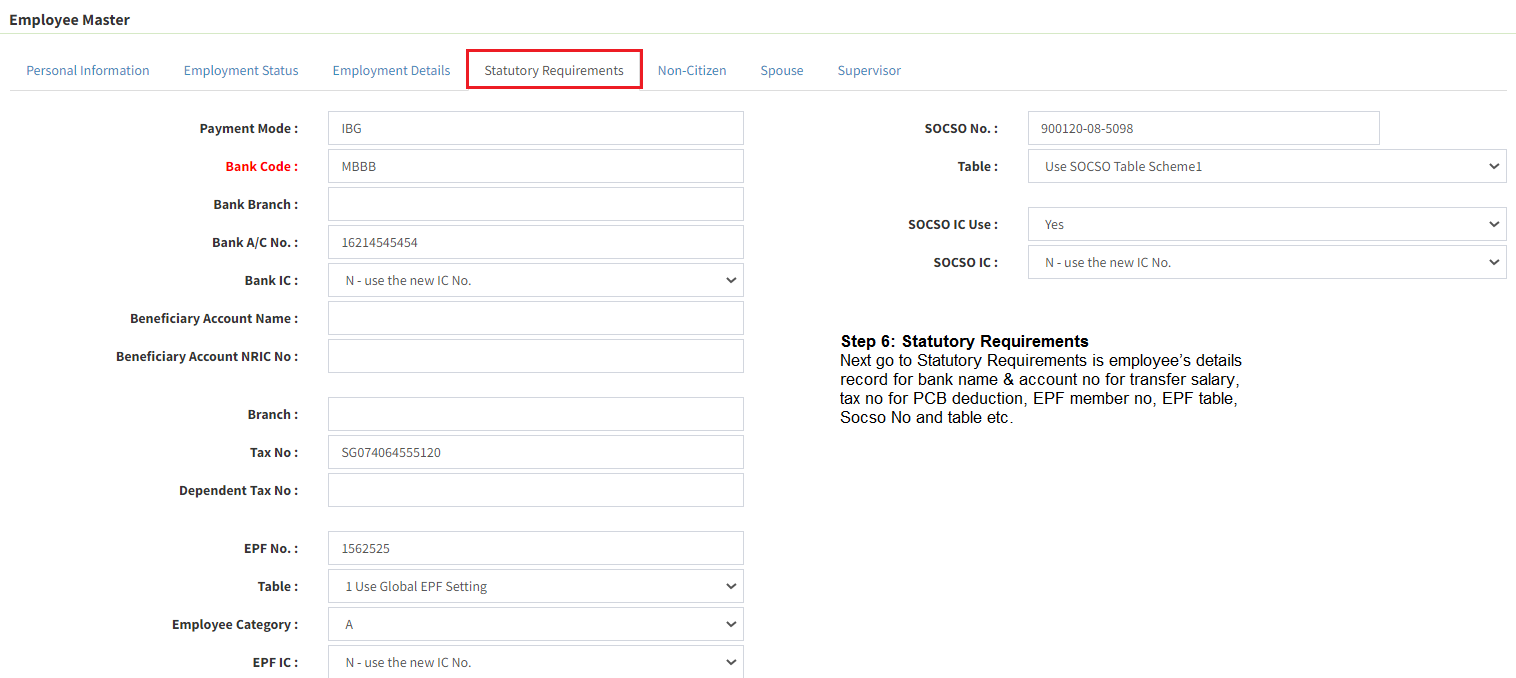
Step 6 : StatutoryRequirements
a-Payment mode: Please choose the correct mode payment (IBG/FT)
b-Bank : Please type the correct Bank Code (BSNB, MBB, CIMB, HLBB, PBBB etc)
c-Bank A/C No : Please key in the valid [Account Bank Number]
d–EPF : Compulsory fill up Member’s No of EPF
e-Table : Choose EPF (Table 1 for Employer 13%, Employee 11%) and (Table 2 for individual EPF percentage)
f–Socso: Socso number is follow by IC number
g-Table : Choose Table 1 for deduction of Employer and Employee or Table 2 for Employer only.
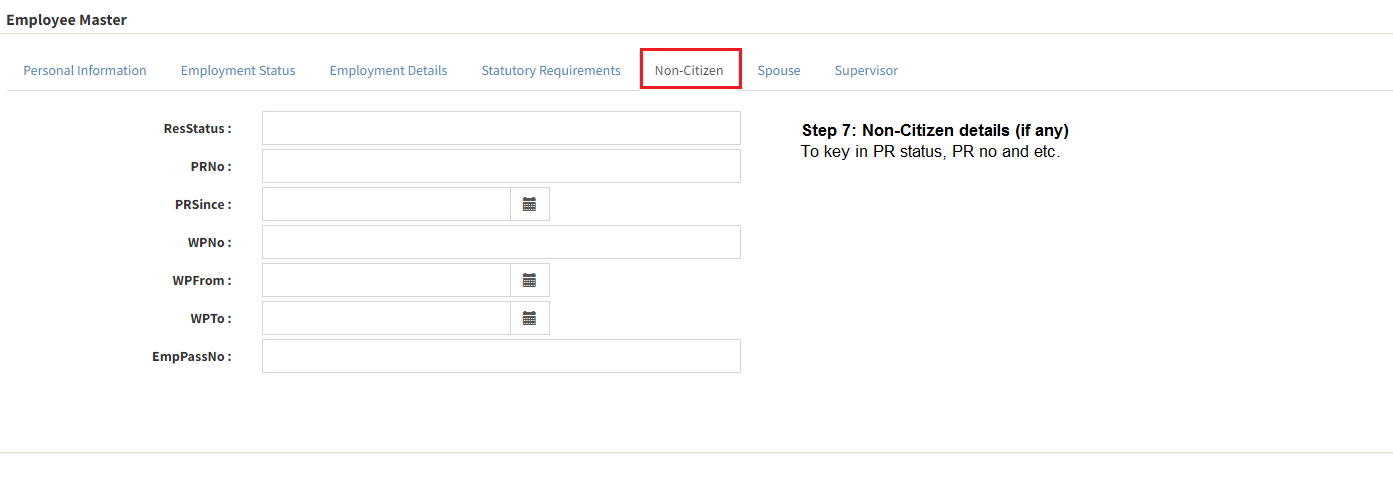
Step 7 : Non-Citizen
To key in PR status, PR no and etc.
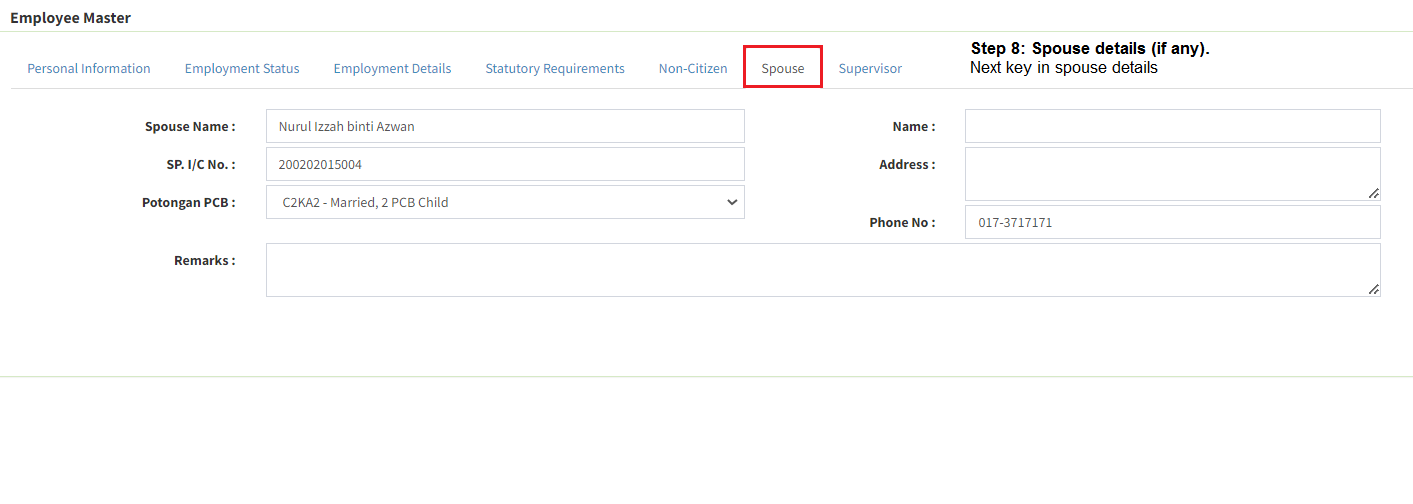
Step 8 : Spouse
Purpose for PCB and deduction
a-PCB deduction : make sure this optional same with personal information
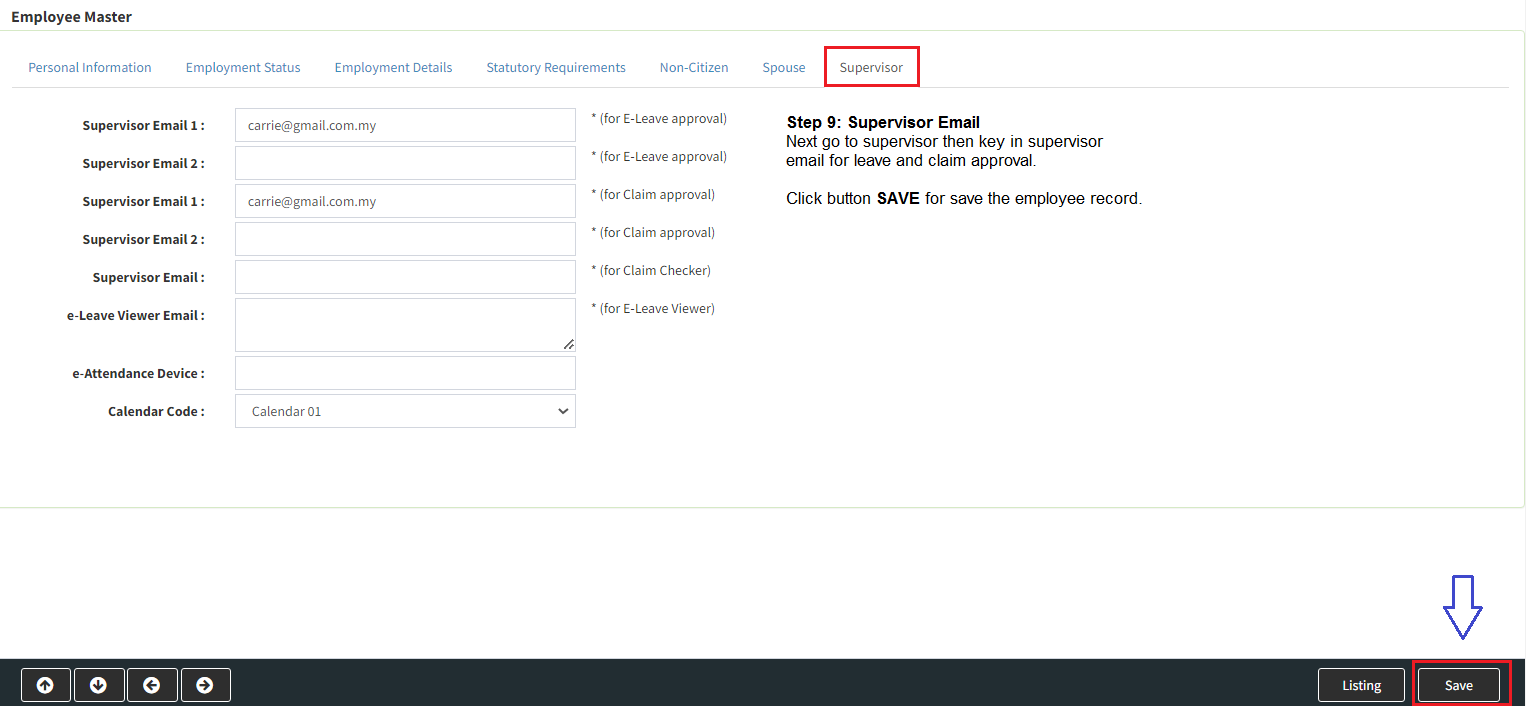
Step 9 : Supervisor Email
Purpose of fill up Supervisor Email is for Leave Application Approval and Claim Application Approval.
Please click SAVE for keeping employee records data.
Powered By : SKYBIZ