SKYBIZ Cloud Payroll Support

  • SKYBIZ Cloud ERP
  • SKYBIZ Cloud Payroll
  • SKYBIZ Offline

SkyBiz eAttendance Clocking Setup

 2025-04-21   SKYBIZ CLOUDPAYROLL, 05. System, 0501. Login

Below are guideline(s) to eAttendance Clocking Setup :

1. Go to Play Store install “SkyBiz eLeave“app.

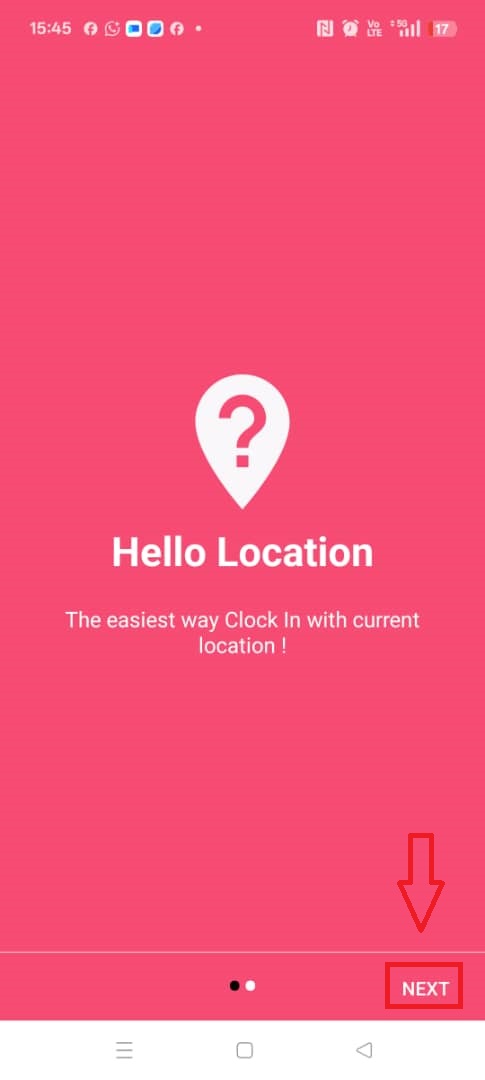
2. Enter SkyBiz eLeave app, click the “NEXT” at the bottom.
 

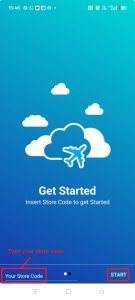
3. People without a project use the store code and client secret, while those with a project use the store code “payrollproject“.

4. Click “START”
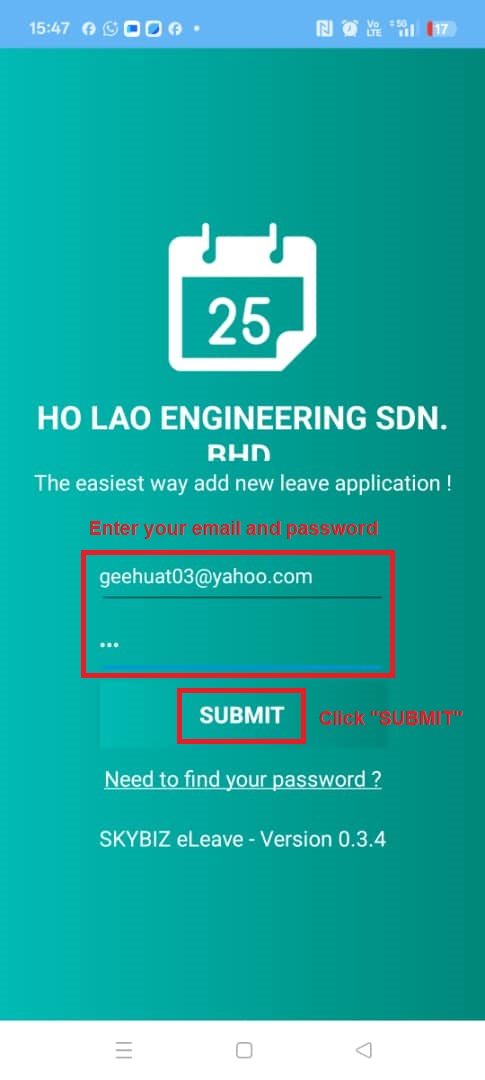
5. Fill in your email and password “123“. After that, click “SUBMIT“.
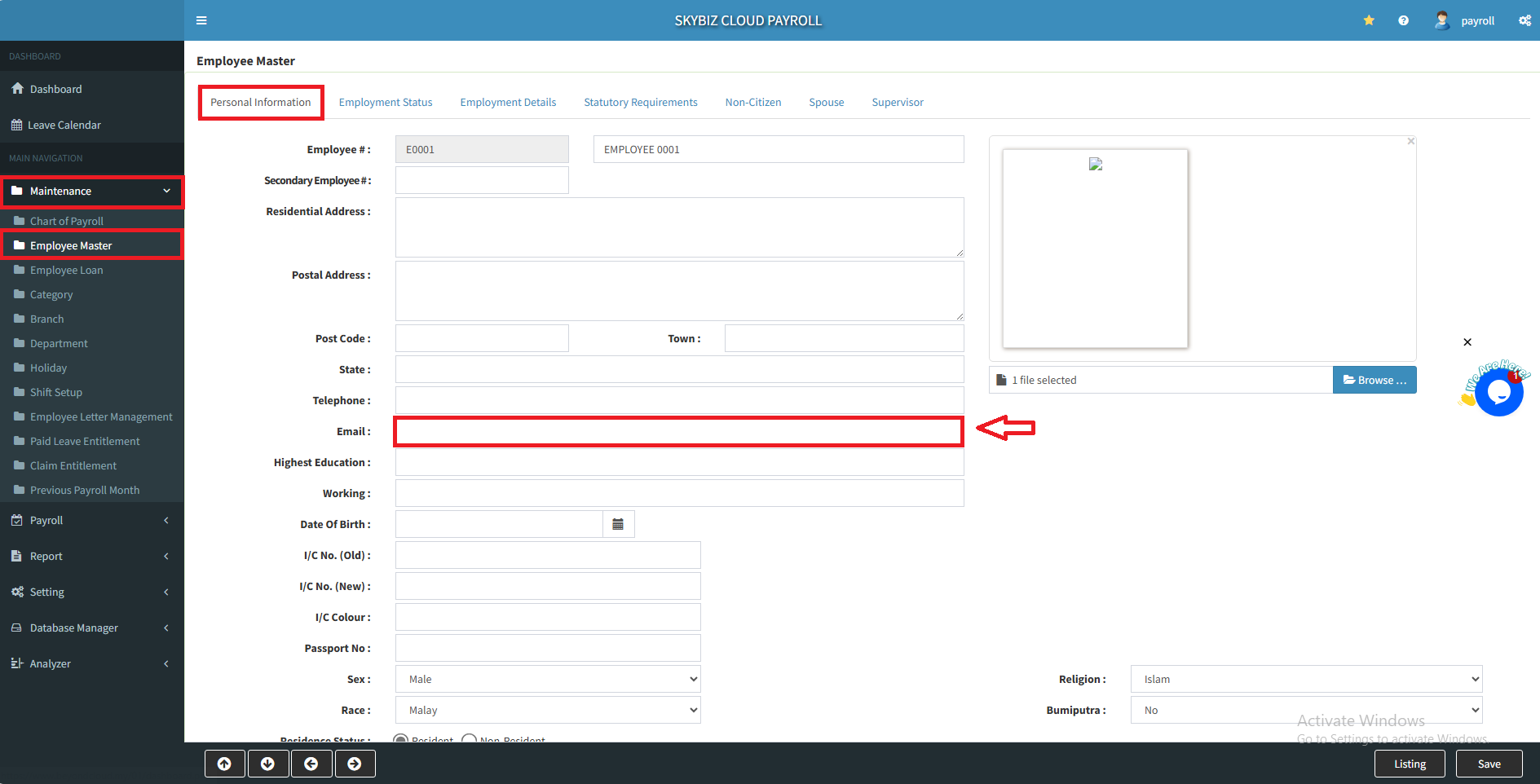
6. For the email, you may go to “Maintenance” >> “Emplayee Master“, in the Personal Information refer your email there.
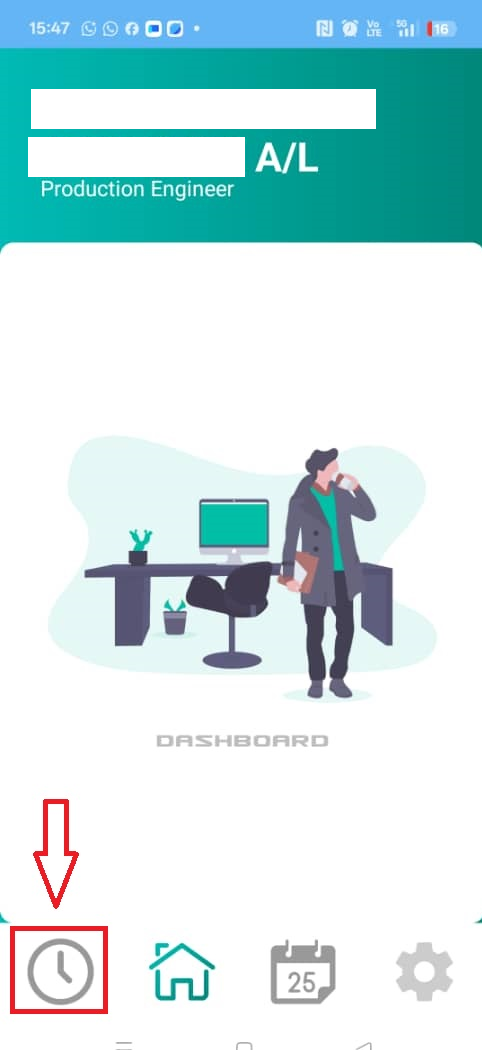
7. After login, click the clock icon.
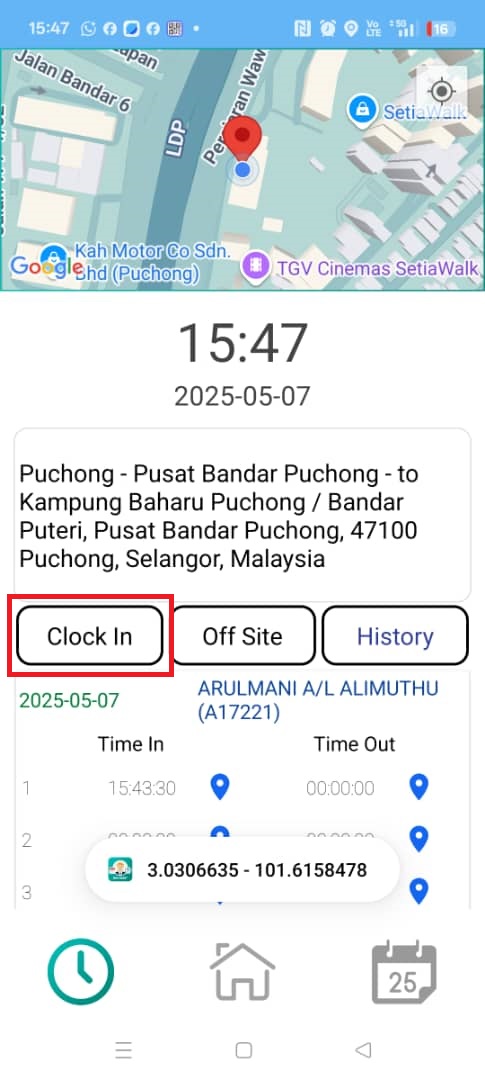
8. Click “Clock In“.
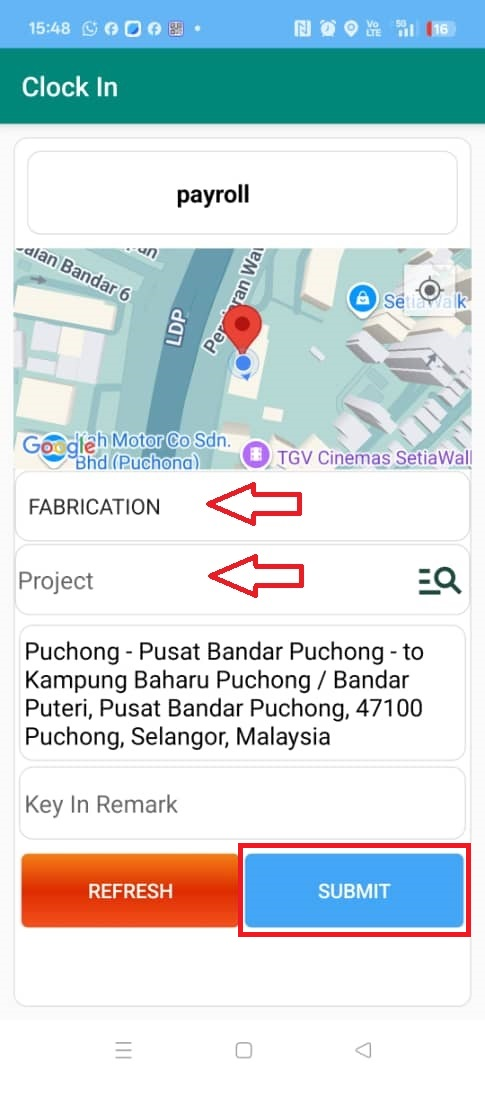
9. Select your Job Type and Project. Last, click “SUBMIT“.
Powered By : SKYBIZ ®  Beyond Cloud ™

<< Setting Leave Days In advance or backward date

Categories

  • SKYBIZ CLOUDPAYROLL (24)
    • 05. System (1)
      • 0501. Login (1)
    • 01. Maintenance (11)
      • 0101. Chart Of Payroll (4)
      • 0102. Employee Master (4)
      • 0104. Category (1)
      • 0108. Shift Setup (1)
      • 0110. Paid Leave Entitlement (1)
    • 02. Payroll (3)
      • 0206. Normal Pay (1)
      • 0207. Process pay (1)
    • 03. Report (2)
      • 0303. Claim (1)
      • 0306. Statutory Report (1)
    • 04. Setting (5)
      • 0402. Security Manager (4)
        • 0402-2. Assign Supervisor (1)
        • 0402-1. User Profile Management (3)
      • 0401. Leave Day Setting (1)
  • SkyBiz e-Leave (28)
  • Financial (90)
  • SkyBiz Payroll (8)
  • Website (2)

.

  • SkyBiz Accounting
  • SkyBiz Stock Control
  • SkyBiz Web Hosting | SkyBiz Server Hosting

SkyBiz Product(s)

  • SkyBiz E-Leave|E-Claim|E-Payyroll|E-HR Management|Online Payments for Salary, EPF, SOCSO, LHDN

.

  • SkyBiz Cloud Point Of Sales| Android Point Of Sales |Mobile Point Of Sales

Powered by MyWiki WordPress Theme