Below are guideline(s) for Windows Task Scheduler setting to automate SKYBIZ Sync-F
You can open Windows Task Scheduler settings by pressing Win + R, typing taskschd.msc, and pressing Enter. Each scheduled task has five configuration tabs that control when and how it runs.
Task Configuration Tabs
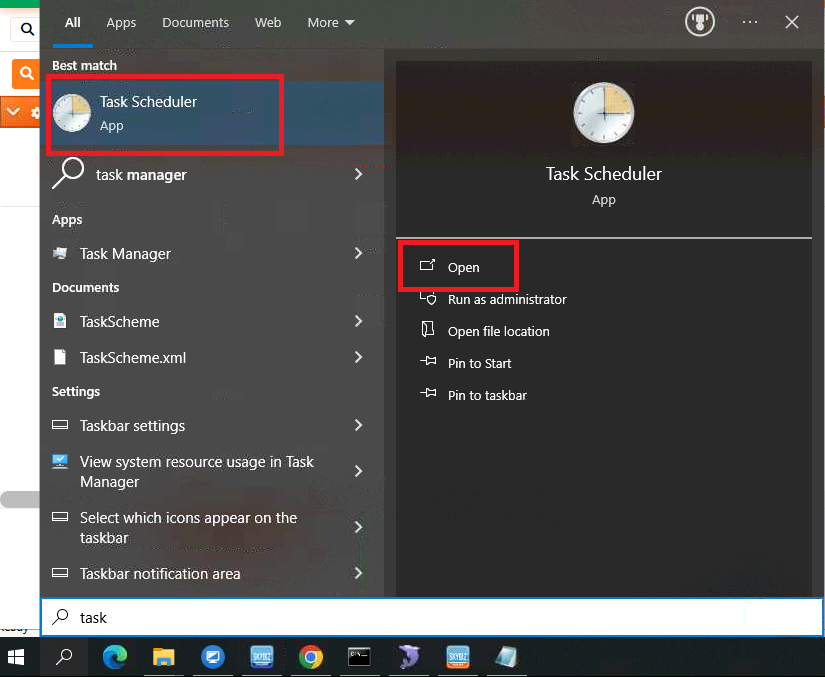
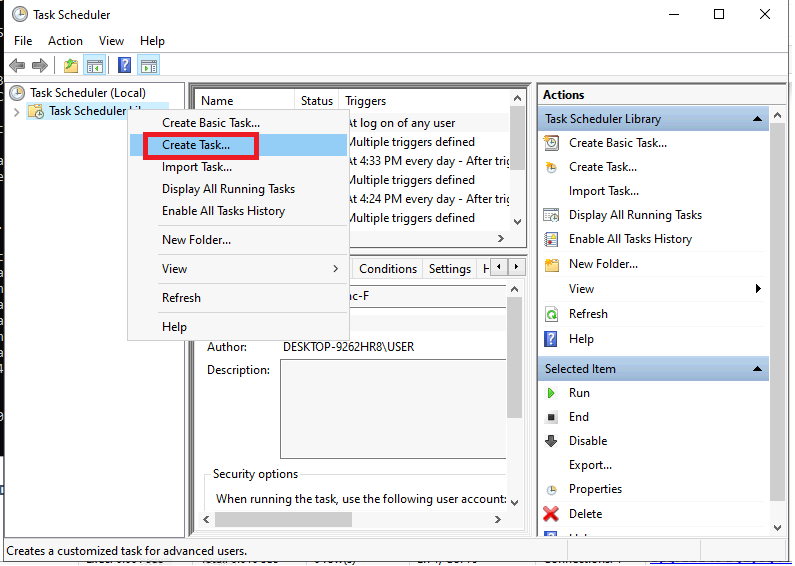 Task Configuration Tabs
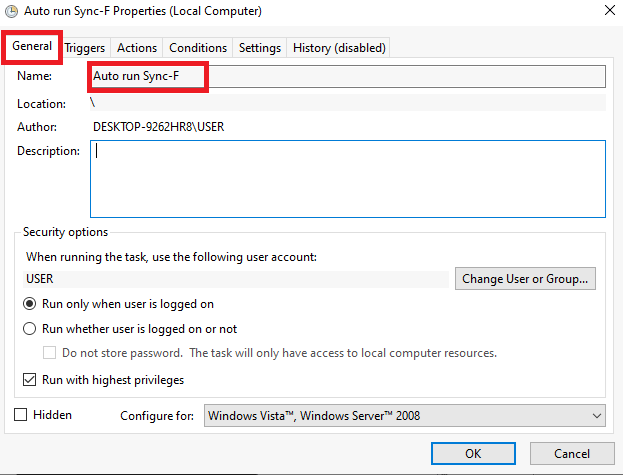
- General: Sets the task name, user account, security options, and ticked Run with highest privileges for administrator access. Then please choose whether the task runs only when the user is logged on.
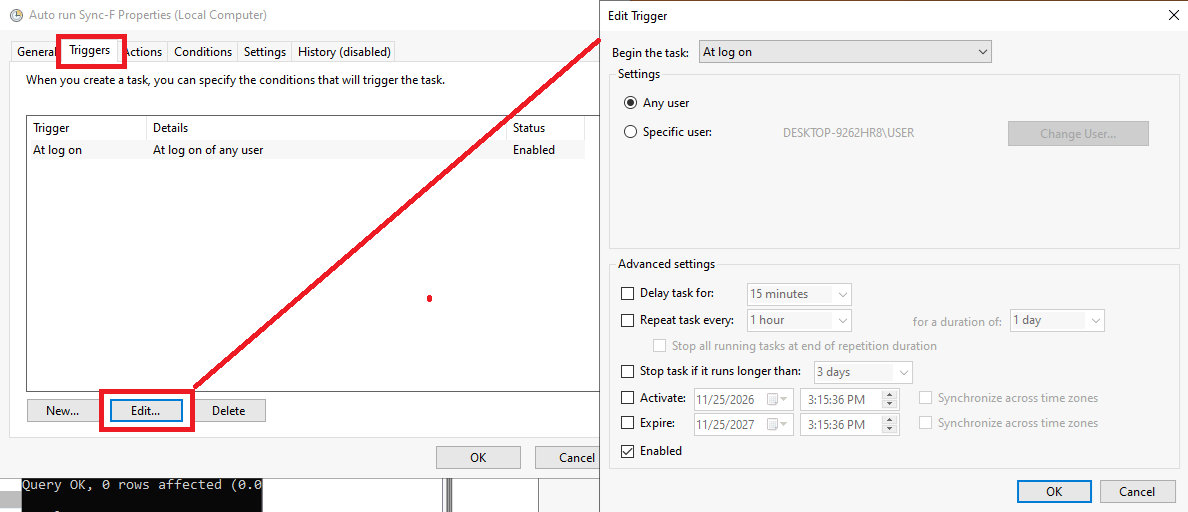
- Triggers: Defines what starts the task, such as a specific schedule, system startup, user logon, idle state, or a Windows event log entry
Actions: Specifies what happens when the task triggers, such as launching a program, running a PowerShell or batch script, and passing command-line arguments. Please choose [Run a program], then allocate the SKYBIZ Sync-F.exe program.
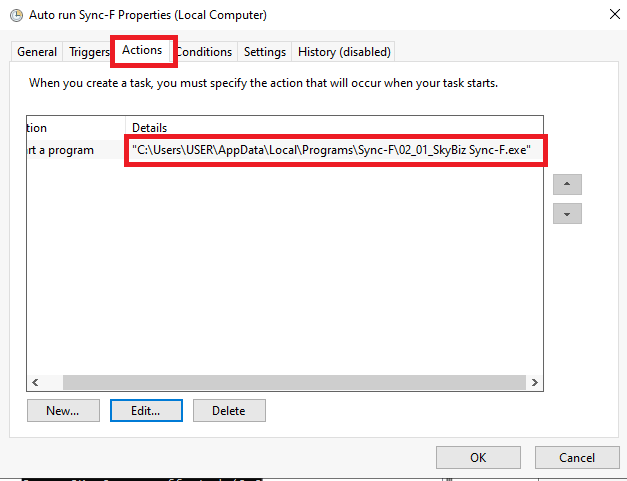
- After that just click OK, everything should working, please restart and Windows and verify Sync-F is auto start in Taskbar.