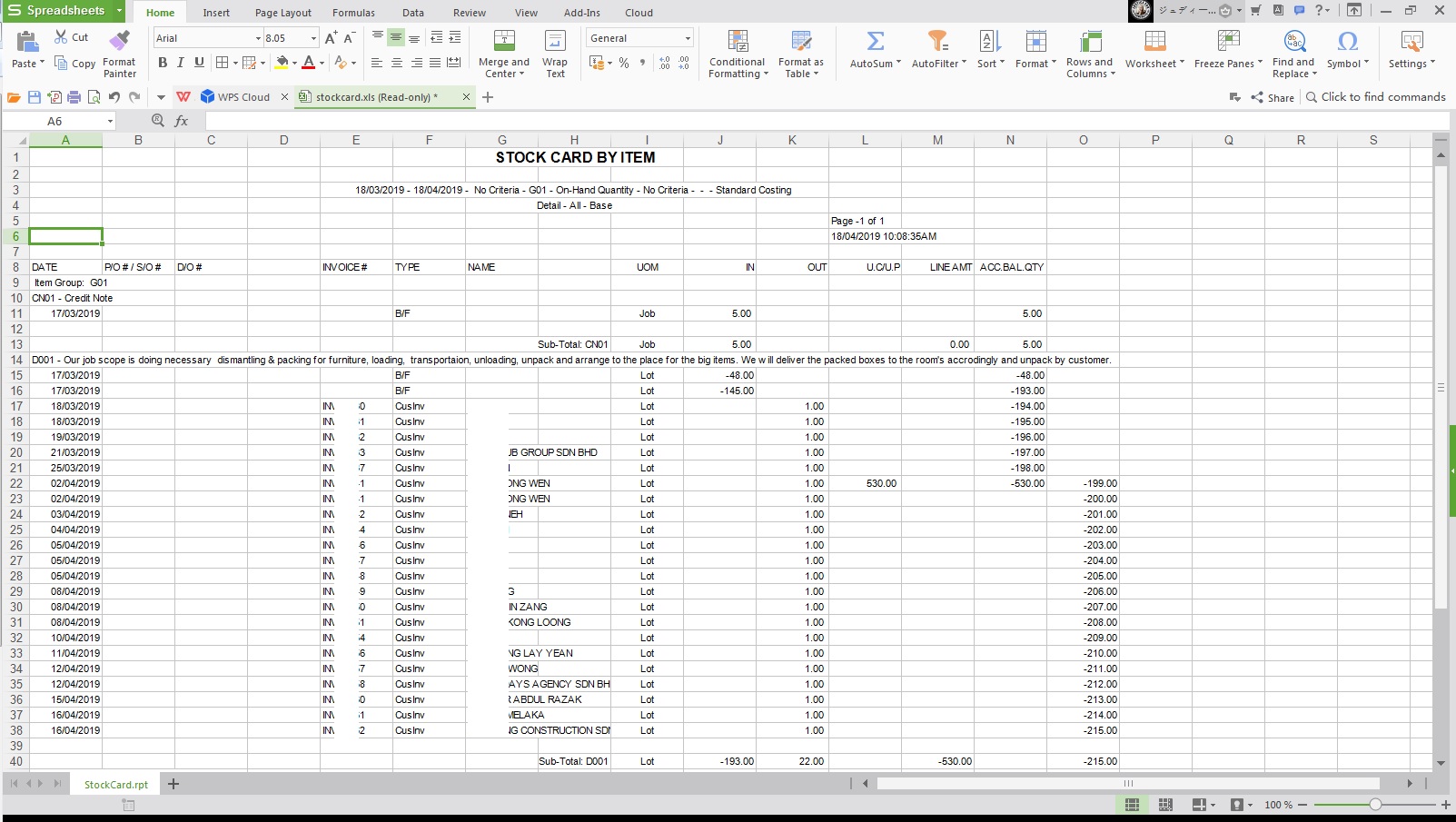
Below are Guideline(s) on How to Export Excel from Remote via TSPrint Open Locally
Step A: Print the report you want to Export
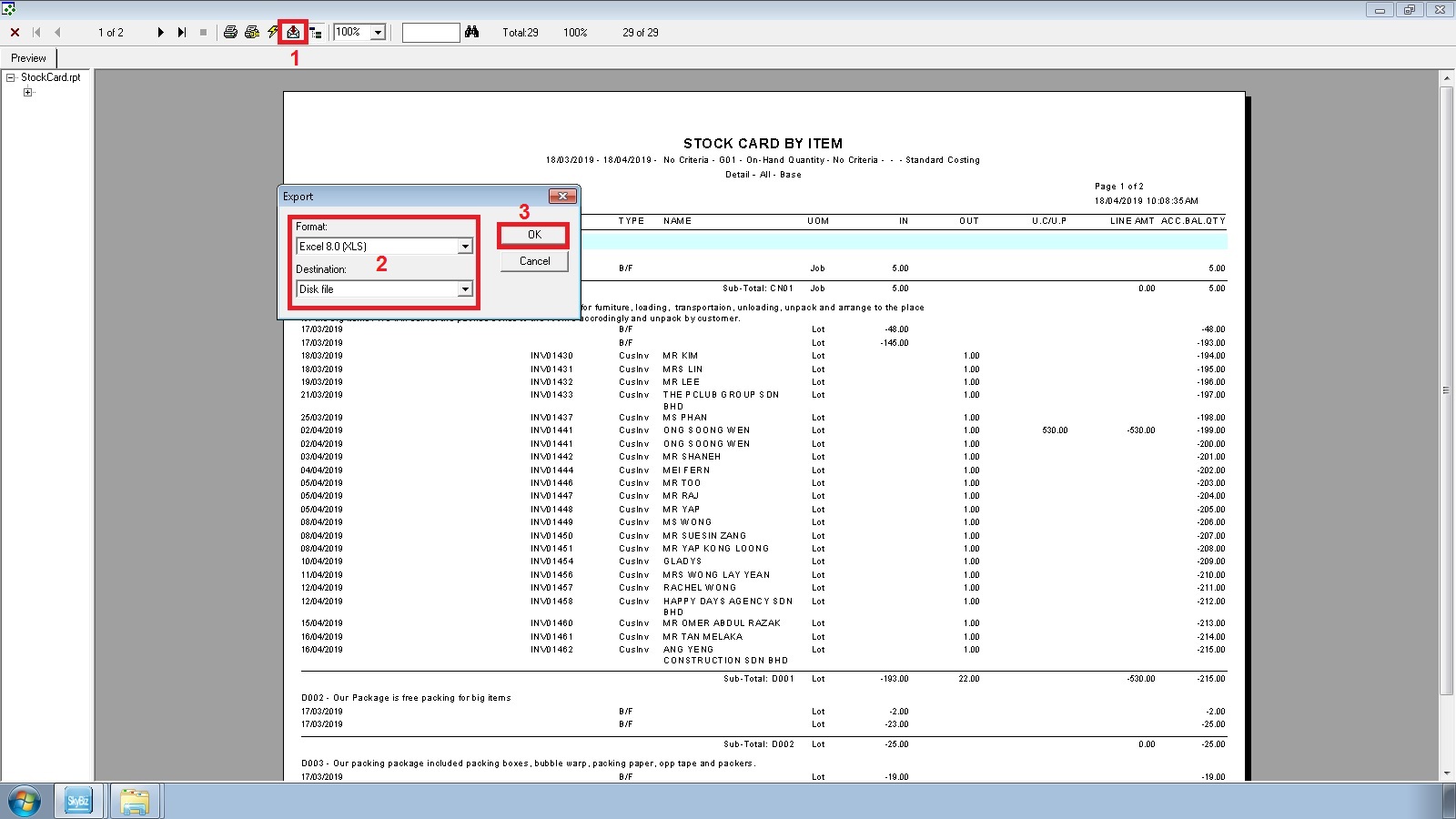
- 1. Click envelop like icon
- 2. Choose Format “Excel” and Destination “Disk file“
- 3. OK (Follow the steps in the screen shot).
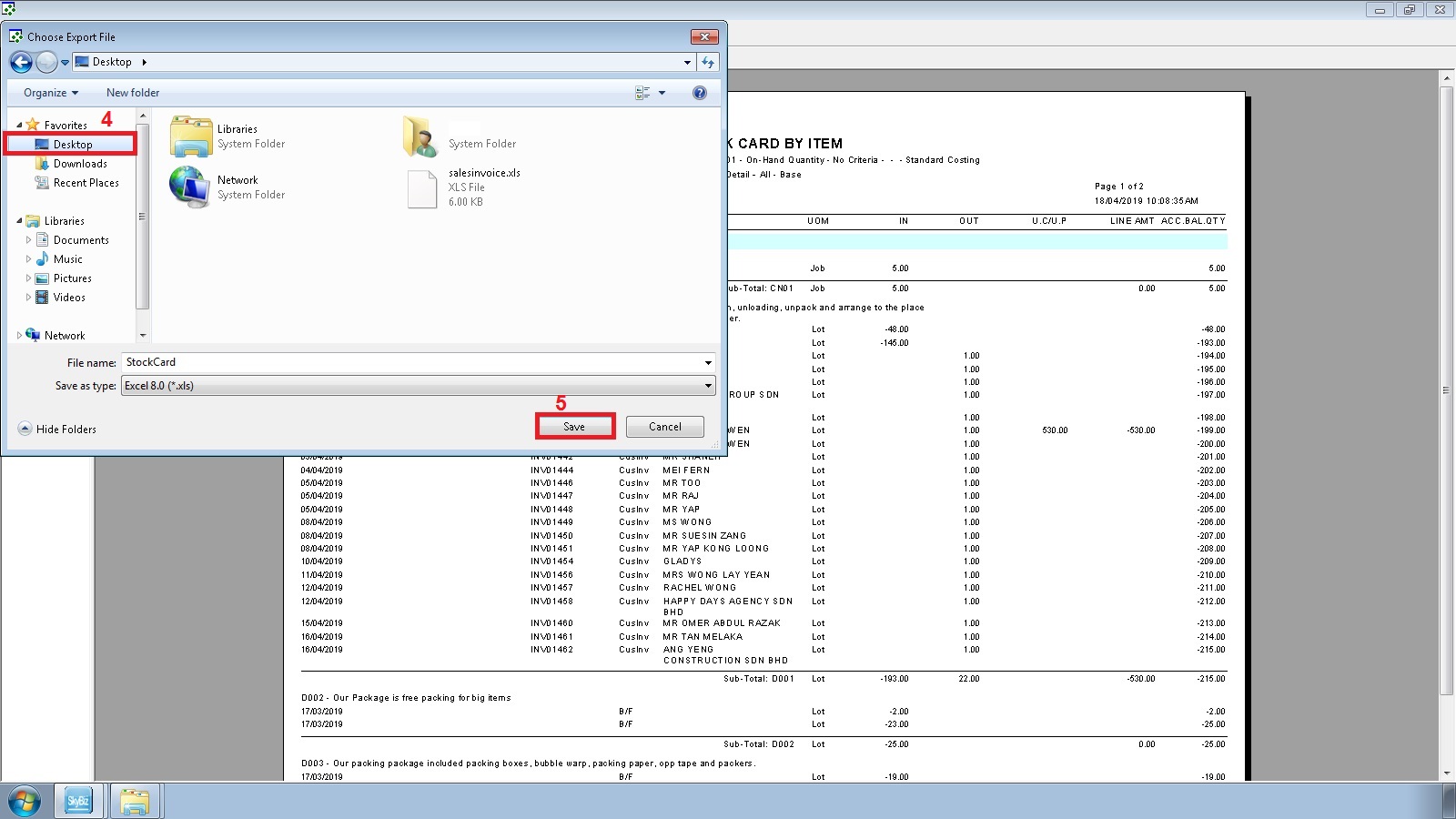
- 4. Select Desktop
- 5. Save
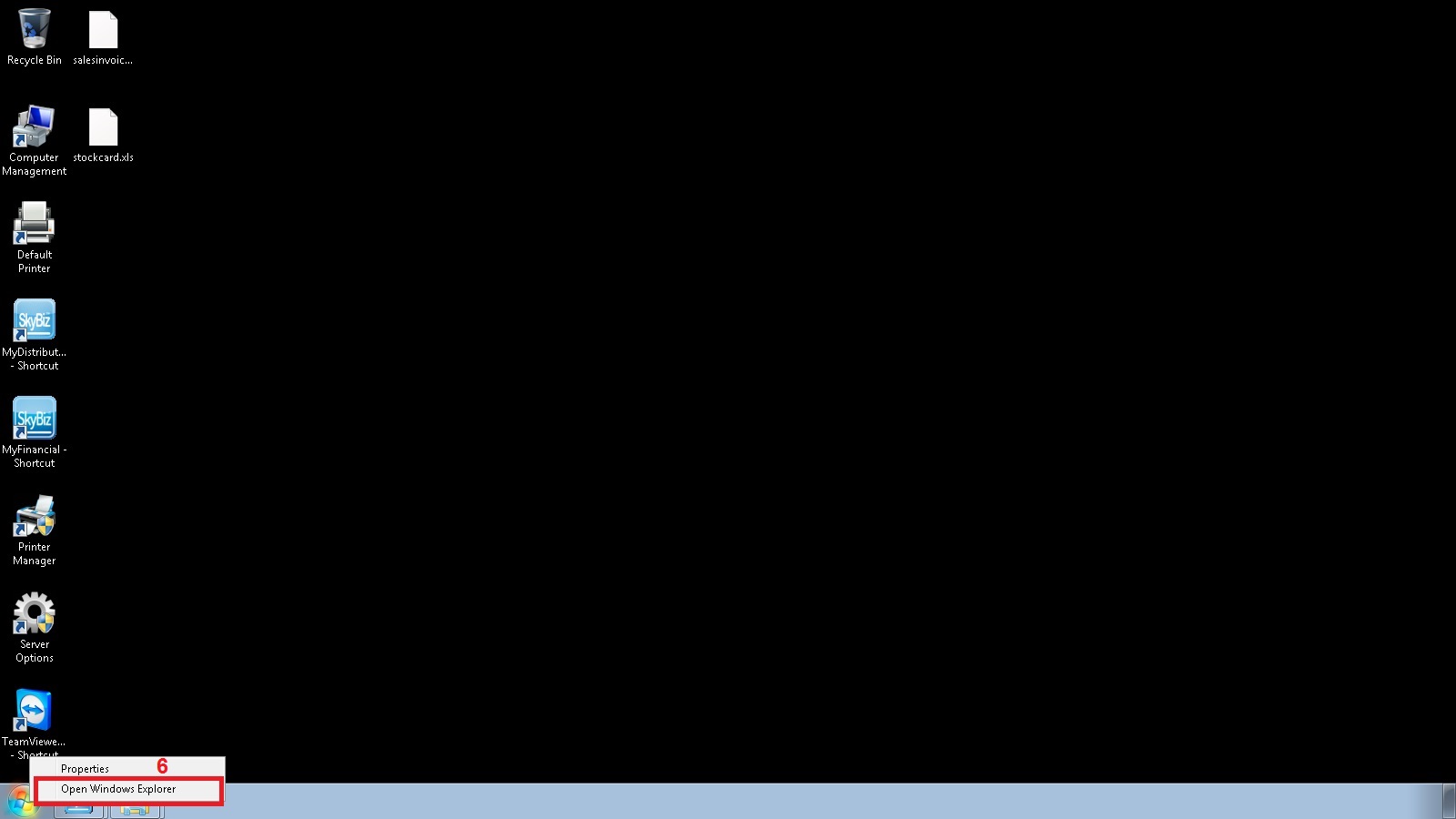
- 6. Right Click Start Menu then “Open Windows Explorer” or “File Explorer” (do this on Remote Desktop)
- 7. Highlight/select the exported excel file then press “Alt + F‘ from your computer keyboard
- 8. go to File >> TSPrint Open Locally
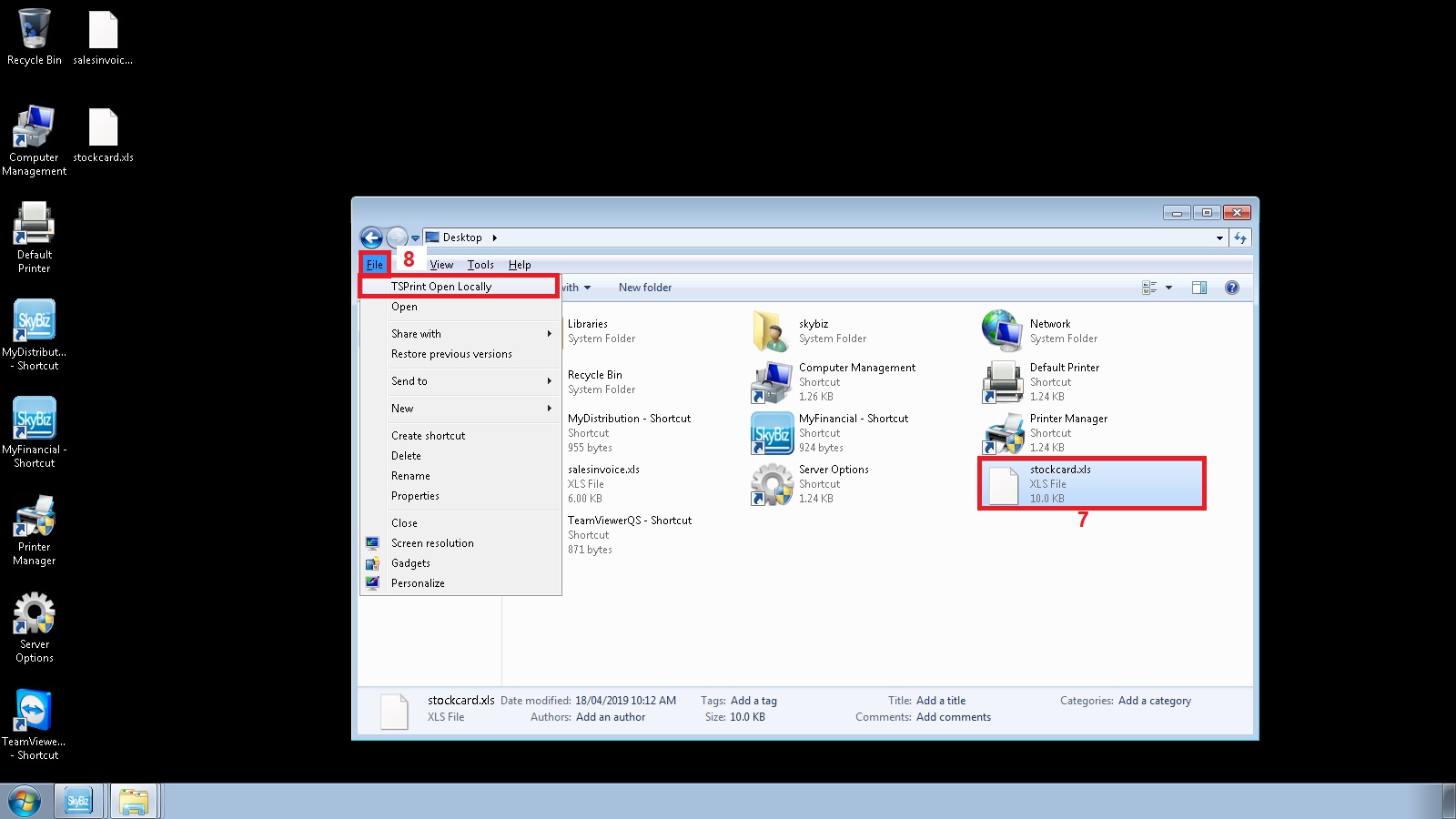
- N/B: After Click TSPrint Open Locally the excel file will Automatically Open on your computer as per show below, make sure to save the file on your own computer.