Introduction to SKYBIZ Purchase Order
A Purchase Order (PO) is a legally binding, commercial document issued by an organization’s procurement department to a vendor, indicating the specific types, quantities, and agreed prices for products or services required. Once a purchase requisition is verified and an external supplier quotation is accepted, the procurement module automatically generates this official document, anchoring a unique PO tracking number to ensure flawless end-to-end traceablity. Serving as the vital bridge between internal inventory demands and external procurement, the PO formalizes the buyer’s intent and establishes explicit terms for delivery timelines, payment schedules, and technical specifications. When this document is dispatched to the vendor, it acts as a primary financial control gate within the enterprise framework, blocking unauthorized corporate spending and establishing an ironclad data baseline that the warehouse team will later use to reconcile Goods Received Notes (GRN) and that finance will use to verify incoming supplier invoices.
How to Create a Purchase Order?
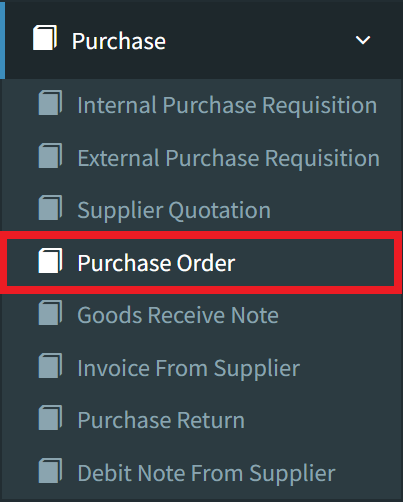
Step 1: To issue a Purchase Order, navigate to the Purchase menu and select the Purchase Order option.
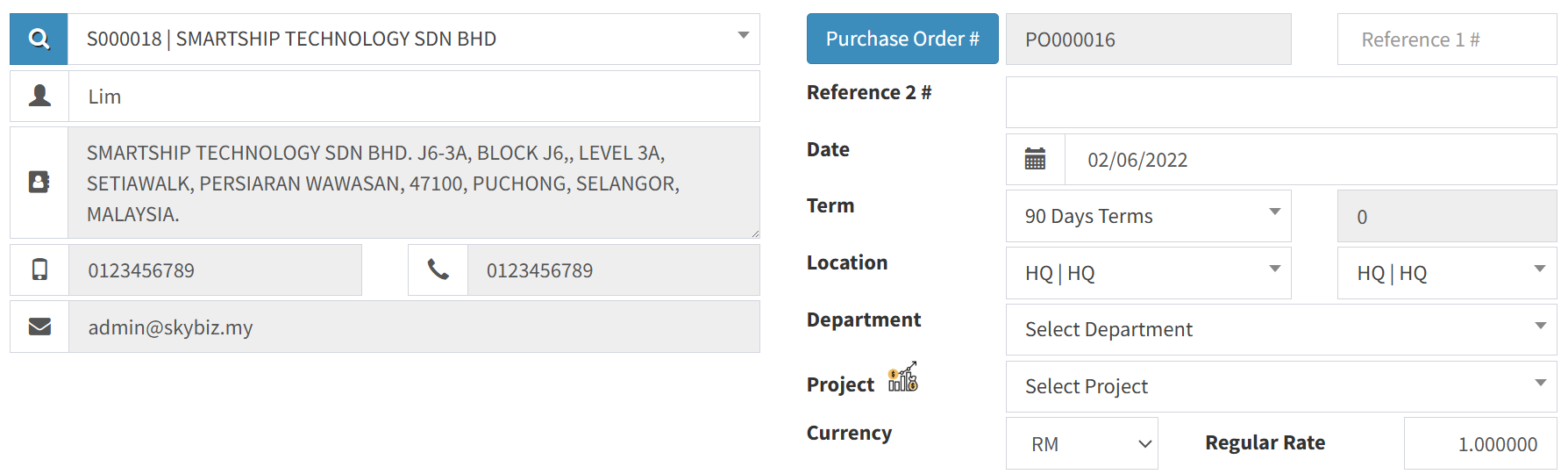
Step 2: Please provide all required fields with the relevant Supplier Information, ensuring the profile details are accurate.
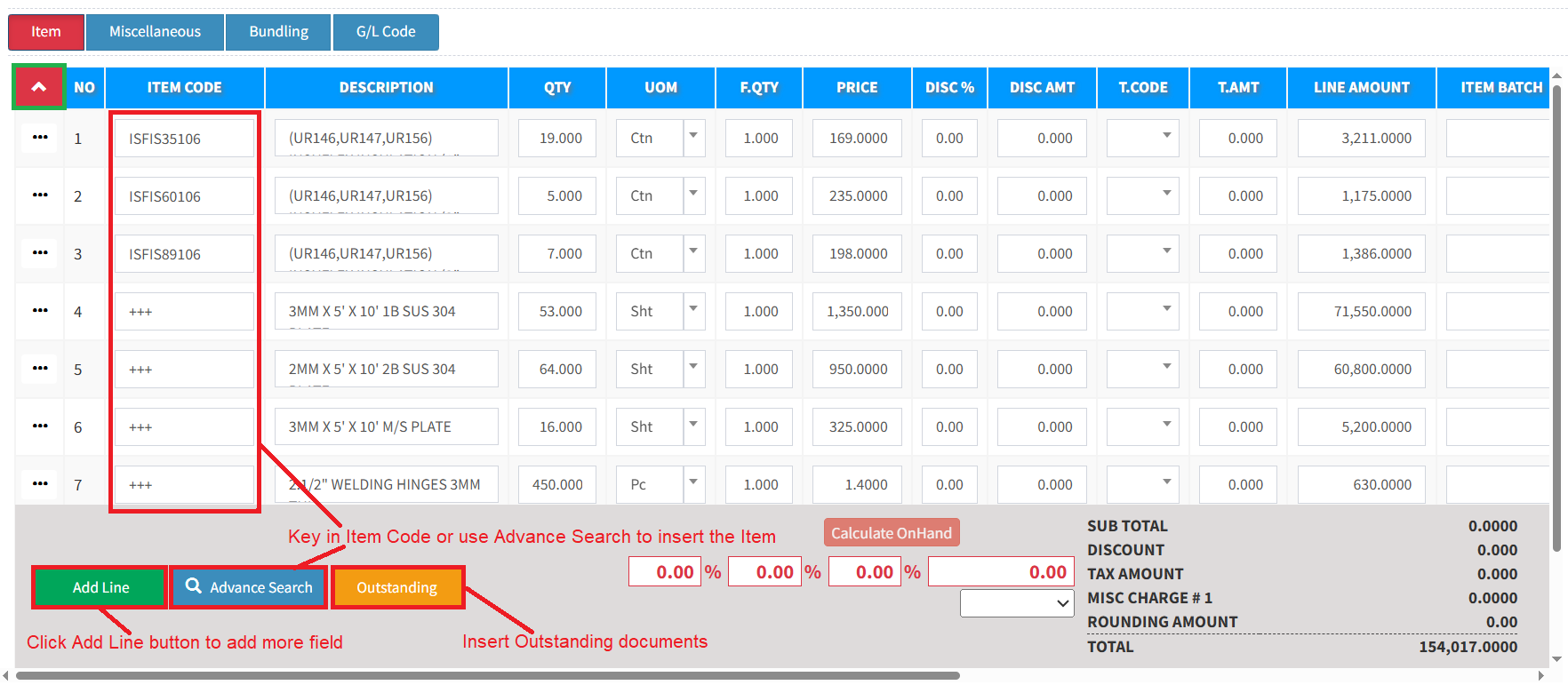
Step 3: Select the item type, then add all kinds of inventory items/miscellaneous/GL that you want to add:
- The Item = All general or standard inventory items. Basically, for every product that has stock.
- The Miscellaneous = All non-Inventory Items such as labour charges, transport charges, project services, and more.
- The Bundling = All bundling items that you have created.
- The G/L Code = Retrieve preset from the chart of accounts code.
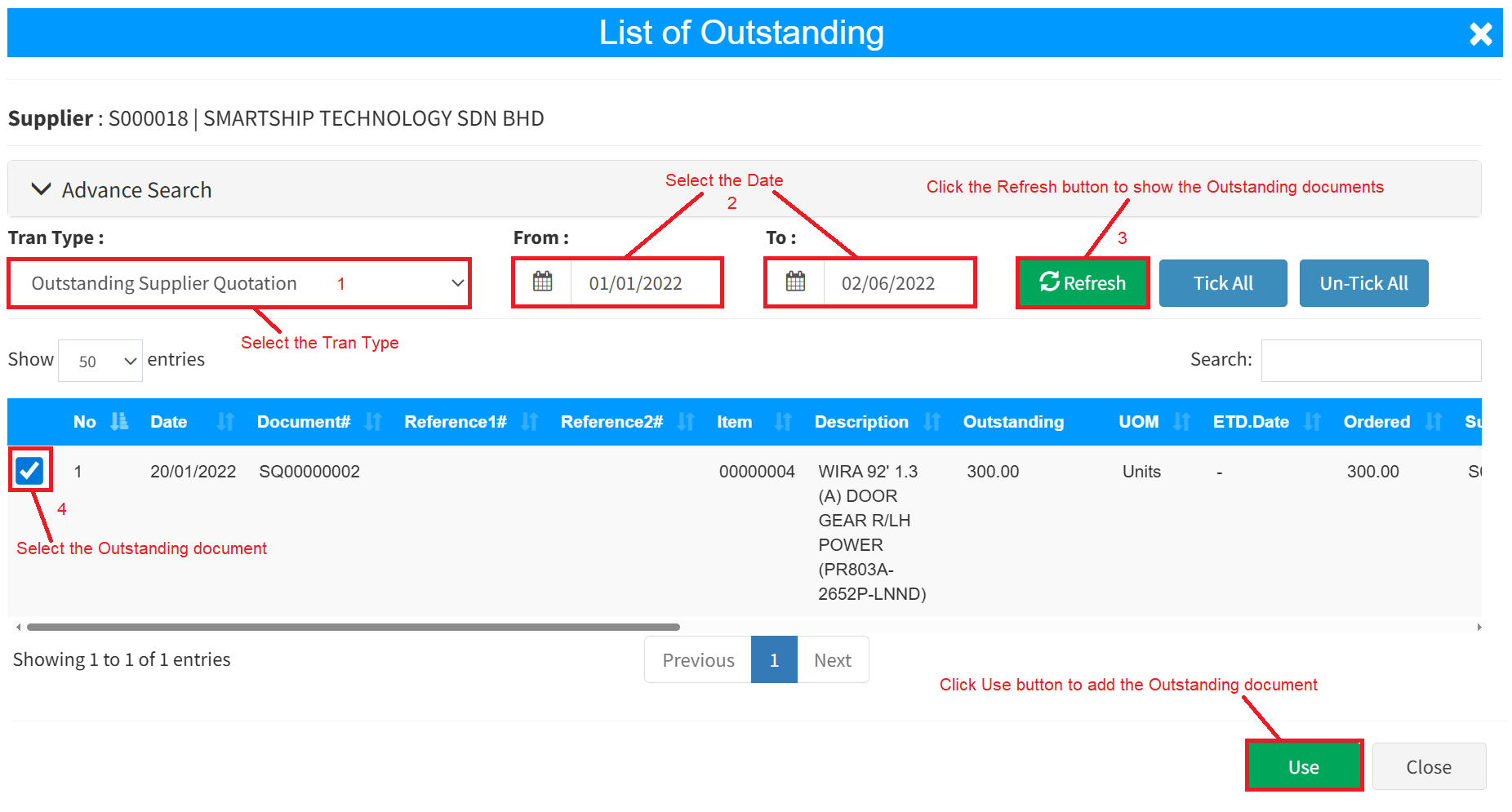
Step 4 (optional): If you want to retrieve the Outstanding Internal Purchase Requisition, Outstanding External Purchase Requisition, or Outstanding Supplier Quotation, click the Outstanding button. On the List of Outstanding screen, select the transaction type and the document date period. Click the Refresh Button to show all outstanding documents, then tick the outstanding checkbox you want to retrieve. Click the Use button to retrieve the outstanding document for the purchase order.
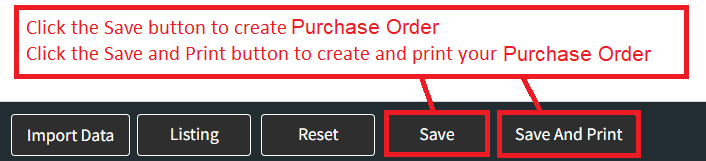
Step 5: Once you have reviewed the details, click the Save button in the bottom-right corner to store your Purchase Order. If you require a physical copy right away, please use the Save and Print option to complete both actions at once.
Conclusion
In conclusion, the Purchase Order module is a fundamental component of fiscal discipline, corporate governance, and supply chain accuracy. Automating the generation and tracking of these official commitments ensures that an organization eliminates rogue spending, secures predictable vendor pricing, and minimizes processing friction between departments. By establishing a clear, unalterable contractual record before any goods are shipped or invoices are issued, businesses protect themselves against billing discrepancies and inventory errors. Ultimately, a robust Purchase Order workflow transforms the procurement cycle into a highly auditable, efficient asset that optimizes cash flow management and strengthens external vendor relationships.
Powered By: SKYBIZ ®