Introduction to SKYBIZ Printer Service
SKYBIZ Printer Service is a robust Desktop-based application engineered to streamline document and receipt printing workflows across an entire organization. By serving as a centralized print server, the application only needs to be installed on a single host computer to enable network-wide functionality. Once configured, any authorized user within the restaurant can send print jobs to the designated device instantly. This innovative approach removes the logistical burden of performing manual driver installations or hardware configurations on every individual workstation, significantly reducing IT overhead and ensuring a plug-and-play experience for the entire staff.
How to SKYBIZ Printer Service?
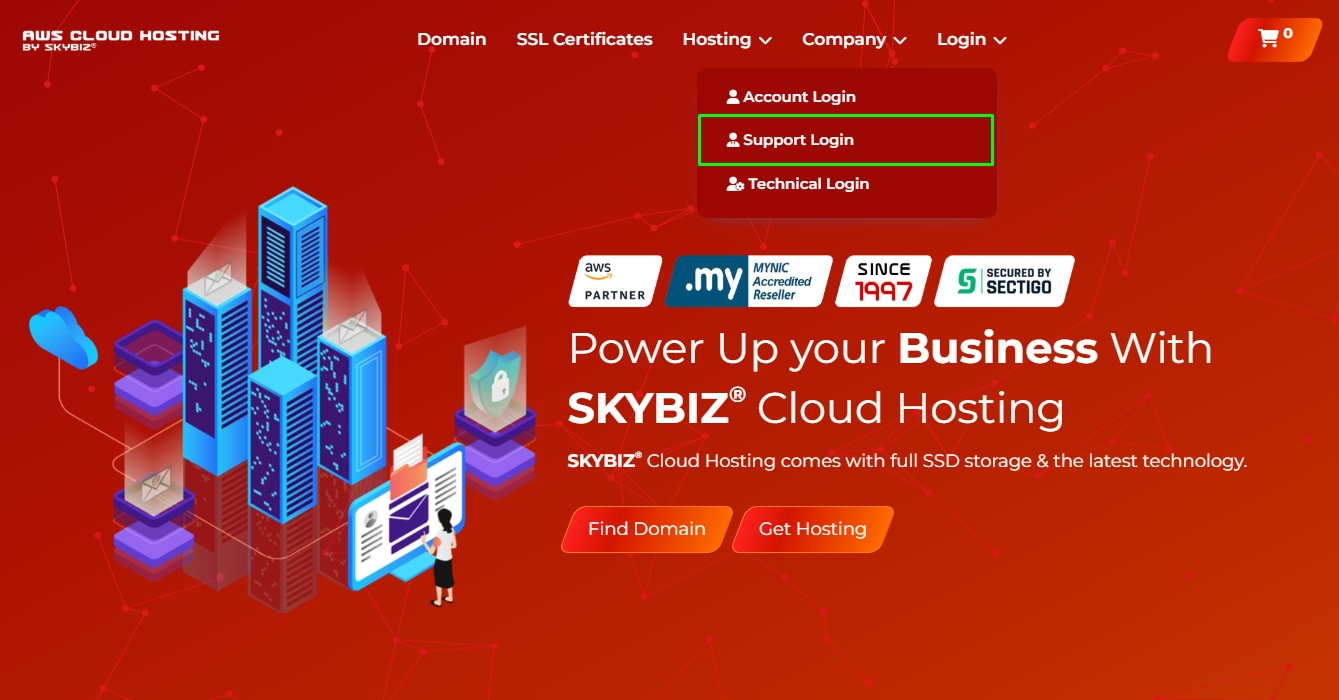
Step 1: Navigate to the official SKYBIZ website and select the Support Login option.
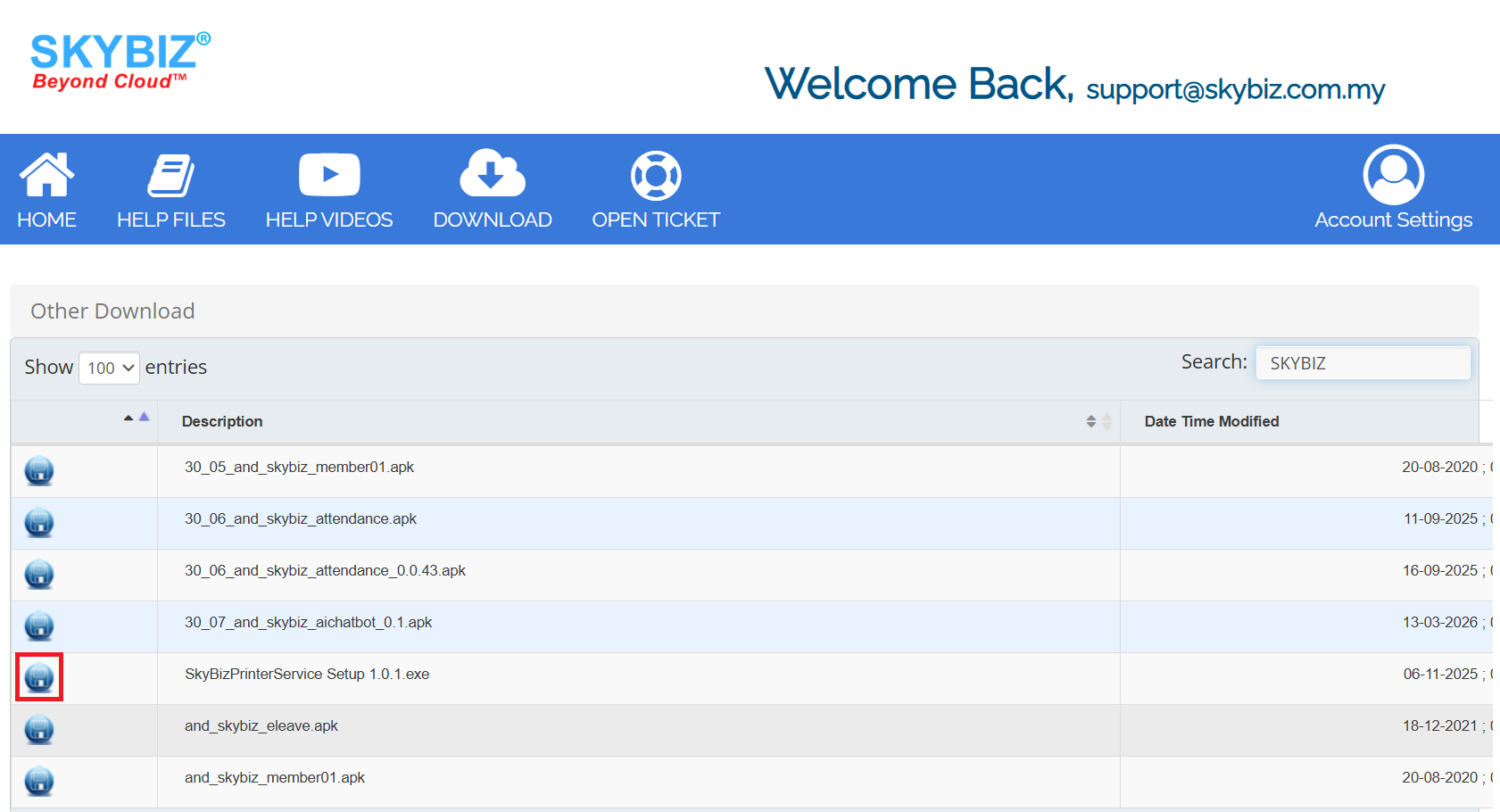
Step 2: Once logged in, navigate to the Download section and select the download icon to obtain the SKYBIZ Printer Service installer.
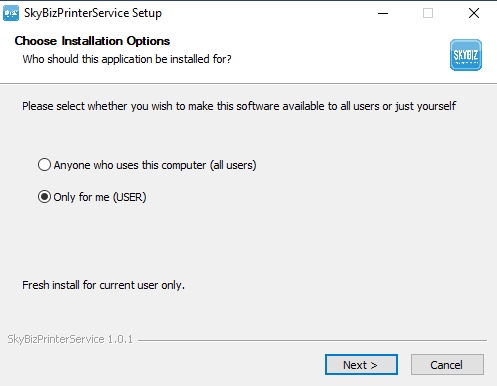
Step 3: Run the installer to install the SKYBIZ Printer Service on the designated workstation or laptop connected to the printer.
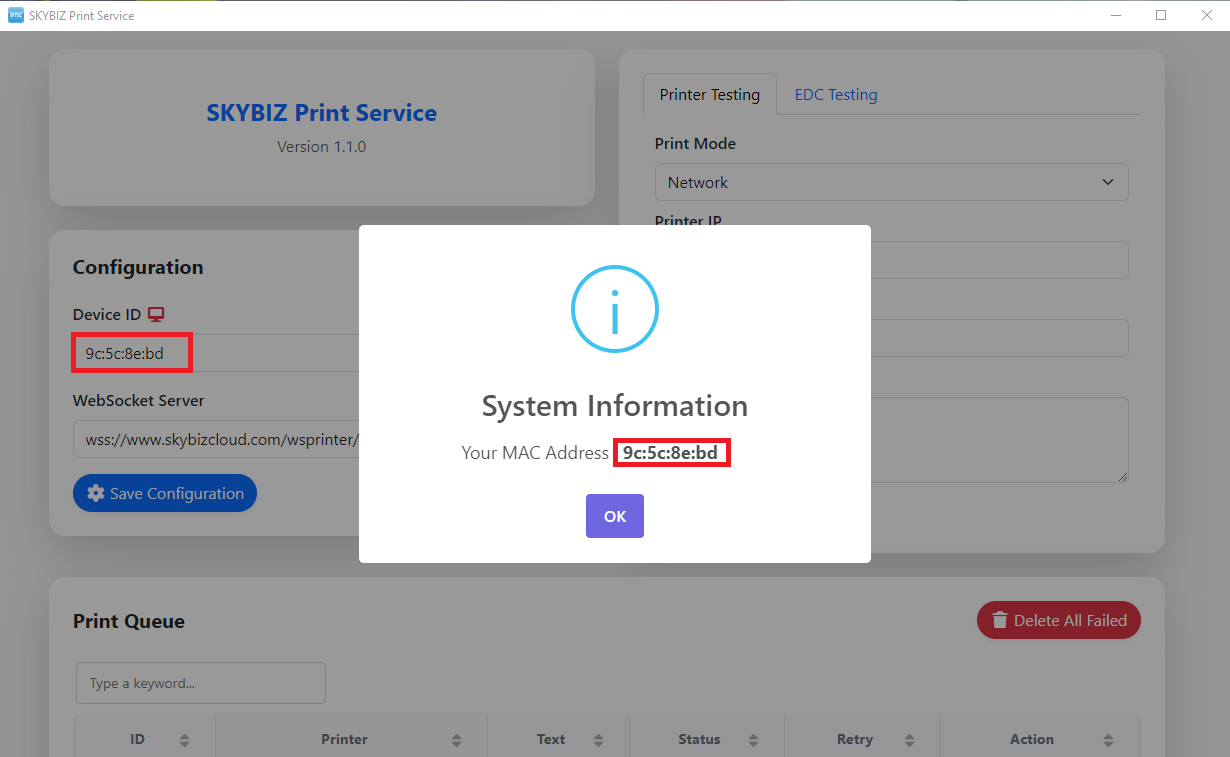
Step 4: Launch the SKYBIZ Printer Service and click the Red Computer Icon  to retrieve your unique Device ID. Copy this ID and paste it into the field provided below, then click the Save Configuration button.
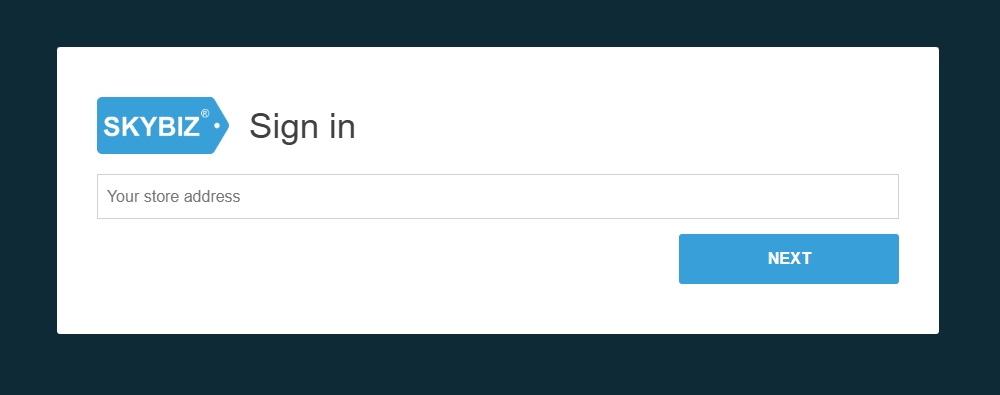
Step 5: Once the setup is complete, access https://www.skybizcloud.com/01/ and sign in to your dashboard.
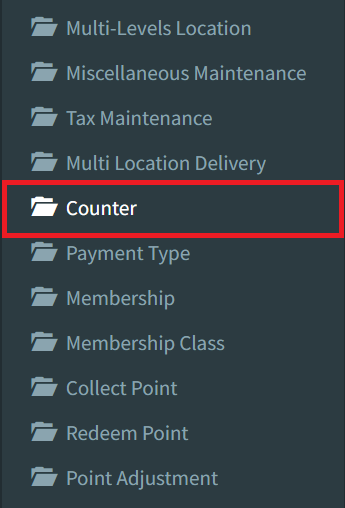
Step 6: Go to Maintenance > Counter to access the counter settings.
Step 7: Select the Listing button located in the bottom-right corner to view a comprehensive list of all existing counters.

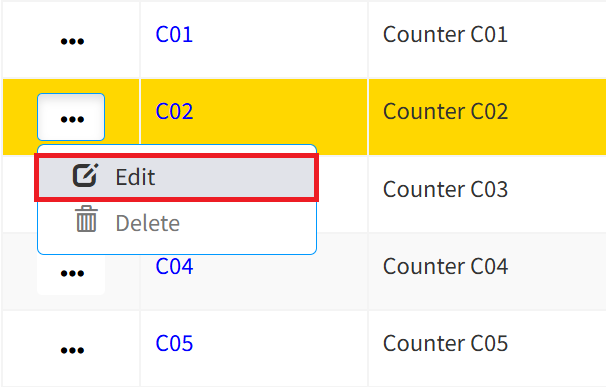
Step 8: Select the desired counter, click the more options (three-dot) icon, and choose Edit.
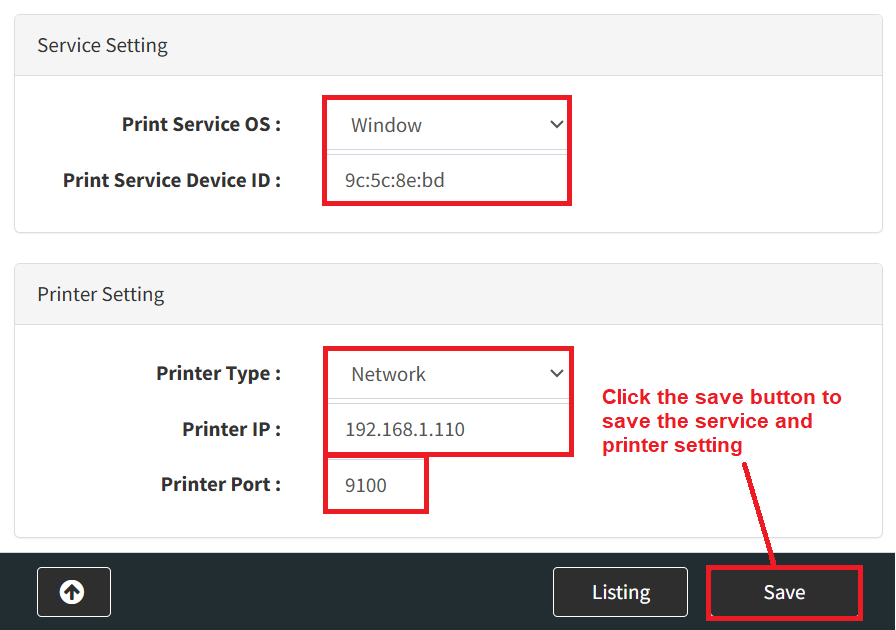
Step 9: Scroll to the service setting, select the appropriate Print Service OS and enter your Device ID. On the Printer Setting, set the Printer Type to Network, and input your printer’s IP Address and Port number. Click Save to apply these settings.
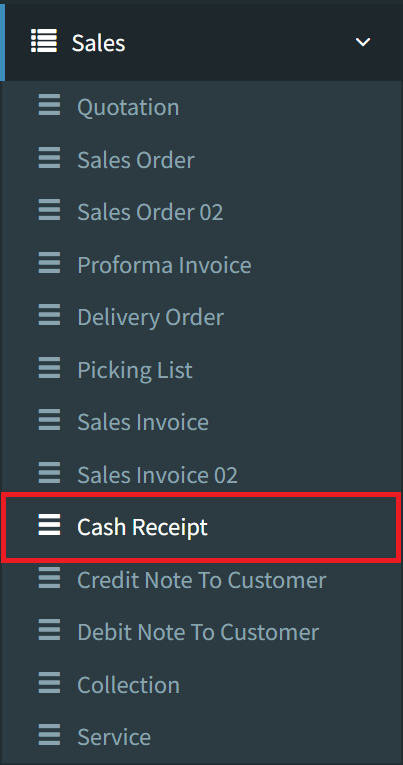
Step 10: To verify the printer service configuration, navigate to the Sales menu and select the Counter option.
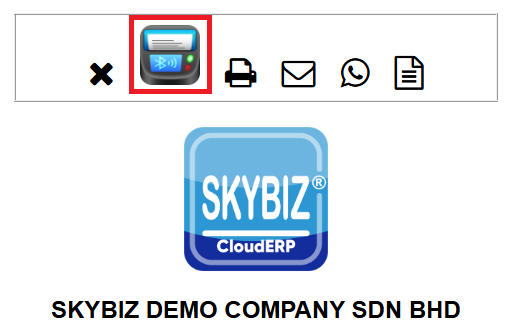
Step 11: To complete the test, please click the Printer icon. Your receipt should now print to the designated device.
Conclusion
In summary, SKYBIZ Printer Service offers a sophisticated yet user-friendly solution for modern business environments. By centralizing the printing infrastructure onto a single Desktop-based host, it effectively bridges the gap between complex hardware setups and seamless operational output. Whether implemented in a fast-paced restaurant or a high-volume corporate office, the application delivers immediate value by eliminating the technical friction of individual driver management. Ultimately, SKYBIZ Printer Service empowers teams to focus on their core business activities while ensuring that document and receipt printing remains reliable, scalable, and effortless across the entire organization.
Powered By: SKYBIZ ®