Introduction to SKYBIZ Price Matrix
The Price Matrix module is a dynamic pricing engine that allows organizations to automate multi-tiered wholesale pricing structures, custom customer brackets, and high-volume discount rules directly at the point of sale. Rather than utilizing a rigid, single-price model for inventory items, this matrix maps unique stock keeping units (SKUs) against variable dimensions such as customer tiers (e.g., Retail, Wholesaler, Platinum Distributor) and specific minimum order quantities (MOQs). When an order is generated, the invoicing system instantly evaluates these predefined coordinates to apply the correct negotiated contract price or bulk volume break without manual cashier intervention. By hardcoding these intricate matrix rules into the core inventory and sales workflow, businesses can effortlessly protect their profit margins, incentivize larger bulk purchases, and eliminate the risk of human pricing errors across diverse wholesale and distribution channels.
How to Create Pricing Item-based vs Category-based?
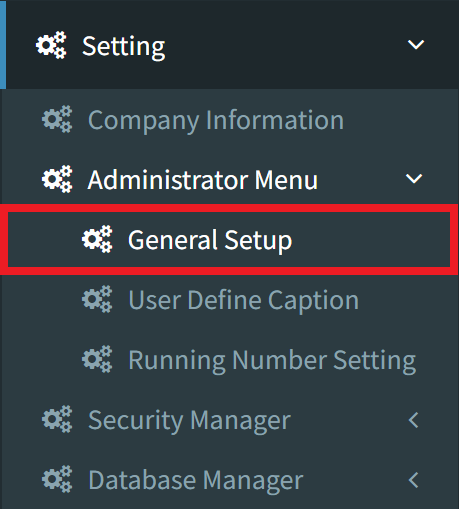
Step 1: Enable the item-based versus category-based price matrix within the Pricing / Costing Setting. To do this, navigate to Settings > Administrator Menu > General Setup.
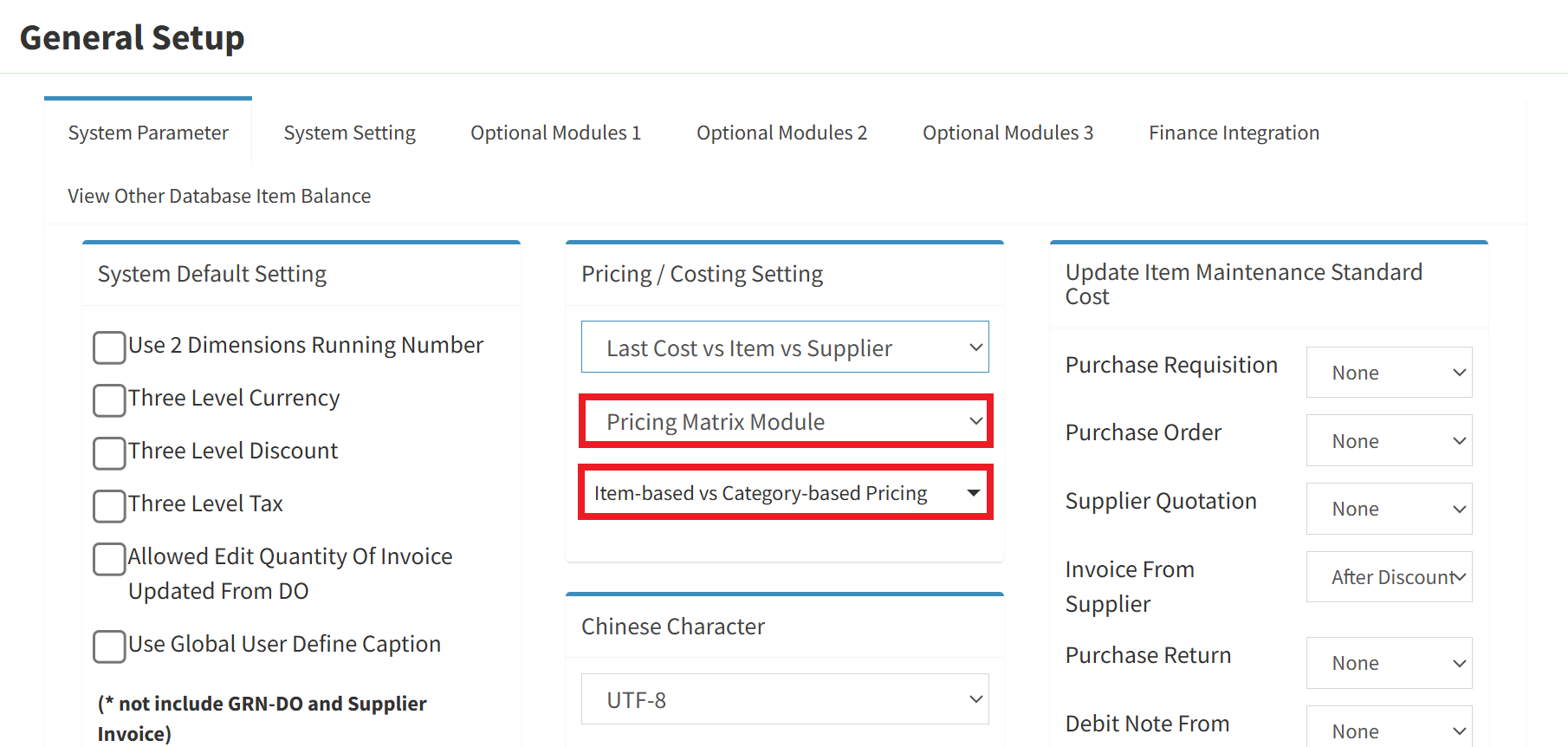
Step 2: In the Pricing / Costing Setting section, select the Pricing Matrix Module and choose Item-based vs Category-based Pricing. Scroll to the bottom of the page and click the Apply Changes button to save your settings.
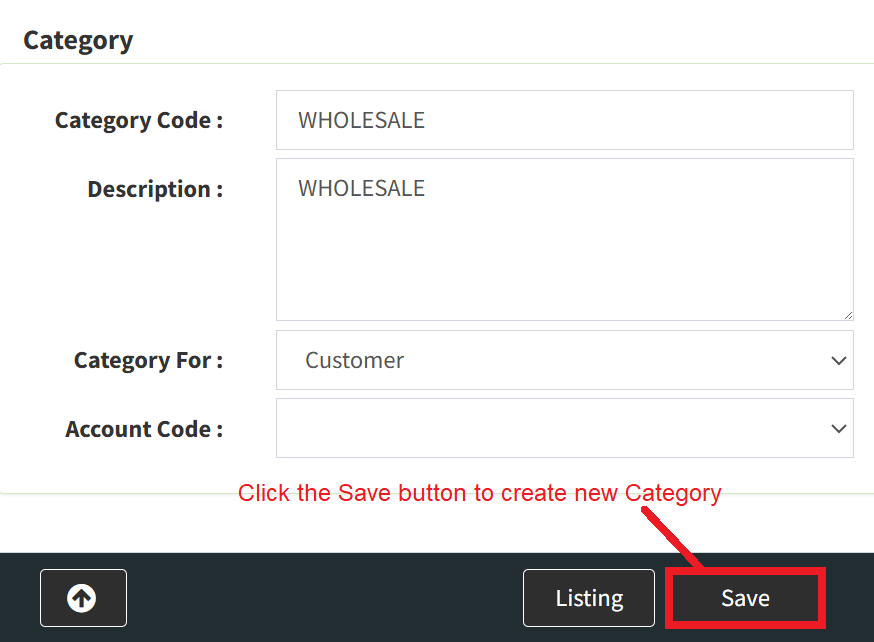
Step 3: Next, create the categories for your customers. For example, if you manage multiple customer types such as Walk-in Customer, Wholesale, and Online Customer, you will create an entry for each. For this guide, create the Wholesale customer category. [Category Documentation]
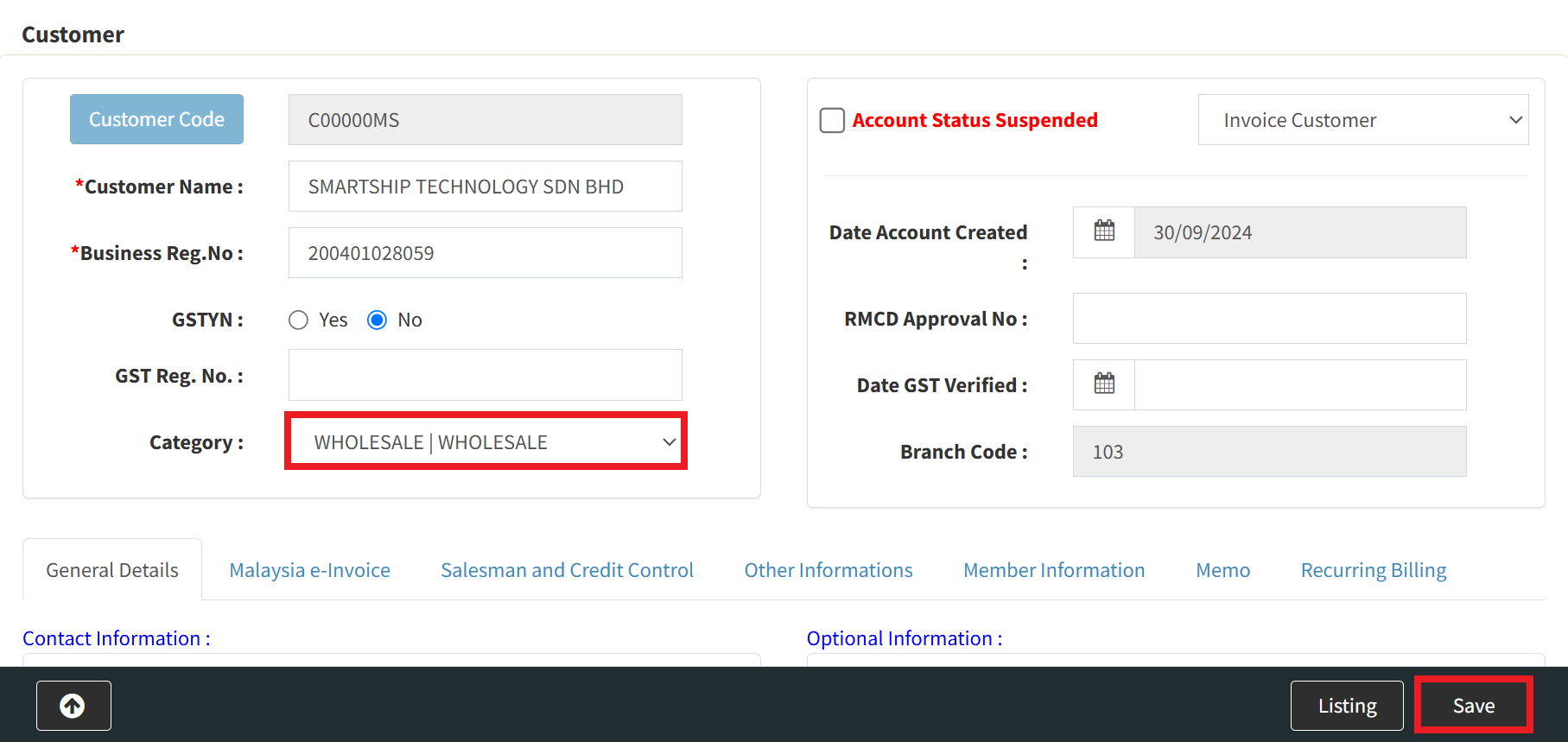
Step 4: Create a new customer or amend the current customer. Under the customer Category options, select Wholesale as the customer category, then click Save to create or apply your changes. [Customer Documentation]
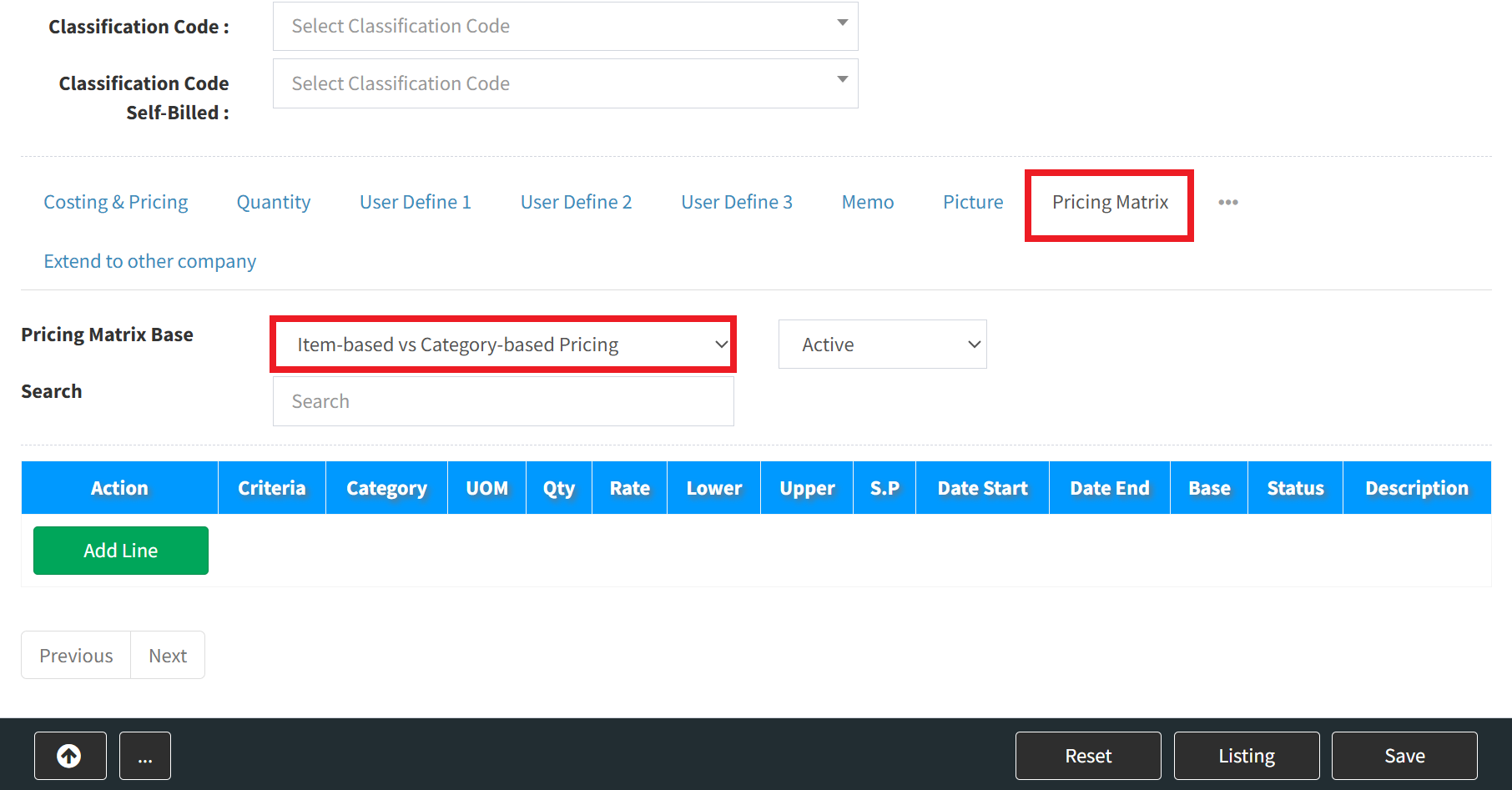
Step 5: Create a new item or edit an existing one, navigate to the Price Matrix tab, and select Item-based vs Category-based Pricing. [Item Documentation]
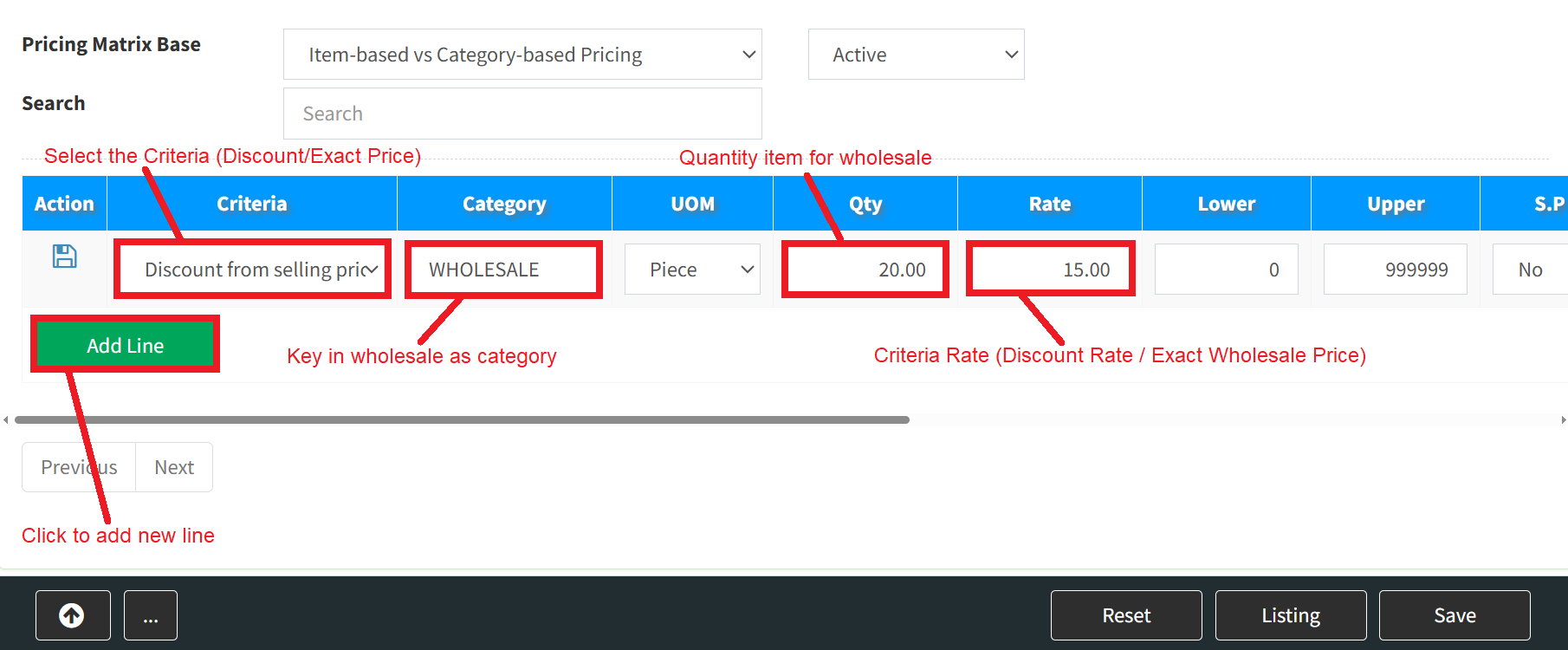
Step 6: Click the Add Line button to append a new row, then select your pricing criteria (e.g., Discount or Exact Selling Price). Choose Wholesale as the category, and fill in the Quantity and Rate fields. Scroll or drag the horizontal scrollbar to the right to view additional fields.
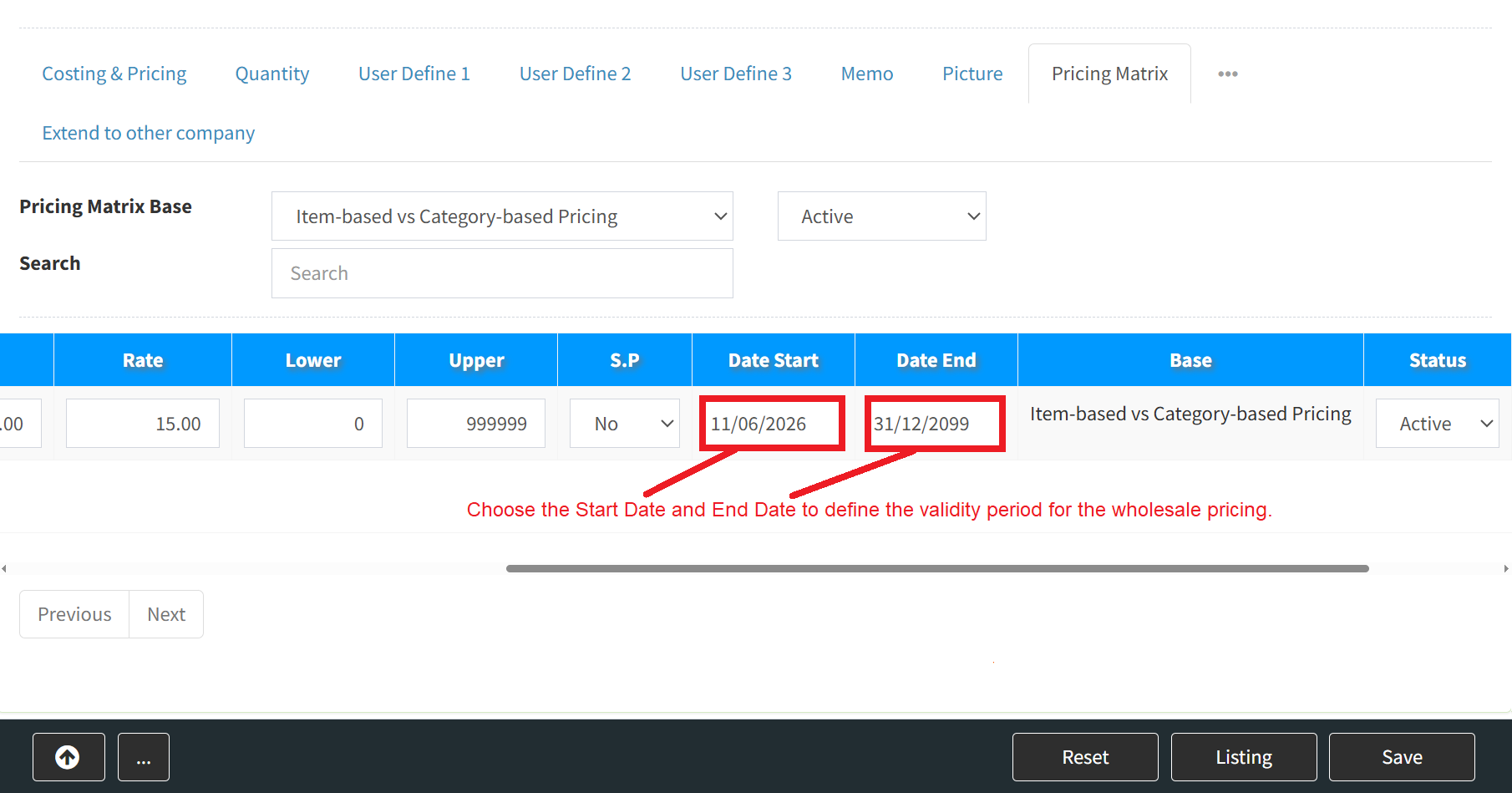
Step 7: Choose the Start Date and End Date to define the validity period for the wholesale pricing.
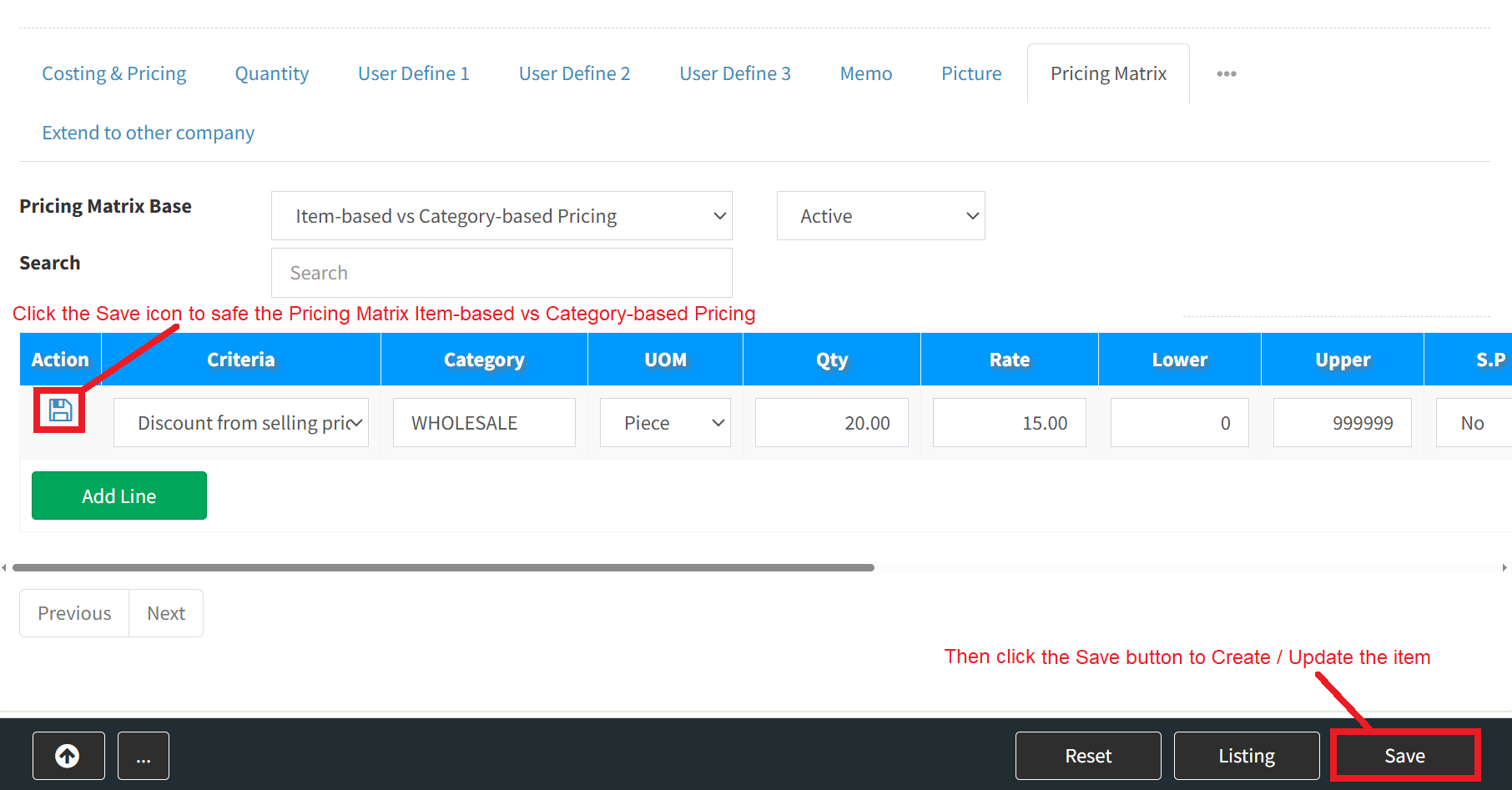
Step 8: Once you have reviewed the details, scroll or drag the horizontal scrollbar back to the left and click the Save icon button within the row to commit your Item-based vs Category-based Pricing settings. After that, click the Save button in the bottom-right corner to create / update the item.
Conclusion
In conclusion, a robust Price Matrix module is a critical operational asset for executing scalable B2B and wholesale commercial strategies with absolute financial precision. Automating complex, multi-tiered pricing rules removes administrative friction from the sales floor and ensures that high-volume distributors instantly receive their contracted trade discounts. This centralized configuration shields the organization from margin leakage caused by unauthorized manual price overrides and streamlines automated billing workflows. Ultimately, embedding a flexible price matrix into your enterprise platform elevates customer trust through consistent pricing logic, while providing management with a highly responsive tool to optimize market competitiveness and maximize revenue velocity.
Powered By: SKYBIZ ®