SKYBIZ Cloud ERP Support

  • SKYBIZ Cloud ERP
  • SKYBIZ Cloud Payroll
  • SKYBIZ Offline

Create official receipt – collection from customer

 2024-12-02   SKYBIZ CLOUDERP, 0301. Official Receipt - Collection From Customer, 03. Account Receivable

An official receipt is issued by the seller to the buyer as written proof of the sale of a product.
As well as an acknowledgement of cash or bank payment transaction.

Below are guideline(s) create new official receipt:
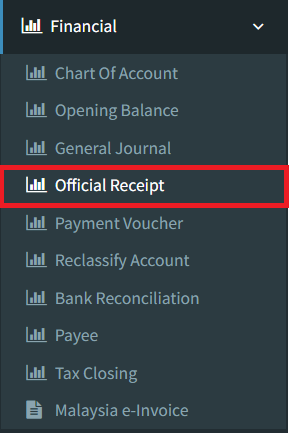
Step 1: Click on side menu>>Financial>>Official Receipt
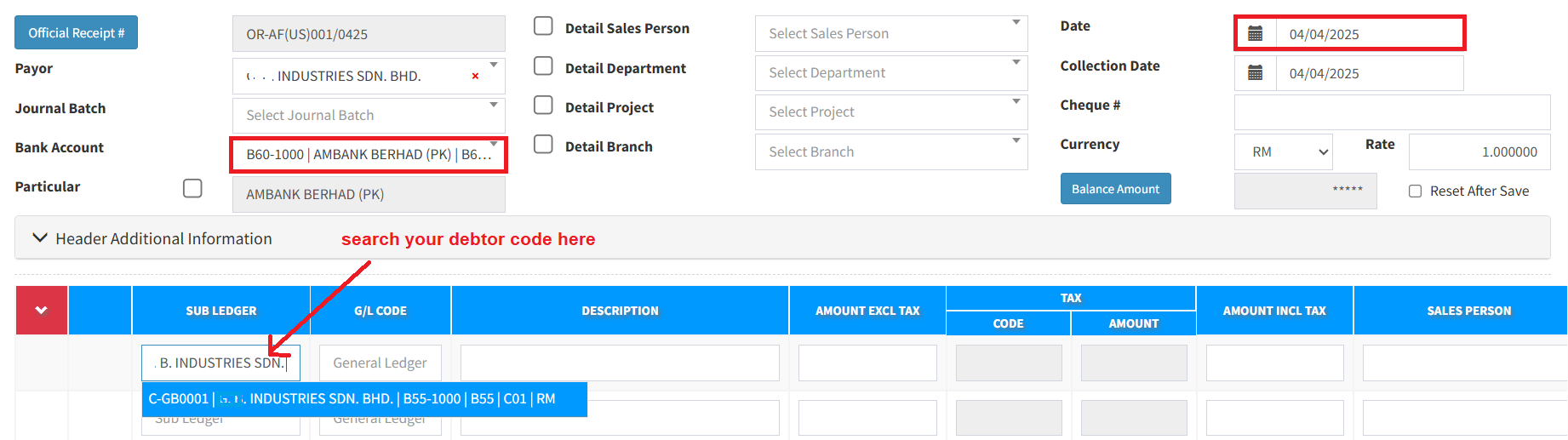
Step 2:
a. Enter transaction date
b. select bank/cash account to be debited
c. select/search your debtor code
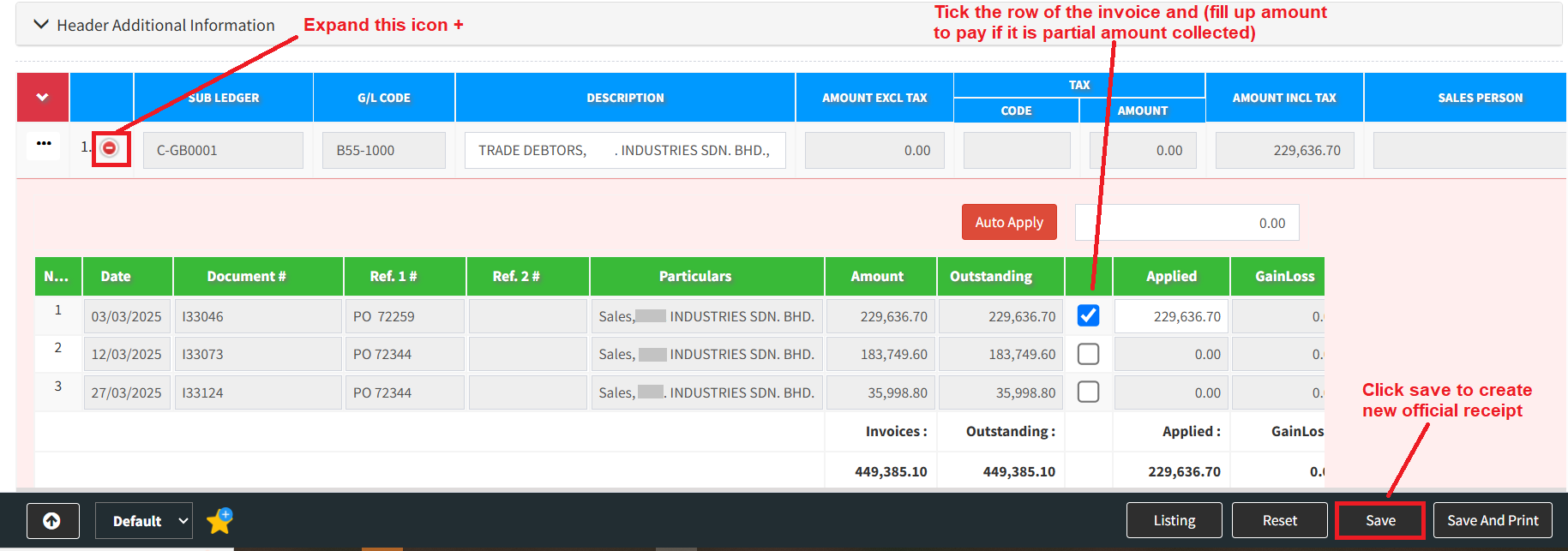
Step 3: Click drop-down icon + to display all outstanding invoices. Tick the row of the invoice and (fill up amount to pay if it is partial amount collected)
 

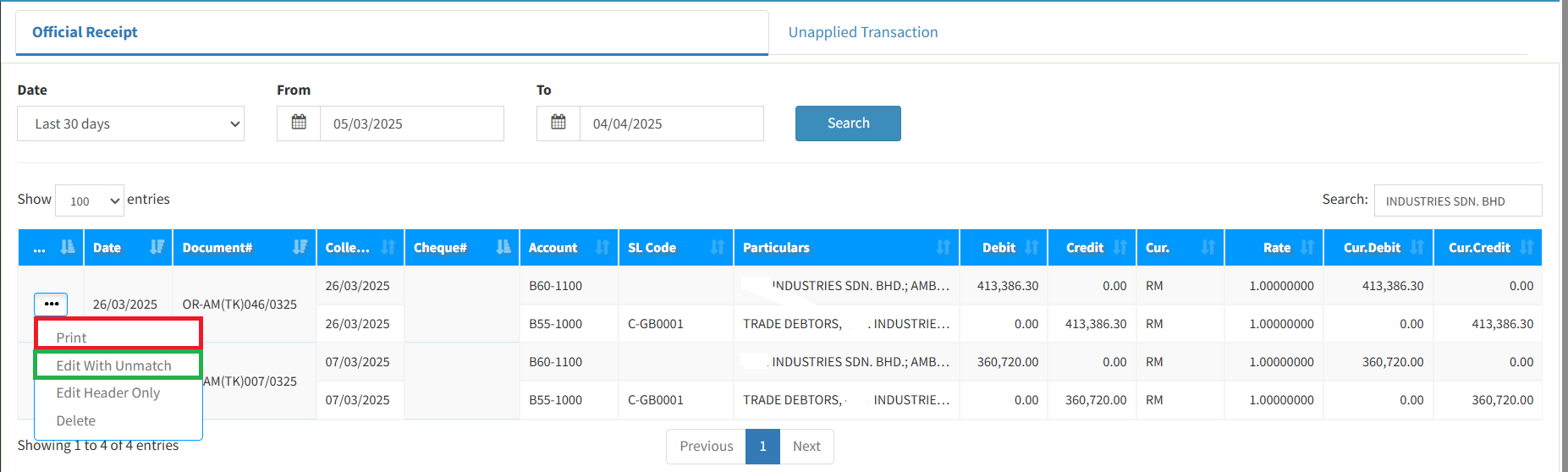
Step 4: Click Listing to view recorded official receipt. Click Reset to clear the page.

 

Step 5: There is a print option if you want to print official receipt voucher. User may click Edit With Unmatch.
Powered By : SKYBIZ ®

<< How to apply service charge upon POS system ? How to Create, Edit and Delete Payment Voucher >>

Categories

  • Cloudbeds (1)
  • Exely (1)
  • SKYBIZ CLOUDERP (197)
    • 00. E-Invoice (14)
    • 01. Maintenance (43)
      • 0101. Item Group (3)
      • 0102. Unit Of Measurement (3)
      • 0103. Item Maintenance (3)
      • 0104. Item Bundling (3)
      • 0105. Item Bin (1)
      • 0105.Area (1)
      • 0106.Terms (1)
      • 0107.Category (1)
      • 0108.Currency Maintenance (1)
      • 0109.Sales Person (1)
      • 0110.Customer Maintenance (4)
      • 0111.Supplier Maintenance (3)
      • 0112.Price Matrix (1)
      • 0113.Branch (1)
      • 0114.Department (1)
      • 0115.Multi-Level Project (1)
      • 0116.Multi-Level Location (1)
      • 0117.Miscellaneous Maintenance (3)
      • 0123.Voucher (2)
    • CloudPOS (4)
    • 02. Purchase (2)
      • 0201.Internal Purchase Requisition (1)
      • 0202.External Purchase Requisition (1)
      • 0203.Supplier Quotation (1)
      • 0204. Purchase Order (2)
      • 0205.Goods Receive Note (1)
      • 0206.Invoice From Supplier (1)
    • 03. Sales (51)
      • 0301. Quotation (9)
      • 0302. Sales Order (11)
      • 0304. Proforma Invoice (10)
      • 0305. Delivery Order (9)
      • 0307. Sales Invoice (8)
      • 0308. Cash Receipt (2)
      • 0309. Credit Note To Customer (2)
      • 0311. Collection (1)
    • 04. Inventory (9)
      • 0405.Transfer Stock – OUT (2)
      • 0406.Transfer Stock – IN (2)
      • 0407. Stock Adjustment (2)
      • Opening Stock (1)
    • 06. Financial (15)
      • 0502.General Journal (1)
      • 0605. Payment Voucher (2)
    • 07. Reports (16)
      • 0701. Print Barcode (2)
      • 0702. Sales Report (5)
      • 0703. Point Of Sales (4)
      • 0705. Purchases (2)
      • 0706. Inventory (4)
      • 0606.General Ledger (1)
        • 0606.General Ledger (1)
      • 0609. Account Receivable Report (2)
    • 08. Setting (47)
      • 0801. Company Information (2)
      • 0802. Administrator Menu (18)
      • 0803. Security Manager (10)
      • 0804. Database Manager (5)
    • 09. Analyzer (2)
      • 0902. Multi-Dimensional Analysis (2)
    • SkyBiz Cloud (17)
  • 10. Frequent Q&A (4)
  • 02. GL (7)
    • 0204. Journal Entry (1)
    • 0201. Chart Of Account (2)
    • 0206. Bank Reconciliation (4)
  • 03. Account Receivable (4)
    • 0314. Customer Statement (1)
    • 0301. Create New Invoice (1)
    • 0301. Official Receipt – Collection From Customer (2)
  • KIV (8)
  • Cloud@Backend (10)
  • Android T series (16)
  • Android V series (10)
  • Email (2)
  • General (3)
  • MySQL (4)
  • Android WMS01 Series (7)
  • Installation (27)
  • Distribution (128)
  • Financial (122)
  • POS Retail (19)
  • SkyBiz Payroll (1)
  • Website (2)

.

  • SKYBIZ Cloud ERP
  • SKYBIZ Cloud Payroll
  • SKYBIZ Offline

SkyBiz Product(s)

  • SkyBiz E-Leave|E-Claim|E-Payyroll|E-HR Management|Online Payments for Salary, EPF, SOCSO, LHDN

.

  • SkyBiz Cloud Point Of Sales| Android Point Of Sales |Mobile Point Of Sales

Powered by MyWiki WordPress Theme