Introduction to SKYBIZ Marketplace Setup
This powerful bridge is designed to streamline your e-commerce operations by establishing a seamless, real-time connection between SKYBIZ and your chosen online marketplaces. By centralizing your workflow, the module allows you to automatically synchronize critical data—including product listings, inventory levels, and customer orders—directly into your SKYBIZ system, eliminating manual data entry and ensuring cross-platform accuracy. Whether you are scaling your business or simplifying daily management, this setup provides the robust infrastructure needed to maintain a unified, efficient retail ecosystem.
How to Set up your Shopee marketplace account on SKYBIZ?
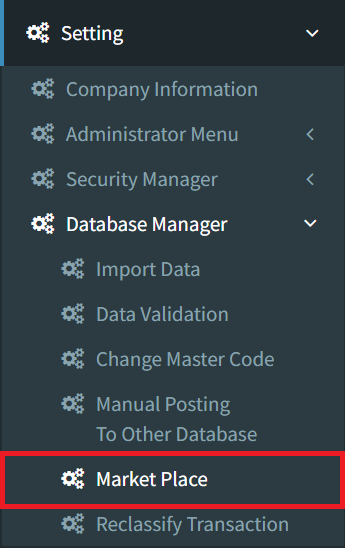
Step 1: To link your Shopee account with SKYBIZ, navigate to the Setting menu, Database Manager, and select Marketplace.
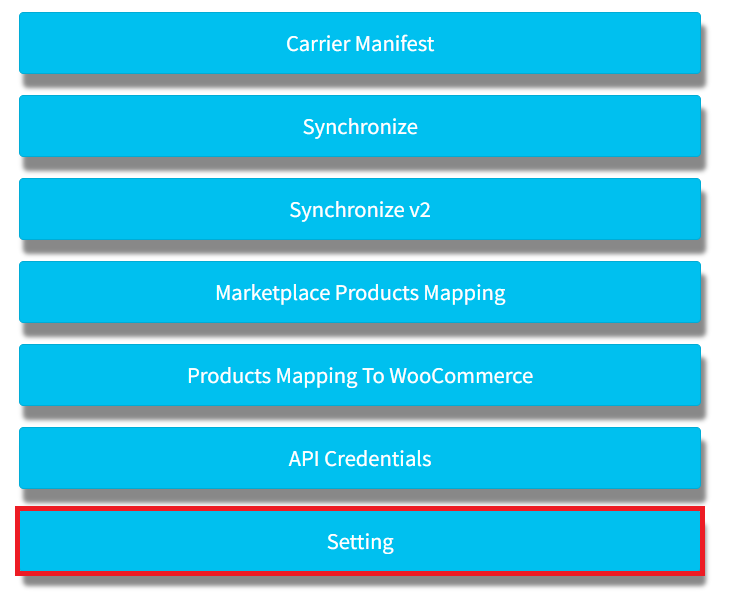
Step 2: Select the Setting button to access the configuration menu.
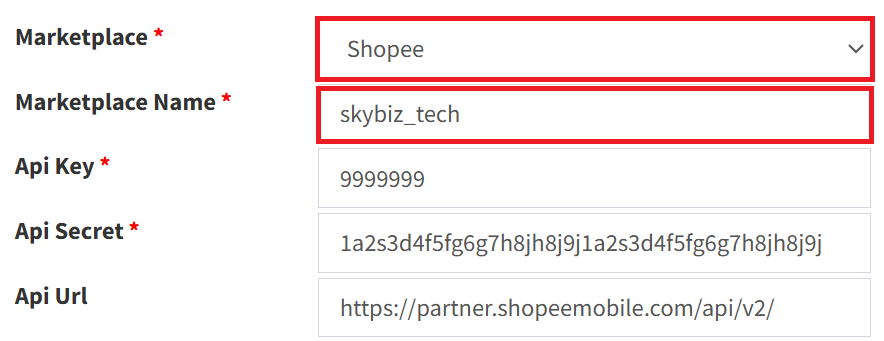
Step 3: Select Shopee from the Marketplace dropdown and enter your official Shopee store name in the Marketplace Name field. Please ensure all other pre-configured details remain unchanged.
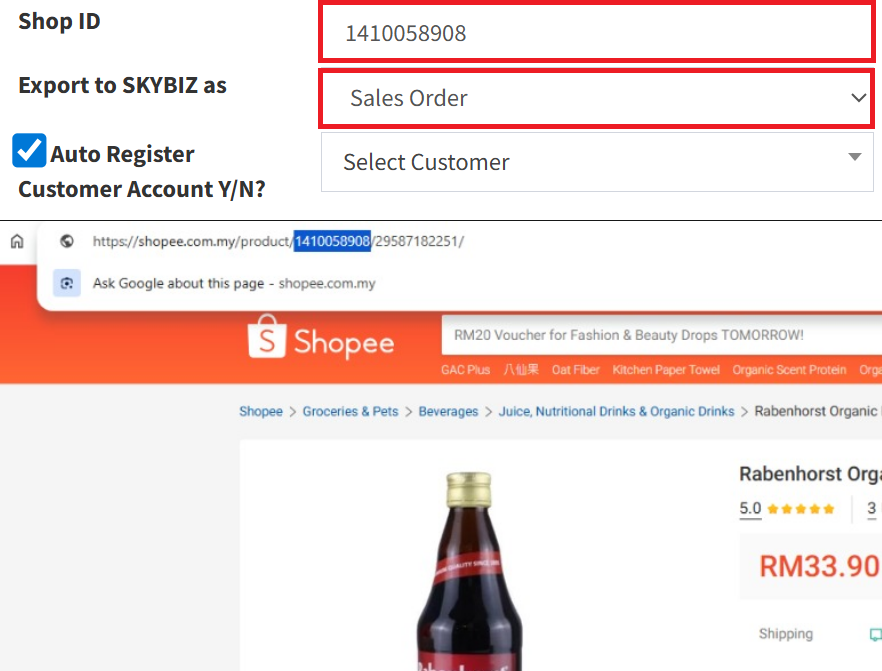
Step 4: Enter your Shop ID into the Store ID field (your Shop ID is located within your Shopee product URL). In the Export to SKYBIZ as dropdown menu, select Sales Order. You may enable the checkbox to automatically generate a customer account, or leave it deselected to manually input a specific Customer Account ID.
Step 5: Define your sequence settings by entering the Document Prefix and Last No. (the current document running number). Repeat this for the Customer Prefix and Last No. fields to establish your customer coding convention.
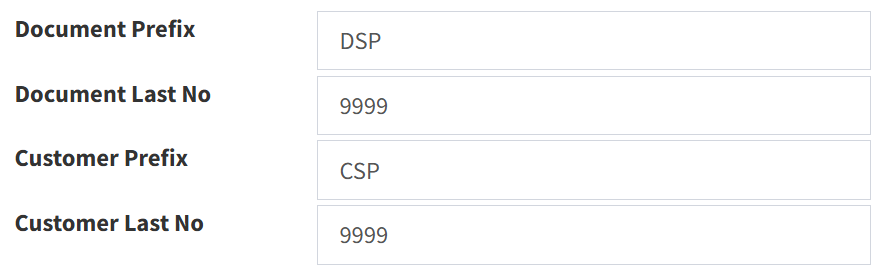
Step 6: Please review and fill in any other necessary information. Once finished, click the Save button located at the bottom-right of the screen to ensure your Shopee integration settings are successfully updated.

Step 7: Navigate back to the Setting menu, Database Manager, and select Marketplace.
Step 8: Click Synchronize V2 to open the marketplace synchronization settings.
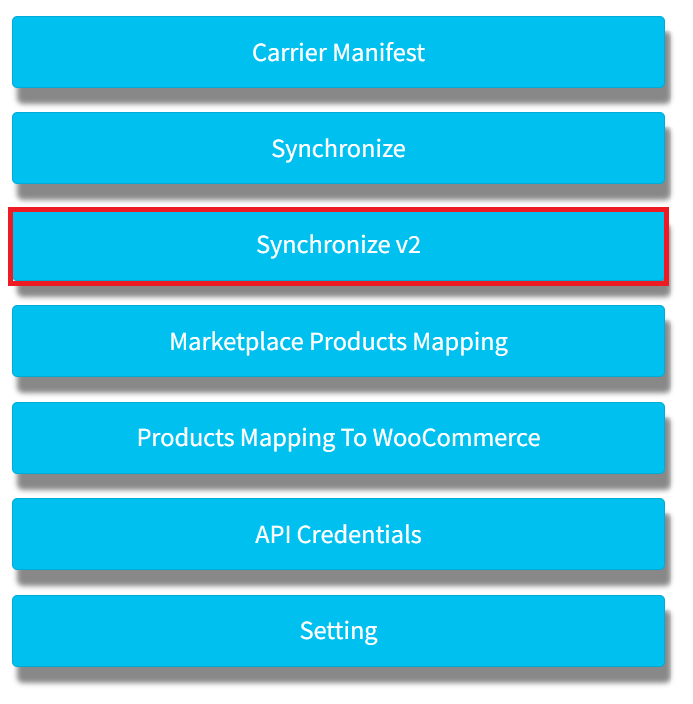
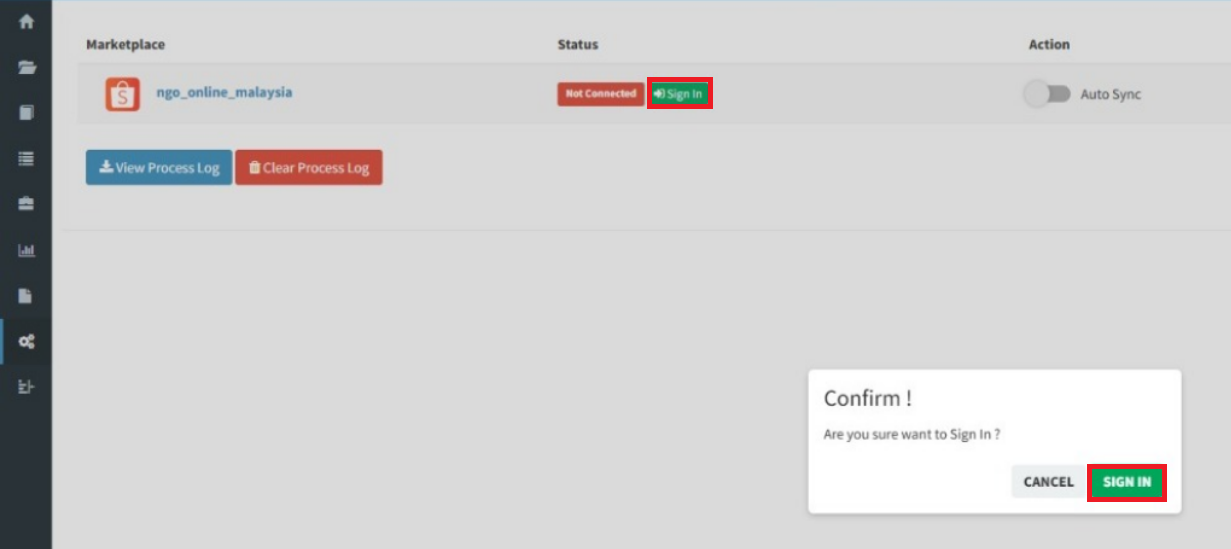
Step 9: If the configuration is correct, your Shopee marketplace will appear in the list with a “Not Connected” status. Click the Sign In button to trigger the authorization window, then click Sign In again to authenticate your Shopee account.
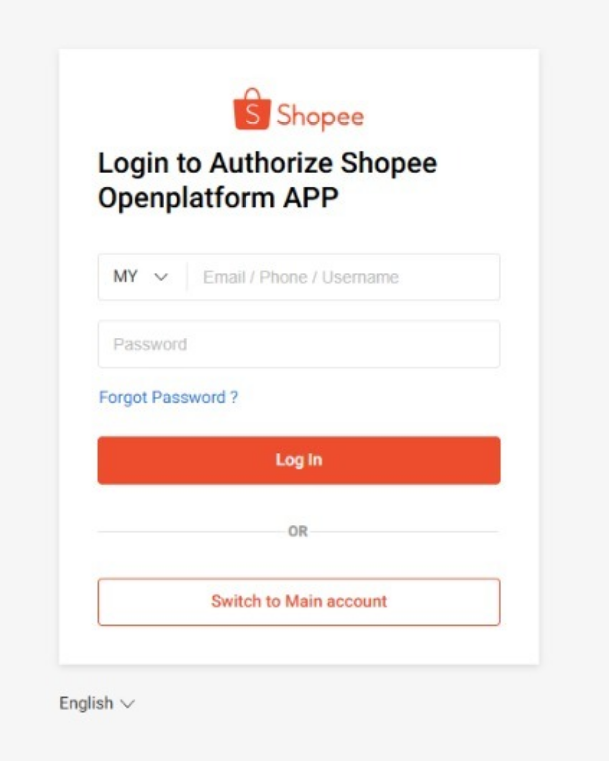
Step 10: An authorization window will open. Please log in with your Shopee credentials to finalize the secure connection between your Shopee account and SKYBIZ.
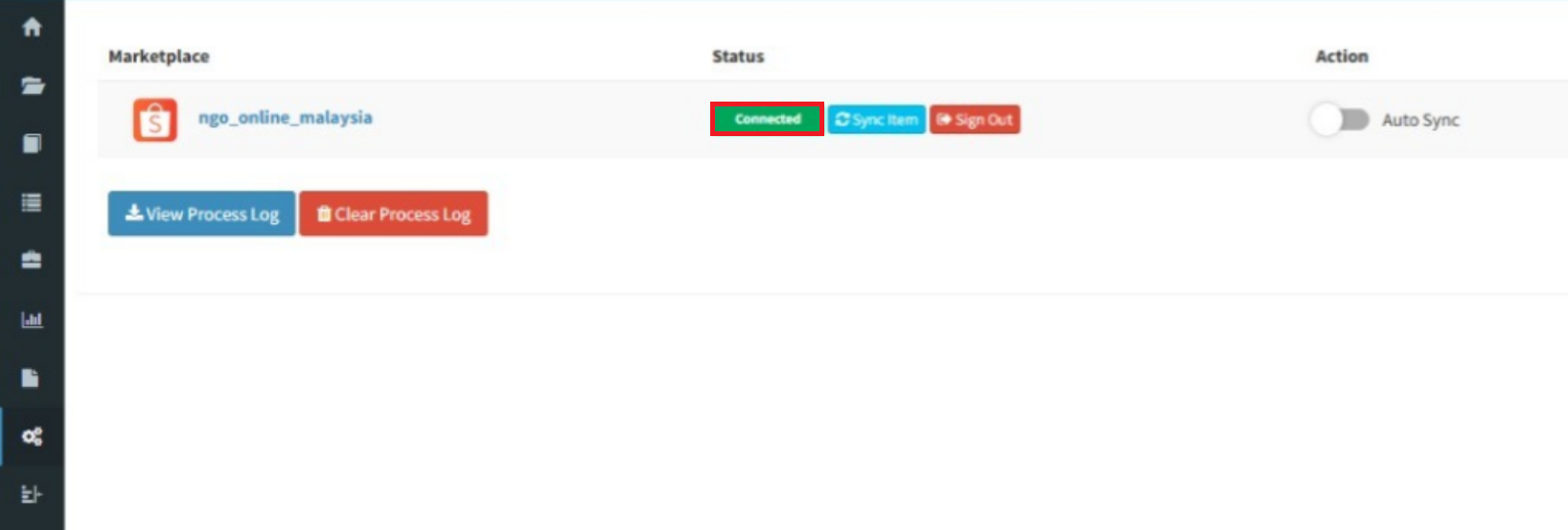
Step 11: Once the connection is successfully established, close the authorization window and refresh the SKYBIZ portal. You can do this by pressing F5 on your keyboard or selecting the Reload icon (⟳) in your browser’s navigation bar.

Step 12: Congratulations! Your Shopee Marketplace is now successfully connected to SKYBIZ. You can now enjoy seamless synchronization of your products and sales across both platforms.
Conclusion
In conclusion, the SKYBIZ Marketplace Setup serves as the vital link that transforms your independent operations into a fully integrated omnichannel retail powerhouse. by automating the synchronization of orders, inventory, and item data, this module minimizes human error and frees up your time to focus on strategic growth rather than administrative maintenance. Implementing this setup ensures that your business remains agile, your data stays consistent across all platforms, and your customers receive a reliable, professional experience every time they shop.
Powered By: SKYBIZ ®