Below are Guideline(s) on How to Set Default Tax Code On Maintenance
** Make sure user id set as Tax Authorised Person Y/N**
Step 1:
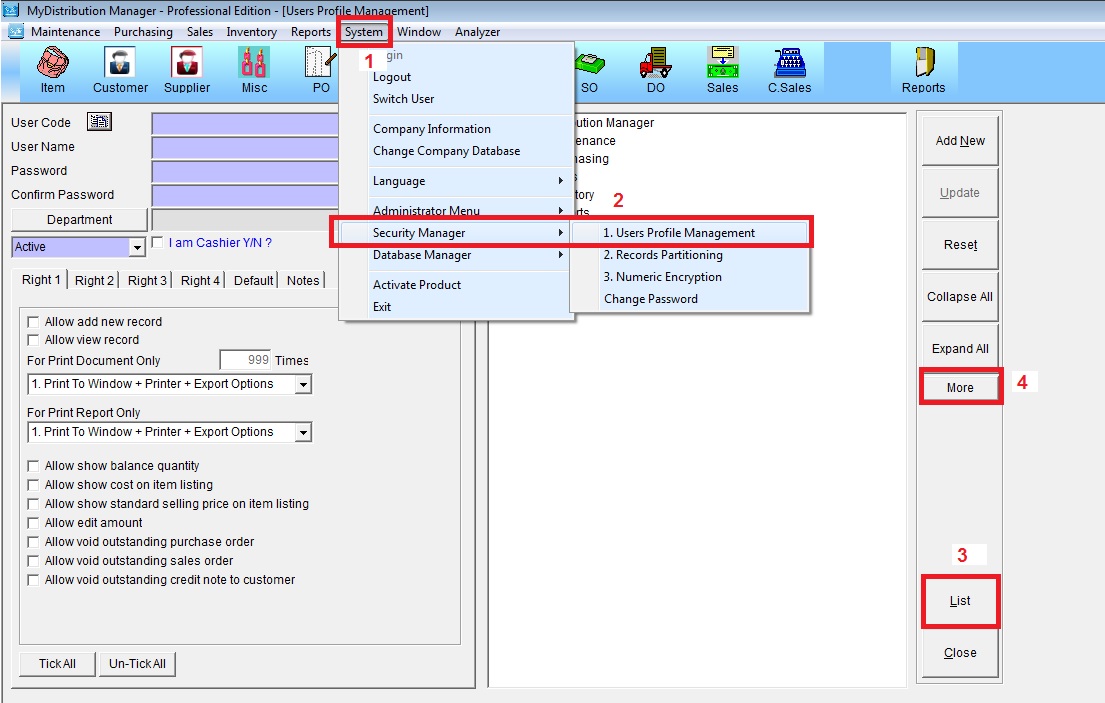
- 1.Go to System
- 2.Security Manager >User Profile Management
- 3.List (select user id)
- 4.More
Step 2: Scroll down
- 5.Tick Number 150 (Tax Authorised Person Y/N)
- 6.then Update

** Guides to Update Miscellaneous Charges Tax Code
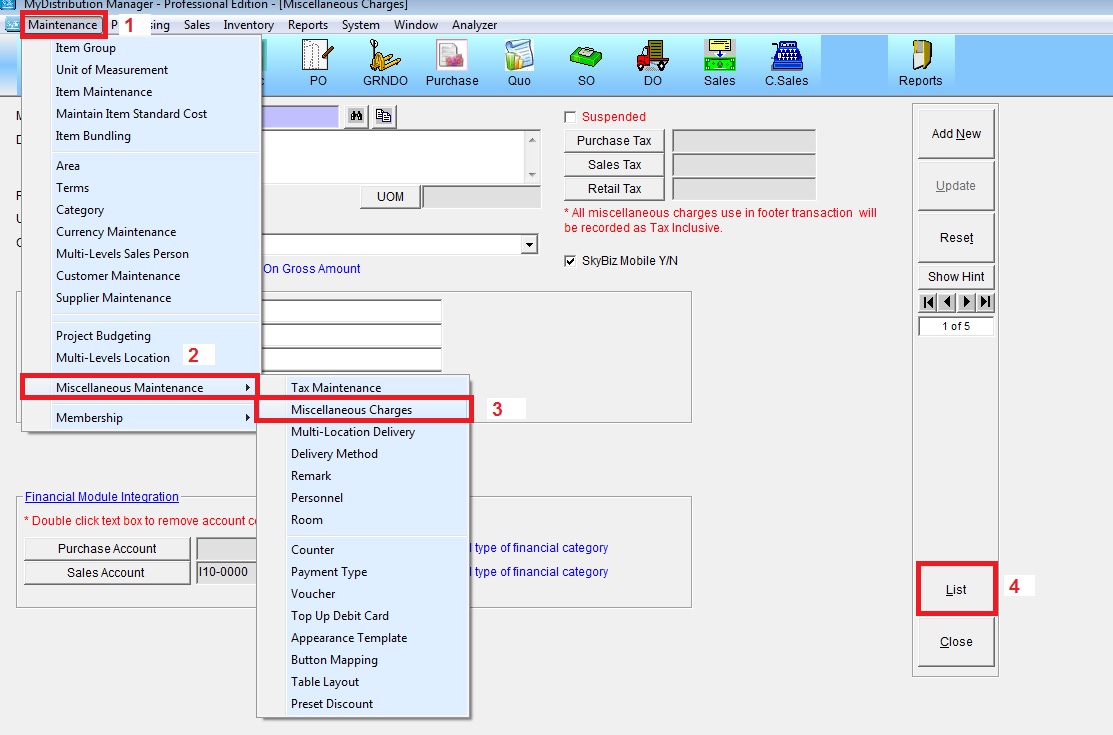
- 1.Go to Maintenance
- 2.Miscellaneous Maintenance
- 3.Miscellaneous Charges
- 4.List
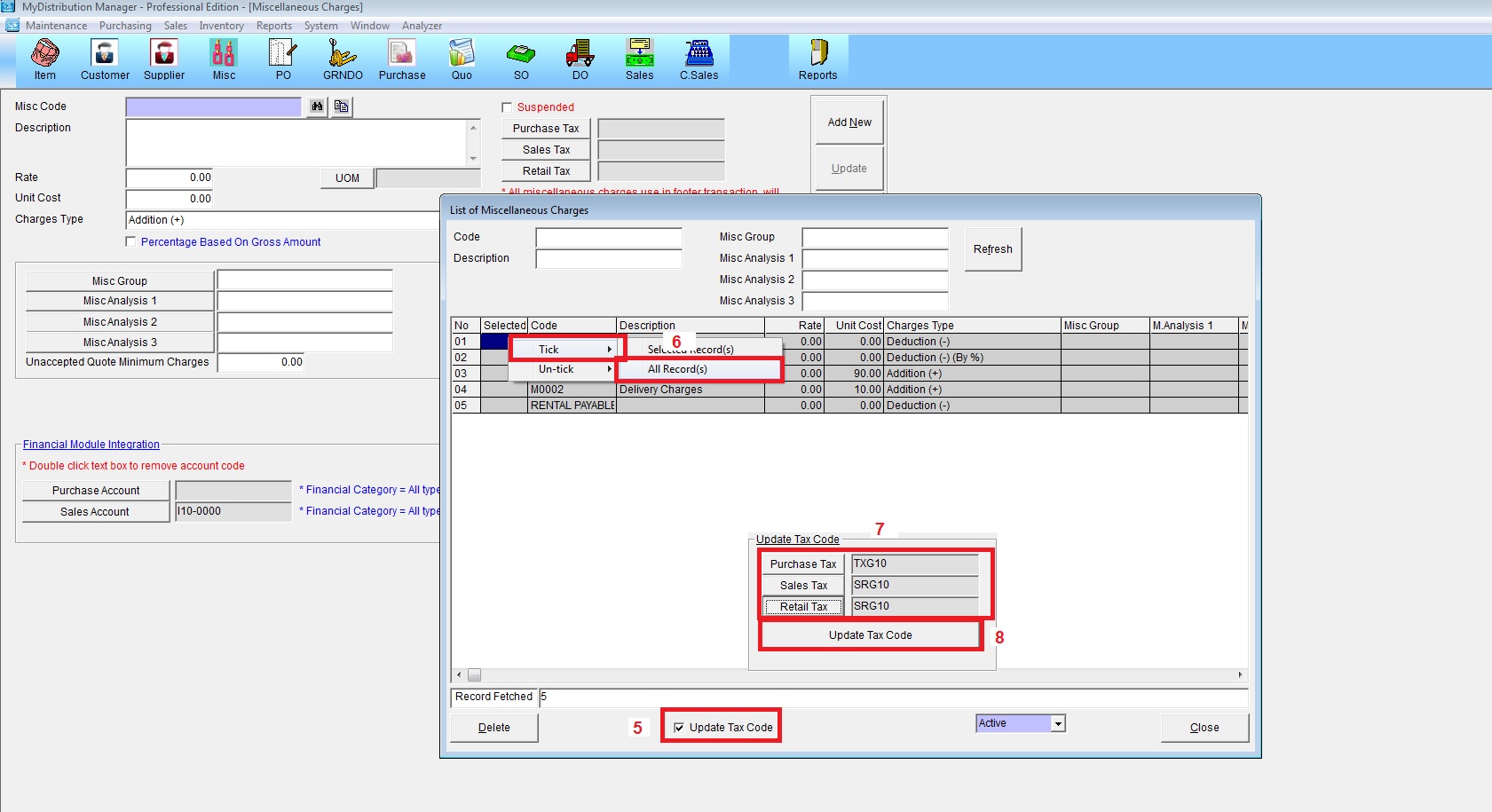
- 5.Tick Update Tax Code
- 6.right click to Tick All Records if all Miscellaneous Charges use 1 Tax Code/Rate
- 7.Select Purchase Tax and Sales/Retail Tax
- 8.Update Tax Code
“Setting Default Tax Code for Item Group and Item Maintenance”
Scenario 1: If your System Tax Code selection based by Item Group/Miscellaneous
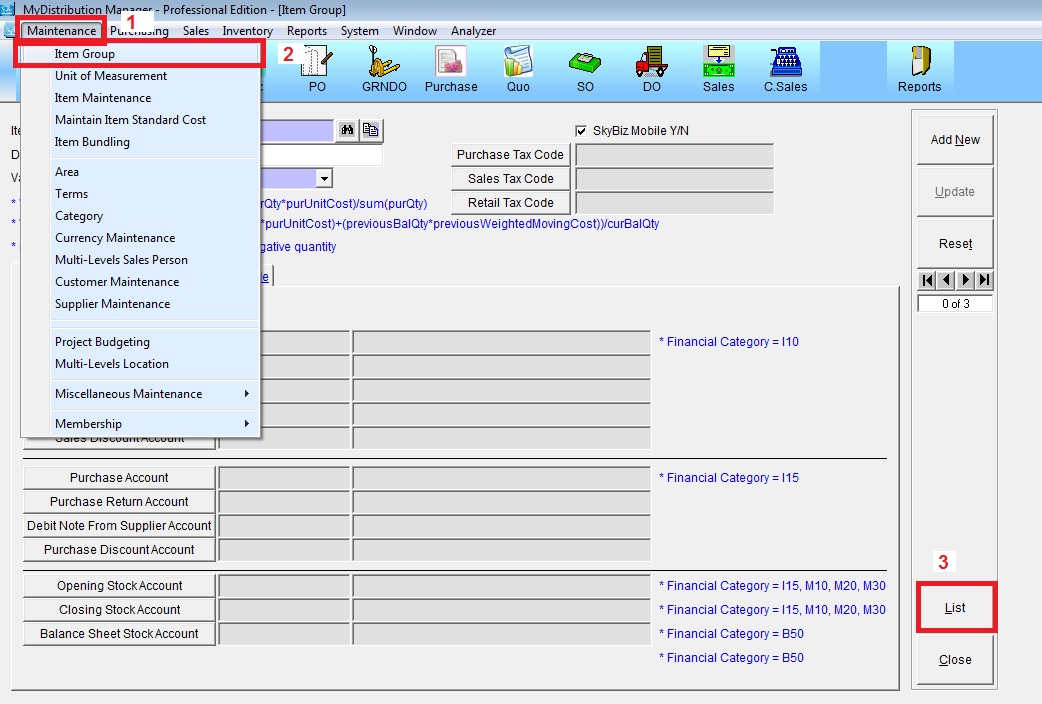
- 1.Go to Maintenance
- 2.Item Group Maintenance
- 3.List
- 4.Tick Update Tax Code
- 5.Select Purchase tax and Sales/Retail Tax Code
- 6.right click to Tick All Records if all item will use 1 Tax Code/Rate
- 7.Update Tax Code

Scenario 2: If your System Tax Code selection based by Item/Miscellaneous
- 1.Go to Maintenance
- 2.Item Maintenance
- 3.List
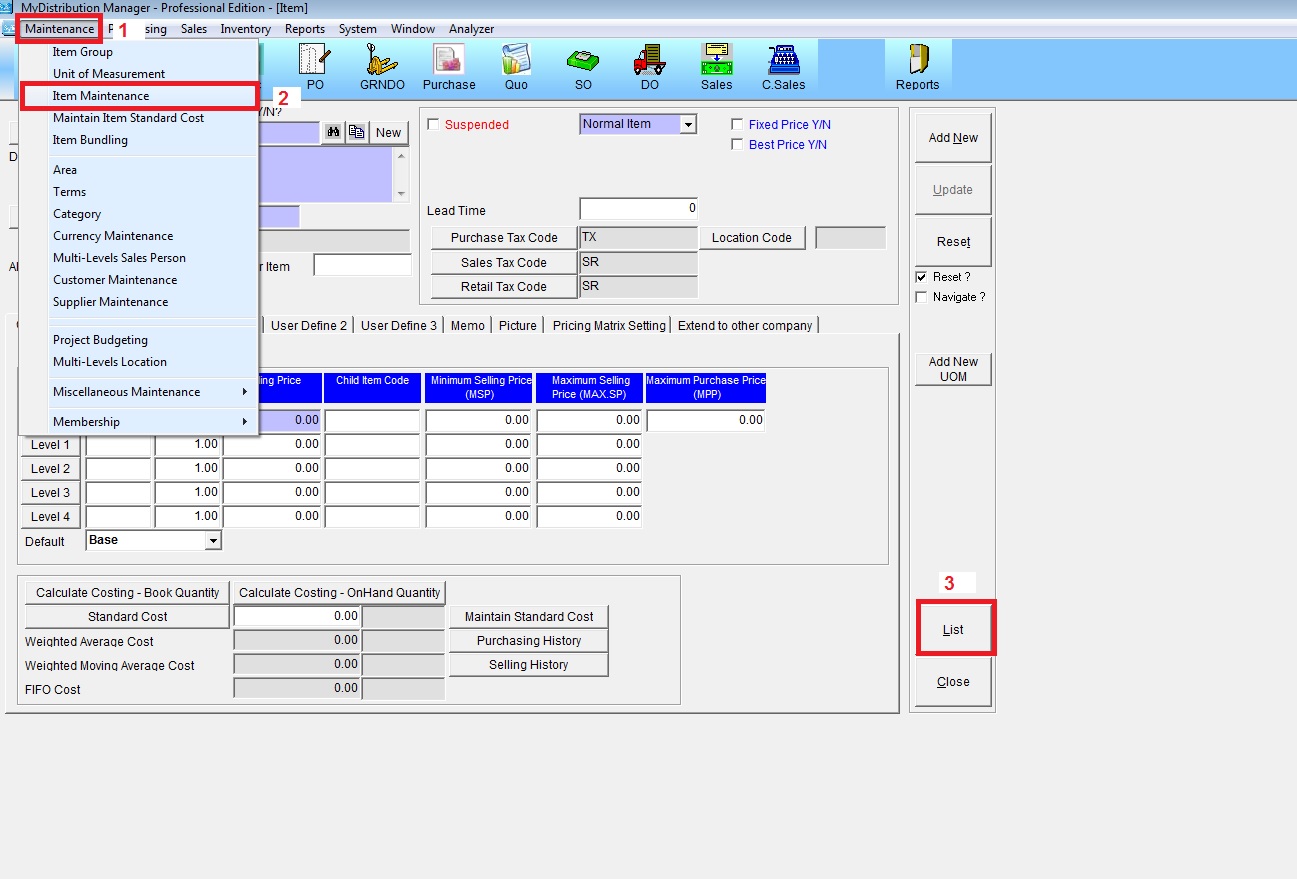
- 4.Key in Max Records (99999) then Refresh
- 5.tick Update Tax Code
- 6.right click to Tick All Records if all item will use 1 Tax Code/Rate
- 7.Select Purchase Tax and Sales/Retail Tax Code
- 8.Update Tax Code
