Below are guidelines on how to Print/Export Report:
Print Barcode
- Click on the Reports>>Print Barcode

Print Barcode Label
2. Choose Resources From>>
3. Click Print.
Sales Report (Sales Listing)
1. Click on the Reports>>Sales Report
2. Choose>>Sales Listing
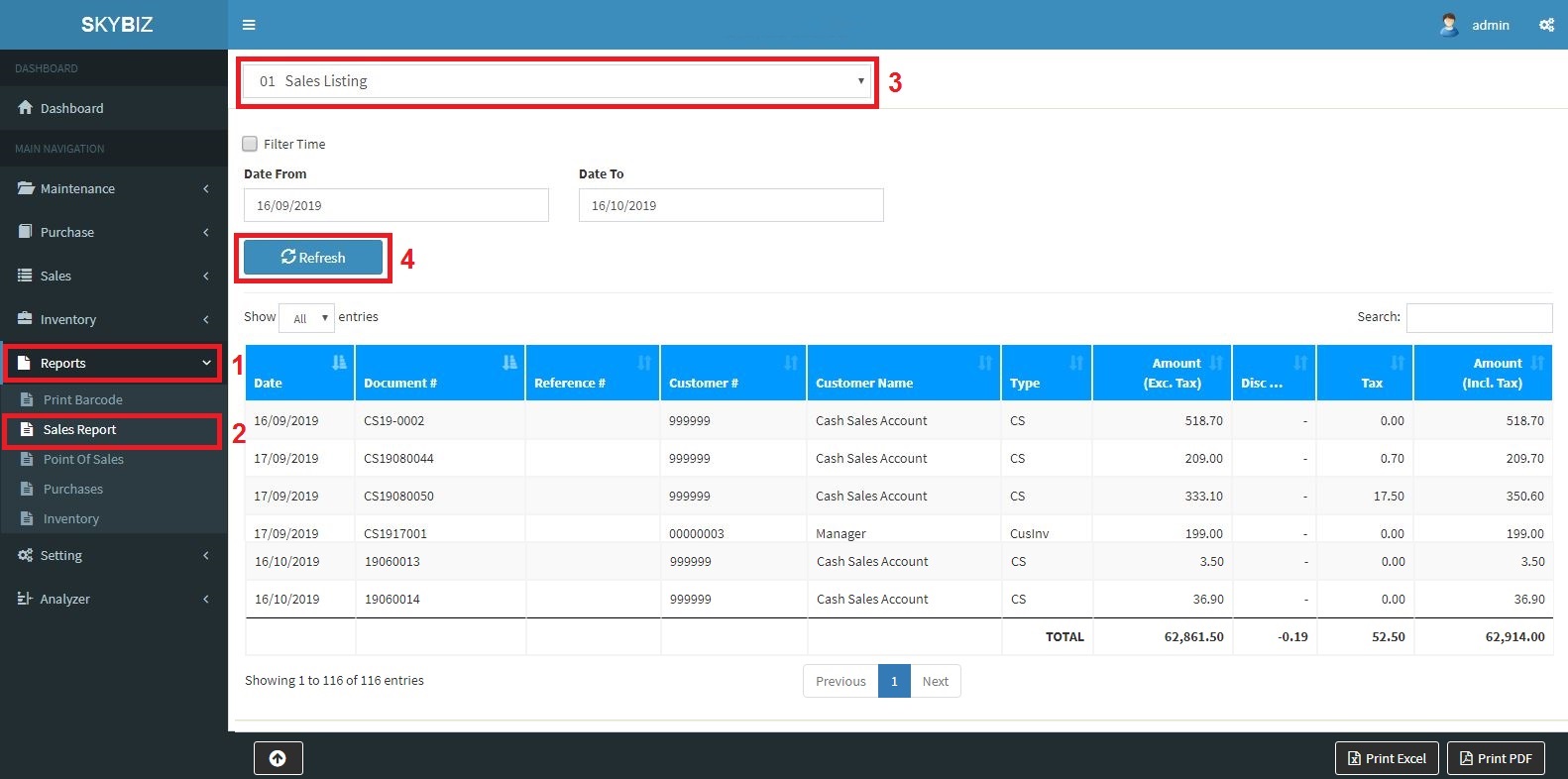
Sales Listing Report
3. Refresh
4. Choose PDF/EXCEL to Print.
Sales Report (Customer Sales Report)
1. Click on the Reports>>Sales Report
2. Choose>>Customer Sales Report
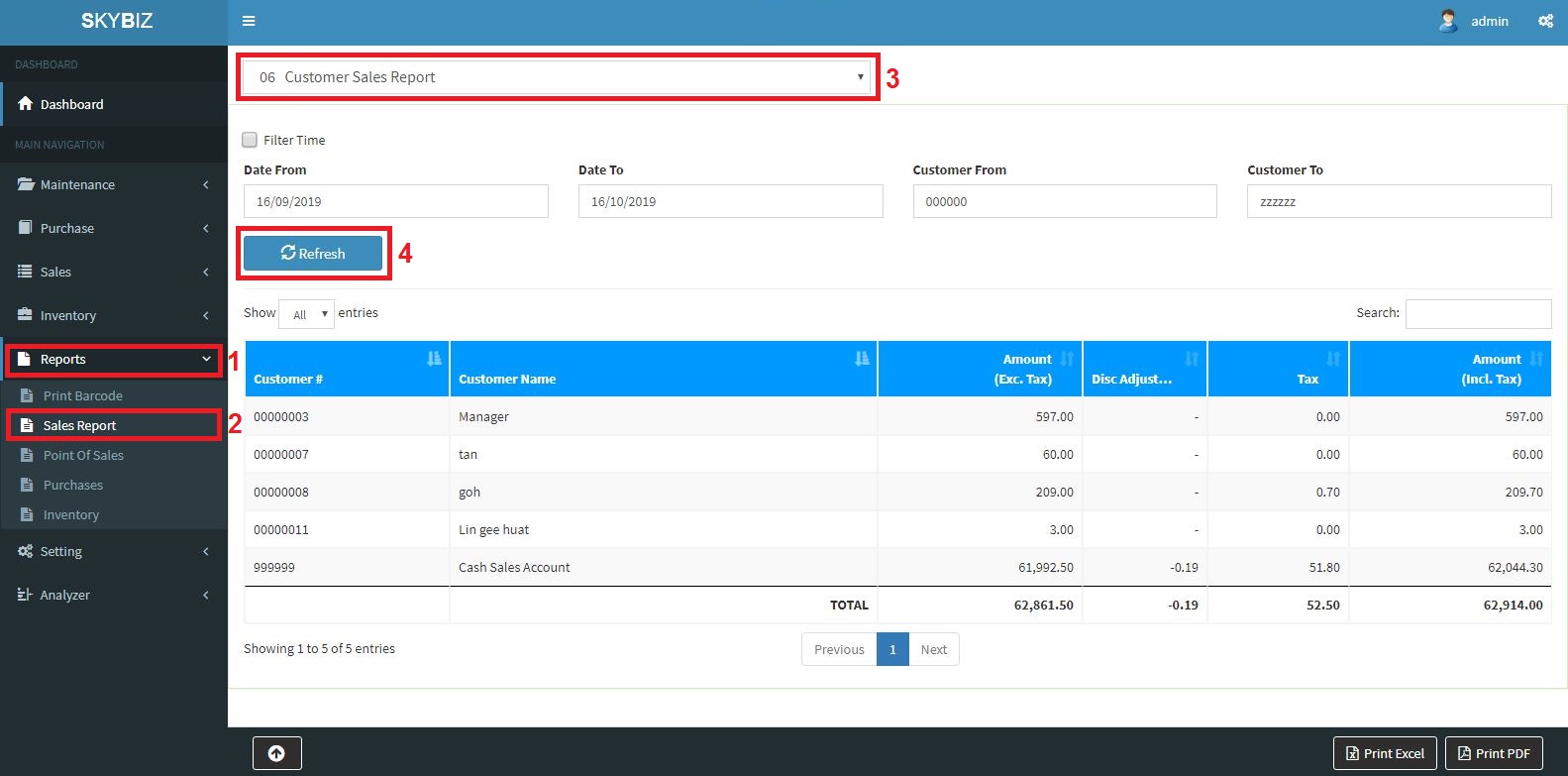
Customer sales report
3. Refresh
4. Choose PDF/EXCEL to Print.
Sales Report (Product Sales Report)
1. Click on the Reports>>Sales Report
2. Choose>>Product Sales Report
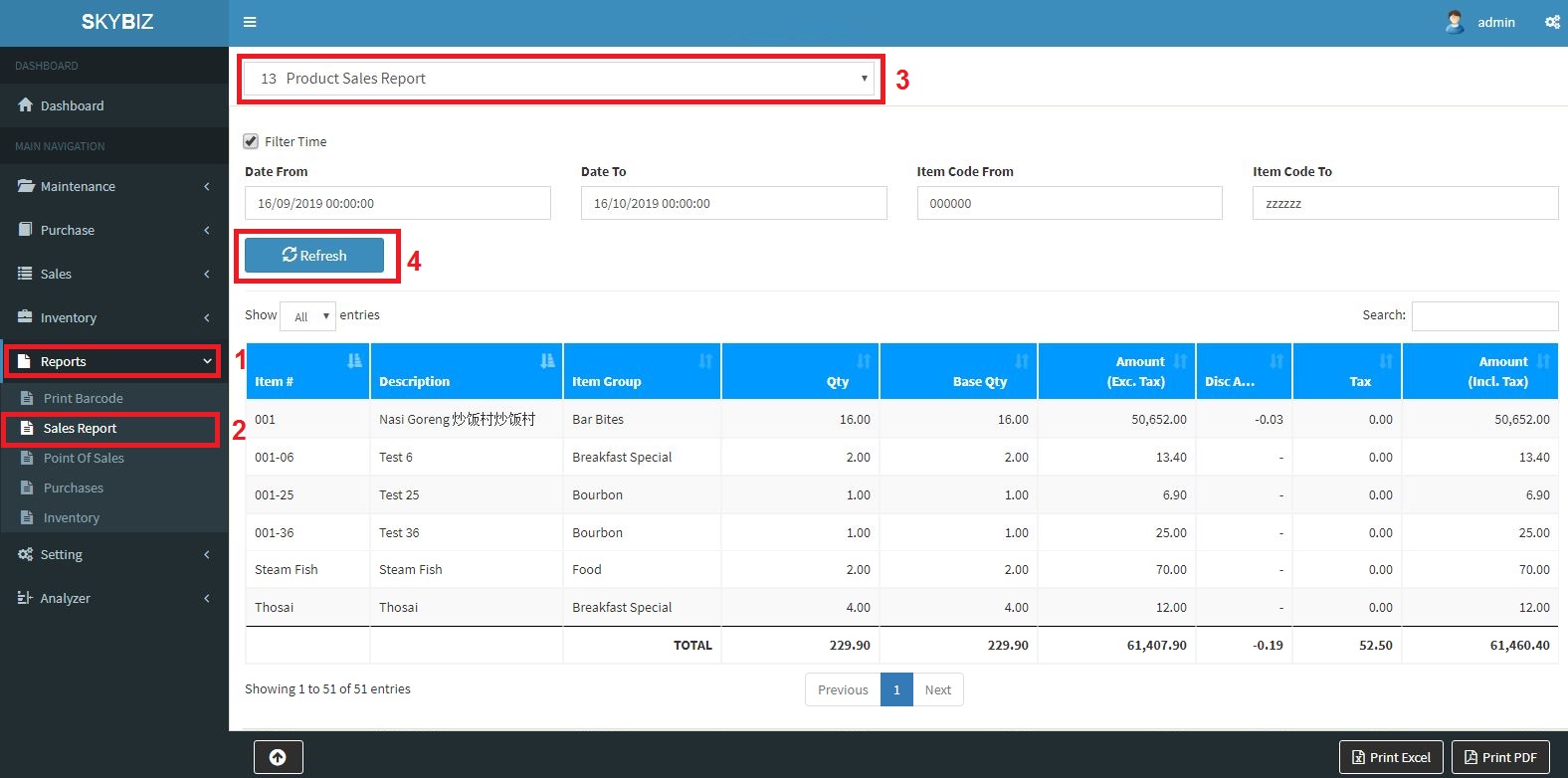
Product Sales Report
3. Refresh
4. Choose PDF/EXCEL to Print.
Sales Report (Product Group Sales Report)
1. Click on the Reports>>Sales Report
2. Choose>>Product Group Sales Report
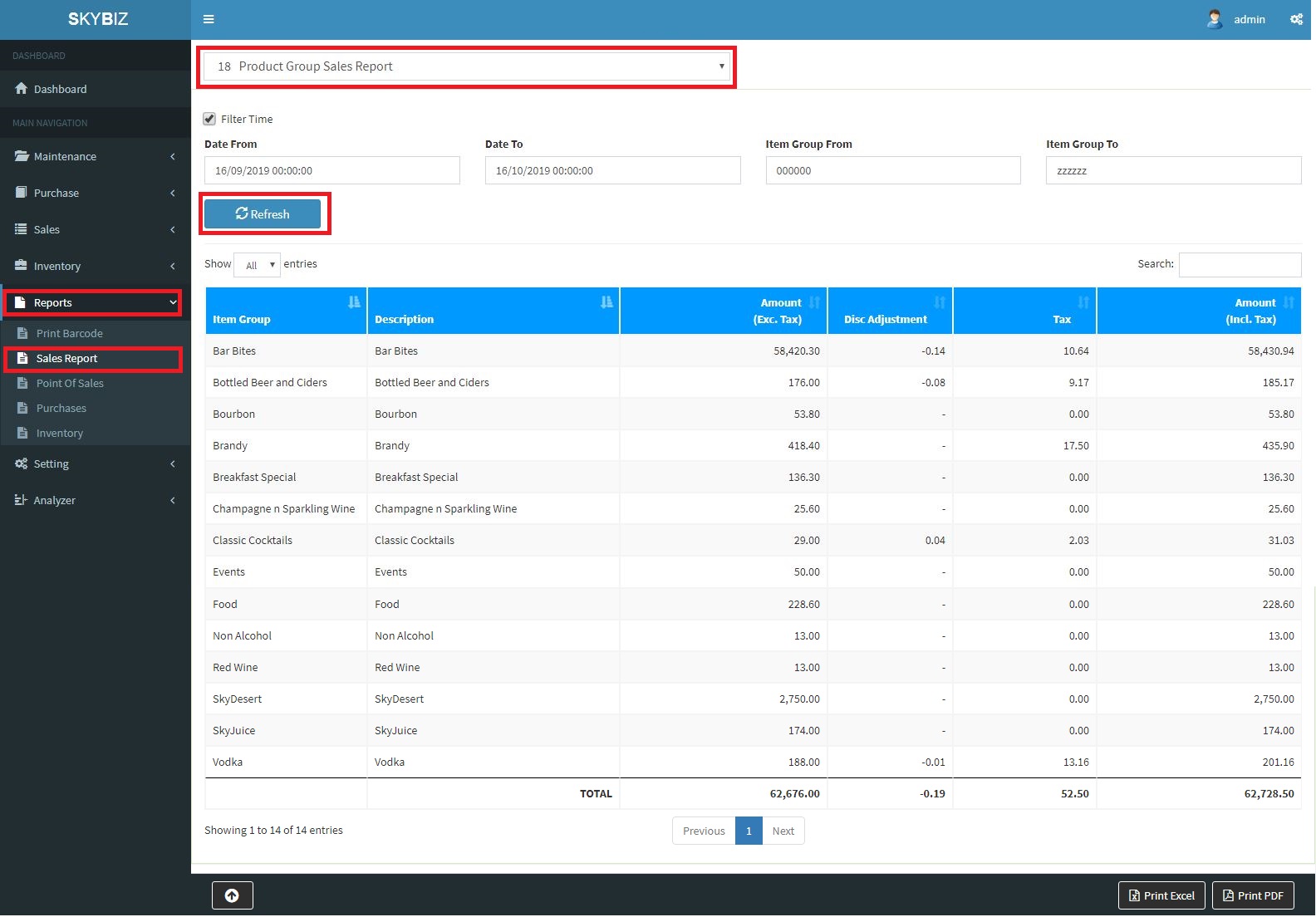
Product Group Sales Report
3. Refresh
4. Choose PDF/EXCEL to Print.
Point of Sales (Collection Report)
1. Click on the Reports>>Point of Sales
2. Choose>>Collection
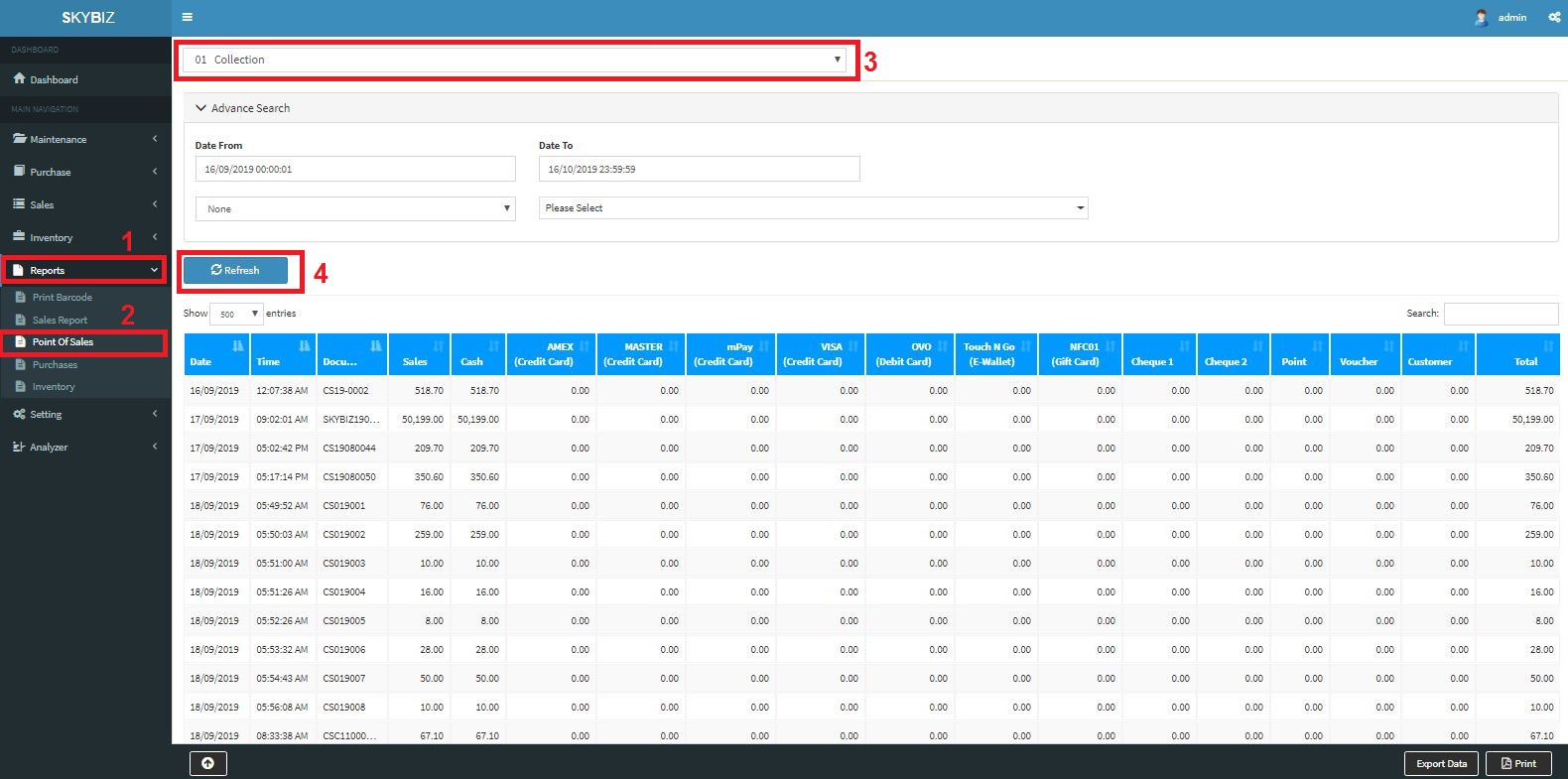
Collection Report
3. Refresh
4. Click Export to Export the Data in Excel/Print to Print the report.
Point of Sales (Daily Sales Report)
1. Click on the Reports>>Point of Sales
2. Choose>>Daily Sales Report
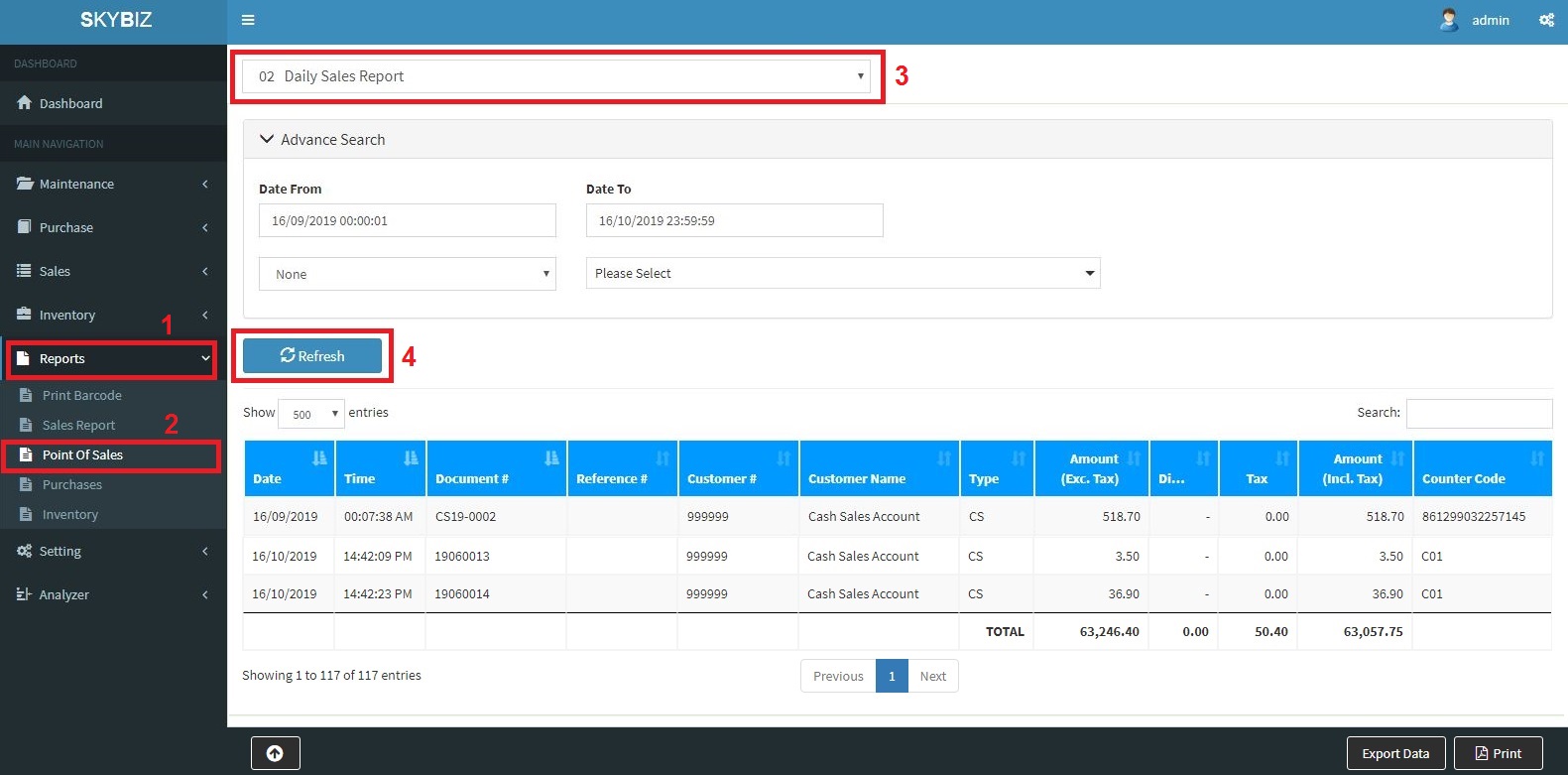
Daily Sales Report
3. Refresh
4. Click Export to Export the Data in Excel/Print to Print the report.
Point of Sales (Credit Card Report)
1. Click on the Reports>>Point of Sales
2. Choose>>Credit Card Report
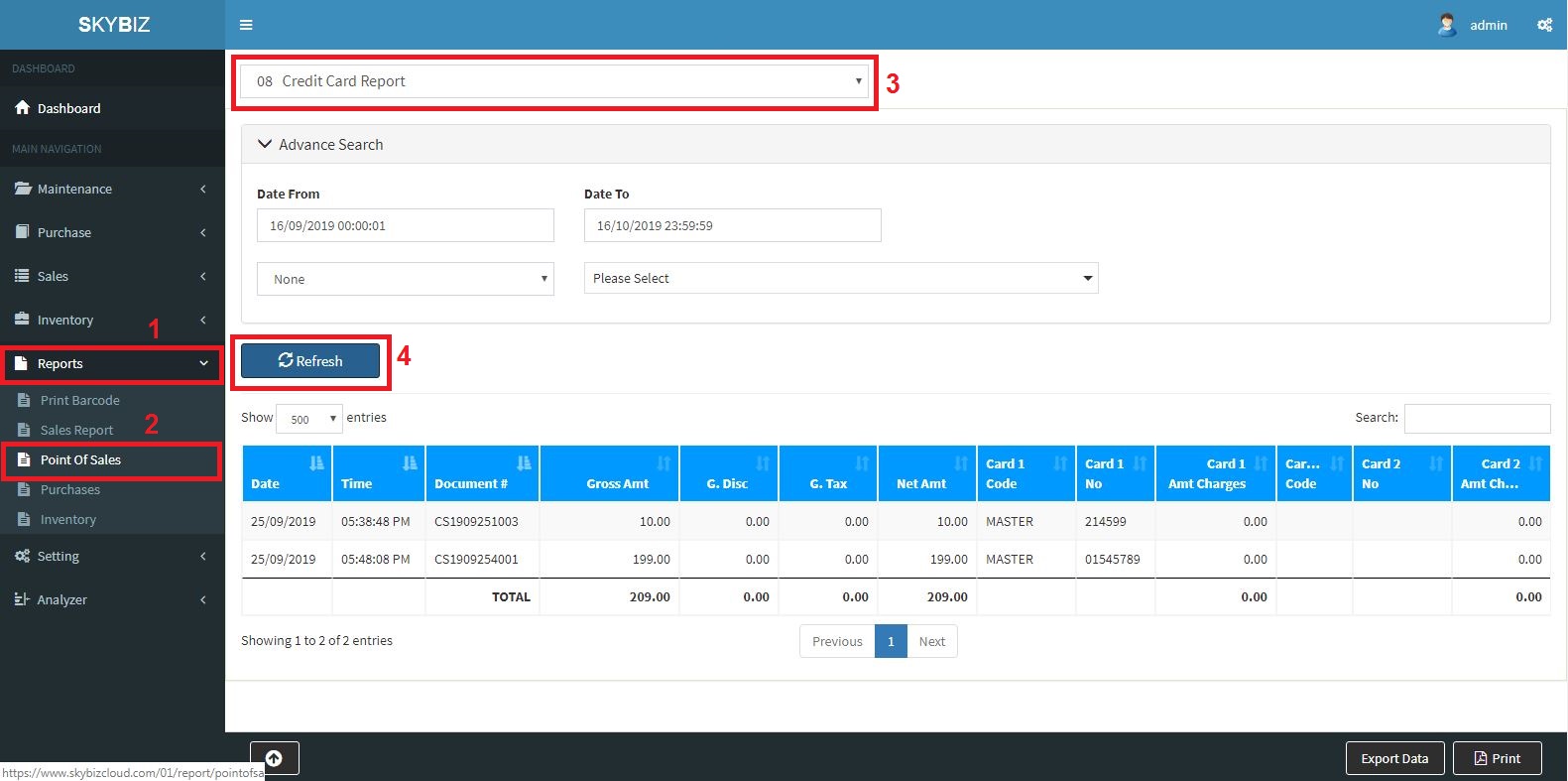
Credit Card Report
3. Refresh
4. Click Export to Export the Data in Excel/Print to Print the report.
Purchases (Supplier Purchase Listing Report)
1. Click on the Reports>>Purchases
2. Choose>>Supplier Purchases Listing
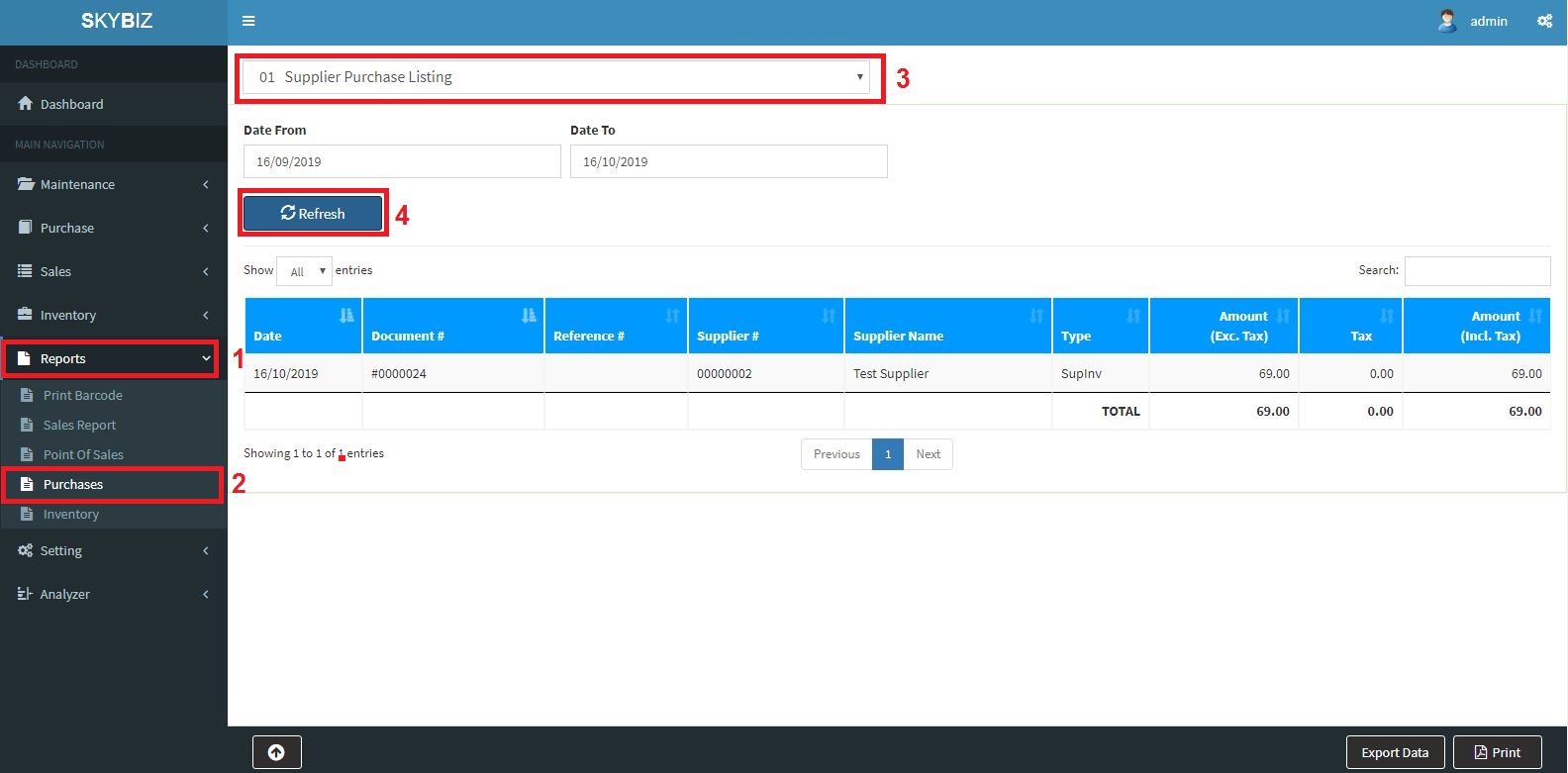
Supplier Purchase Listing
3. Refresh
4. Click Export to Export the Data in Excel/Print to Print the report.
Inventory (Stock Balance Report)
1. Click on the Reports>>Inventory
2. Choose>>Stock Balance
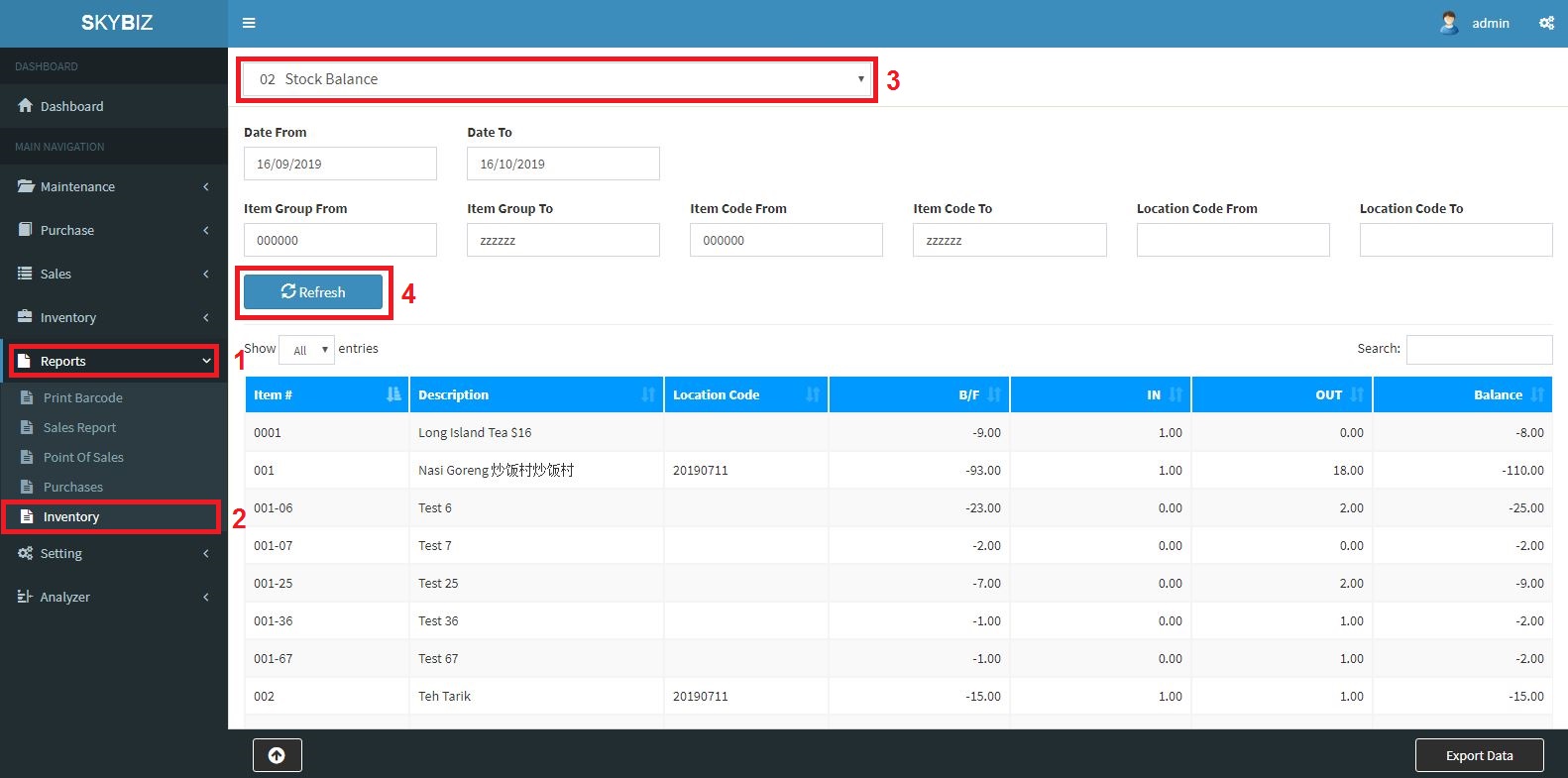
Stock Balance Report
3. Refresh
4. Click Export to Export the Data in Excel.
Inventory (Stock Card by Item Report)
1. Click on the Reports>>Inventory
2. Choose>>Stock Card by Item Report
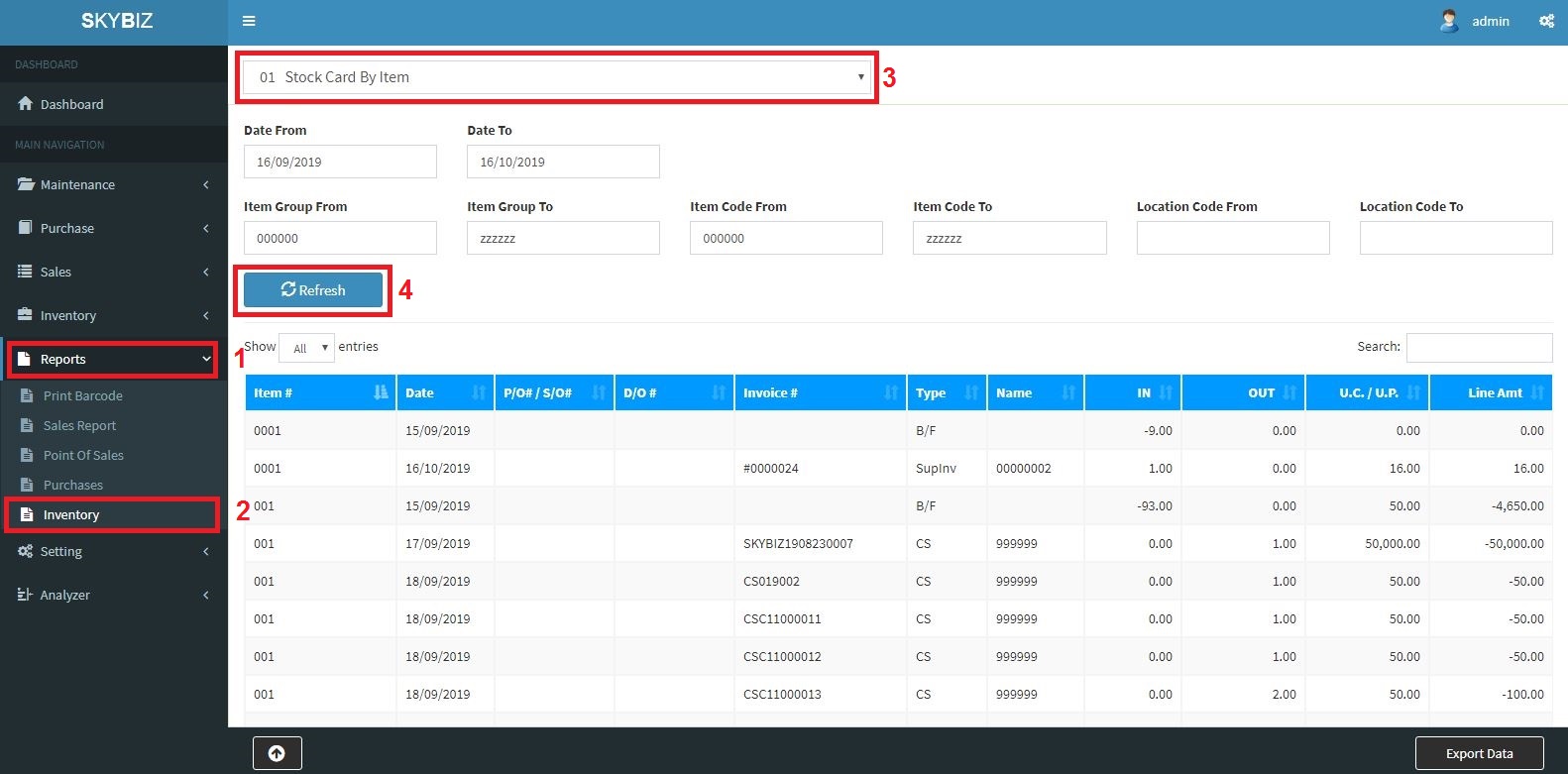
Stock Card By Item
3. Refresh
4. Click Export to Export the Data in Excel.
Powered By : SKYBIZ ® Beyond Cloud ™