Below are guideline(s) to preset voucher and sell voucher :
- For Preset Voucher steps, please look point 2 to 9.
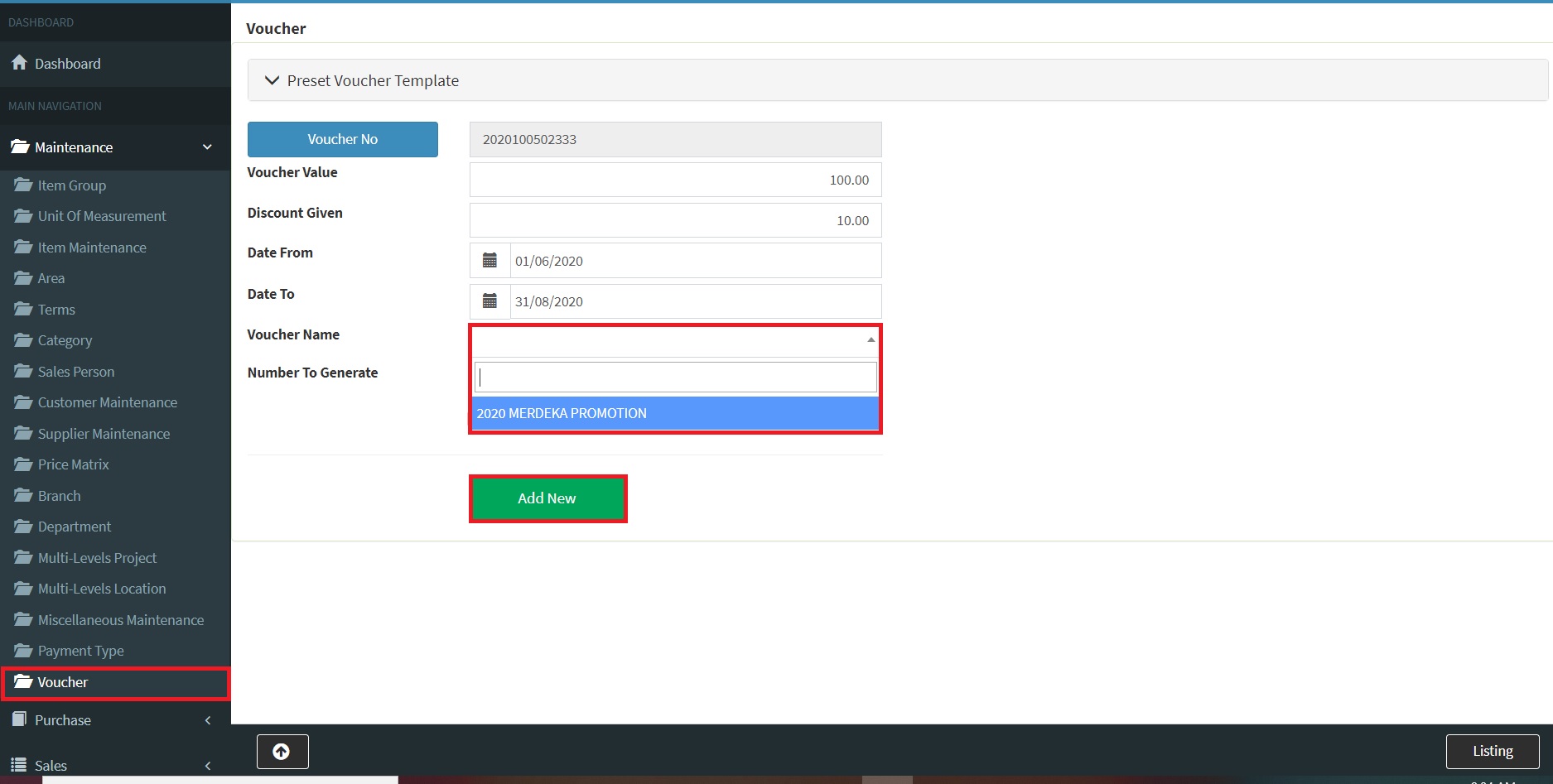
- Click on menu maintenance>>Voucher .
-
Preset Voucher
- Please fill up Voucher Number, Voucher Value, Discount Value, Date From, Date To, Voucher Type (Voucher Free or to sell).
- Based on image voucher value is $100 and discount given $10. This mean during selling voucher, consumers/members just need to pay $90 and entitle to redeem value worth $100.
- Date From, Date To are carrying meaning of voucher expire date or voucher validity date.
- In case, your organization intend issue E-Voucher to your consumers/members, you need to choose voucher name (voucher template which is preset and designed as JPEG).
- Those companies if they were selling voucher at other e-commerce platform thus voucher number may not in sequences. In such case, users need to type Voucher Number manually.
- Those companies if they printed voucher serial number in sequences, users need to set auto running number at “System>>Running Number Setting>>Voucher”.
- For Sell Voucher steps, please look point 10 to 14.
-
Sell Voucher
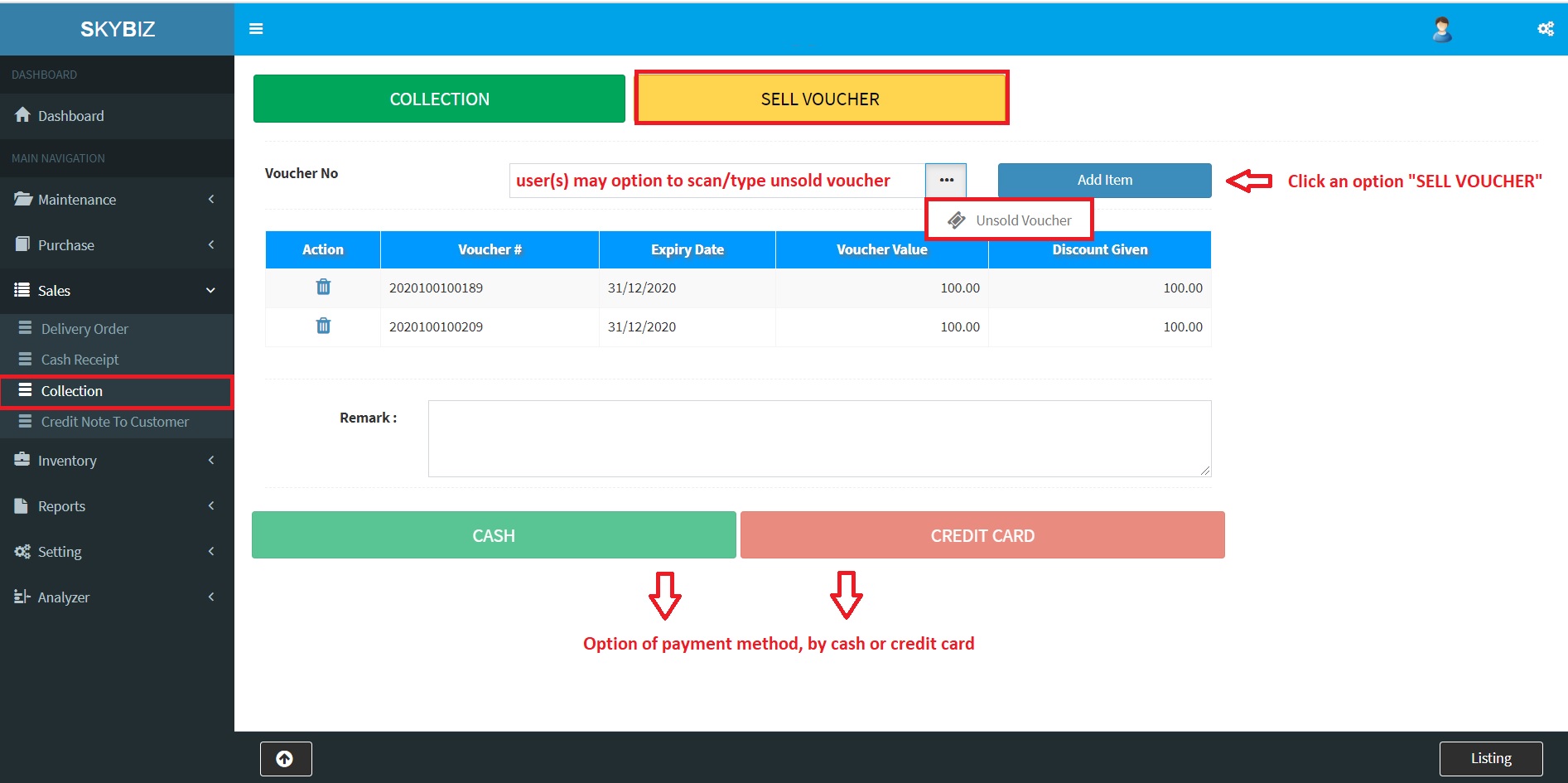
- Click menu Sales>>Collection>>Sell Voucher.
- Key in voucher number to be sell and Click Add. Repeat same if you have more than 1 voucher to sell.
- Click button “Cash” or “Credit Card” to proceed payment, this will recorded as collection and will appear in your “daily check out report“.
Powered By : SKYBIZ ® Beyond Cloud ™