Below are guideline(s) to Generate QRCode and do WebOrder 1. Go to HOLD LIST 3. Add the Table Number and Pax(How Many Person) 4. Print 5. QrCode Receipt will print out 6. Scan the QrCode 7. Choose the Item and Add to Cart 8. View Order 9. After Confirm the orders then Submit 10. ..
Category : Android V series
Below is a guideline(s) is showing how to back up the SkyBiz System Database: Please go to the “PLAY STORE” on the device Search (SQLite) Download 4.After download go to the SkyBiz Cash System 5.Press on the Rectangle Icon and Select Backup Database 6. Go to the downloaded SQLite 7. Click on Open Database 8. ..
Below is a guideline(s) is showing how to back up the SkyBiz System Database: 1.Press on the Rectangle Icon and Select Backup Database 2. Then, Go to Setting on the device 3. Click on the Storage 4. Click on the Explore 5. You may see this 2 Files 6. Please click on rename and check ..
Below is a guideline(s) is showing how to upgrade the SkyBiz System on V1. On your device, go to the browser “https://www.skybiz.my/” and then Key in the email address and password. After login choose “Other Download” Find and_skybiz_cash_vf.apk and download. After download, click on OPEN Click Install and wait After upgrade, the New Version click ..
Below are Guideline(s) to Register Android Device in Cloud: Go to browser “Google Chrome“, type “https://www.skypos.com.my/“, click “Client Login“. Key in “registerdevice” >> NEXT Login with your email address and password. Fill up all information (Follow screen shot steps) Select preset “Store Address“ Fill up your “Device ID“, Branch Code, Location Code, Department Code, Sales Person ..
Below are Guideline(s) to Install and Upgrade Pos System in Android Device: On your devive, go to browser “https://www.skybiz.my/” and then click “Support Login“ Type your “Email Address” and “Password“ Click menu “Other Download“ If your android devices is T series, click an icon “android_pos_tf.apk” to download and run If your android devices is V ..
Below are Guideline(s) to activate Auto Update in Mobile Order (V1) and Tablet Order (T1) Device Go to “apps store” >> your profile >> turn on “Auto Update” https://aisupport.skybizglobal.com/skybizclouderp/wp-content/uploads/2019/01/kb_sunmi_autoinsta..
Below are Guideline(s) to boost android apps performance to read data from MySQL server: Go to your server and edit “my.ini“, at last script add “skip_name_resolve“ Save amended “my.ini” and restart MyS..
Below are Guideline(s) on How to Setup New Mobile Order Device (V1) Step 1: Connect Server On top left corner >> click 3 dots icon >> go to SETTING MAC Address to be given to SKYBIZ support team to setup connection Step 2: Setup cash receipt running number On the top toolbar, go ..
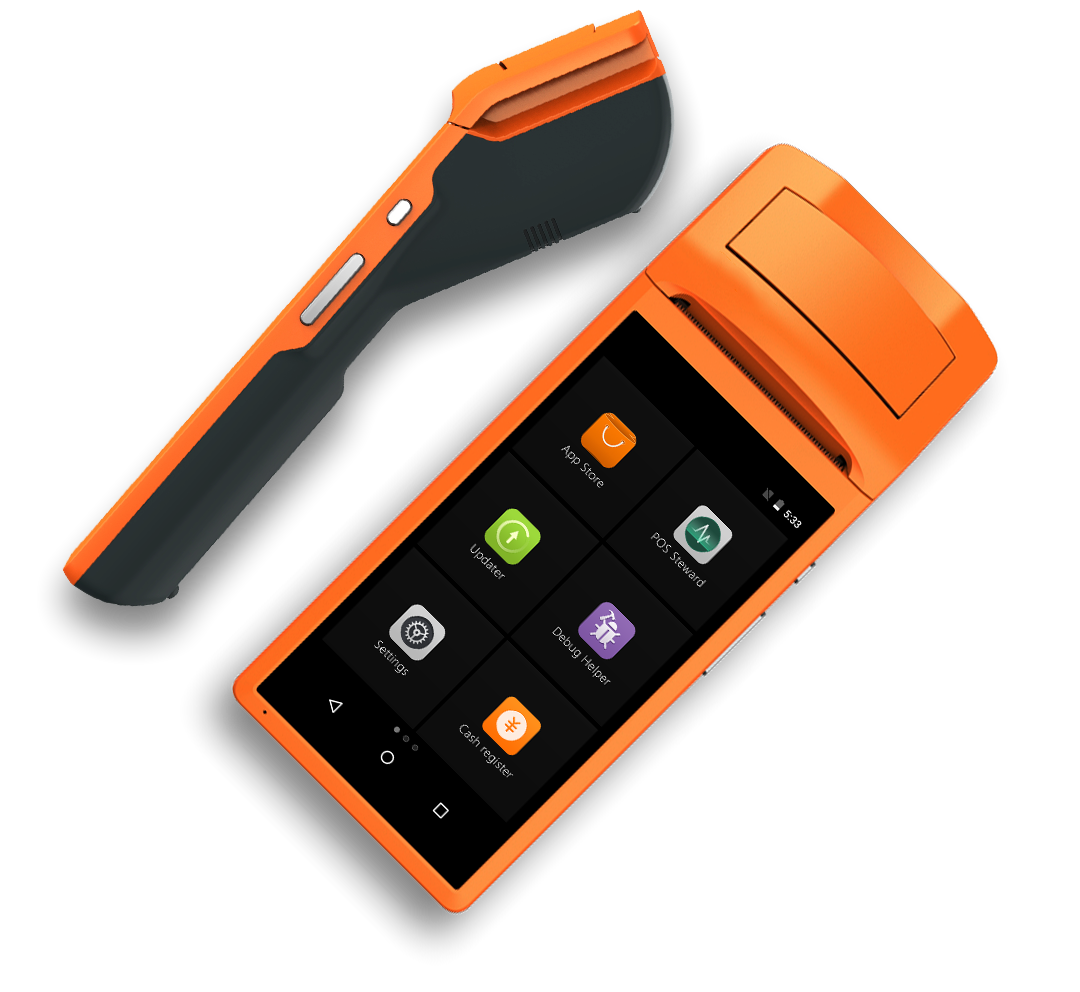
Below are Guideline(s) on How to Use Mobile Order Device (V1) Step 1: Cash Receipt Step 2: Take Order On the top toolbar, go to “ITEM“, then take order. Step 3: Finalise Order, Hold Payment On the top toolbar, go to “ORDER SUMMARY“, then click “HOLD“ 2. Enter the table number. Step ..