01: Add intermediary
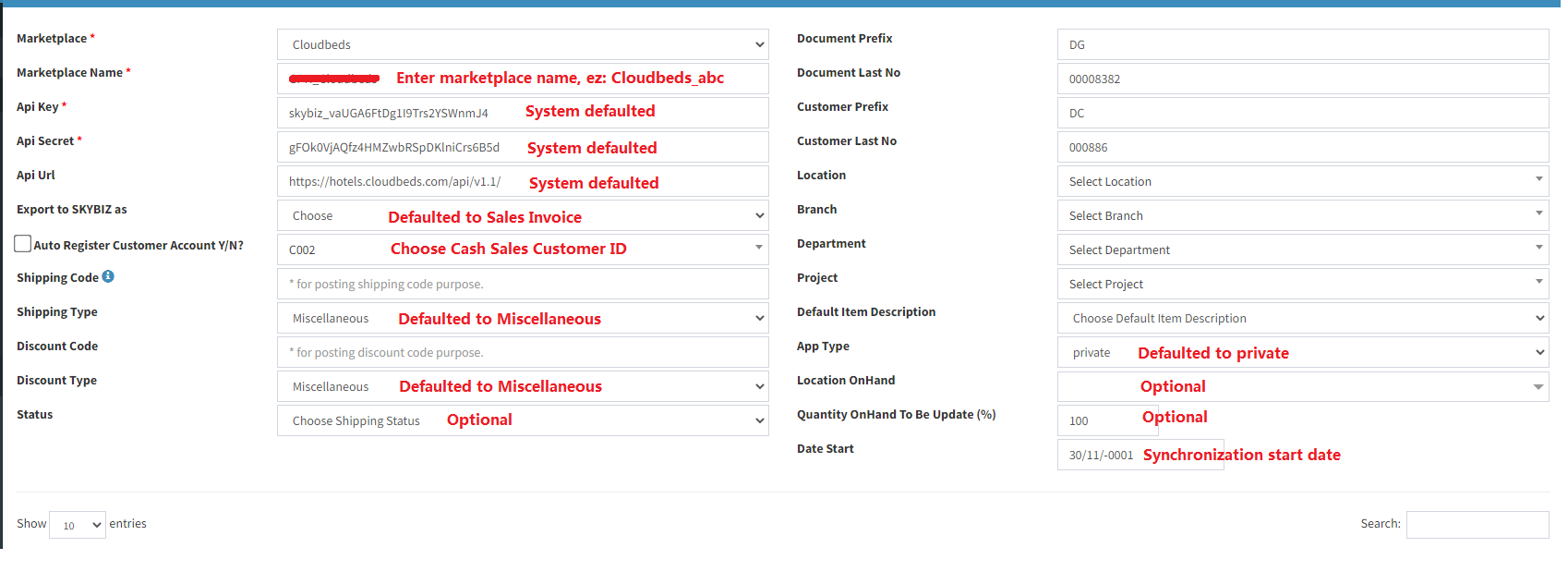
02 : Setting up Cloudbeds VS SKYBIZ Intergation
Please log in to SKYBIZ Cloud.
Go to: Menu → Settings → Database Manager → Marketplace → Settings.
Please log in to Cloudbeds
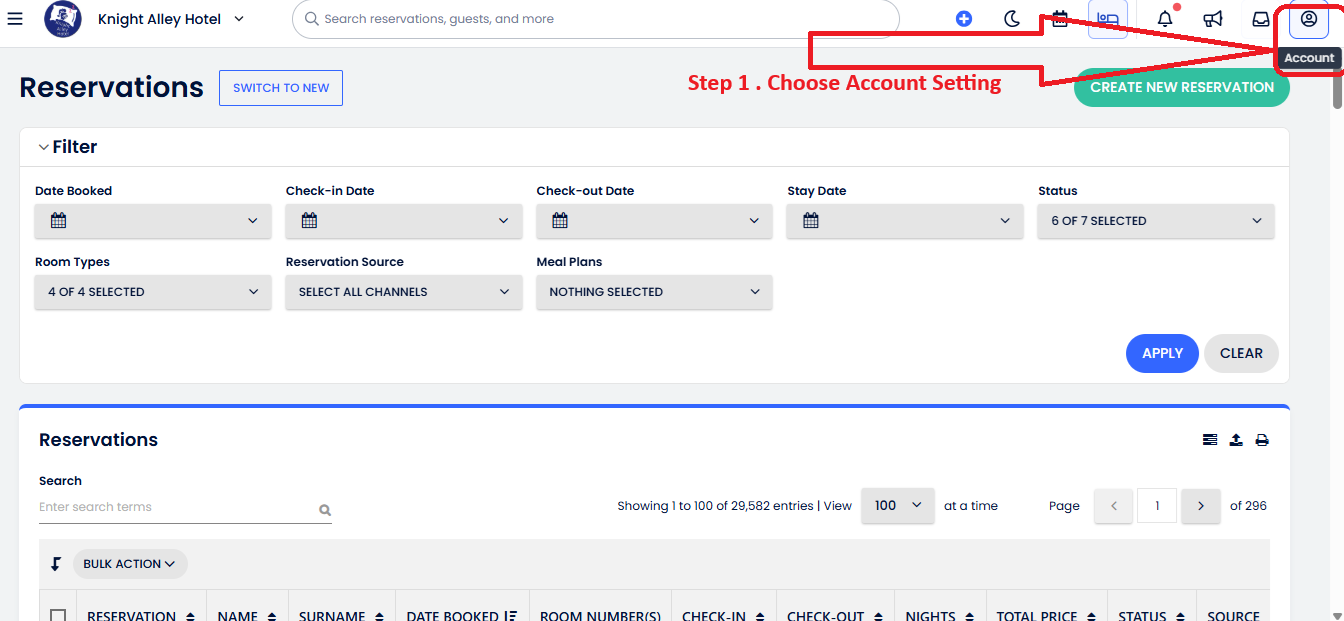
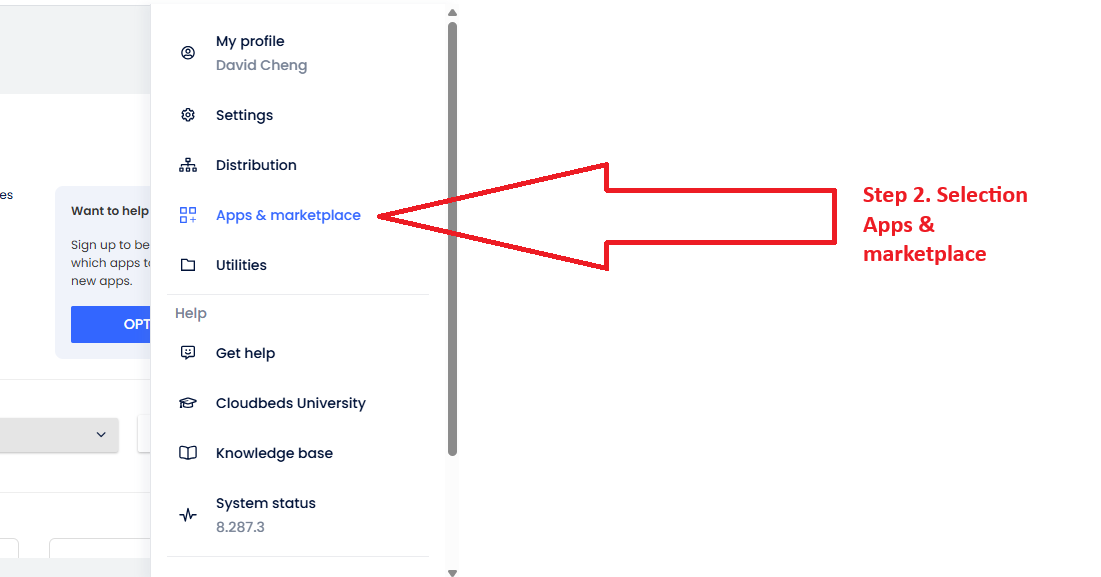
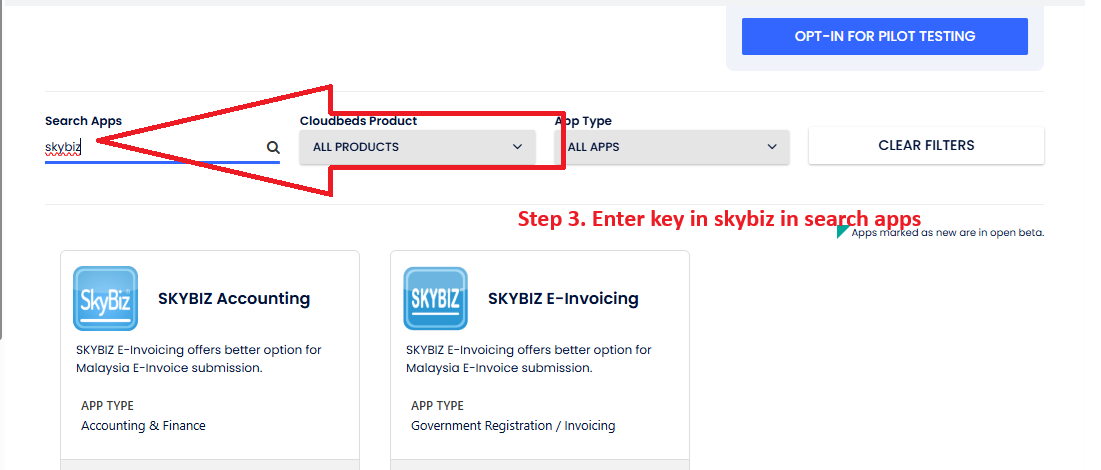
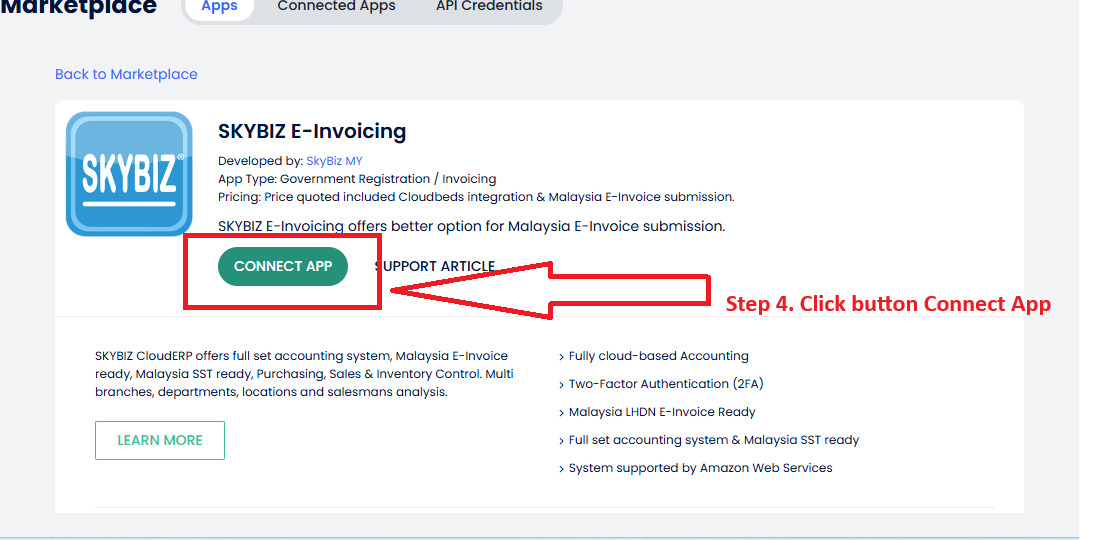
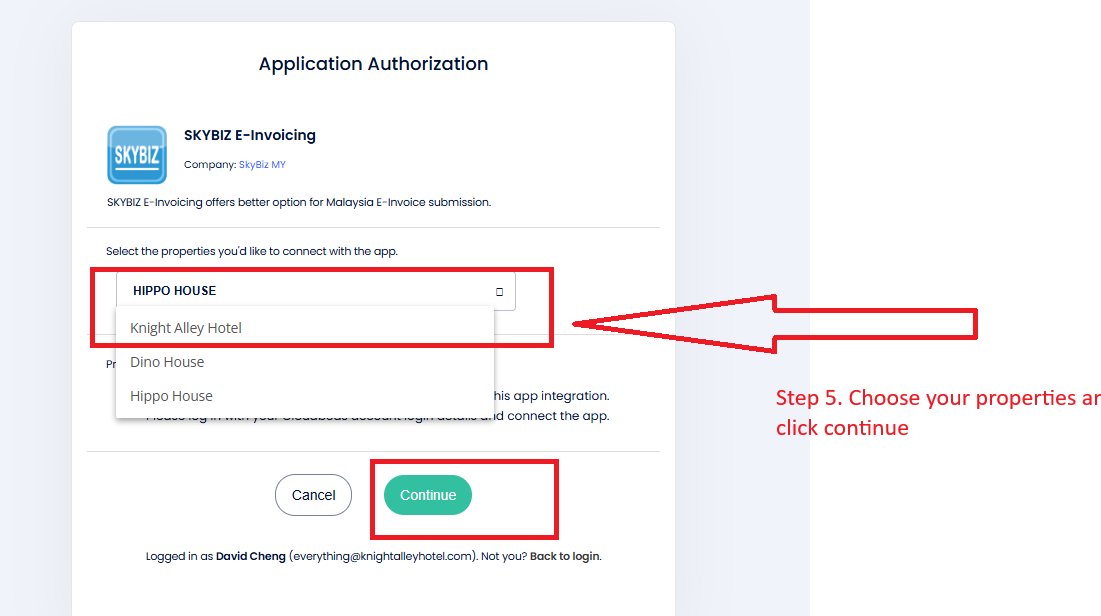
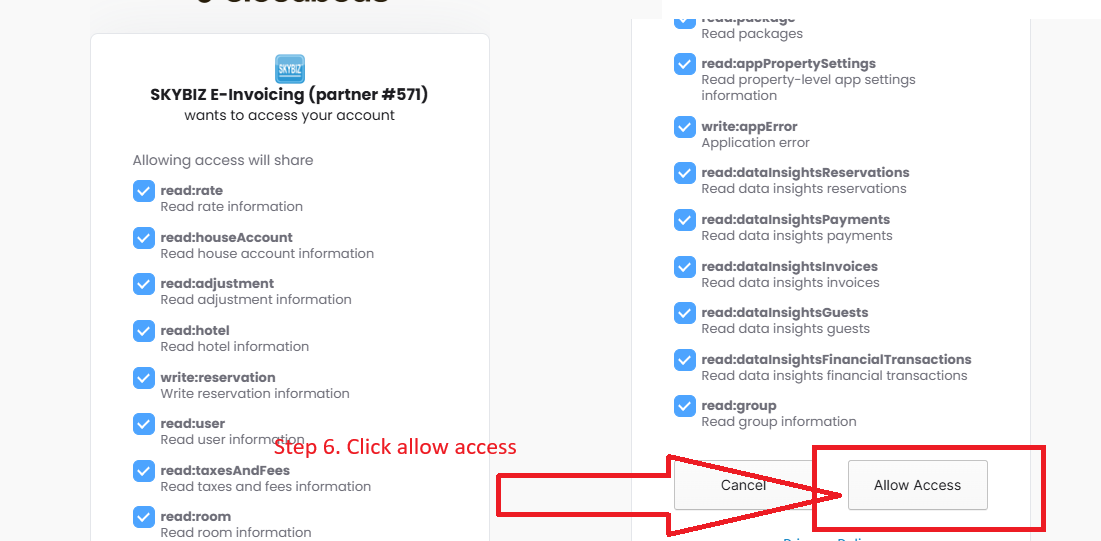
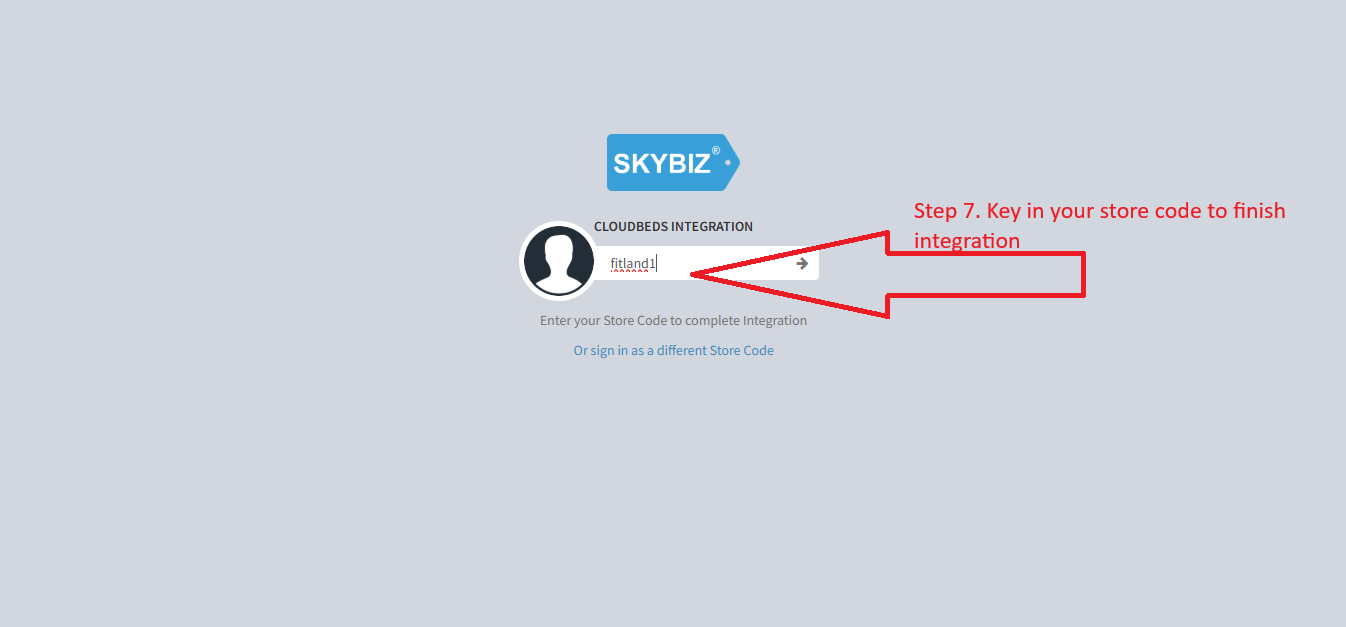
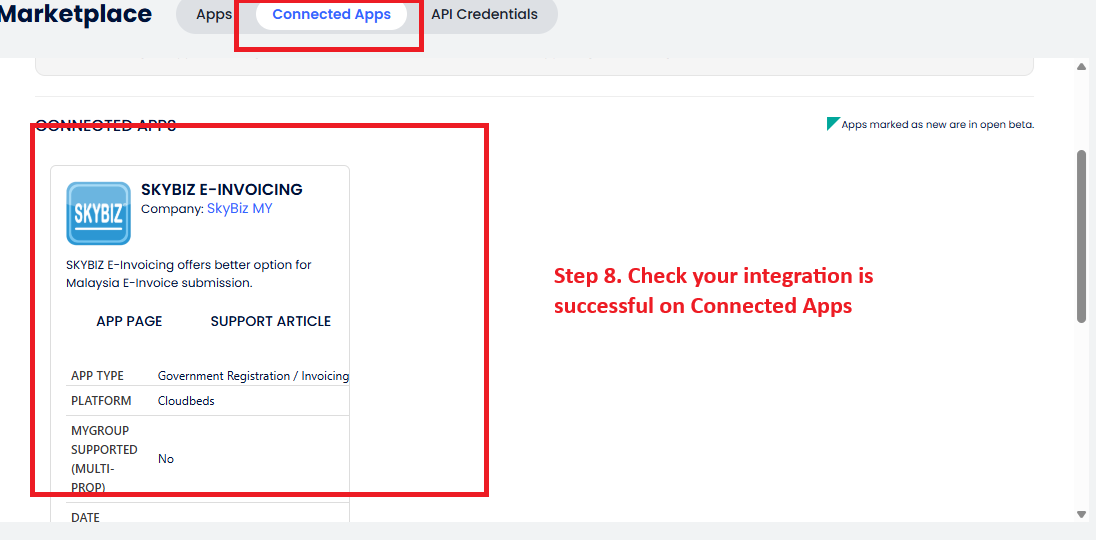
03: Please log in to SkyBiz Cloud to run the synchronization.
https://clouderp.biz.my/
The first one is show you how system synchronization work’s between cloudbeds VS Skybiz system.
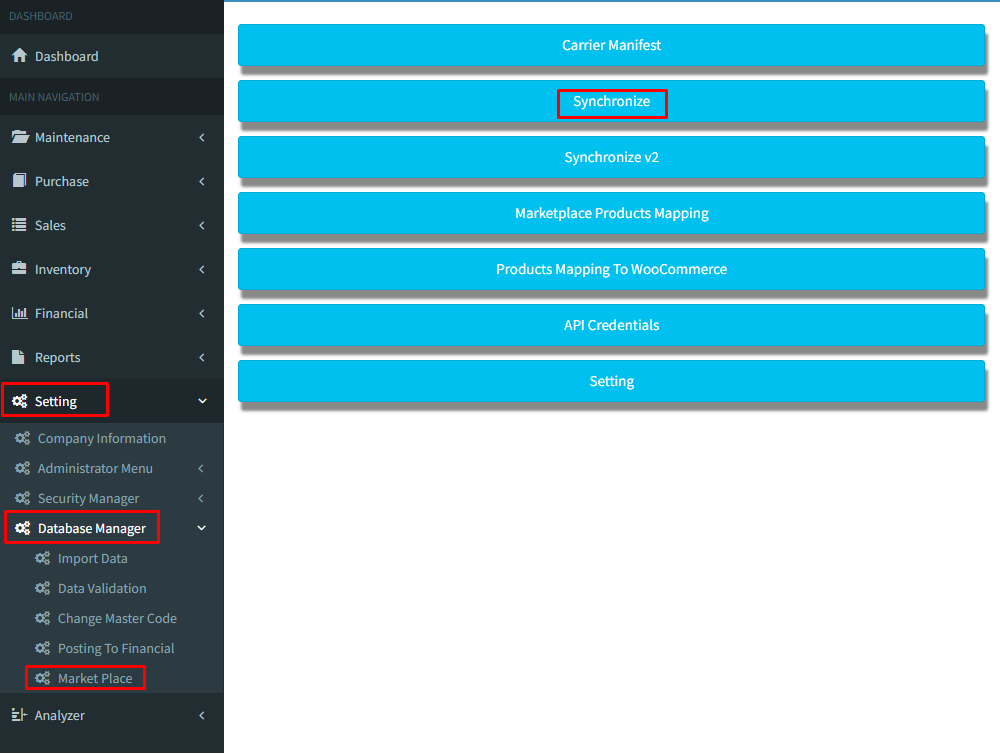
3a: At menu Setting >>> Data Manager >>> Markrt Place >>> Synchronize
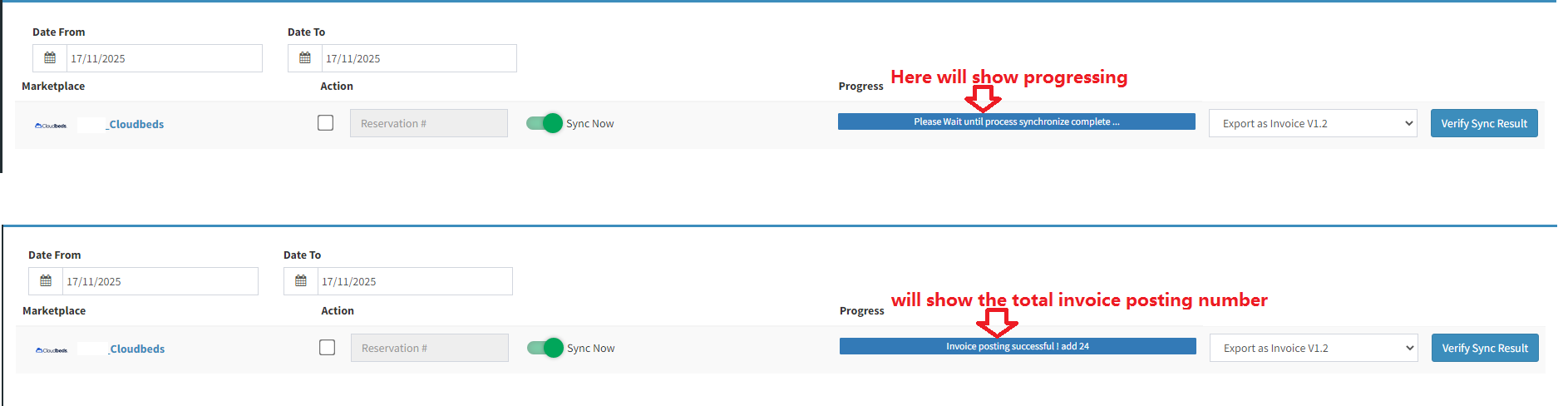
3b: Choose the date range that you want to sync >>> Sync Now >>> Yes
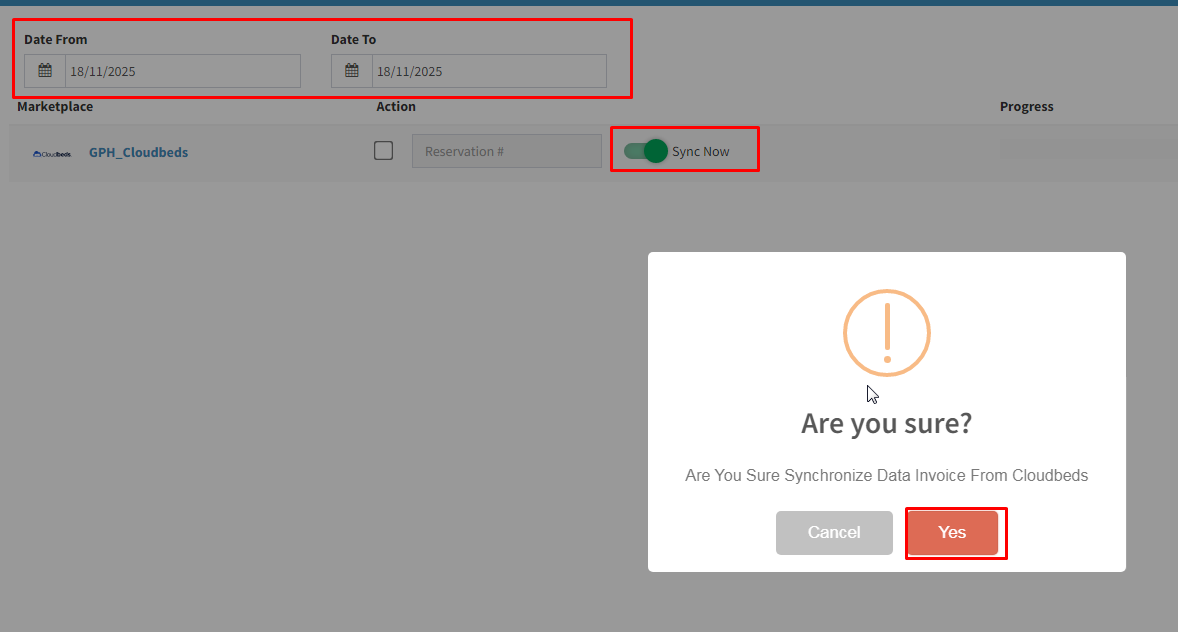
3c: Here will show progressing and will show the total invoice posting number
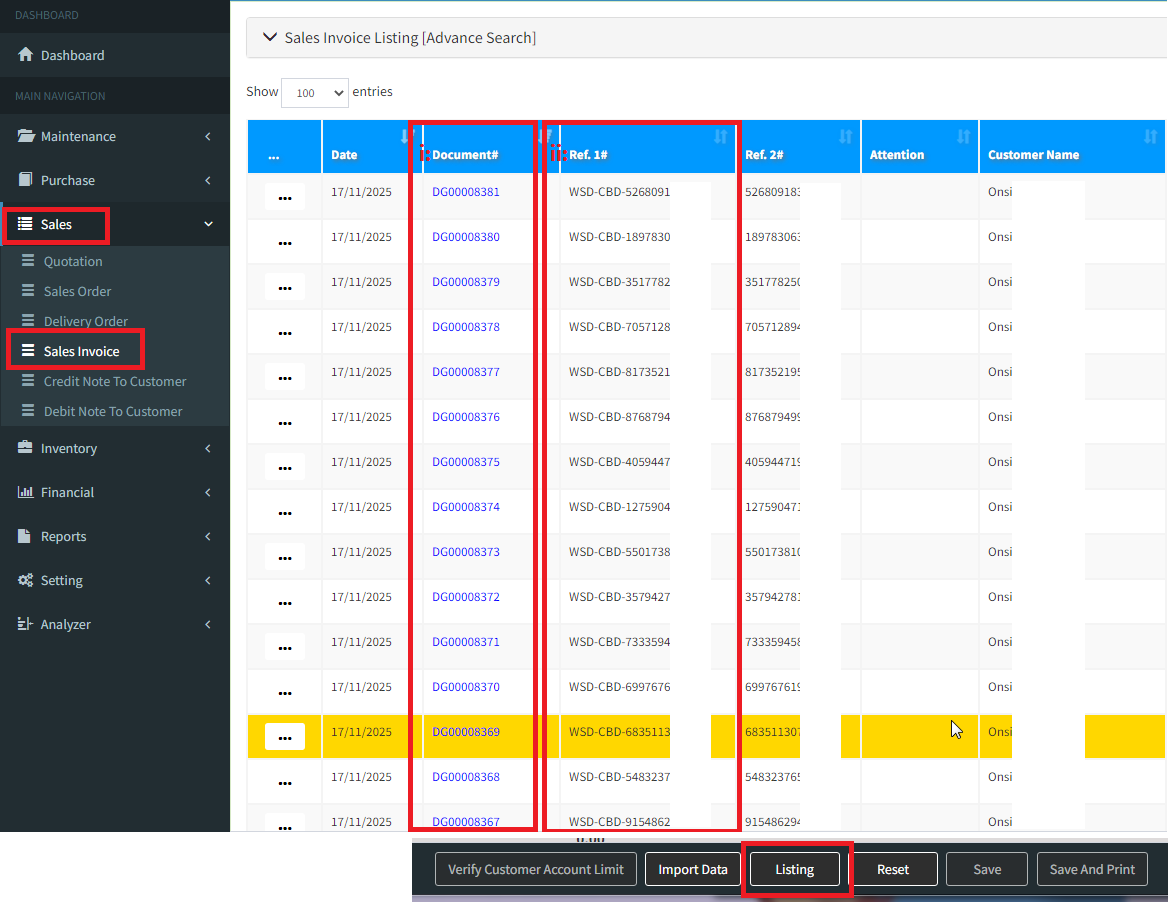
04: We will show you how the transaction appear in the SKYBIZ Sales Invoice listing.
4a: At menu go to Sales >>> Sales Invoice >>> Listing
i :This document number is SKYBIZ invoicong number, which will also be treated as accounting invoice number.
ii:This reference number is Cloudbeds reservation number or booking number.
05: Submit Standard eInvoice
06: Submit Consolidate eInvoice (for Cash Sales unable to provide TIN number)
Malaysia E-Invoice – Consolidated e-Invoice
07: (for retailer businesses allow their cash sales customer to submit TIN information after sales and allow an option self-service E-Invoice submission)
08: Furthermore, we show you how Cloudbes transactions can be integrated into Skybiz accounting to generate financial report and SST reports.
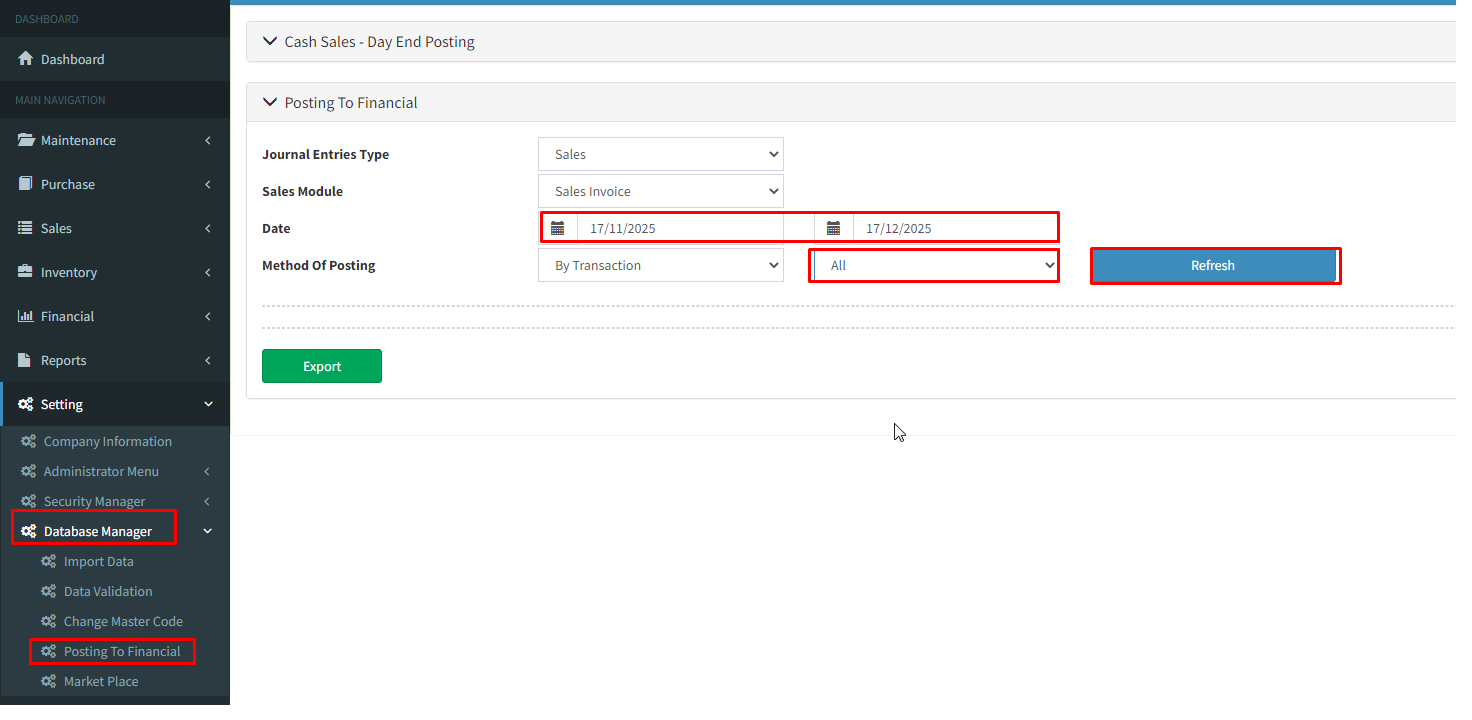
8a: At menu go to setting>>> Database manager>>> Posting to financial
i: Choose the date that same range that you sync.
ii: Click for all method
iii: press the [Refresh] button.
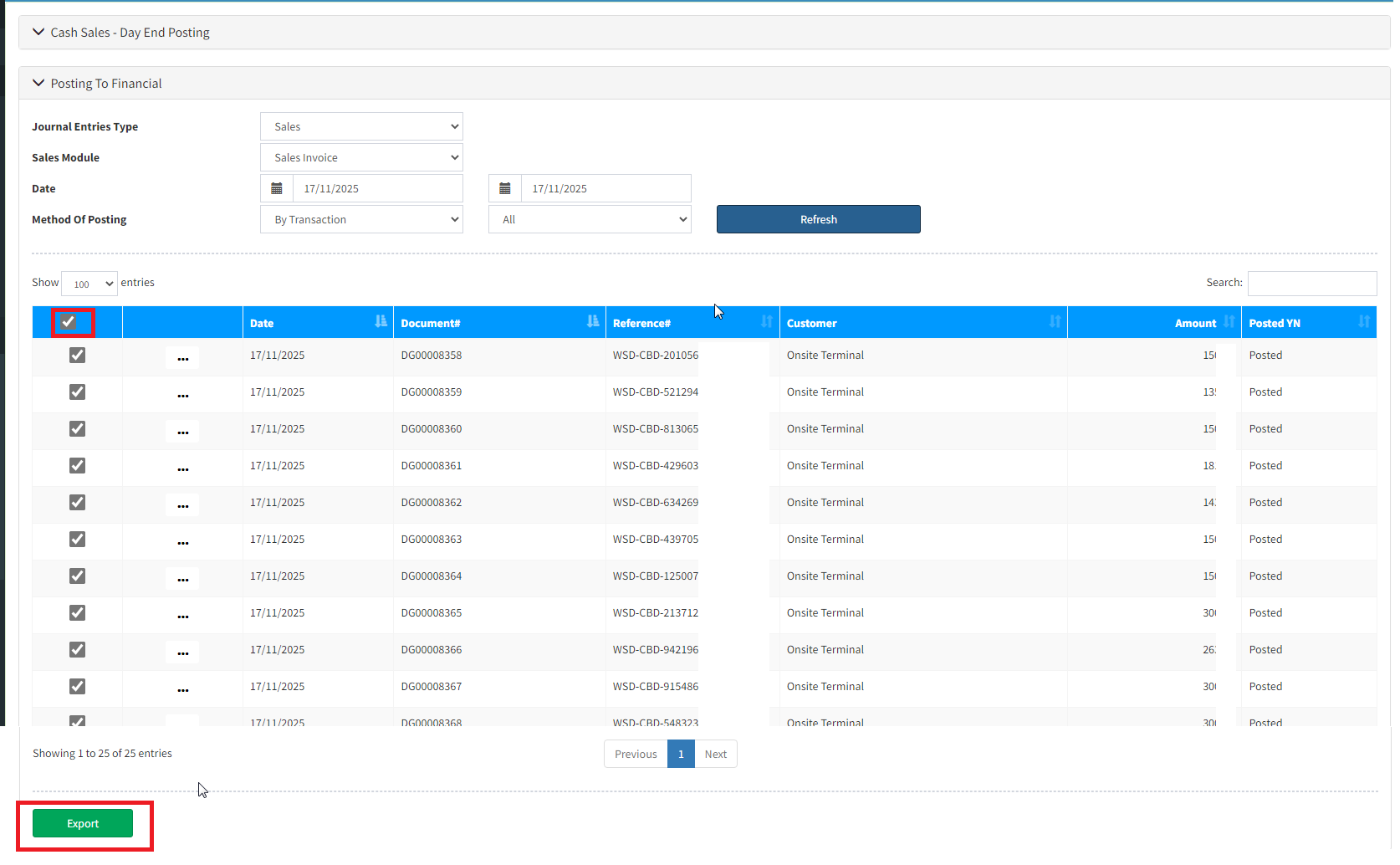
8b :Tick all the invoice and press the [Export] button.
09 : Other_If there are any additional charges
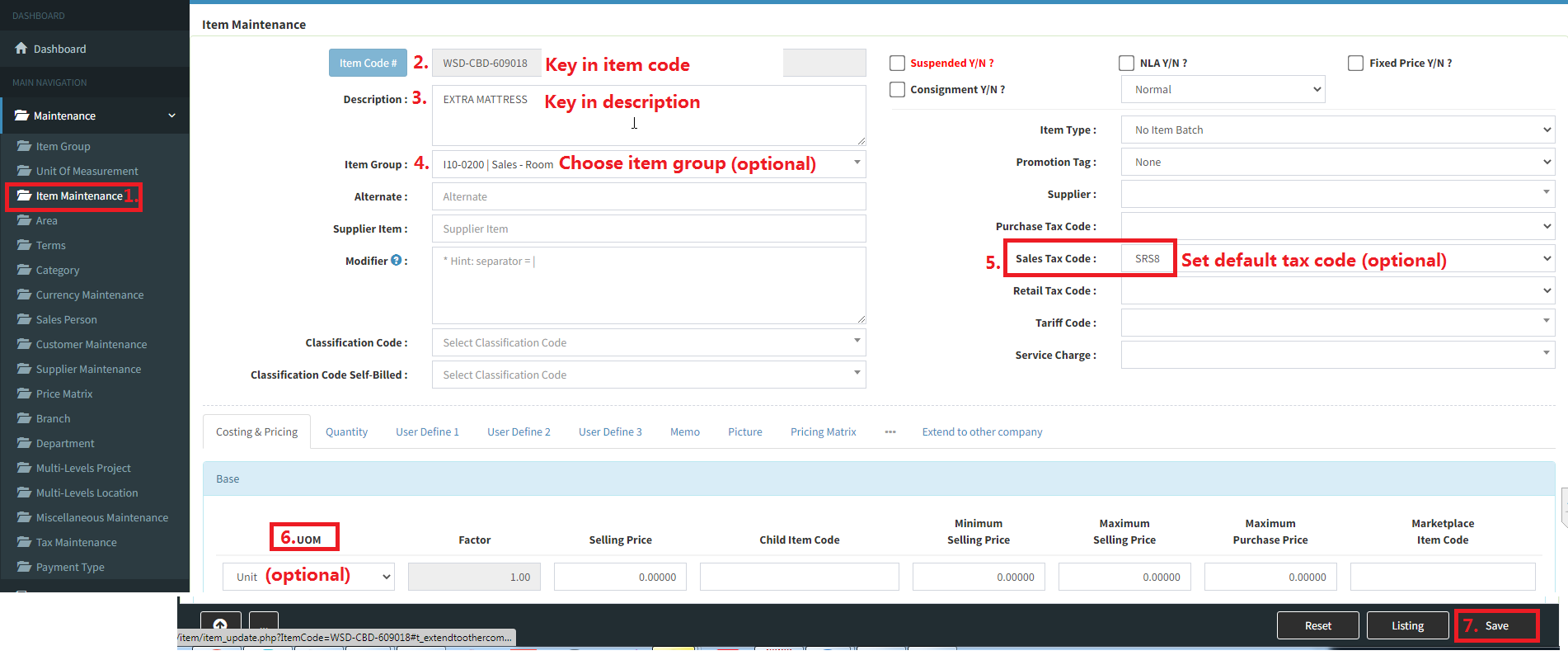
Step 01: Please go item maintenance to add [example : EXTRA MATTRESS]
Step 02: Key in item code
Step 03: Key in item description
Step 04: Classify the item under its item group
Step 05: Set default tax code (optional)
Step 06 :Key in UOM
Step 07: Click ‘Save‘