Below are guideline(s) to Upgrade MyDistribution System to latest version:
N/B: Upgrading only can done in server computer.
Step 1: Check directory of your SkyBiz system
On your desktop >> right click “MyDistribution” >> click “Properties” >> note down the “target” of your system being installed (some server installed in directory C:\ while some in D:\)
N/B: If the target start with an IP address (eg. \\192.168.1.2\MyERP\MyDistribution.exe) or computer name (eg. \\PC1\MyERP\MyDistribution.exe), this means that you’re working in a workstation computer, you need to move to server computer to continue the upgrading.

Step 2: Go to the directory as shown in “Target” in Step 1 >> rename “MyDistribution” end with today’s date as shown in example below

Step 3: Login to your account
On your browser, go to www.skybiz.my >> on top right corner of the website, click the drop down icon of “Support Login” >> key in your user ID and password then login.
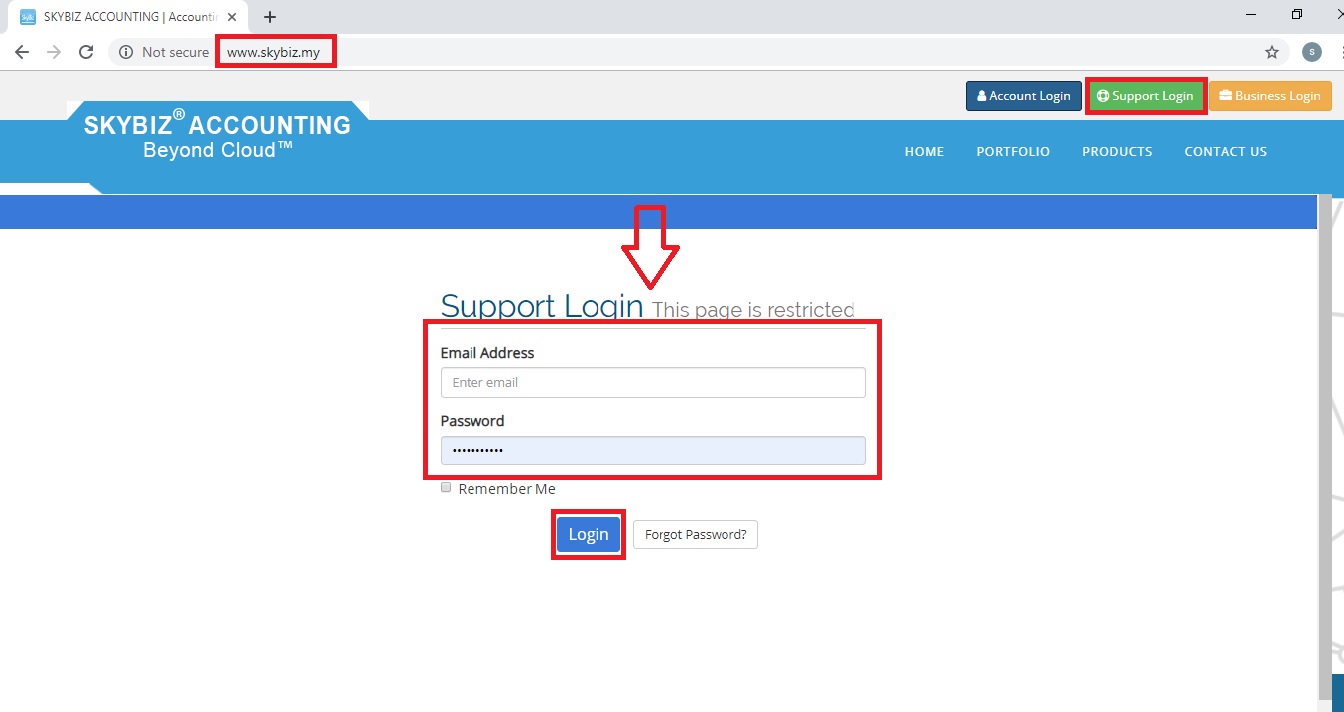
Step 4: Download the latest version of MyDistribution
Click “Download 1” on left side bar of the website >> click the “Floppy Disk icon” on left side of Distribution >> wait until download is complete >> click the downloaded file

Step 5: MyDistribution Installation
Click next until finish.
