Below are guideline(s) to troubleshoot printer unable to print :
- Go to “Start” menu and search “View devices and printer” and click on it.
-
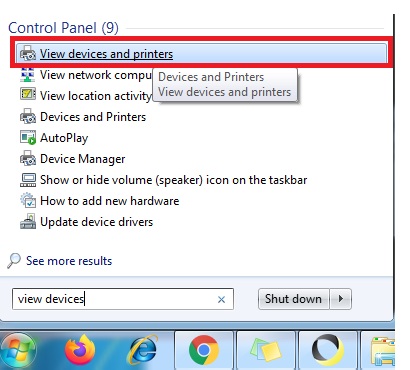
View devices and printershttp://skybizglobal.com/ticket/kbimage/k_troubleshoot_printer_controlpanel.jpg
- Assumed printer “XP-80C” is your printer and right click “Printer Properties“
- Delete pending printing job. Press “Ctrl+A” and Press “DEL“
- Check status printer is Offline/Online and Un-tick “Printer Offline“.
-
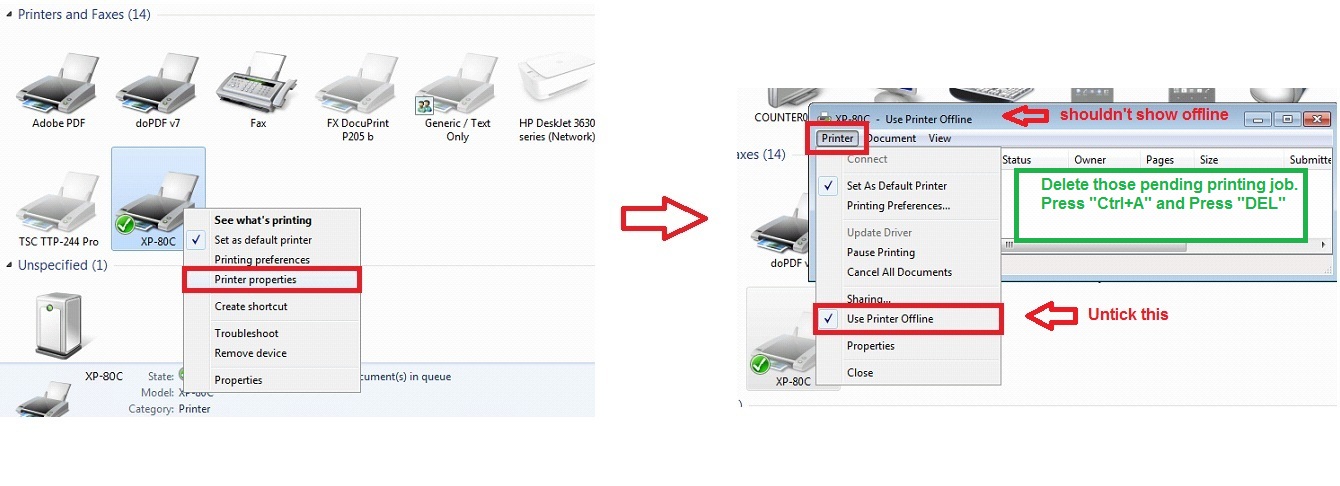
Printer Properties
- Click Printer Properties>>Ports. It will shown all available USB001, USB002, USB003, USB004, etc
-
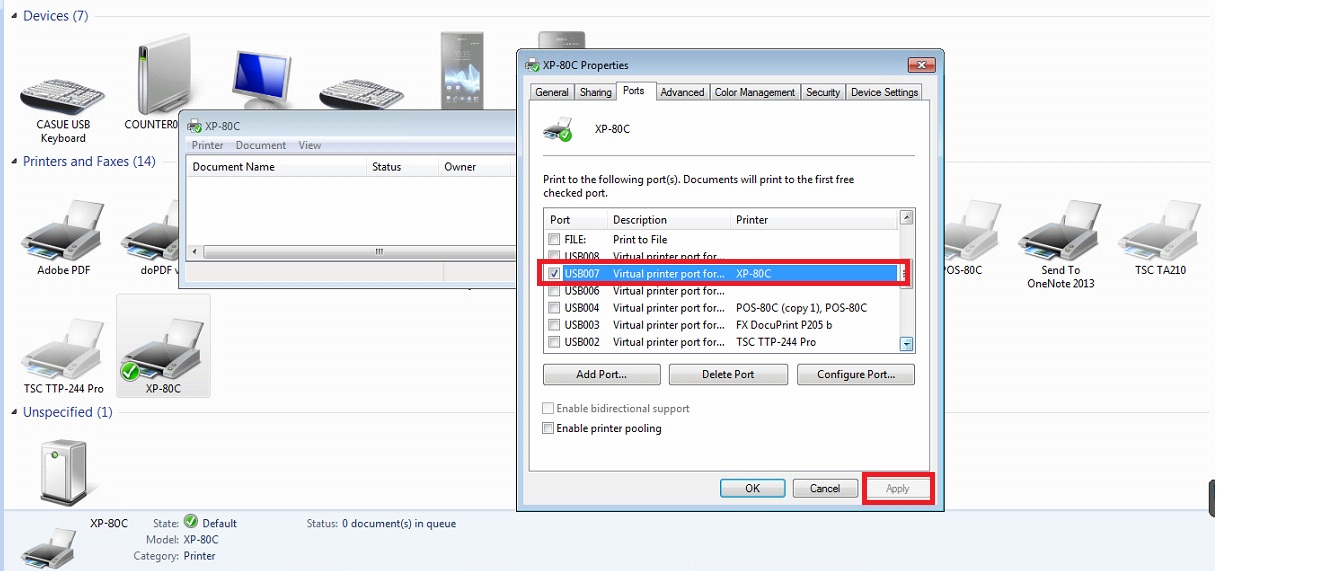
Printer Properties – Ports
- Do some troubleshoot at this time. Tick “USB001” and click apply and test print.
- If it is fail to print out, do same step i.e. Tick “USB002” and click apply and test print.
- If it is fail to print out again, do same step i.e. Tick “USB003” and click apply and test print.
- Do it all port until it found compatible port for your printer.
- All above step, applicable for all kind of printer include barcode printer.
Powered By : SKYBIZ ® Beyond Cloud ™