Below are guideline(s) to Export Report/Document from Remote server to local drive (Through copy & paste):
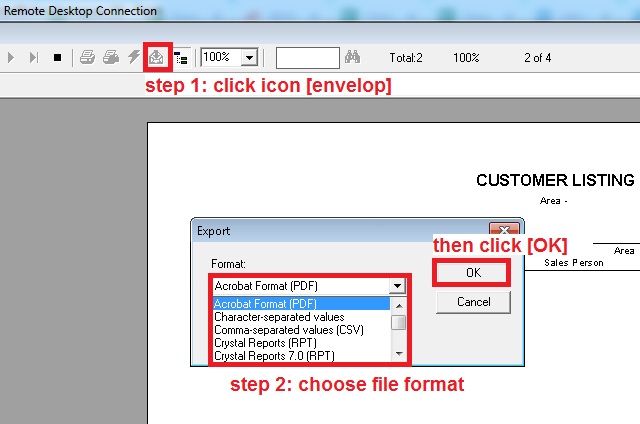
1. Preview the report/document you want to export, then click on icon [envelop], it will appear a export form and show you the file format.
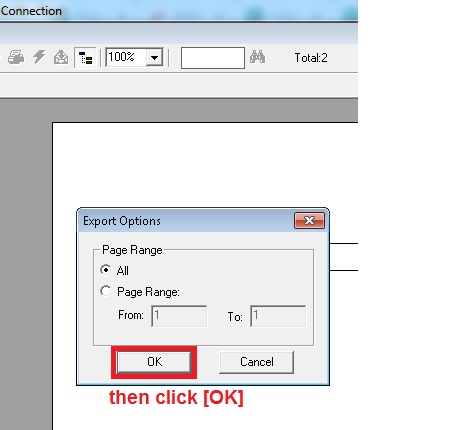
2. Below pop-up message box appear to allow user to choose the page range to export.
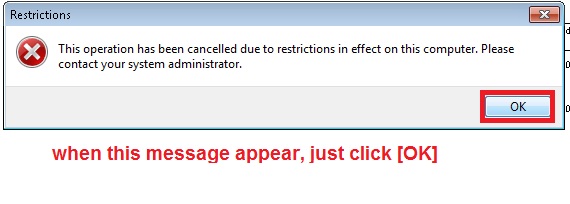
3. Once below message box appear, just click [OK].
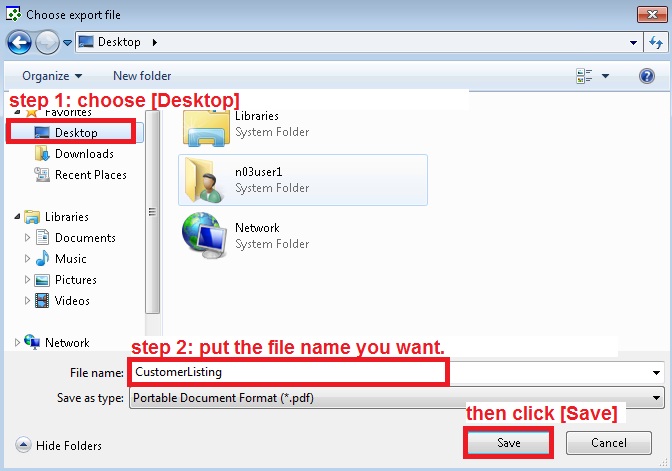
4. After that, below form will appear to allow user choose the Remote server location to save the file exported, it is advice the file to be saved on Remote server [Desktop] folder.
5. After that, upon minimize all the screen, user will see the file exported is saved on Remote server Desktop folder. Next, user is advice to highlight the exported file, then press keyboard button [Ctrl + C] to copy the file in clipboard.
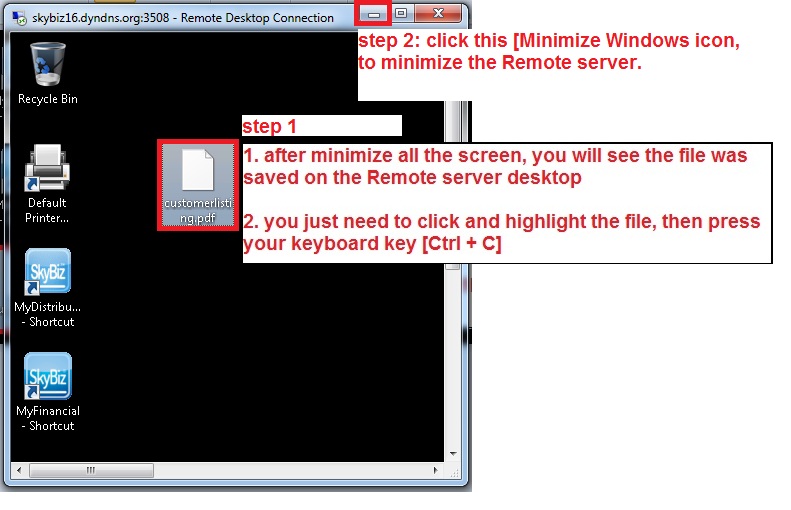
6. Lastly, user need to minimize the Remote server Windows, then user has to press keyboard button [Ctrl + V] in order to paste the clipboard file on local drive, bingo.
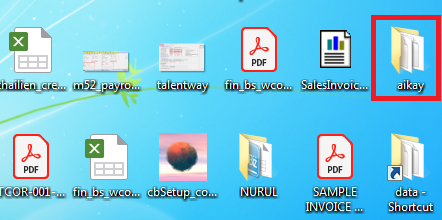
Paste (Ctrl V) on Desktop PC