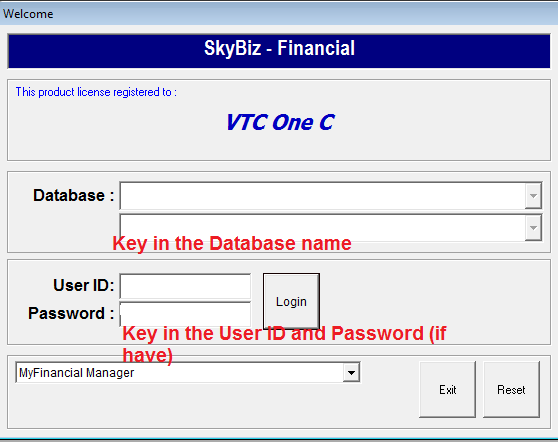
a) Sign In SkyBiz® Financial
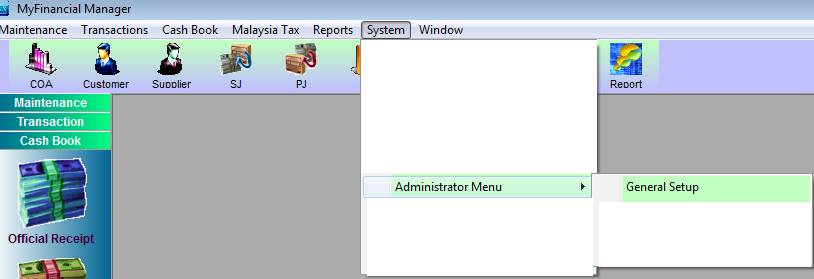
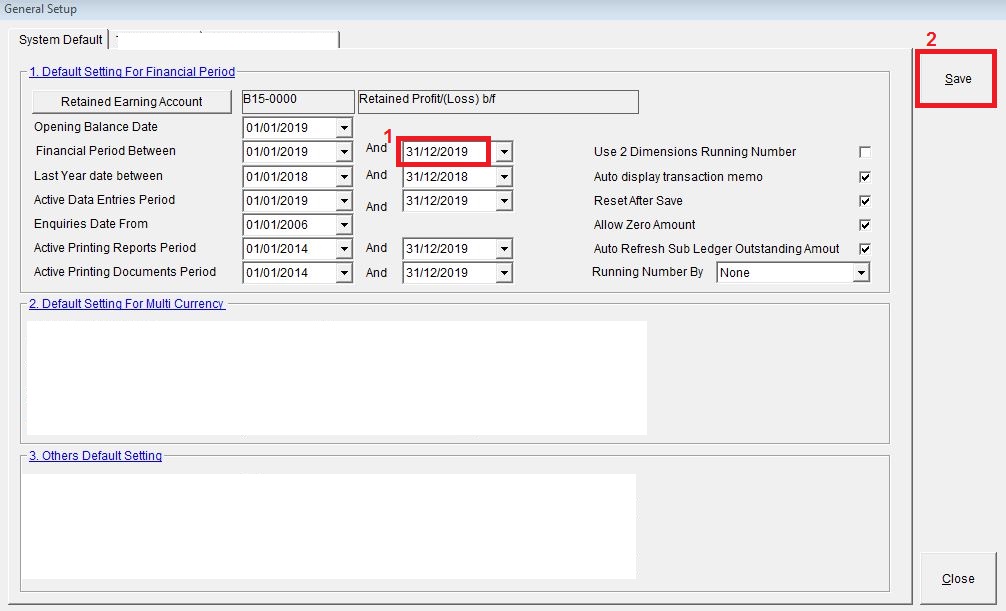
b) After that go to System => Administrator Menu => General Setup:
c) Then, System Default:
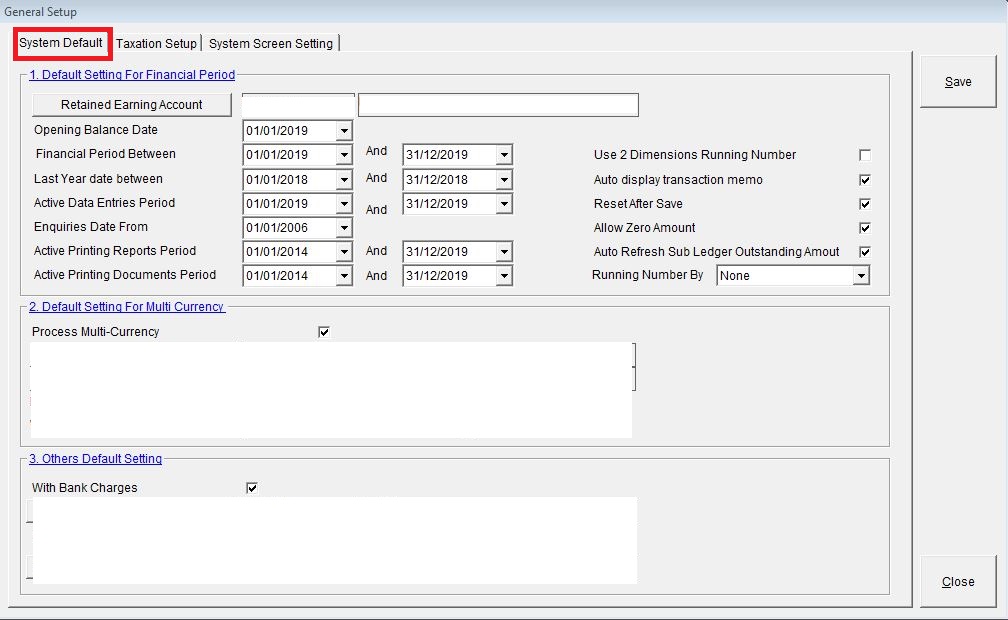
d) Next, key in the Change Year End Date:
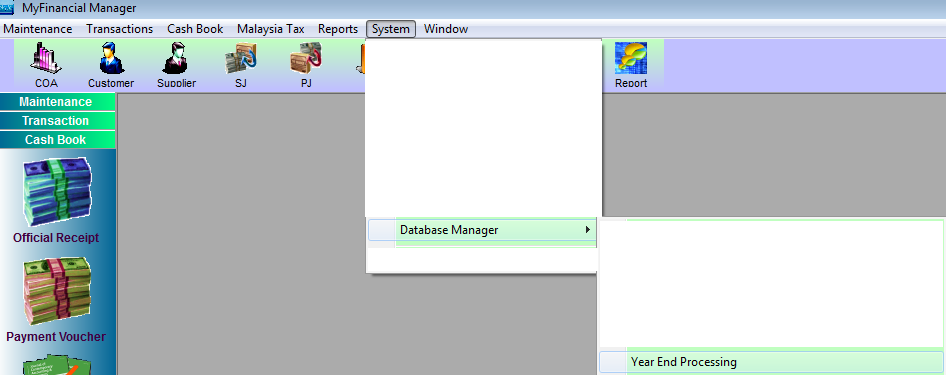
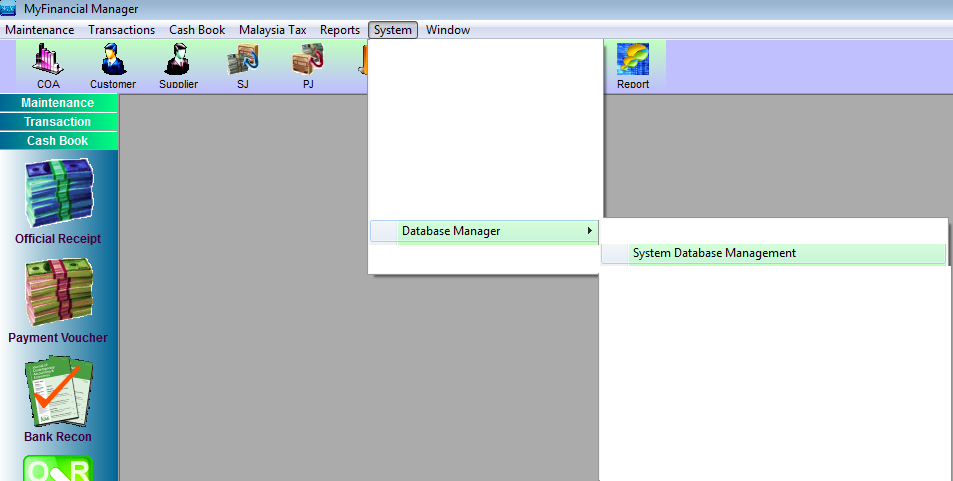
e) And go to System => Database Manager => Year End Processing:
**Noted: If Year End Processing does not appear in system, need to create I.D. Follow the guidelines below:**
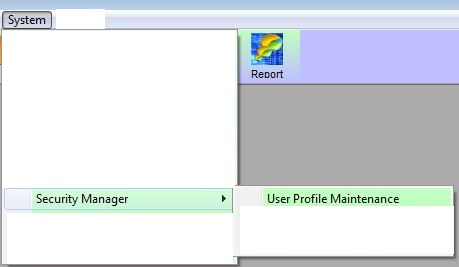
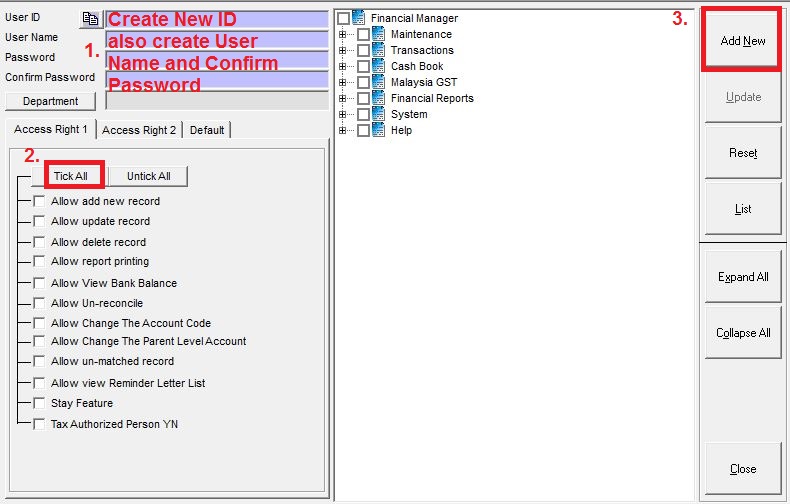
f) Follow the guidelines below:
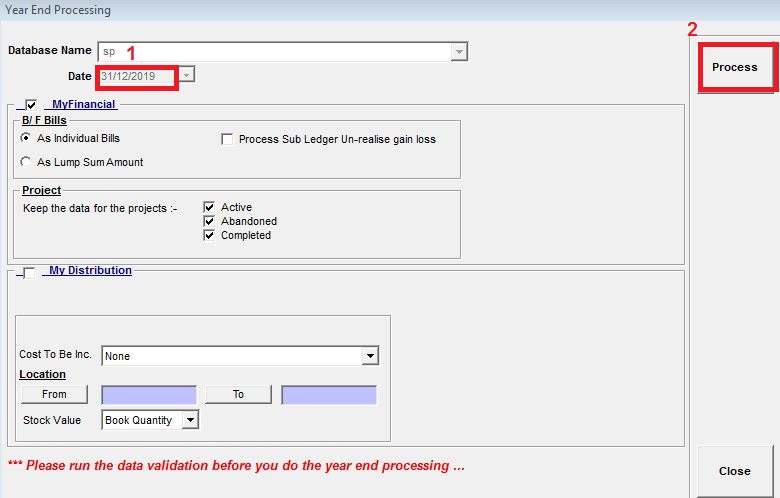
- Key in the Year End Date:
- Then, click button Process and Close.
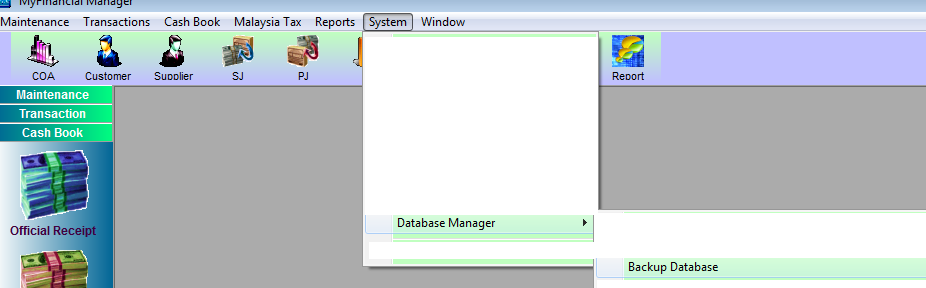
g) After that go to System => Database Manager => Backup Database.
h) Then, search MYSQL => Data => Find the backup database and rename file to year end backup date.
i) After backup, Log Out the SkyBiz® Financial and Log In again SkyBiz® Financial.
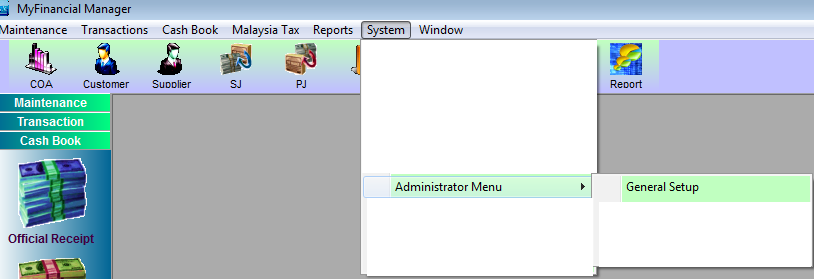
j) After that go to System => Administrator Menu => General Setup:
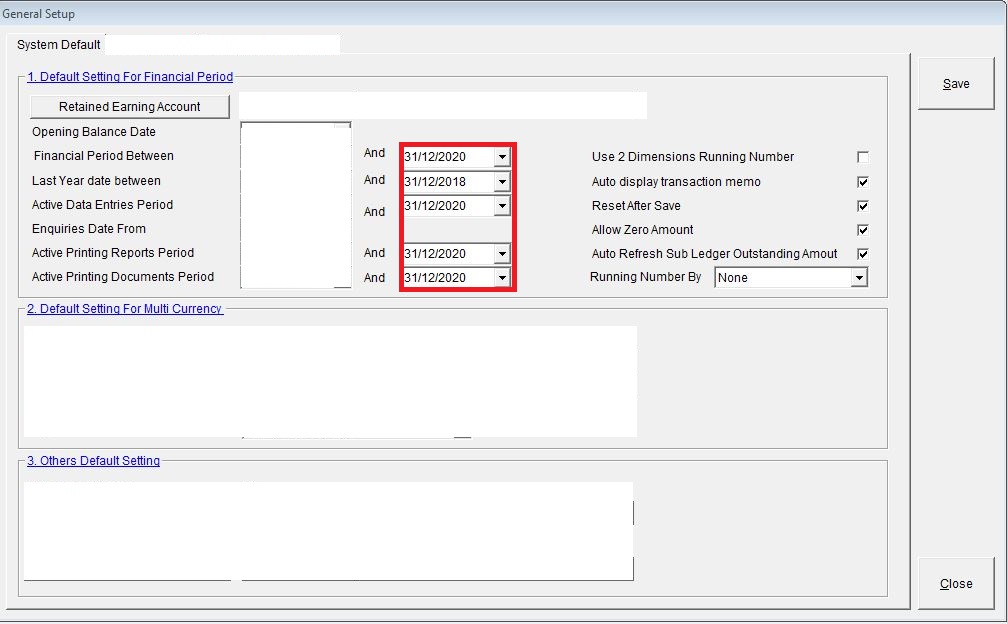
k) Next, key in the Opening Balance Date:
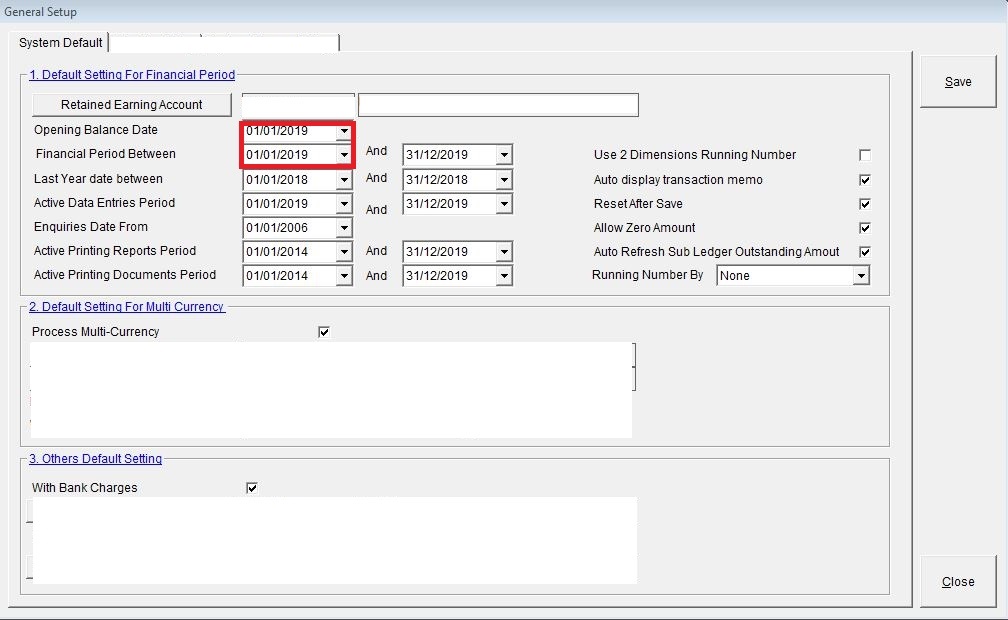
l) Follow by the Last Year date between need to key in,
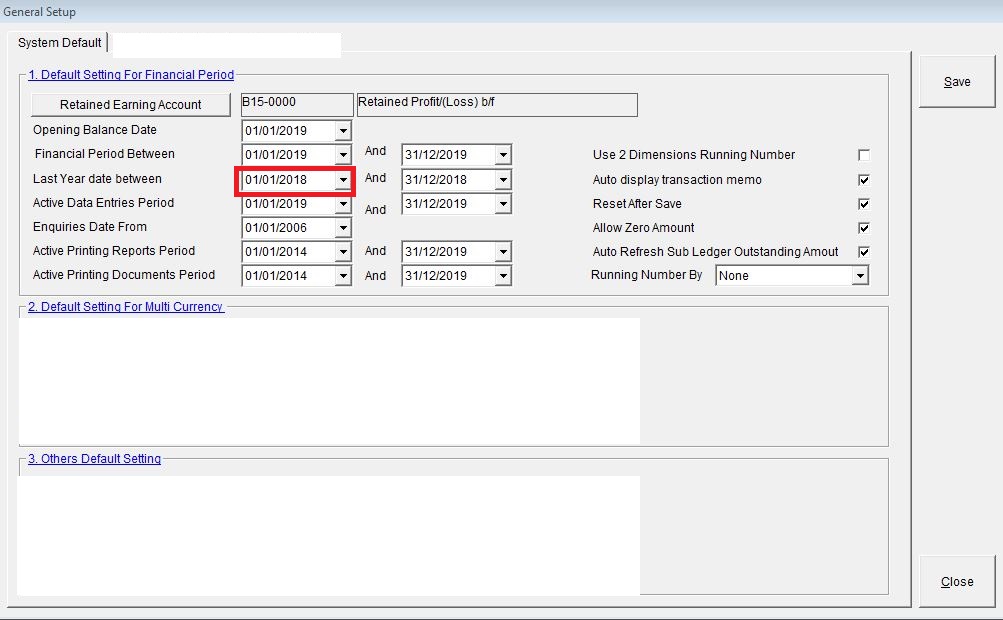
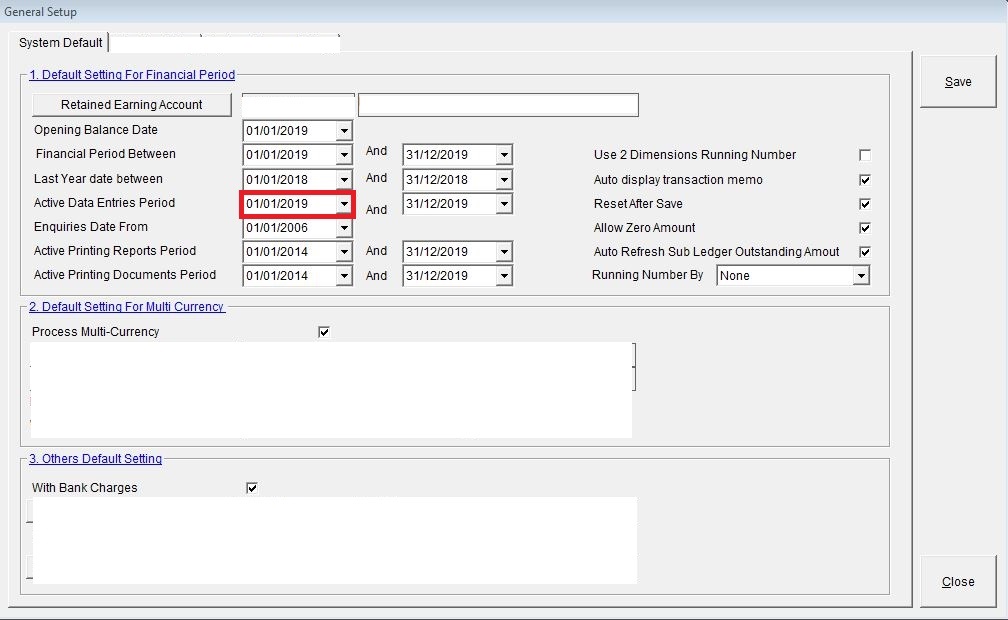
m) Also need to key in the Active Data Entries Period:
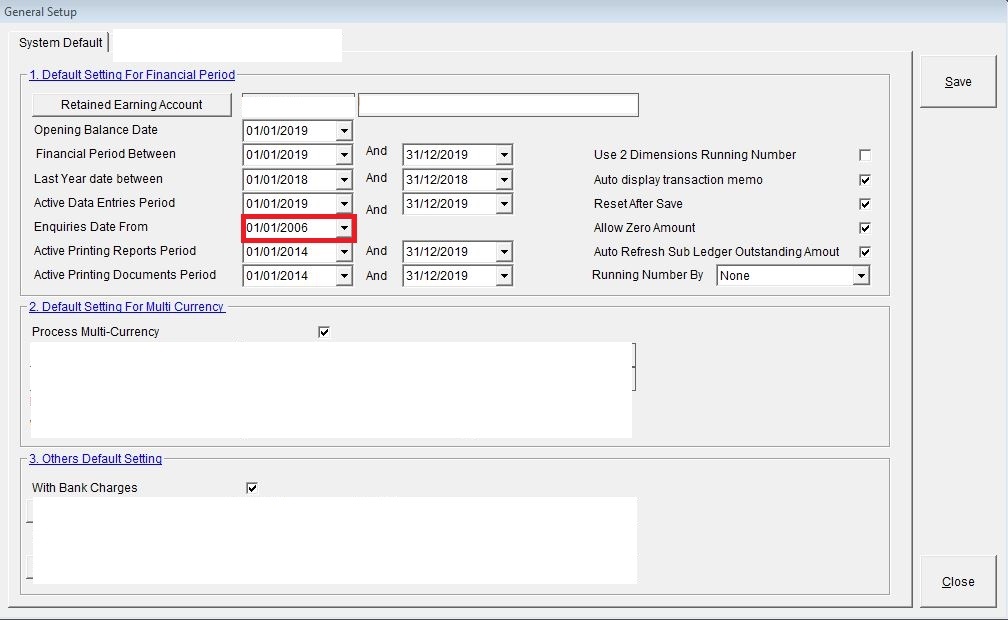
n) Then key in the Enquiries Date Form:
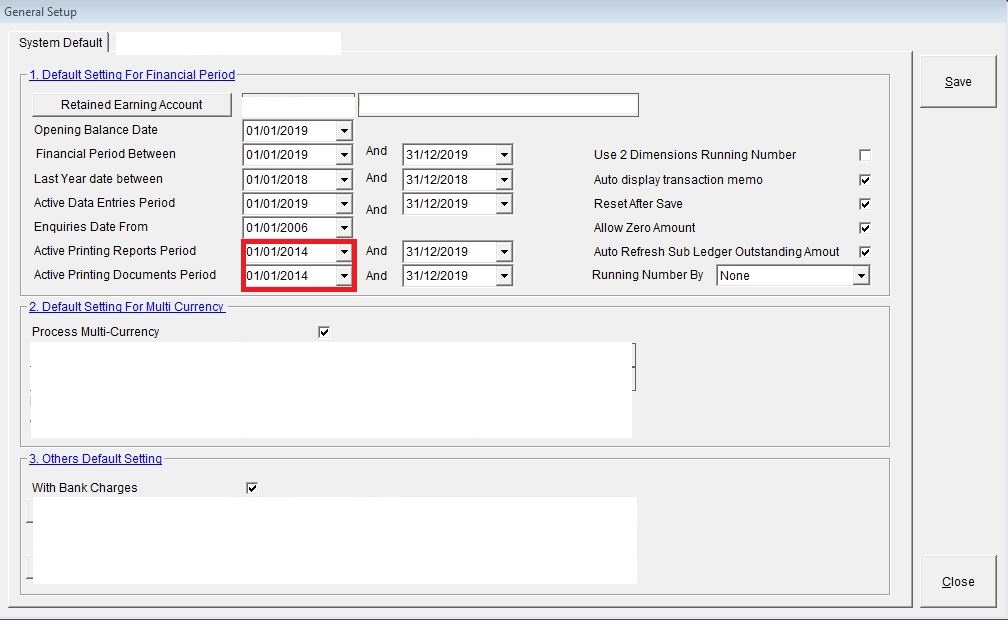
o) To print the documents or reports must key in the Active Printing Period:
p) Lastly, key in Year End Balance Date the date MUST be in year 2020:
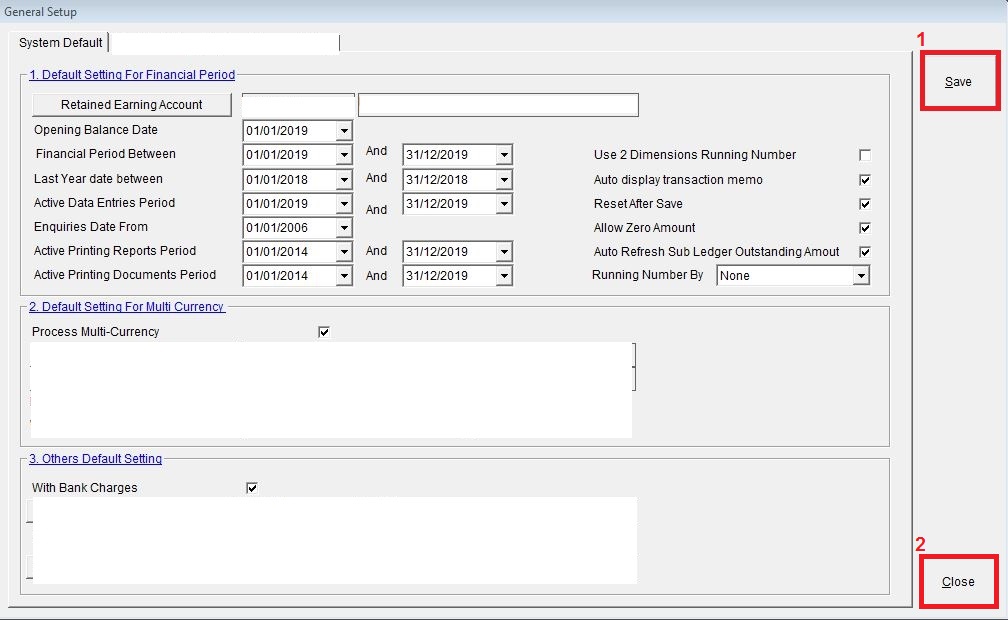
q) Then, click button Save and Close
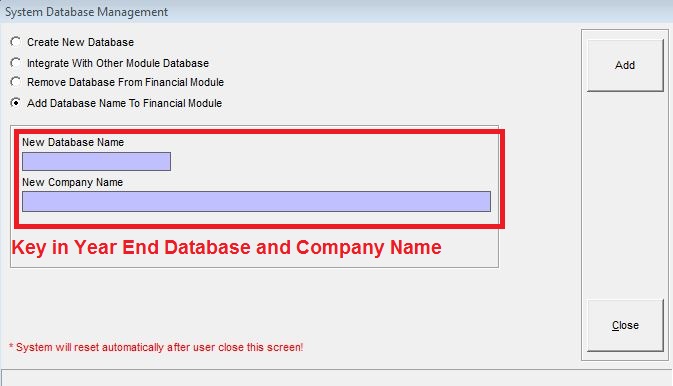
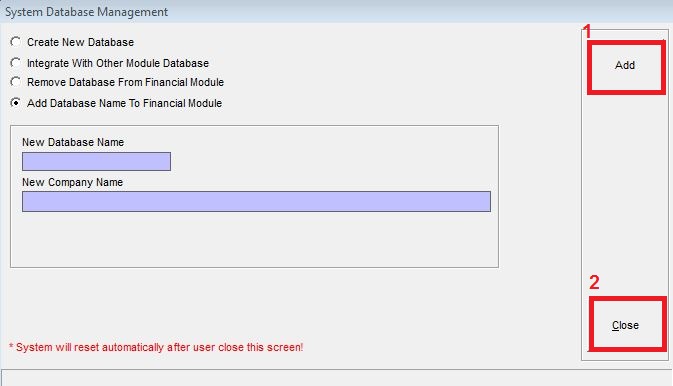
r) Add Year End Database and Company Name:
s) Lastly, Log Out SkyBiz® Financial.