Below are guideline(s) to create new shift and assign employee shift :
- Go to “Maintenance>>Shift Setup“.
- Fill up Shift Code, Description
- Time In 1 is an employee work time start.
- Time Out 1 is an employee lunch break start.
- Time In 2 is an employee lunch break end.
- Time Out 2 is an employee work time end.
- Time In 3 is an employee overtime start.
- Time Out 3 is an employee overtime end.
- Overtime counted is either counted from Time Out 2 or Time Out 3 (it is depend on every company rules and policy)
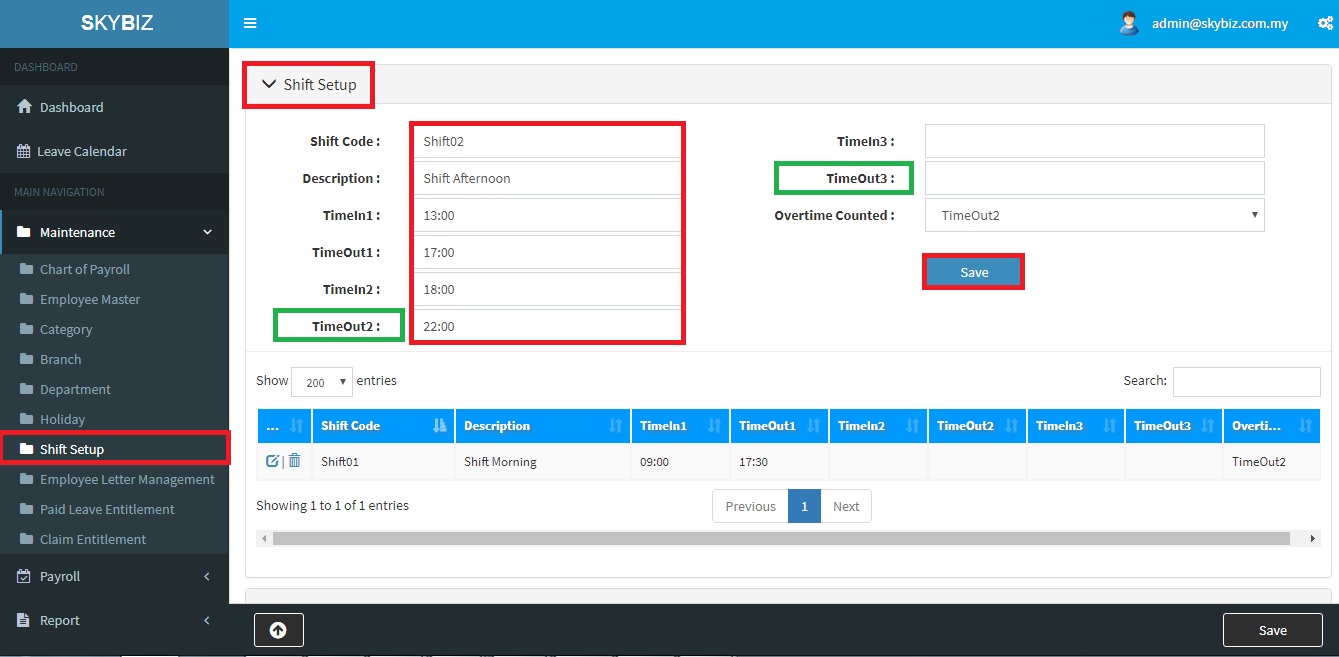
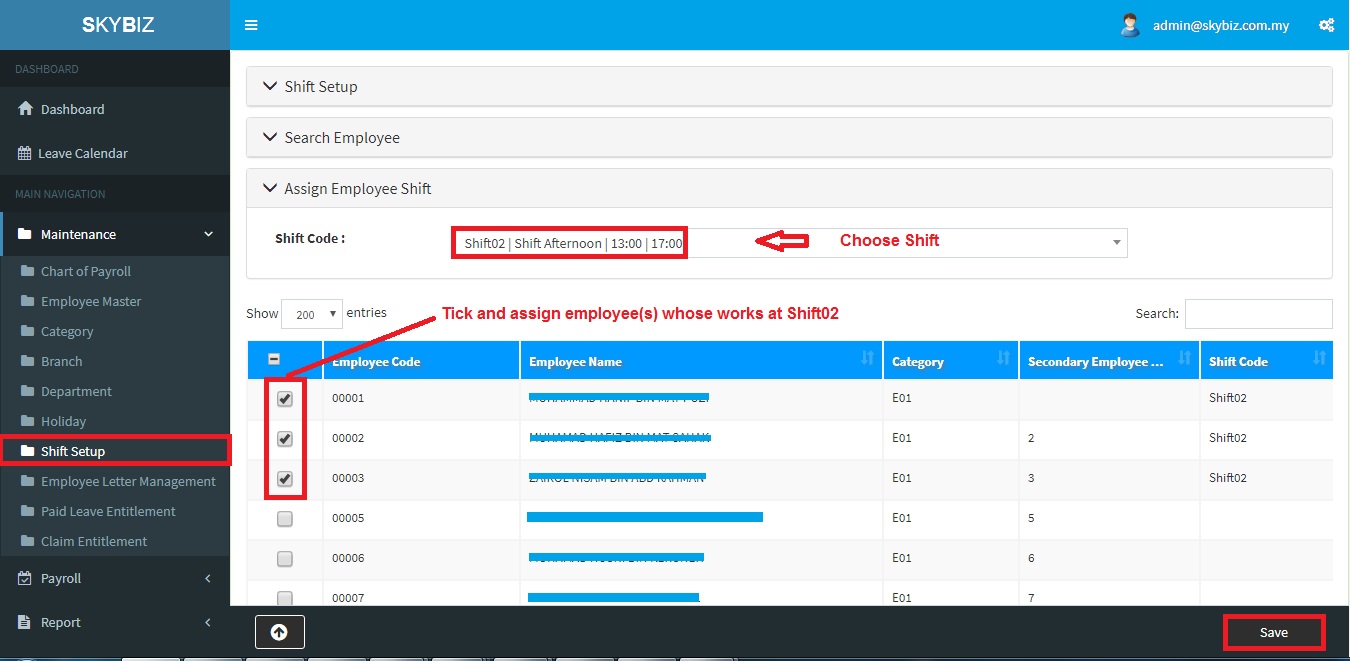
- In same menu, click page “Assign Employee Shift” (Follow screen shot steps).
- Choose Shift Code, tick and assign employee(s)
- At last remember to click “Save” to confirm your employee(s) shift.
Powered By : SKYBIZ ® Beyond Cloud ™
E-Leave Management System|e-Data PCB