How to connect and use the SKYBIZ API Version 2.0
Overview
The SKYBIZ API allows external applications (POS systems, e-commerce platforms, ERP tools) to read and write data directly to your SKYBIZ account.
Target Audience: POS software vendors / Integration developers
Before You Begin
Make sure the following are ready before you start:
- API Integration has been enabled by your SKYBIZ administrator.
- Your integration mode is set — Mode 1 (Production) or Mode 2 (Developer).
- You have a Callback URL — a public web address that can receive POST requests.
- You have access to a REST client such as Postman for testing.
Integration Modes
| Mode | Name | Where to Use | HTTPS Required |
|---|---|---|---|
0 |
Disabled | API is off. All requests rejected. | — |
1 |
Production | Live environment | Yes — all requests |
2 |
Developer | Local development / testing | No — localhost only |
💡 If you are just testing, ask your SKYBIZ administrator to set your store to Mode 2 (Developer) first. This allows HTTP requests from localhost without requiring HTTPS.
Step 1 — Set Up Your Callback URL
Before registering, you need a public URL that can receive your API credentials. SKYBIZ will POST your API Key and Secret Key to this URL once you register. You need to save them — they will not be sent again.
Option A — Your Own Server
Create a file on your server (e.g. callback.php) and use its public HTTPS URL as your Callback URL.
Sample Code for receiving the Keys using Callback URL
<?php
// callback.php
// Place this file on your server and use its URL as your callback_url during registration
// Example: https://yourdomain.com/callback.php

// ============================================================
// STEP 1 — Read the raw request body from SKYBIZ
// ============================================================
$rawBody = file_get_contents('php://input');
$headers = getallheaders();
$timestamp = $headers['X-Timestamp'] ?? '';
$signature = $headers['X-Signature'] ?? '';

// ============================================================
// STEP 2 — Decode the JSON payload
// ============================================================
$payload = json_decode($rawBody, true);

if (!$payload || !isset($payload['api_key'], $payload['api_secret'])) {
    http_response_code(400);
    echo json_encode(['status' => 'error', 'message' => 'Invalid payload']);
    exit;
}

$apiKey = $payload['api_key'];
$apiSecret = $payload['api_secret'];

// ============================================================
// STEP 3 — Verify the signature
// This confirms the request is genuinely from SKYBIZ
// ============================================================
$expectedSignature = hash_hmac('sha256', $timestamp . '.' . $rawBody, $apiSecret);

if (!hash_equals($expectedSignature, $signature)) {
    http_response_code(401);
    echo json_encode(['status' => 'error', 'message' => 'Signature verification failed']);
    exit;
}

// ============================================================
// STEP 4 — Store the credentials SECURELY
//
// ⚠️ This is the ONLY time the api_secret is in plain text.
// Save it now. SKYBIZ will NOT send it again.
//
// Options:
// A) Write to a secure .env file
// B) Save to your database (encrypted)
// C) Push to your secrets manager
//
// The example below writes to a .env file.
// ============================================================
$envContent = "SKYBIZ_API_KEY={$apiKey}\nSKYBIZ_API_SECRET={$apiSecret}\n";

// Make sure this path is OUTSIDE your public web root
$envPath = __DIR__ . '/../../secure/.env';

file_put_contents($envPath, $envContent);

// ============================================================
// STEP 5 — Respond with 200 OK so SKYBIZ knows delivery was successful
// ============================================================
http_response_code(200);
echo json_encode(['status' => 'received']);
exit;
Option B — Webhook.site (Quick Testing)
If you don’t have a server ready, use webhook.site as a temporary Callback URL.
Guide to receive the Keys using Webhook.site
- Go to Webhook.site — a unique URL is generated for you automatically.
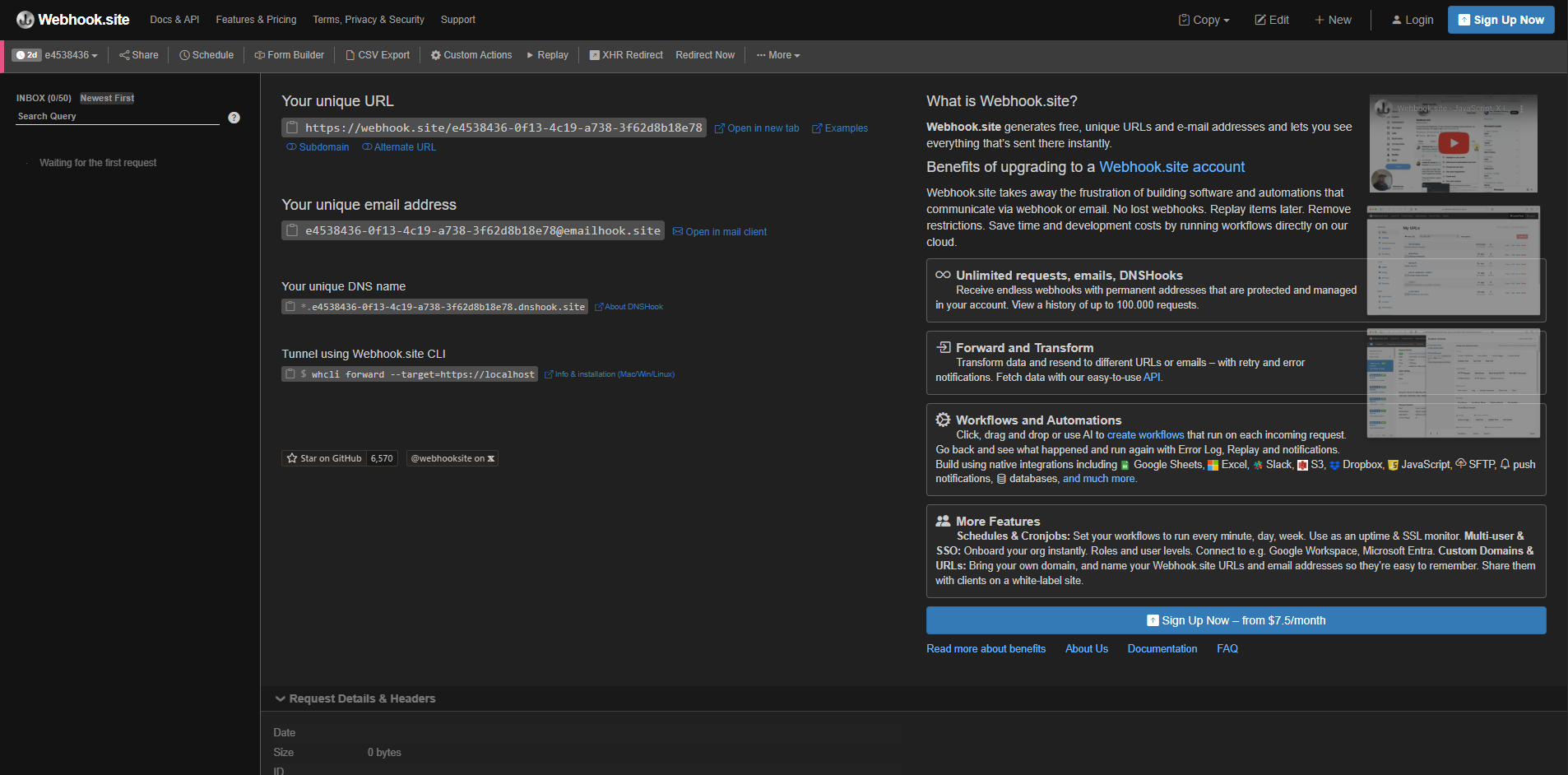
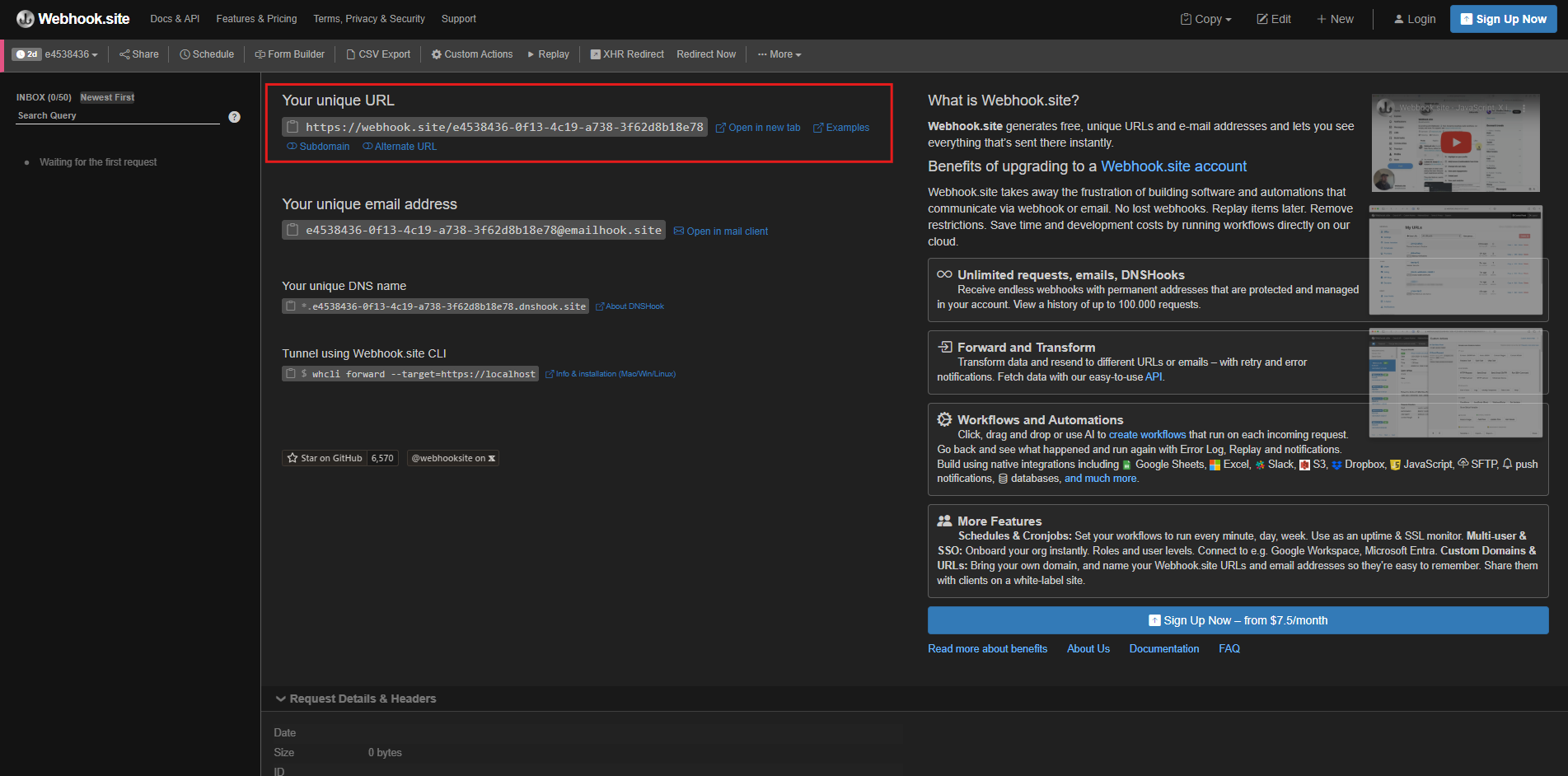
2. Copy your unique URL and use it as your Callback URL when registering your credentials in Step 2.
3. After registering in Step 2, SKYBIZ sends the keys to that URL. You’ll see them in the Webhook.site interface.
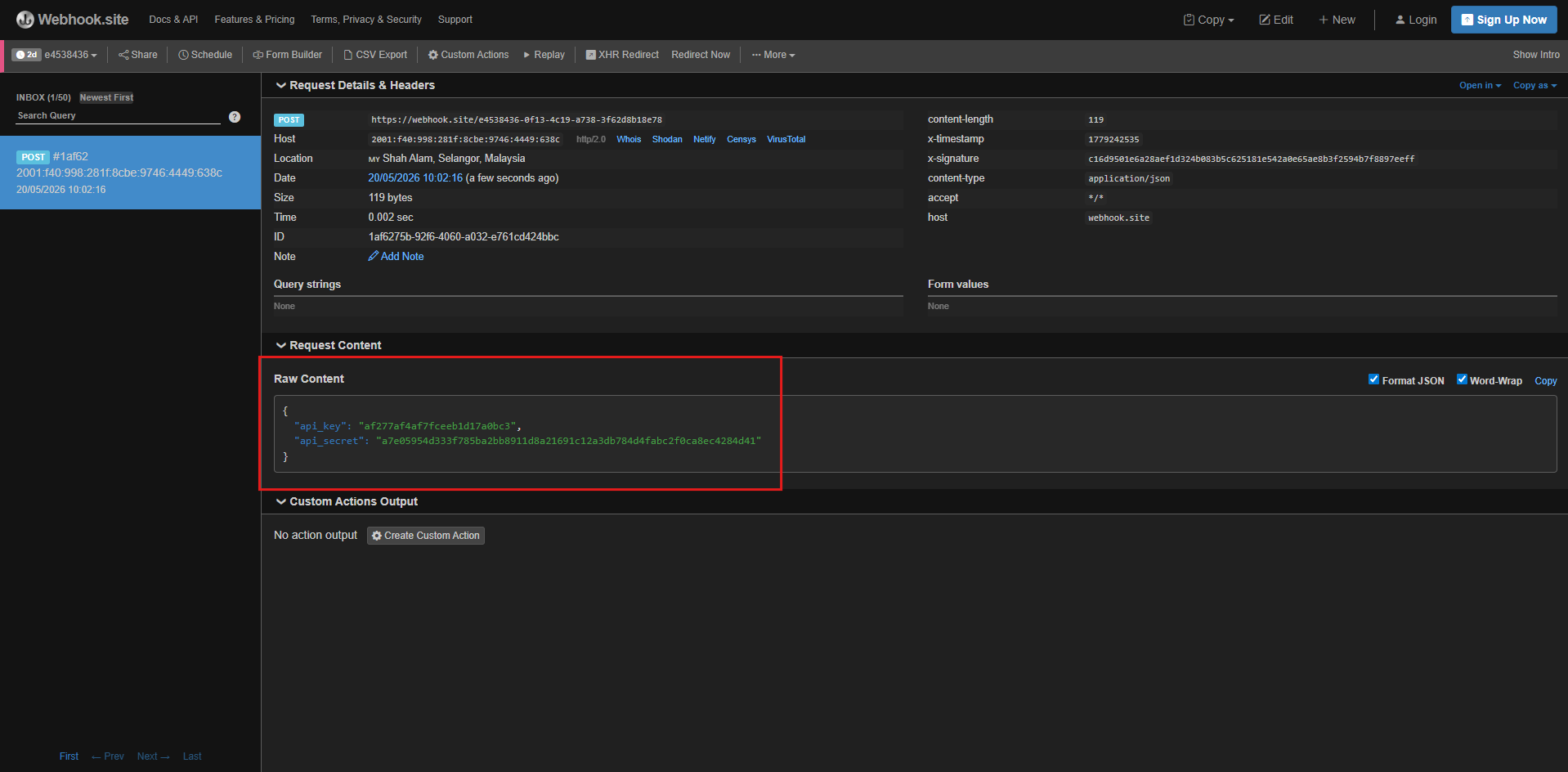
⚠️ Webhook.site is for testing only. For production use, always save your credentials to your own secure server. Do not leave keys exposed in Webhook.site.
Step 2 — Register Your Credentials
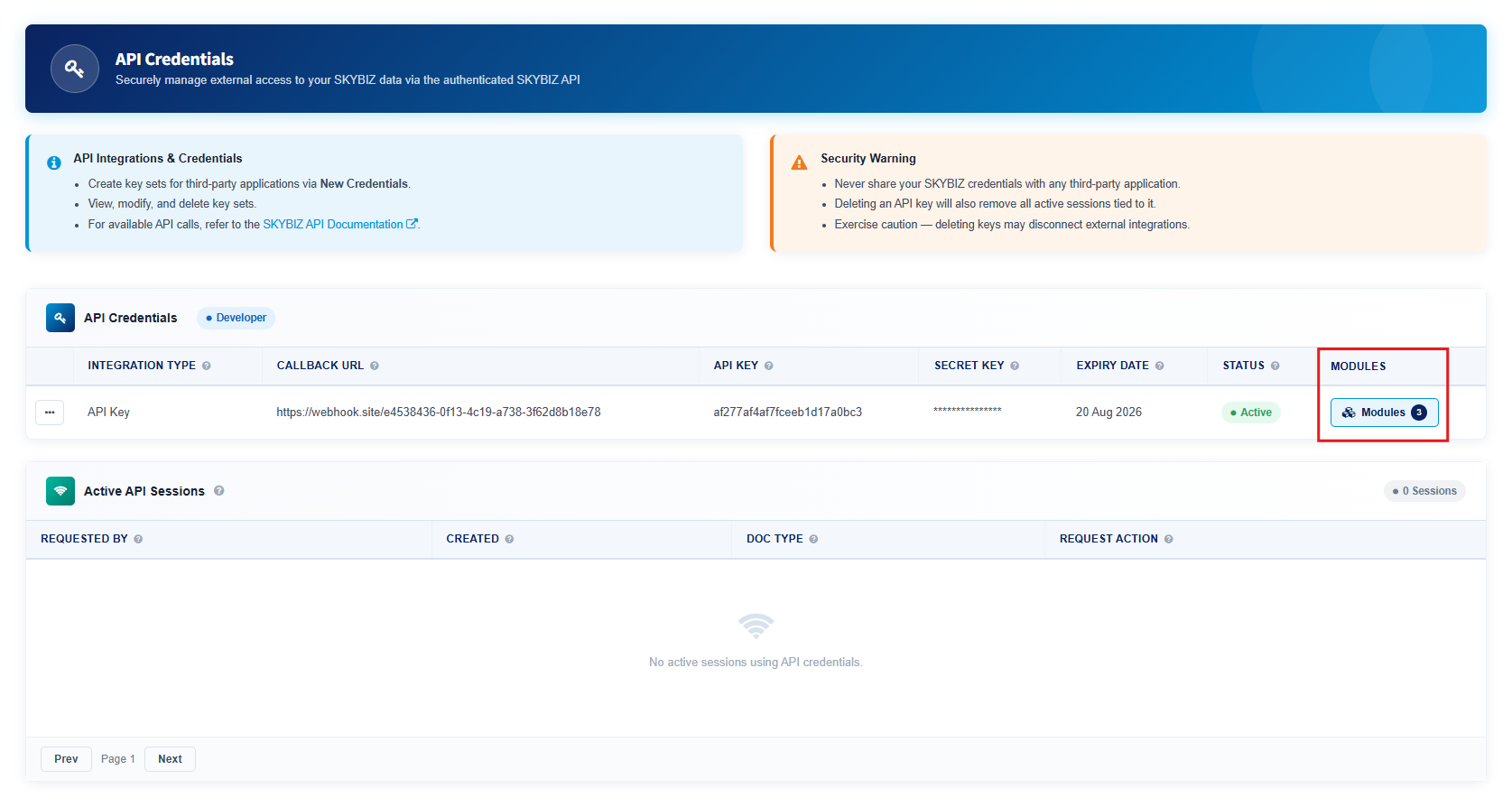
- Navigate to API Credentials Section in SKYBIZ Portal.
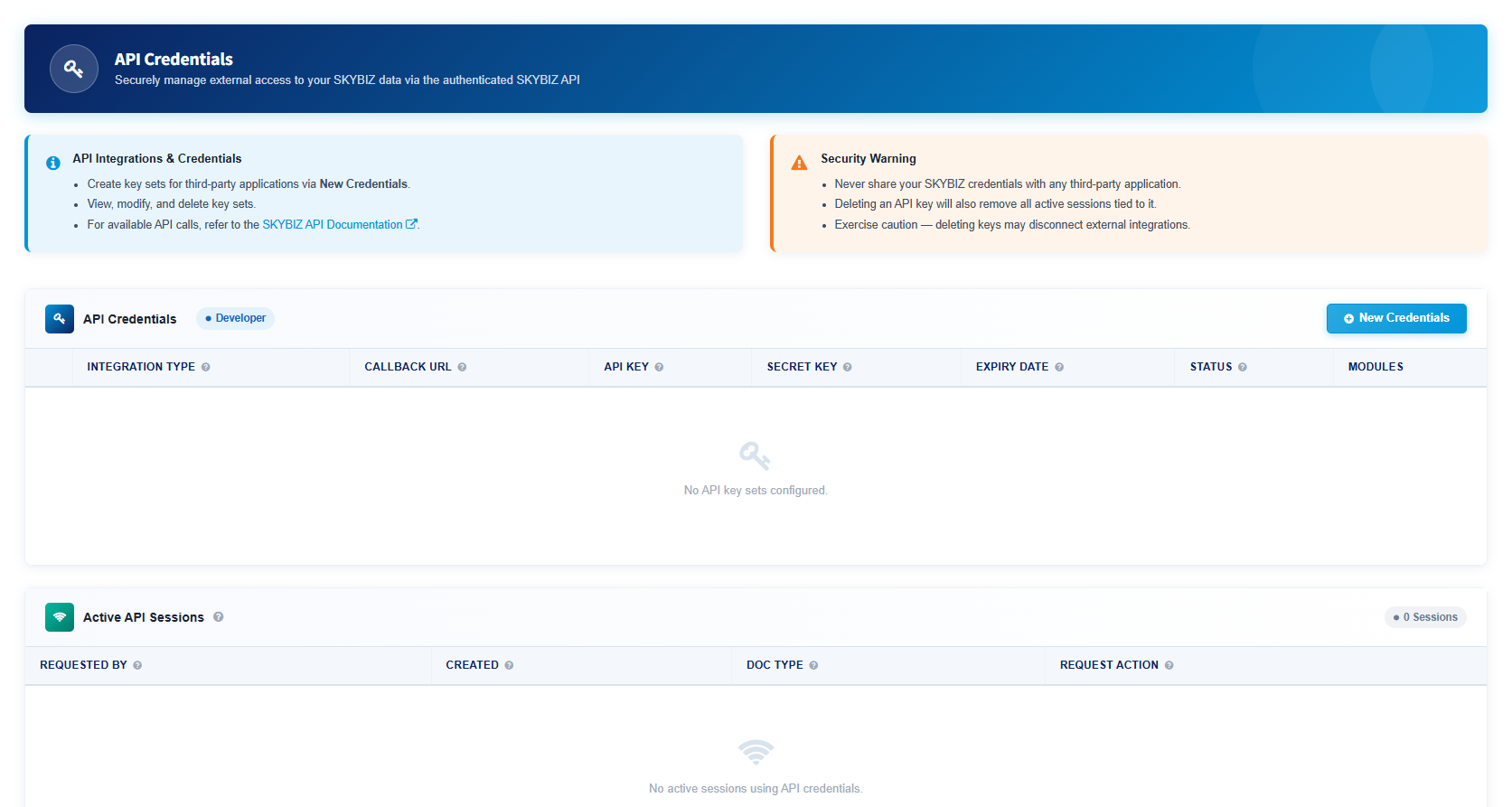
2. Click the New Credentials Button on the right side of the API Credentials Section.
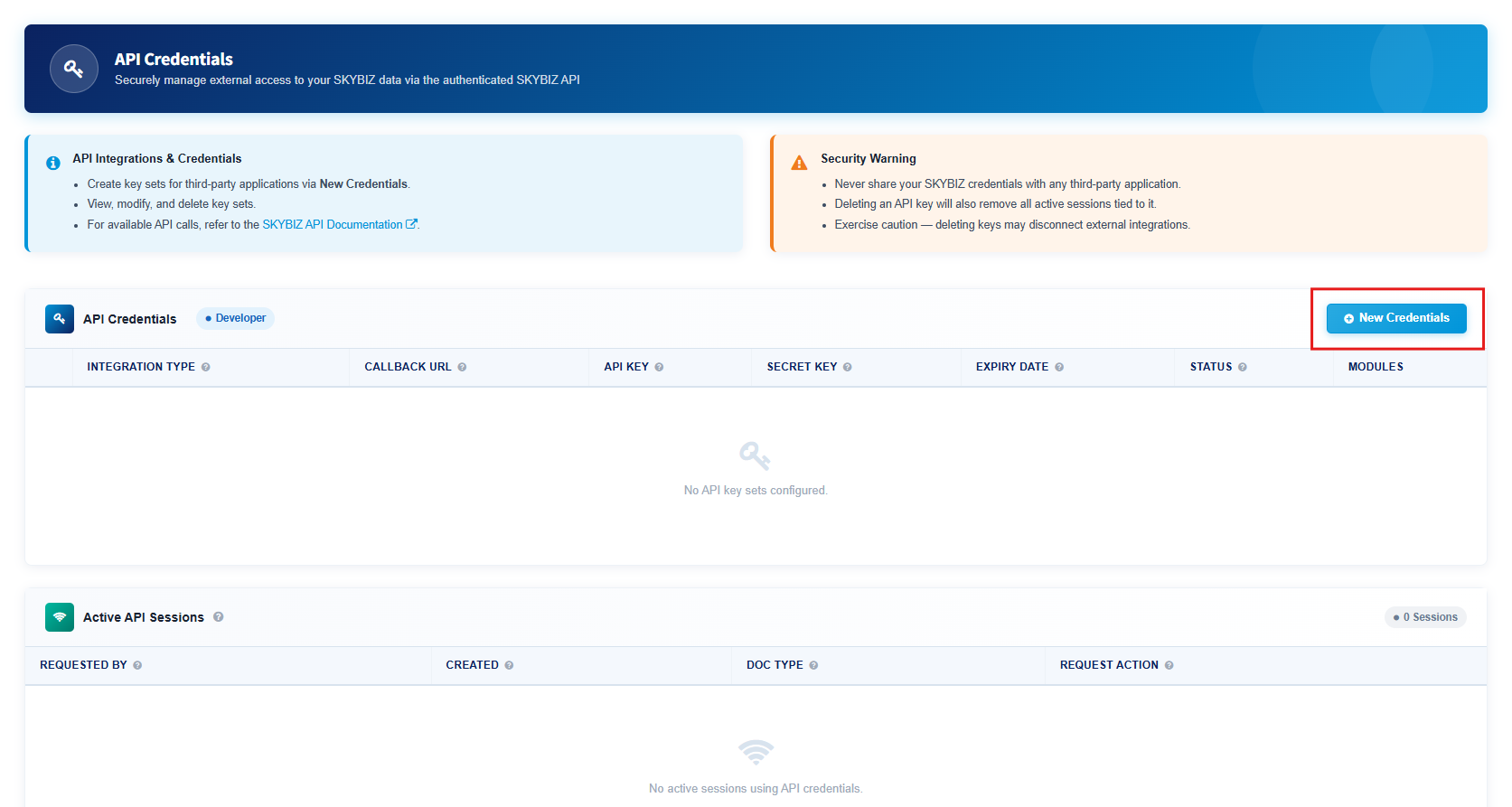
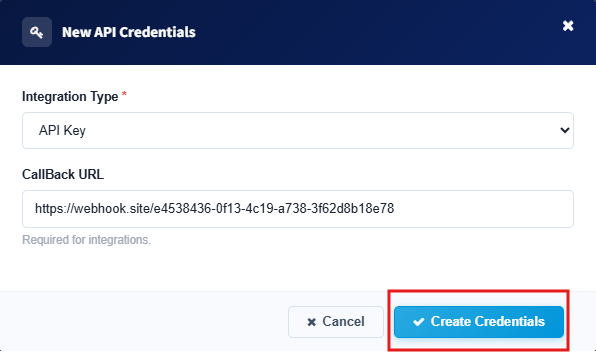
3. The New API Credentials Popup will be displayed.
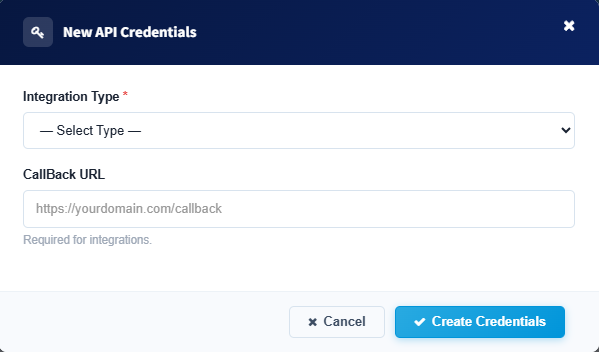
4. Select the Integration Type — API Key.
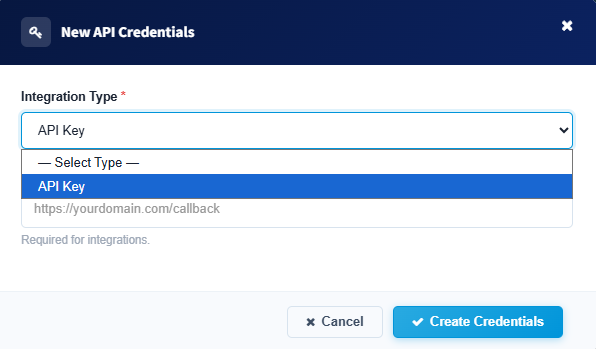
5. Insert your public Callback URL or Newly Copied URL From Webhook.site.
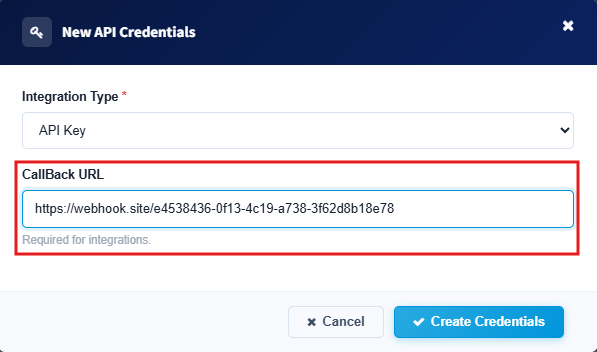
6. Click the Create Credentials Button.
7. The API Key and Secret Key will be sent to your Callback URL:
{
  "api_key": "a1b2c3d4e5f6a1b2c3d4e5f67",
  "api_secret": "your-64-character-secret-here"
}
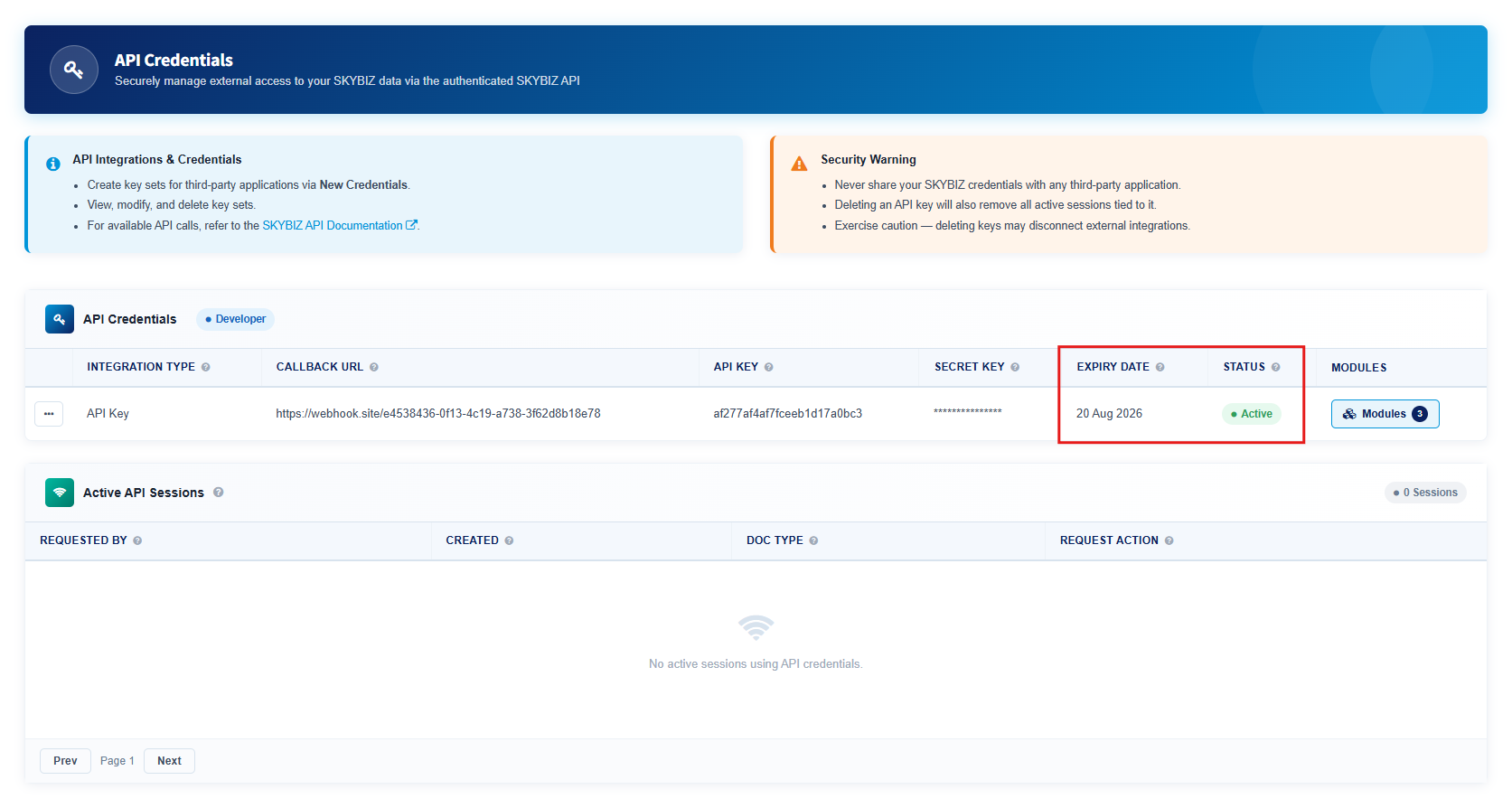
Your API key comes with a renewal date. Once it expires, all requests made using that key are rejected. You can check the renewal date from the API Credentials section in the SKYBIZ Portal. To continue using the API after expiry, delete the expired credentials and create a new API key set.
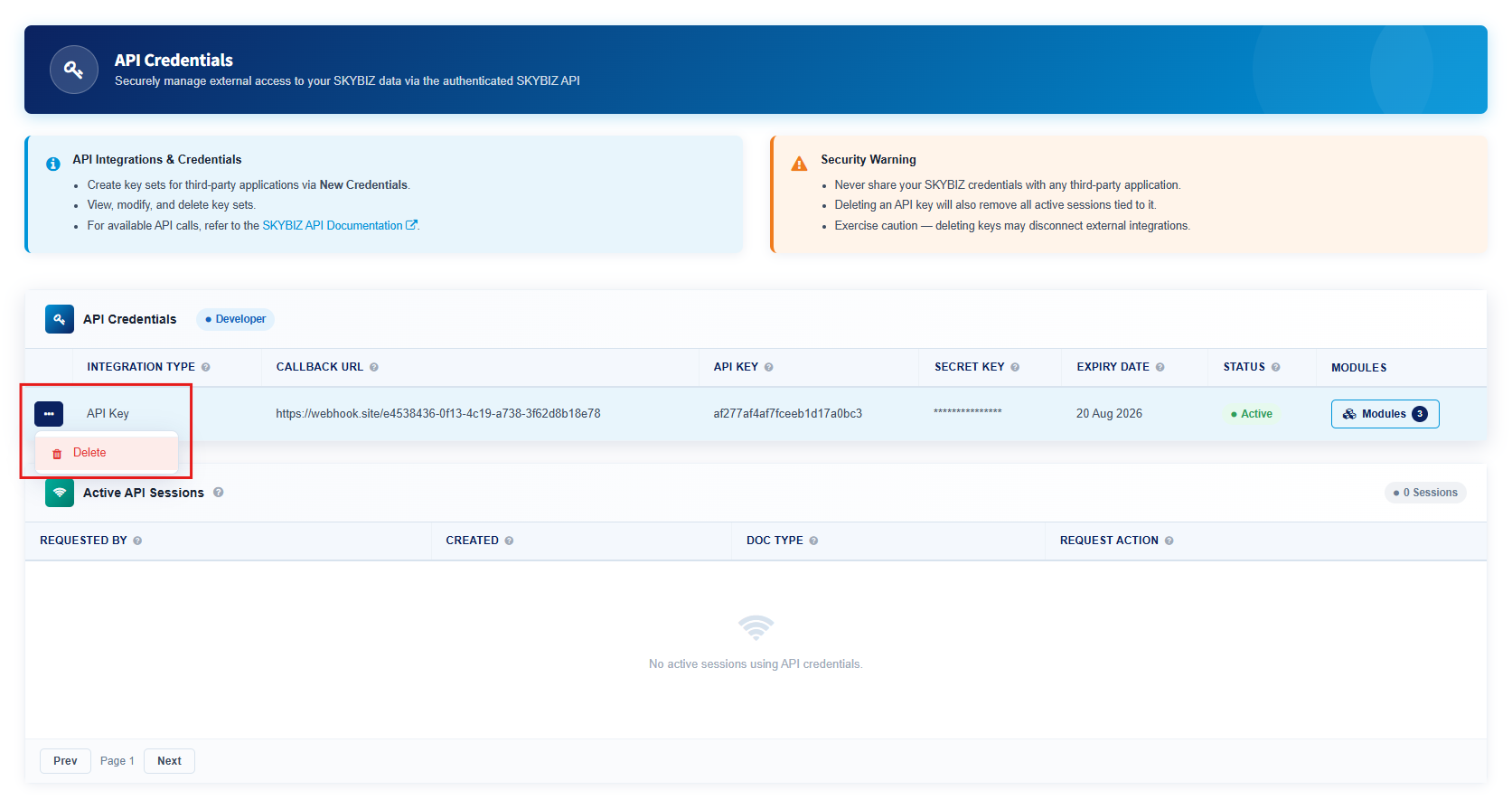
To delete an API you can navigate to API Credentials Section > triple dot button > and click delete. It will delete your API Key and you are required to create new API Credentials Set to make any API Request.
Step 3 — View Module Permissions
- Navigate to your newly added API Credentials set.
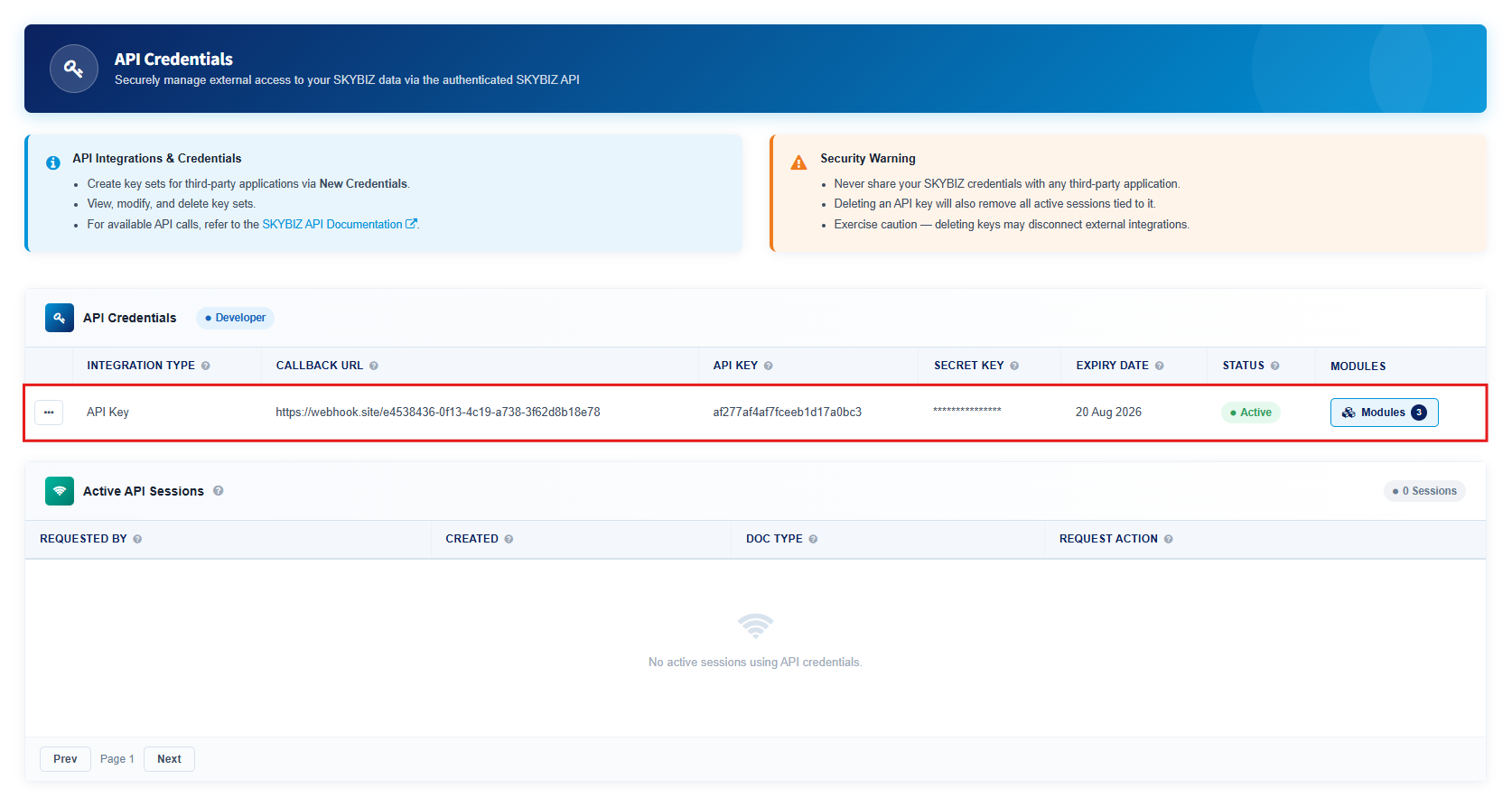
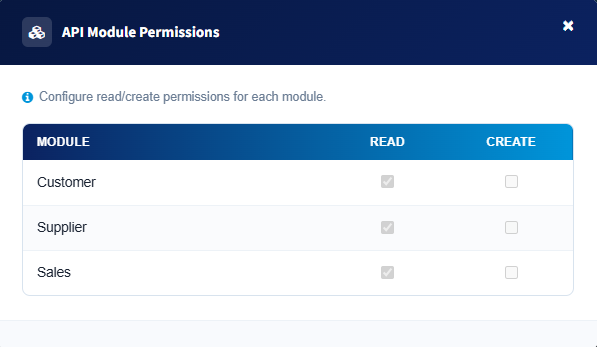
2. Click the Modules Button at the right of the API Credentials set.
3. The modal popup for Allowed Modules Permission for your store will be displayed. You can only make an API Request based on the modules allowed. Contact your SKYBIZ Administrator for any changes.
Available Modules
Each module maps to a PHP endpoint. You can only call modules that your credentials have permission for.
| Module | Endpoint | Actions |
|---|---|---|
| Customer | customer.php |
Read, Create |
| Supplier | supplier.php |
Read, Create |
| Item | item.php |
Read |
| Sales | sales.php |
Read, Create |
| Purchase | purchase.php |
Read, Create |
| Sales Order | sales_order.php |
Read, Create |
| Collection | collection.php |
Read, Create |
| Stock Valuation | stock_valuation.php |
Read |
| Price Matrix | price_matrix.php |
Read |
Audit Logs
Every API request is automatically logged. You can view the audit trail in the SKYBIZ Portal under API Credentials → Active API Sessions.
Each log entry includes:
- Requested By — The API key used
- Date & Time — When the request was made
- Doc Type — Type of Request and Module accessed (e.g., GET Customer, CREATE Sales)
- Request Action — Field or Response
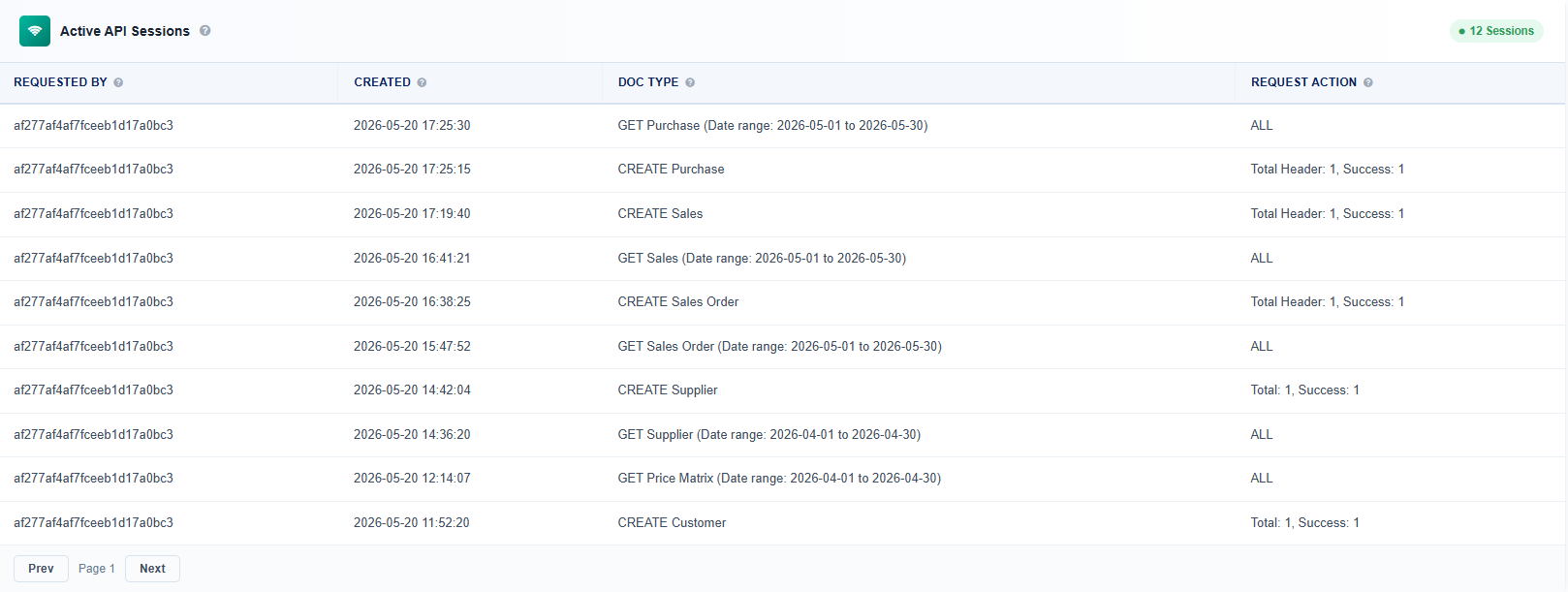
🔍 Audit logs help you monitor API usage and troubleshoot issues. Check the Active API Sessions section regularly.
Common Errors (All Modules)
| Error Message | Cause | Fix |
|---|---|---|
"Invalid API credentials" |
Wrong or expired API key/secret | Check your credentials or generate new ones |
"API key expired on YYYY-MM-DD" |
The 3-month key validity has passed | Delete the expired key and create a new set |
"HTTPS is required for Production mode" |
Calling Production mode over HTTP | Change your request URL to use HTTPS |
"API integration is disabled for this account" |
Mode is set to Disabled | Ask your administrator to enable API Integration |
"Rate limit exceeded" |
Too many requests in a short time | Wait and retry with a backoff delay |
📖 This overview covers the essentials to get you started. For complete module-specific documentation, see the individual module pages: