Introduction to SKYBIZ Two Factor Authentication
Two-Factor Authentication (2FA) is an essential cybersecurity measure that adds a vital layer of defense to the user login process, moving far beyond the vulnerabilities of standard passwords alone. It operates on the core principle of verifying identity through two distinct categories of credentials: something the user knows (such as a password) and something the user possesses (such as a physical smartphone, a hardware token, or a biometrics scan). By requiring this secondary verification step, 2FA ensures that even if a malicious actor manages to compromise, guess, or phish an employee’s password, they are still blocked from accessing the account because they lack the physical second factor. Implementing 2FA across corporate systems is one of the most effective strategies for preventing data breaches, protecting sensitive database records, and securing internal web applications from unauthorized access.
From an administrative and system integration perspective, 2FA is no longer just an optional feature; it is a foundational component of modern data compliance and identity management. Whether deployed via time-based one-time passwords (TOTP) generated on mobile authenticator apps, secure push notifications, or hardware keys, the system must seamlessly validate these secondary tokens in real time before granting session access. Integrating 2FA into internal platforms dramatically reduces the risk of credential stuffing and automated brute-force attacks, thereby safeguarding business assets and maintaining the integrity of customer data. For technical teams and administrators, enforcing a company-wide 2FA policy creates a highly resilient security posture that builds user trust and aligns the organization with international data protection standards and rigorous security audits.
How to set up 2FA on your account?
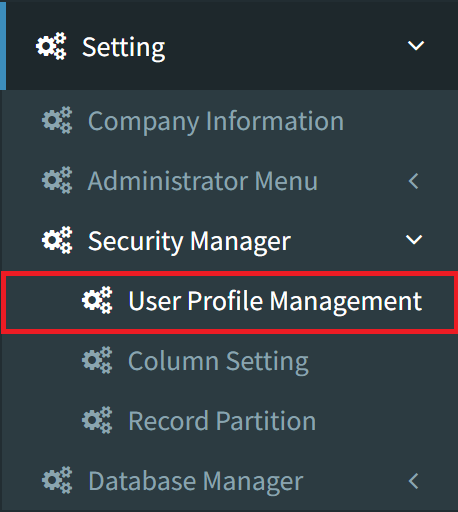
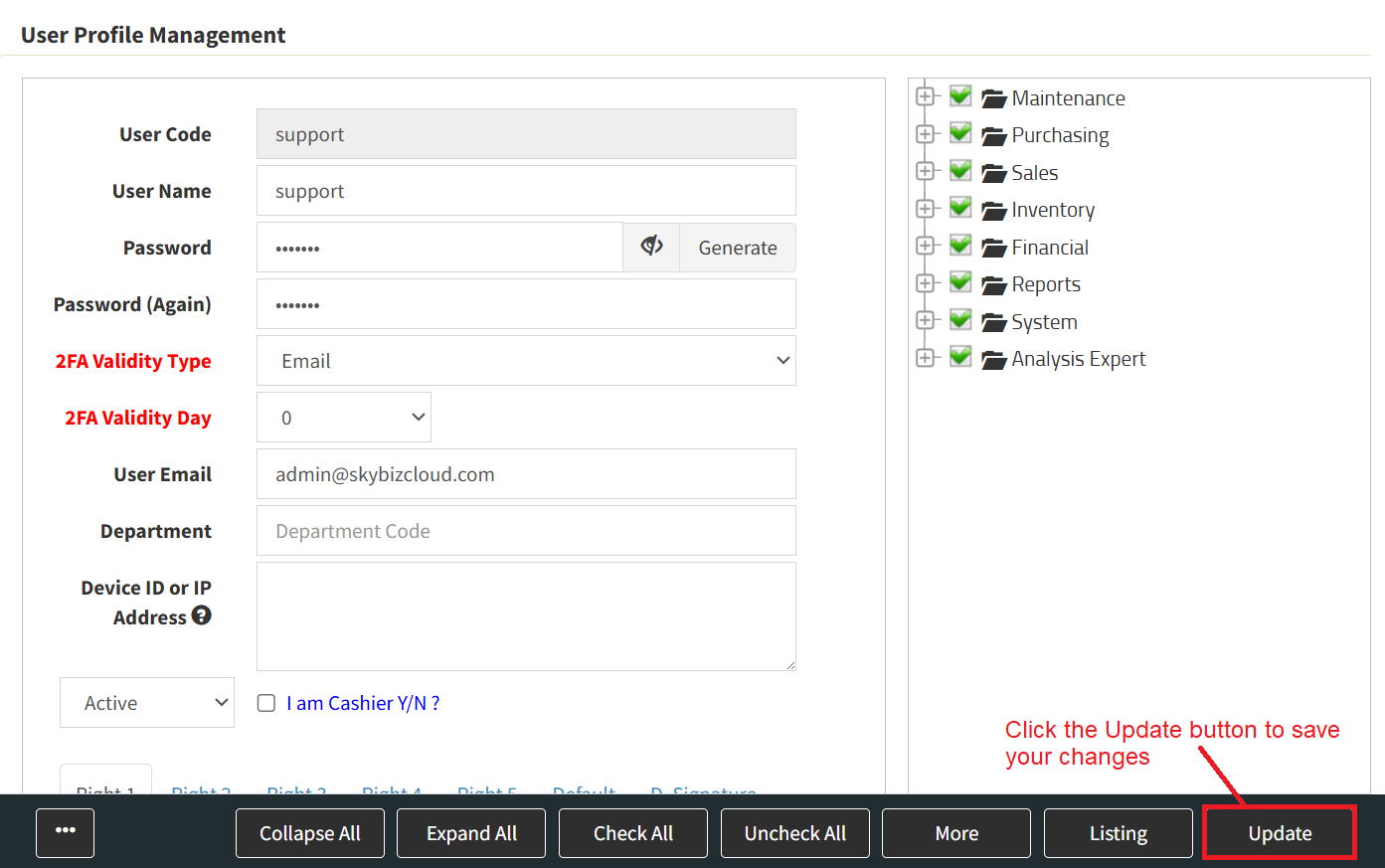
Step 1: To set up 2FA on your account, navigate to the Settings menu, go to Security Manager, and select the User Profile Management option.
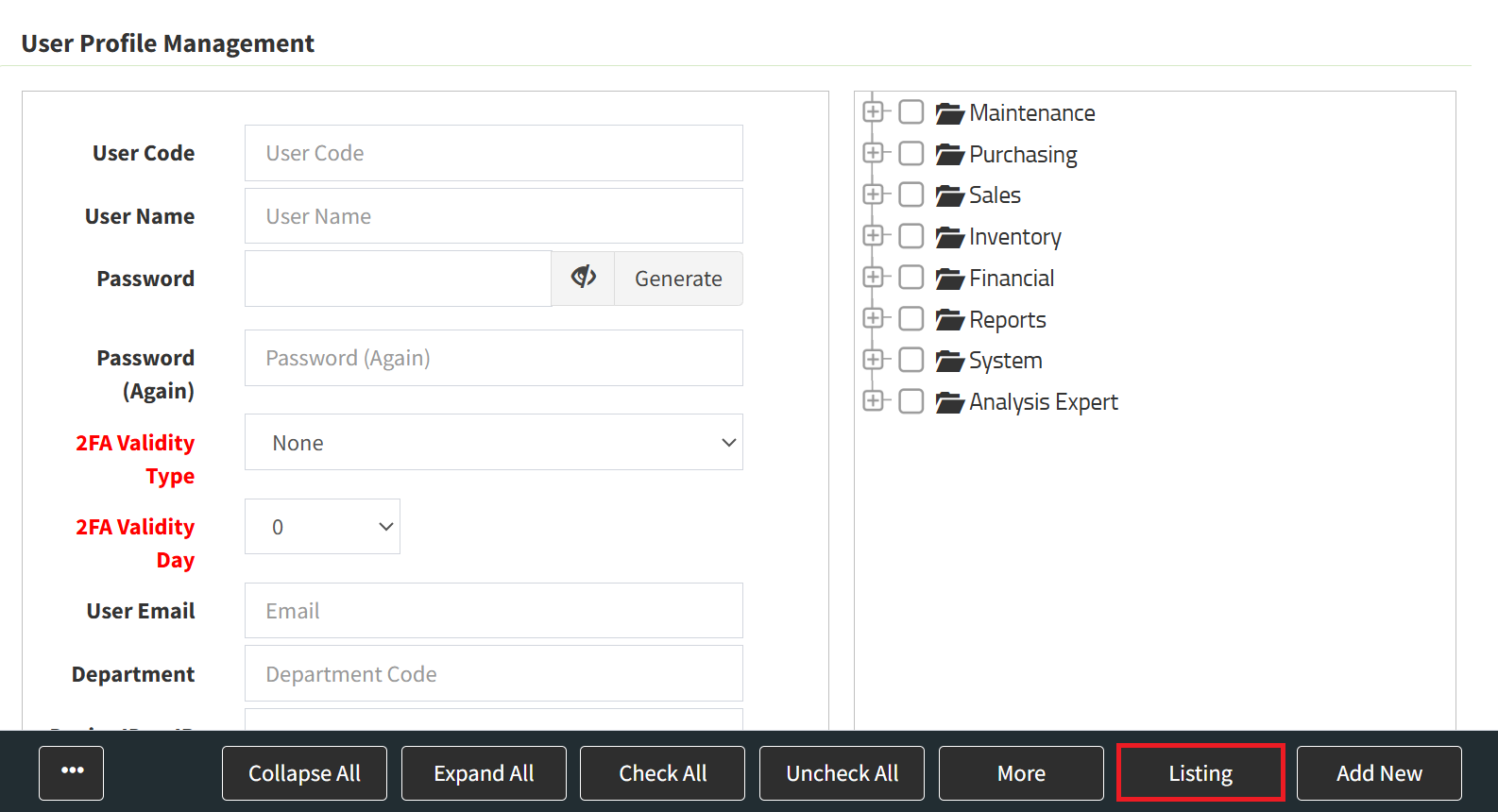
Step 2: Click the Listing button at the bottom-right corner of the page to view all users.
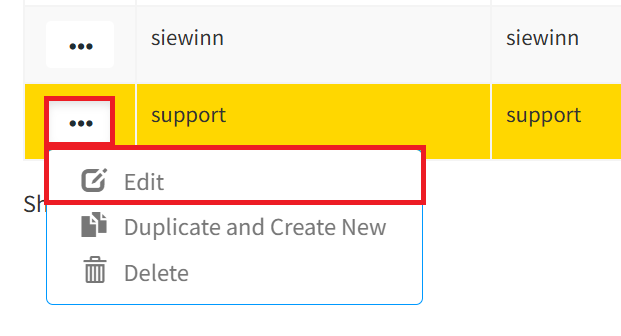
Step 3: Click the 3-Dots icon, then click Edit to modify your account details.
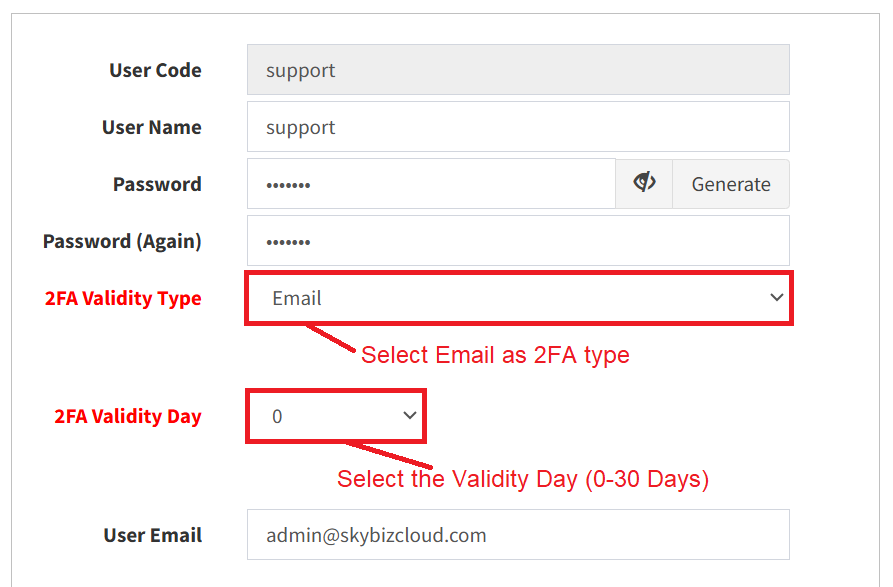
Step 4: Select Email as the 2FA validity type, then enter your preferred number of 2FA Validity Days.
-
Setting this to 0 means the system will prompt you for a verification code sent to your email every time you log in.
-
Setting this to 1 means the system will request the email code once per day.
-
Setting this to 30 means the system will request the email code once every 30 days, and so on.
Step 5: Once you have reviewed the details, click the Update button in the bottom-right corner to save your changes.
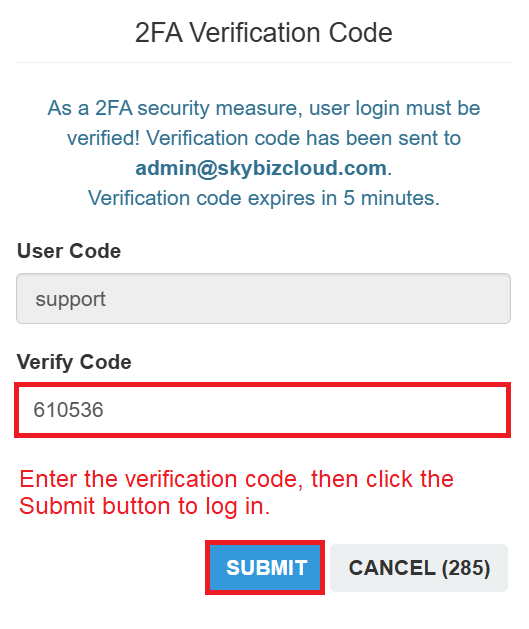
Step 6: Sign out of your account, then log in again. Enter the verification code sent to your email and click the Submit button to complete the login process.
Conclusion
In conclusion, Two-Factor Authentication is a critical security gatekeeper that transforms user authentication from a single point of failure into a robust, multi-layered defense mechanism. Relying solely on passwords in today’s digital landscape leaves internal infrastructure exposed to escalating cyber threats, making a secondary verification protocol indispensable. By embedding 2FA directly into the workflow of internal systems, organizations can proactively secure confidential data, mitigate the impact of human error, and ensure absolute accountability for every login attempt. Ultimately, while 2FA adds a brief, minor step to the user experience, the protection it offers in preventing catastrophic data exposure makes it a non-negotiable standard for any secure web platform.
Powered By: SKYBIZ ®